Skip to content

TechDirectArchive

Hands-on IT, Cloud, Security & DevOps Insights

  • Home
  • About
  • Advertise With US
  • Contact
  • Reviews
  • Toggle search form
Home » Windows Server » Workaround and Permanent fix for this snap-in performed a non-valid operation and has been unloaded: To continue using this snap-in restart MMC or try loading the snap-in again
  • Error during connect in the default daemon configuration on Windows
    Preparation failed: The docker client must be run with elevated privileges Version Control System
  • VMware Tools
    How to upgrade VMware Tools in vSphere Virtualization
  • Expired Evaluation Configuration Manager to Full Version
    Upgrade Expired Evaluation Configuration Manager to Full Version Windows Server
  • drivelock 1280x720 1
    The server could not be reached or validated: Timeout expired. The Time out expired prior to obtaining a connection from the pool Security | Vulnerability Scans and Assessment
  • Screenshot 2020 06 22 at 22.46.00
    How to use a dedicated MsSQL Db for Pleasant Password Oracle/MSSQL/MySQL
  • WinReg
    Unable to import Windows Reg File: The specified file is not a registry script Scripts
  • Fix error Microsoft Outlook cannot sign or encrypt this message when sending email.
    How to fix error “Microsoft Outlook cannot sign or encrypt this message” when sending email? Network | Monitoring
  • Header picture 1
    Find BIOS Serial Number and System Information on Windows 11 Windows

Workaround and Permanent fix for this snap-in performed a non-valid operation and has been unloaded: To continue using this snap-in restart MMC or try loading the snap-in again

Posted on 29/09/202228/08/2023 Christian By Christian No Comments on Workaround and Permanent fix for this snap-in performed a non-valid operation and has been unloaded: To continue using this snap-in restart MMC or try loading the snap-in again
MMC snap-in error

The Windows Assessment and Deployment Kit (Windows ADK) and Windows PE add-on have the tools you need to customize Windows images for large-scale deployment, and to test the quality and performance of your system, its added components, and the applications running on it. Here are some interesting guides on how to set up and install the WDS role, how to configure Windows Deployment Services on Windows Server 2019, and how to configure DHCP Server option 60, 66, and 67 for Windows Deployment Services. and how to configure Windows Deployment Services on Windows Server 2019.

Windows 11 WinPE does not include the 32-bit Windows PE version any longer. Here is a guide on how to correctly upgrade Windows Assessment and Deployment Kit, Windows Preparation Environment, and Microsoft Deployment Toolkit.

The 32-bit versions of Windows PE are no longer included in the Windows PE add-ons starting with the ADK for Windows 11, version 22H2. The last supported version of 32-bit Windows PE is available in the Windows PE add-on for Windows 10, version 2004. Also, for the complete installation steps of WinPE, please see the following guide: Install ADK, MDT, and WDS: How to deploy Windows images via Microsoft Deployment Toolkit and Windows Deployment Services,

Snap-In Non-Valid Operation Fix and Workaround

The following error message was displayed when I had to update a deployment share for Win11. “This snap-in performed a non-valid operation and has been unloaded: To continue using this snap-in restart MMC or try loading the snap-in again“.

Non-valid operation issue
Restart MMC workaround
Snap-in loading problem

If you examine the provided images closely, you’ll notice a clue regarding the Snap-In Non-Valid Operation Fix and Workaround that addresses this error. Once you click OK, the subsequent window will appear, allowing the MDT console to become functional. A restart is necessary to implement the solution.

MMC snap-in error

Reason for the error

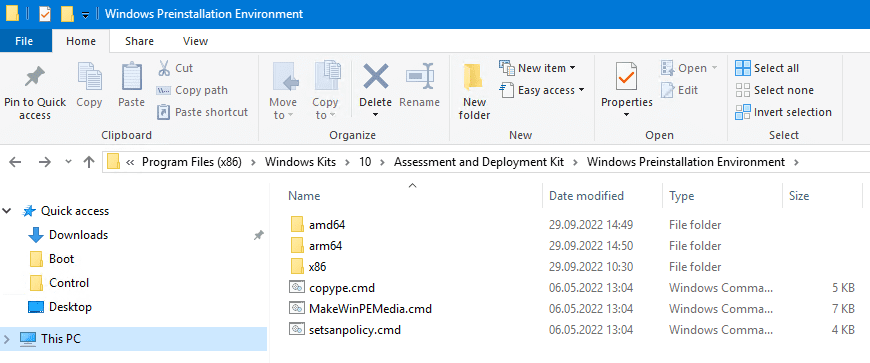
The installation of Windows WinPE was completed with a missing directory for x86 as you can see below. As you continue to read further, I will show you how this issue was temporarily, and permanently resolved.

Non-valid operation issue

Workaround: Copy the x86 folder from an existing MDT Server

To temporarily resolve this issue, I had to copy the x86 folder from a different deployment server. Afterward, I was able to update my deployment shares without issues.

Restart MMC workaround

Permanent Fix

I re-initiated the entire process of installing WinPE and Windows ADK again, following the steps in this order. First, I uninstalled ADK and WinPE, and then I had the server restarted. This Snap-In Non-Valid Operation Fix and Workaround successfully resolved the issue.

After uninstalling WinPE and Windows ADK, it is always recommended to have your server restarted. This is because restarting your device puts it in its default state and runs everything from scratch. This way, your PC gets rid of the trash and delivers better performance after the restart. This restart process resolves issues like RAM leakage, overheating, and incomplete updates/installations.

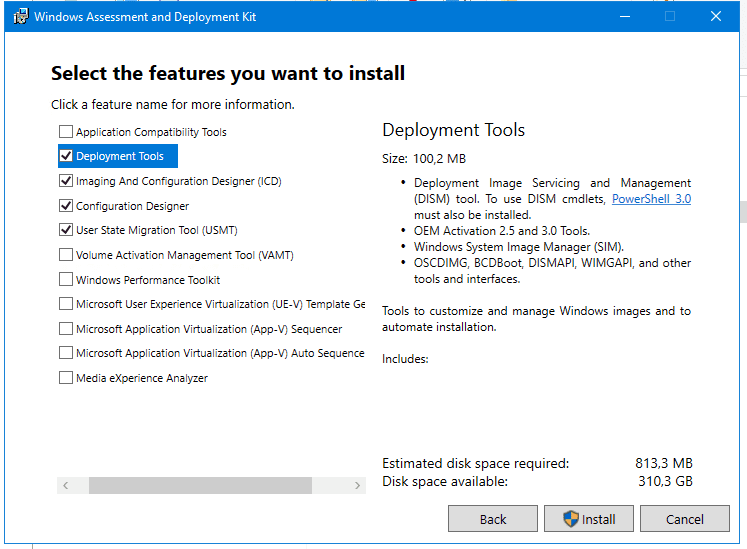
As you can see below, this is the installation of the Windows Preparation Environment (WinPE) again after the uninstallation.
ADK-install
InstallingADk
ADKinstalled

During the process illustrated below, I am implementing the Snap-In Non-Valid Operation Fix and Workaround while re-installing the Windows Assessment and Deployment Toolkit (Windows ADK).

WinPEDownloadandinstall
WinPEinstallComplete

As you can see from the image below, the Snap-In Non-Valid Operation Fix and Workaround was included by default after the installation of WinPE.
Noerrors

Note: Also ensure you use the latest Microsoft Deployment Toolkit (MDT). Deploying Windows 11 with MDT is relatively easy. This can be downloaded from the following link.

As you can see, the Microsoft Deployment Toolkit is running as desired, providing a successful Snap-In Non-Valid Operation Fix and Workaround. I was now able to update the Deployment share without issues.

UpdateDeploymentsharewithoutissues

I hope you found this blog post about the Snap-In Non-Valid Operation Fix and Workaround helpful. Please let me know in the comment section if you have any questions.

Rate this post

Thank you for reading this post. Kindly share it with others.

  • Click to share on X (Opens in new window) X
  • Click to share on Reddit (Opens in new window) Reddit
  • Click to share on LinkedIn (Opens in new window) LinkedIn
  • Click to share on Facebook (Opens in new window) Facebook
  • Click to share on Pinterest (Opens in new window) Pinterest
  • Click to share on Tumblr (Opens in new window) Tumblr
  • Click to share on Telegram (Opens in new window) Telegram
  • Click to share on WhatsApp (Opens in new window) WhatsApp
  • Click to share on Pocket (Opens in new window) Pocket
  • Click to share on Mastodon (Opens in new window) Mastodon
  • Click to share on Bluesky (Opens in new window) Bluesky
  • Click to share on Threads (Opens in new window) Threads
  • Click to share on Nextdoor (Opens in new window) Nextdoor
Windows Server Tags:deployment, Microsoft Deployment Tool kit, Microsoft Deployment Toolkit (MDT), Windows 10, Windows 11, Windows ADK, Windows Deployment Services, Windows Preinstallation Environment, Windows Server 2016

Post navigation

Previous Post: Deploy Code from GitHub to Azure Apps Services via the Command line
Next Post: How to uninstall and upgrade ADK, WinPE, and MDT

Related Posts

  • How to Disable device encryption
    How to Disable device encryption on Windows Windows
  • windows admin center banner 825x400 1
    Fix failed to create new Scheduled Task RemoteException Windows Server
  • create a Mapped Drive via GPO
    How to create a Mapped Drive via GPO Preferences Windows
  • fdsdsd
    Configuring DHCP Scope: Post-deployment of Dynamic Host Configuration Protocol Windows Server
  • https   blogs images.forbes.com jasonevangelho files 2018 06 windows 7 2018 edition 1200x676 1
    Windows deployment cannot continue, the operating system is missing via MDT deployment Windows Server
  • remote desktop version and protocol
    Determine the Remote Desktop Client Version Windows

More Related Articles

How to Disable device encryption How to Disable device encryption on Windows Windows
windows admin center banner 825x400 1 Fix failed to create new Scheduled Task RemoteException Windows Server
create a Mapped Drive via GPO How to create a Mapped Drive via GPO Preferences Windows
fdsdsd Configuring DHCP Scope: Post-deployment of Dynamic Host Configuration Protocol Windows Server
https   blogs images.forbes.com jasonevangelho files 2018 06 windows 7 2018 edition 1200x676 1 Windows deployment cannot continue, the operating system is missing via MDT deployment Windows Server
remote desktop version and protocol Determine the Remote Desktop Client Version Windows

Leave a Reply Cancel reply

You must be logged in to post a comment.

Microsoft MVP

VEEAMLEGEND

vexpert-badge-stars-5

Virtual Background

GoogleNews

Categories

veeaam100

sysadmin top30a

  • Error during connect in the default daemon configuration on Windows
    Preparation failed: The docker client must be run with elevated privileges Version Control System
  • VMware Tools
    How to upgrade VMware Tools in vSphere Virtualization
  • Expired Evaluation Configuration Manager to Full Version
    Upgrade Expired Evaluation Configuration Manager to Full Version Windows Server
  • drivelock 1280x720 1
    The server could not be reached or validated: Timeout expired. The Time out expired prior to obtaining a connection from the pool Security | Vulnerability Scans and Assessment
  • Screenshot 2020 06 22 at 22.46.00
    How to use a dedicated MsSQL Db for Pleasant Password Oracle/MSSQL/MySQL
  • WinReg
    Unable to import Windows Reg File: The specified file is not a registry script Scripts
  • Fix error Microsoft Outlook cannot sign or encrypt this message when sending email.
    How to fix error “Microsoft Outlook cannot sign or encrypt this message” when sending email? Network | Monitoring
  • Header picture 1
    Find BIOS Serial Number and System Information on Windows 11 Windows

Subscribe to Blog via Email

Enter your email address to subscribe to this blog and receive notifications of new posts by email.

Join 1,839 other subscribers
  • RSS - Posts
  • RSS - Comments
  • About
  • Authors
  • Write for us
  • Advertise with us
  • General Terms and Conditions
  • Privacy policy
  • Feedly
  • Telegram
  • Youtube
  • Facebook
  • Instagram
  • LinkedIn
  • Tumblr
  • Pinterest
  • Twitter
  • mastodon

Tags

AWS Azure Bitlocker Microsoft Windows PowerShell WDS Windows 10 Windows 11 Windows Deployment Services Windows Server 2016

Copyright © 2025 TechDirectArchive


Loading Comments...
 

You must be logged in to post a comment.