Skip to content

TechDirectArchive

Hands-on IT, Cloud, Security & DevOps Insights

  • Home
  • About
  • Advertise With US
  • Reviews
  • Contact
  • Toggle search form
Home » Windows » How to disable Windows Hardware Power Button
  • Slide2 1
    How to deploy WordPress on Azure App Service AWS/Azure/OpenShift
  • dns
    How to setup a cache-only DNS server Linux
  • updates
    Out-of-Band Security Update for PrintNightmare: Patch released for Windows Print Spooler Remote Code Execution Vulnerability Security | Vulnerability Scans and Assessment
  • Blog inside@2x
    How to block automatic delivery of Microsoft Edge Chromium-based Windows
  • Screenshot 2022 03 29 at 19.47.05
    CVE-2022-22948: Patch available to address vCenter Server information disclosure vulnerability  Security | Vulnerability Scans and Assessment
  • MM
    How to install Mattermost on Ubuntu and Debian Linux
  • SysInternals
    Use Active Directory Explorer from Sysinternals Windows
  • Feature image Audio settings
    Master Your Sound Experience: How to Manage Audio Settings on Windows 11 Windows

How to disable Windows Hardware Power Button

Posted on 18/01/202009/10/2024 Christian By Christian No Comments on How to disable Windows Hardware Power Button
disable

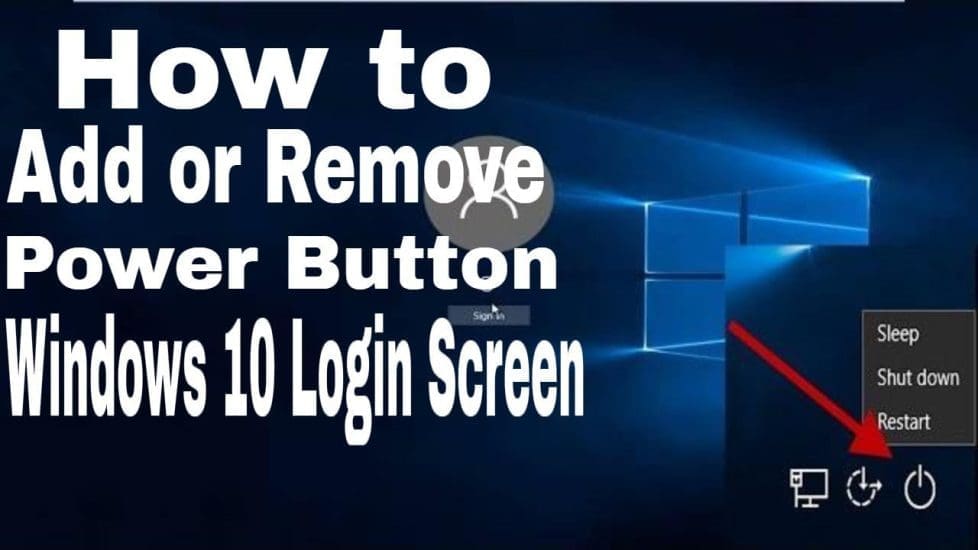
Power Options is a setting in the Windows Control Panel, under the Hardware and Sound category. It allows the user to adjust their power plan and power settings on their computer. With this method, users are unable to turn off the device when using Assigned Access or Shell Launcher, etc. This applies to physical devices only and below are the steps to achieve this. Please refer to the following guides for related articles. Pre-requisites for setting up a Single and Multi App Kiosk, and how to disable the sleep mode in Windows 10 to never turn off the display.

Also, see how to disable power plan in Windows via GPO and Windows Settings, and “Windows 11 Hardware and Software Requirements: Upgrade to Windows 11. Here is how to prevent users from shutting down in a Virtual Machine.

How to disable Windows Hardware Power Button

Access the Power Options via Control Panel, Hardware and Sound, Power option and edit Plan Settings as shown below.

Choose what the power button does, and change the setting to Do nothing. Lastly, “save changes“..

I hope you found this blog post on How to disable Windows Hardware Power Button helpful. Please let me know in the comment session if you have any questions.
5/5 - (1 vote)

Thank you for reading this post. Kindly share it with others.

  • Click to share on X (Opens in new window) X
  • Click to share on Reddit (Opens in new window) Reddit
  • Click to share on LinkedIn (Opens in new window) LinkedIn
  • Click to share on Facebook (Opens in new window) Facebook
  • Click to share on Pinterest (Opens in new window) Pinterest
  • Click to share on Tumblr (Opens in new window) Tumblr
  • Click to share on Telegram (Opens in new window) Telegram
  • Click to share on WhatsApp (Opens in new window) WhatsApp
  • Click to share on Pocket (Opens in new window) Pocket
  • Click to share on Mastodon (Opens in new window) Mastodon
  • Click to share on Bluesky (Opens in new window) Bluesky
  • Click to share on Threads (Opens in new window) Threads
  • Click to share on Nextdoor (Opens in new window) Nextdoor
Windows Tags:Windows 10, Windows 11

Post navigation

Previous Post: Disable the Windows welcome screen and shutdown screen
Next Post: Generation 2 VM: Set up a HyperV VM through PXE boot

Related Posts

  • ycx
    Install SysInternals from the Microsoft Store Windows
  • windows 10 s splash 100720578 large
    Open the location of a Program: How to search in Windows 10 to find a file, folder, or program in File Explorer Windows
  • What Happens if You Turn Off Your Computer During windows update
    What Happens if You Turn Off Your Computer During an Update Windows
  • lang2
    How to add languages to your Windows PC Windows
  • Slide1
    Desktop Wallpaper and Screen Saver Management: Configure and apply Group Policy Objects on Windows Server Windows
  • RDP
    The connection was denied because the user is not authorized for remote Login: Enable Remote Desktop Connection on Windows 11 for non-administrators or selected users Windows

More Related Articles

ycx Install SysInternals from the Microsoft Store Windows
windows 10 s splash 100720578 large Open the location of a Program: How to search in Windows 10 to find a file, folder, or program in File Explorer Windows
What Happens if You Turn Off Your Computer During windows update What Happens if You Turn Off Your Computer During an Update Windows
lang2 How to add languages to your Windows PC Windows
Slide1 Desktop Wallpaper and Screen Saver Management: Configure and apply Group Policy Objects on Windows Server Windows
RDP The connection was denied because the user is not authorized for remote Login: Enable Remote Desktop Connection on Windows 11 for non-administrators or selected users Windows

Leave a Reply Cancel reply

You must be logged in to post a comment.

Microsoft MVP

VEEAMLEGEND

vexpert-badge-stars-5

Virtual Background

GoogleNews

Categories

veeaam100

sysadmin top30a
 
  • Slide2 1
    How to deploy WordPress on Azure App Service AWS/Azure/OpenShift
  • dns
    How to setup a cache-only DNS server Linux
  • updates
    Out-of-Band Security Update for PrintNightmare: Patch released for Windows Print Spooler Remote Code Execution Vulnerability Security | Vulnerability Scans and Assessment
  • Blog inside@2x
    How to block automatic delivery of Microsoft Edge Chromium-based Windows
  • Screenshot 2022 03 29 at 19.47.05
    CVE-2022-22948: Patch available to address vCenter Server information disclosure vulnerability  Security | Vulnerability Scans and Assessment
  • MM
    How to install Mattermost on Ubuntu and Debian Linux
  • SysInternals
    Use Active Directory Explorer from Sysinternals Windows
  • Feature image Audio settings
    Master Your Sound Experience: How to Manage Audio Settings on Windows 11 Windows

Subscribe to Blog via Email

Enter your email address to subscribe to this blog and receive notifications of new posts by email.

Join 1,841 other subscribers
  • RSS - Posts
  • RSS - Comments
  • About
  • Authors
  • Write for us
  • Advertise with us
  • General Terms and Conditions
  • Privacy policy
  • Feedly
  • Telegram
  • Youtube
  • Facebook
  • Instagram
  • LinkedIn
  • Tumblr
  • Pinterest
  • Twitter
  • mastodon

Tags

AWS Azure Bitlocker Microsoft Windows PowerShell WDS Windows 10 Windows 11 Windows Deployment Services Windows Server 2016

Copyright © 2025 TechDirectArchive


Loading Comments...
 

You must be logged in to post a comment.