Skip to content

TechDirectArchive

Hands-on IT, Cloud, Security & DevOps Insights

  • Home
  • About
  • Advertise With US
  • Reviews
  • Contact
  • Toggle search form
Home » Windows » How to fix The Group Policy settings for BitLocker startup options are in conflict and cannot be applied

How to fix The Group Policy settings for BitLocker startup options are in conflict and cannot be applied

Posted on 18/05/202208/12/2023 Matthew By Matthew No Comments on How to fix The Group Policy settings for BitLocker startup options are in conflict and cannot be applied
Featured-post.-1

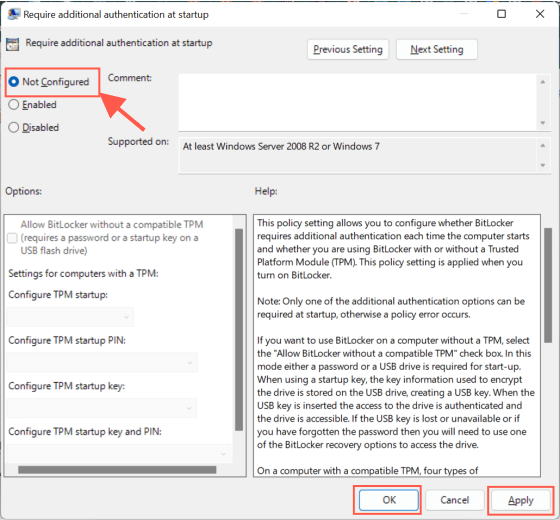
I recently encountered the error message “The Group Policy settings for BitLocker startup options are in conflict and cannot be applied. Contact your system administrator for more information” during a BitLocker Encryption setup. The issue occurred while attempting to turn on BitLocker encryption through the Control Panel. The group policy setting for BitLocker may cause this error when enabling BitLocker Encryption. To fix it, open the policy and set “Require additional authentication at startup” to “Not Configure.” Please see this guide on how to deploy Microsoft BitLocker Administration and Monitoring Tool

Some Context on BitLocker Encryption with TPM (Trusted Platform Module)

BitLocker Drive Encryption is a data security tool that integrates with the operating system and solves the risks of data theft or disclosure from lost, stolen or improperly discontinued machines.

The TPM is a hardware component that computer makers include in many newer computers. It integrates with BitLocker to help safeguard user data and confirm that a computer has not been tampered with when the system was turned off.

In addition to the TPM, BitLocker provides the option of locking the normal startup process until the user enters a personal identification number (PIN) or inserts an external device, such as a USB flash drive, that carries a startup key.

These extra security features enable multifactor authentication and assurance that the machine will not start or restart from hibernation unless the right PIN or startup key is supplied. If you are having an issue integrating BitLocker with TPM, see how to fix your device cannot use a Trusted Platform Module: Allow BitLocker without a compatible TPM

Learn more about BitLocker encryption: Microsoft Bitlocker Administration and Management: Effect of renaming an MBAM or BitLocker protected Computer, BitLocker System Partition: Detailed steps to troubleshoot and fix System Partition not available or large enough [Part 2],

So, lets see how to solve this problem by changing the BitLocker configuration settings from the Group policy editor.

How to Set Require Additional Authentication at Startup to “Not Configured“

Open the group policy editor by clicking Start or press the Windows key then enter ‘group policy’. Click the ‘Edit group policy’ or press open:

BitLocker encryption

Under “Computer Configuration” follow on the path below.

Administrative Templates > Windows Components > BitLocker Drive Encryption > Operating System Drives” 
  • Double click: “Require additional authentication at startup”
Group Policy conflict

Change the following:

  • Under Require additional authentication at startup window select “Not Configured”
  • Click “Apply” and “OK”
BitLocker security

For your changes to take effect, open the command prompt as administrator and execute the following: gpupdate and wait till the computer and group policy update is successfully applied. Or simply restart your system.

Group Policy management

Click Start or press the Windows key and search for ‘BitLocker’. Click the ‘Manage BitLocker’ or press open.

BitLocker encryption

Now continue with the BitLocker Encryption by following this detailed guide on how to enable BitLocker on Windows 10 and virtual machine.

How to Enable Authentication PIN at Windows Startup

If you have successfully enabled BitLocker on your Drive. If you are required to set up an authentication PIN at Windows startup follow the steps below.

  • Open the group policy editor.
  • Navigate to “Require additional authentication at startup” as shown below.
Group Policy conflict

Change the following:

  • Under Require additional authentication at startup select “Enabled”
  • Click on the drop-down under “Configure TPM startup PIN” and select “Require startup PIN with TPM”
  • Click “Apply” and “OK”
Image7

Next, open the Command prompt as administrator then enter

gpupdate

Enter the following command to turn on the authentication PIN:

manage-bde -protectors -add C: -TPMAndPIN Replace the C: with your Drive Letter. 

You will be required to input your preferred PIN twice, then close the terminal.

Image8-1

After this, whenever you power on your system. You will be required to input the set pin to unlock your system drive before booting to Windows.

Image9-1

Please see MBAM Report Errors: Understanding Microsoft BitLocker Administration and Monitoring compliance state and error status and Encryption Algorithm: Why does MBAM not automatically re-encrypt MBAM or Bitlocker protected devices​.

I hope you found this blog post on how to fix “The Group Policy settings for BitLocker startup options are in conflict and cannot be applied” helpful. If you have any questions, please let me know in the comment session.

Rate this post

Thank you for reading this post. Kindly share it with others.

  • Share on X (Opens in new window) X
  • Share on Reddit (Opens in new window) Reddit
  • Share on LinkedIn (Opens in new window) LinkedIn
  • Share on Facebook (Opens in new window) Facebook
  • Share on Pinterest (Opens in new window) Pinterest
  • Share on Tumblr (Opens in new window) Tumblr
  • Share on Telegram (Opens in new window) Telegram
  • Share on WhatsApp (Opens in new window) WhatsApp
  • Share on Mastodon (Opens in new window) Mastodon
  • Share on Bluesky (Opens in new window) Bluesky
  • Share on Threads (Opens in new window) Threads
  • Share on Nextdoor (Opens in new window) Nextdoor
Security | Vulnerability Scans and Assessment, Windows Tags:Bitlocker, BitLocker Drive Encryption Administration Utilities, BitLocker Status, Enable BitLocker, Microsoft BitLocker Administration and Monitoring, Microsoft Windows, Windows 10, Windows 11

Post navigation

Previous Post: How to manage Microsoft Defender Antivirus using Group Policy and Command Line Utility
Next Post: Installing Windows Subsystem for Android (WSA)

Related Posts

  • Windows 11 Taskmanager
    Create Task Manager Shortcuts: How to add access, pin the Task Manager on Windows 11 Windows
  • vmware
    Windows Startup Error: VMware Status 0xc000014c – Missing Boot Data Windows
  • rrd
    How to uninstall the DriveLock Agent from your device Security | Vulnerability Scans and Assessment
  • settings app not working featured 800x400 1
    Disable or Remove Kiosk Mode Via the Local Settings Windows
  • Featured image 10
    Add a Printer Using an IP Address in Windows 11 Network | Monitoring
  • KIOSK AssignedAccess
    Windows Single or Multi App Kiosks Windows

More Related Articles

Windows 11 Taskmanager Create Task Manager Shortcuts: How to add access, pin the Task Manager on Windows 11 Windows
vmware Windows Startup Error: VMware Status 0xc000014c – Missing Boot Data Windows
rrd How to uninstall the DriveLock Agent from your device Security | Vulnerability Scans and Assessment
settings app not working featured 800x400 1 Disable or Remove Kiosk Mode Via the Local Settings Windows
Featured image 10 Add a Printer Using an IP Address in Windows 11 Network | Monitoring
KIOSK AssignedAccess Windows Single or Multi App Kiosks Windows

Leave a Reply Cancel reply

You must be logged in to post a comment.

Microsoft MVP

VEEAMLEGEND

vexpert-badge-stars-5

Virtual Background

GoogleNews

Categories

veeaam100

sysadmin top30a

  • changepsswd
    How to change your Windows Computer login Password Windows
  • UpdateOfficeOnlineServer 1
    Perform Office Online Server Update via Windows Updates Windows Server
  • queryremoteinstalledapps
    Get a list of installed programs locally or remotely in Windows Windows
  • microsoft warns windows 10 cumulative update kb4494441 breaks down some websites 526066 2
    Launch an application automatically during startup on Windows Windows
  • Create your own Network on AWS from Scratch
    VPC, Subnet, NACL, Security Group: Create your own Network on AWS from Scratch [Part 2] AWS/Azure/OpenShift
  • Download and apply Windows ADK Patch
    How to download and install the Windows ADK Patches Windows
  • How to upgrade Trellix ePolicy Orchestrator
    How to upgrade Trellix ePolicy Orchestrator Security | Vulnerability Scans and Assessment
  • screenshot 2020 03 14 at 22.47.56
    How to block apps from running in Windows Windows

Subscribe to Blog via Email

Enter your email address to subscribe to this blog and receive notifications of new posts by email.

Join 1,825 other subscribers
  • RSS - Posts
  • RSS - Comments
  • About
  • Authors
  • Write for us
  • Advertise with us
  • General Terms and Conditions
  • Privacy policy
  • Feedly
  • Telegram
  • Youtube
  • Facebook
  • Instagram
  • LinkedIn
  • Tumblr
  • Pinterest
  • Twitter
  • mastodon

Tags

AWS Azure Bitlocker Microsoft Windows PowerShell WDS Windows 10 Windows 11 Windows Deployment Services Windows Server 2016

Copyright © 2025 TechDirectArchive


Loading Comments...
 

You must be logged in to post a comment.