How to Run a Program in Windows as the Local System Account

The LocalSystem account is a service control manager-defined local account. Because the security subsystem does not recognize this account, you cannot specify its name in a LookupAccountName call. It has extensive privileges on the local computer and serves as the network computer. In this article, you will learn how to Run a Program in Windows as the Local System Account. Please see How to forcefully Remove Language Pack on Windows 10 and Windows 11, and How to convert a PEM Key to a PPK Key on a Linux VM in AWS or on Windows 10 and 11 in Azure Platform.
The SYSTEM (a.k.a. LocalSystem) account, which has a high privilege level, owns many Windows system files, registry keys, and services. There are at least two ways to modify a registry key owned by the SYSTEM account. When accessing resources not located on the computer, the local Windows system account is also the computer account.
Most resources that do not reside on the computer itself, such as remote shares, do not have security access rights granted to computer accounts. Local system account “user” profiles are different from regular “user” profiles. Consider variables such as the environment.
How to Use the Local System Account
Before you begin testing an SCCM service account, make sure you’re using the local system account, also known as the computer account or NT authority\system, NT Authority\system is a predefined local account used by the service control manager. It is also an account with the highest privileges on the local computer.
Once you’ve determined that you’re using the local system account, you can usually troubleshoot an error by simulating how SCCM would access those resources.
You can also learn about the merits and demerits of Local System Account and Service Logon Account, Create Disk Cleanup Shortcut: How to Perform Disk Clean-up in Windows, Microsoft Management Console: How to fix Windows Task Scheduler Service Greyed Out in Services MMC.
Run a Program in Windows as the Local System Account (SYSTEM)
To run a program under the SYSTEM account, follow along with me in the following method:
Method 1 – Using PsExec.exe from Windows Sysinternals
To run a program in the SYSTEM context, use Microsoft’s Windows Sysinternals PsExec.exe console tool. Follow these steps:
Step 1 – Click to download PsExec from Microsoft Sysinternals.

Step 2 – Unzip and extract the tool to your desired folder — e.g., C:\User\Desktop

Step 3 – Open Command Prompt window with admin privileges.

Step 4 – Type the following command, and press ENTER in the Command Prompt Window to start the Registry Editor under the SYSTEM account:
C:\Users\name\Desktop\PSTools>psexec.exe -sid c:\windows\regedit.exeIn the command above make sure you’re on the right path and also replace the <name> with your username.

Once you run the command, you will be prompted to agree to the EULA. Go ahead and accept it. The System Registry will open up immediately after agreeing to the EULA.

The PsExec command line mentioned above launches the Registry Editor under the Local System Account, enabling you to edit the registry’s protected areas. Within the Registry Editor window, access the desired registry key and modify the values as needed. Once finished, exit the Registry Editor.
Method 2 – Using Advanced Run from Nirsoft
With the help of the straightforward Windows tool, AdvancedRun, you can run programs with various options, such as low or high priority, start directory, main window state (minimized or maximized), running the program with various users or permissions, operating system compatibility settings, and environment variables.
The program can also be automatically launched from the command line with the desired settings by saving the desired settings into a configuration file and then running it under the Local System Account.
Using Advanced Run, you can also launch a program under SYSTEM or a different user context.
Step 1 – To use AdvancedRun, click here to download it. When on the download page, scroll down to the feedback section and select the version based on your OS compatibility to download the zip file. It doesn’t require any installation. Just extract the zip file and save it to a location on your PC.

Step 2 – Open the extracted folder and double-click on the AdvancedRun program

Step 3-In the “Program to Run” field, click on the 3-dotted lines on the right-hand side of the screen, choose a program to run, and choose SYSTEM user in the Run As dropdown box, and click Run.

As shown in the screenshot above, I’m running the Registry Editor Program. So, clicking on “Run” will open up the Registry Editor screen. You can choose to run other programs.

Step 4 – Alternately, you can also use the below command to run a program as a SYSTEM using AdvancedRun in an elevated command prompt:
AdvancedRun.exe /EXEFilename "C:\Windows\regedit.exe" /RunAs 4 /Run

/RunAs 4 instructs to start the program under the LocalSystem account. The possible  data values for the /RunAs switch are as follows:

1 – Run as current user (elevate)
2 – Run as current user (no elevation)
3 – Run as Administrator (force elevation)
4 – Run as SYSTEM
8 – Run as TrustedInstaller
Method 3 – Using Process Hacker
Process Hacker, an outstanding process manager comparable to Sysinternals Process Explorer, supports a unique feature allowing program initiation under the same user account as a running process or service.
In such scenarios, you can run a program under the Local System Account. To use Process Hacker to run a task, do the following:
Step 1 – Download and install the Process Hacker Software
Step 2 – Find a program or service which is currently running under NT AUTHORITY\SYSTEM.

Step 3 – Right-click on the process, click Miscellaneous and click Run as this user

Step 4 – Choose the program (e.g., regedit.exe, or cmd.exe) you want to run as that user and click OK.
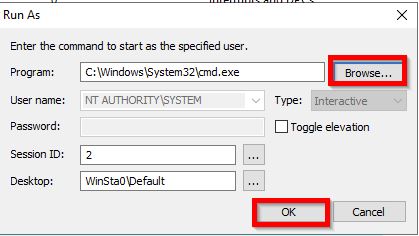
As shown above, we just ran the cmd.exe program. The program would run as SYSTEM (NT AUTHORITY\SYSTEM)
Method 4 – Using NirCmd.exe from NirSoft
There is a versatile command-line tool called NirCmd from NirSoft. To get started, follow the steps below:
Step 1 – Download NirCmd and extract it to a particular location

Step 2 – Right-click and run NirCmd as an administrator. You can also run NirCmd as a SYSTEM

A dialog box prompt will show up, click on copy to Windows Directory and then click on Yes to be able to run NirCmd without specifying the full path

Now utilize the following command line to initiate the Registry Editor elevated and within the Local System Account:
nircmd.exe elevatecmd runassystem c:\windows\regedit.exe
There are several ways to run processes under the LocalSystem Account. The above-stated methods should get you started.
I hope you found this article useful on how to Run a Program in Windows as the Local System Account. Please feel free to leave a comment below.


