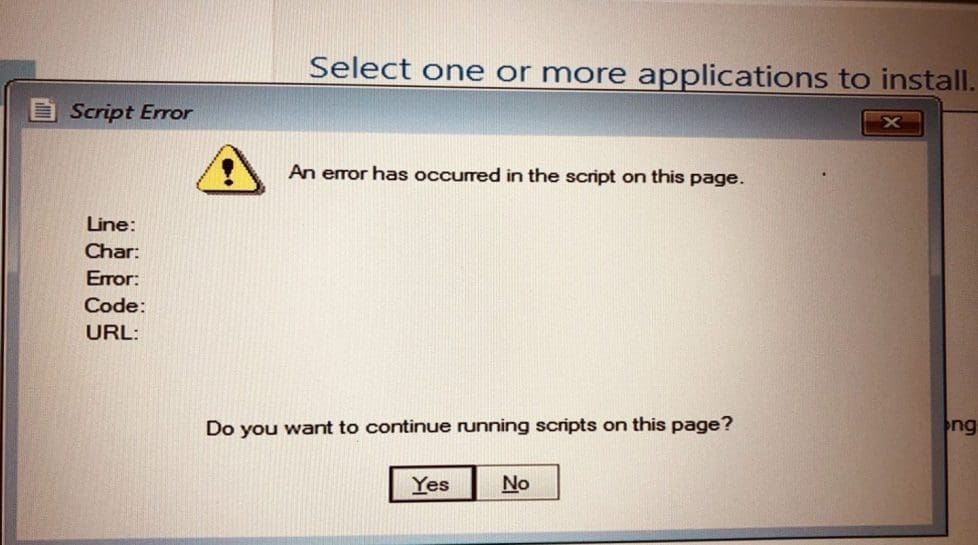
An error has occurred in the script on this page: HTA applications report a Script error after upgrading to ADK for Windows 11, version 22H2

Microsoft Deployment Toolkit (MDT) is a unified collection of tools, processes, and guidance for automating desktop and server deployment. And this in turn reduces deployment time and standardizes desktop and server image deployment. In this article, you will learn how to fix an error has occurred in the script on this page: HTA applications report a Script error after upgrading to ADK for Windows 11 version 22H2. Please see the following related articles: How to check the version of Windows ADK, How to get the Windows 10 Version 22H2 Update, and how to create a Windows 10 or 11 bootable USB with UEFI support.
MDT builds on top of the core deployment tools in the Windows Assessment and Deployment Kit (Windows ADK). Its additional guidance and features are designed to reduce the complexity and time required for deployment in an enterprise environment. Also, see How to correctly uninstall and upgrade Windows Assessment and Deployment Kit, Windows Preparation Environment, and Microsoft Deployment Toolkit.
What is the reason for this error ‘An error has occurred in the script on this page”?
After you updated your WinPE for Windows 11, version 22H2. HTA applications stop working and a message box is displayed: Script Error – An error has occurred in the script on this page. In this guide, I will be providing you with the steps to fix this issue and its limitations with the Microsoft Deployment Toolkit (MDT).
An HTML Application (HTA) is a Microsoft Windows program whose source code consists of HTML, Dynamic HTML, and one or more scripting languages, such as VBScript or JScript. The “HTML” is used to generate the user interface, and the scripting language is used for the program logic.
An HTA executes without the constraints of the internet browser security model. In fact, it executes as a “fully trusted” application. HTA applications rely on MSHTML and starting with Windows 11, version 22H2, the default legacy scripting engine was changed. To work around this issue you need to add the following registry value in WinPE:
reg.exe add "HKLM\Software\Microsoft\Internet Explorer\Main" /t REG_DWORD /v JscriptReplacement /d 0 /fYou may want to read this blog post “Install ADK, MDT, and WDS: How to deploy Windows images via Microsoft Deployment Toolkit and Windows Deployment Services“.
What is Windows PE (WinPE)?
Windows PE (WinPE) is a small operating system used to install, deploy, and repair Windows desktop editions. Windows Server, and other Windows operating systems.
Here are some interesting guides: How to correctly upgrade Windows Assessment and Deployment Kit, Windows Preparation Environment, and Microsoft Deployment Toolkit, How to Add Packages to Windows image the DISM Tool, and how to add languages to Windows image using DISM and PowerShell.
Implement this change in MDT to solve the issue
To enable this change in MDT, we recommend that you back up the following file and modify it as follows:
C:\Program Files\Microsoft Deployment Toolkit\Templates\Unattend_PE_x64.xml
All you have to do is to modify it as follows below. Do not forget to back up the following file before modifying it.
<unattend xmlns="urn:schemas-microsoft-com:unattend">
   <settings pass="windowsPE">
       <component name="Microsoft-Windows-Setup" processorArchitecture="amd64" publicKeyToken="31bf3856ad364e35" language="neutral" versionScope="nonSxS" xmlns:wcm="http://schemas.microsoft.com/WMIConfig/2002/State">
           <Display>
               <ColorDepth>32</ColorDepth>
               <HorizontalResolution>1024</HorizontalResolution>
               <RefreshRate>60</RefreshRate>
               <VerticalResolution>768</VerticalResolution>
           </Display>
           <RunSynchronous>
               <RunSynchronousCommand wcm:action="add">
                   <Description>Lite Touch PE</Description>
                   <Order>1</Order>
                   <Path>reg.exe add "HKLM\Software\Microsoft\Internet Explorer\Main" /t REG_DWORD /v JscriptReplacement /d 0 /f</Path>
               </RunSynchronousCommand>
               <RunSynchronousCommand wcm:action="add">
                   <Description>Lite Touch PE</Description>
                   <Order>2</Order>
                   <Path>wscript.exe X:\Deploy\Scripts\LiteTouch.wsf</Path>
               </RunSynchronousCommand>
           </RunSynchronous>
       </component>
   </settings>
</unattend>
Note: After saving the changes, you will need to completely regenerate the boot images. To do this, right-click on the deployment share and select Update Deployment Share.

As you can see, the Deployment Share Update is in progress as shown below.

The Deployment Update is complete. You can now take the (LiteTouchWinPE.wim) image to the Server and start a new Windows Deployment without further issues.

Also, see Workaround and Permanent fix for this snap-in performed a non-valid operation and has been unloaded. See how to fix “Cannot find the computer: Fix the following error occurred while using Kerberos authentication“.
I hope you found this blog post helpful on how to fix “An error has occurred in the script on this page: HTA applications report a Script error after upgrading to ADK for Windows 11 version 22H2”. Please let me know in the comment session if you have any questions.


my mdt image wizard comes back with this error after I follow these steps, mind you I did rebuild the mdt and made a new image.
FAILURE (5616): 15299: Verify BCDBootEx
Litetouch deployment failed, Return Code = -2147467259 0x80004005
Failed to save environment to (80070057)
Failed to run the action: Install Operating System.
Unknown error (Error: 000015F0; Source: Unknown)
The execution of the group (Install) has failed and the execution has been aborted. An action
failed.
Operation aborted (Error: 80004004; Source: Windows)
Failed to run the last action: Install Operating System. Execution of task sequence failed.
Unknown error (Error: 000015F0; Source: Unknown)
Task Sequence Engine failed! Code: enExecutionFail
Task sequence execution failed with error code 80004005
RegQueryValueExW is unsuccessful for Software\Microsoft\SMS\Task Sequence,
SMSTSEndProgram
GetTsRegValue() is unsuccessful. 0x80070002.
Error Task Sequence Manager failed to execute task sequence. Code 0x80004005
I can see a lot of task issues with your task sequence. Perhaps you need to see this guide: ADK|WinPE|MDT: Deploy Windows with WDS – TechDirectArchive
I have a lot of troubleshooting guides on some of these error codes. Please use the search feature, thank you!
Hello, I followed the instructions to the letter however I am still getting the Host script error. My setup is a little different. I have a separate deployment share for the reference image capture (the ref image is a VM), then I create the reference image using litetouch.vbs capture script. I have a separate deployment share for creating our custom image by importing the reference image and then generating an ISO through Advanced Configuration>Media. It’s how I have been creating our images for years since we do not have the luxury of in house imaging. All of our PC’s are scattered all over the world.
Error is as follows:
Title: Windows Script Host
Script: x:\deploy\script\litetouch.wsf
Line:2
char: 13
Error: the value for the attribute is not valid: language
Code: 80040049
Source: Windows Script Host
The device boots from ISO, loads my custom background image and then throws up the above error. I am assuming this is the same as what this article is referring to.
Hi Dale, due to the error message relates to the “language” attribute within the context of WDS as described above. Do you have the latest version of ADK installed? Does your deployment need it? If yes, please install it …