Install SQL Server 2022 Express and SQL Server Management Studio


This article will discuss how to install SQL Server 2022 Express and SSMS Tool (SQL Server Management Studio). The SQL Server Express edition is the entry-level, free database that is ideal for learning and building desktop and small server data-driven applications. It is the best choice for independent software vendors, developers, and hobbyists building client applications. Please see how to download and install MSSQL 2019 Express Edition and SSMS on Windows Server, and How to manually check and update SQL Server Management Studio.
Note: If you need more advanced database features, SQL Server Express can be seamlessly upgraded to other higher-end versions of SQL Server.
SQL Server Express LocalDB is a lightweight version of Express edition that has all of its programmability features, runs in user mode and has a fast, zero-configuration installation and a short list of prerequisites. Below are the different SQL Server Editions available.

Also, see how to Install MSSQL 2019 Developer Edition and SSMS on Windows, How to install Microsoft SQL Server Management Studio, and how to change from SQL Server and Windows Authentication Mode to Windows authentication Mode.
What’s New in SQL Server 2022
It will interest you to know that SQL continued its innovation across performance, security, and availability. It is a core element of the Microsoft Intelligent Data Platform. The platform seamlessly integrates operational databases, analytics, and data governance.
This enables customers to adapt in real time, add layers of intelligence to their applications, unlock fast and predictive insights, and govern their data wherever it resides.
SQL Server enabled by Azure Arc extends Azure services on-premises, and manages your SQL Server estate from the Azure portal for a more unified and streamlined management experience. Monitor the health of your SQL Servers with SQL assessment available at no additional cost and bring enhanced security capabilities through Microsoft Defender for Cloud.
Below are some of the capabilities of SQL Server 2022. The integration of Azure which includes managed disaster recovery (DR) to Azure SQL Managed Instance, along with near real-time analytics, allows database administrators to manage their data estates with greater flexibility and minimal impact on the end user. Please see for the features supported in SQL Server 2022.

The new billing model provides flexibility to innovate quickly and move as fast as you do. With a simple connection to Azure Arc, a default part of the SQL Server 2022 setup process.
You now have access to a new cloud-enabled billing model for SQL Server, providing you with cost efficiency to pay only for what you use. Pay by the hour for consumption spikes and ad hoc usage without the need for upfront investment.
Supported Operating Systems
You can run SQL Server 2022 on Windows Server 2016, Windows Server 2019, Windows Server 2022, Windows 10, and Windows 11.
The Processor requirement is an Intel-compatible processor with a minimum speed of 1 GHz or a faster processor. It requires a minimum 512MB RAM size, and Hard Disk Space of “4.2 GB of Disk Space”
For Microsoft SQL Server Express, the limitation is that it supports 1 physical processor, 1 GB memory, and 10 GB storage, and this might not be sufficient. Here is a guide on migrating Veeam DB to PostgreSQL, how to install PostgreSQL on Ubuntu, and How to install Amazon RDS using Terraform.
Install Microsoft SQL Server 2022 Express
To install SQL Server 2022 Express, download the installation package from the official Microsoft website. Please download Microsoft SQL Server 2022 Express.

Click Yes to the User Account Control Prompt.

The Installation files will be extracted, and the SQL Server Installation Center will open up with the following options.
Click on “New SQL Server Standalone installation or add features to an existing installation to install SQL Express on your server.

Accept the license terms and click Next.

As you can see, the rule checks were passed with just the firewall warning. I will click on OK and proceed by clicking on the next button.

At this point, I am not interested in integrating with Azure services. I will uncheck this button and proceed with the next steps.

Click next if you are fine with the default feature selections.

SQL instance Configuration
As I said, this is a test server and I am not interested in specifying a different instance name. Hit the next button to proceed.

On the server configuration page, click next to proceed.

I am interested in the Windows Authentication Mode. But I will select the Mixed Mode and show you the steps to Change from SQL Server and Windows Authentication Mode to Windows authentication Mode.

Enter the SA password and add other SQL Server administrators’ accounts.
In the link referenced above, all these were handled. The SA account was disabled and the other account was deleted due to security and centralized user management.
As you can see, the installation is in progress.

Click on OK and Close. Please proceed and restart your Windows Server.

SQL Server Management Tool
SQL Server Management Studio (SSMS) is an integrated environment for managing any SQL infrastructure. That is, from SQL Server to Azure SQL Database. SSMS provides tools to configure, monitor, and administer instances of SQL Server and databases.
You can use SSMS to deploy, monitor, and upgrade the data-tier components used by your applications and build queries and scripts.
Download and install SSMS
I prefer using the SQL Server Installation Center to launch the download page for SSMS. hen I will launch the SQL Server Installation Center and click on Install SQL Server Management Tool.

Note: Using the SQL Server Installation Center to launch the download page for SQL Server Management Studio (SSMS) provides several benefits over downloading on the fly.
- The SQL Server Installation Center ensures that you download the version of SSMS that is compatible with the specific version of the SQL Server you have installed or plan to install. This helps avoid compatibility issues that may arise when using mismatched versions.
- The Installation Center allows you to select and download specific components of SQL Server, including SSMS, based on your requirements. This ensures that you only download and install the components you need, optimizing resource usage and reducing unnecessary clutter.
- The Installation Center allows you to download installation packages for SSMS and other components, enabling offline installations. This is useful in scenarios where internet connectivity is limited or restricted on the servers where SQL Server components need to be installed.
Install SQL Server Management Tools
You will be redirected to download the SSMS 2022 executable file.

Open your system download path and find the SSMS-Setup-ENU.exe file. You can do this directly from the browser as shown below.

Double-click the exe file SSMS-Setup-ENU.exe to start installing. The installation process of SMSS is straightforward, and you just need to follow the screen sequence. Click Install

After loading packages, the progress bar will be shown. One is Package Progress and Overall Progress. Wait for a few minutes while the installer sets up the software.
Note: Azure Data Studio is automatically installed alongside SQL Server Management Studio (SSMS) in the latest version 19.0.3. Azure Data Studio is a cross-platform and open-source desktop tool for your environments, whether in the cloud, on-premises, or hybrid.

Installation completed. Now click the Close button; after completing the installation, restart your computer for a complete setup.

Connect to your SQL Server
From the Start Menu, under Microsoft SQL Server Tools 19, you can see the Microsoft SQL Server Management Studio 19.

Upon opening the SSMS, click Connect to the SQL Server.

After opening SQL Server Management Studio.
You will be placed directly with the object explorer.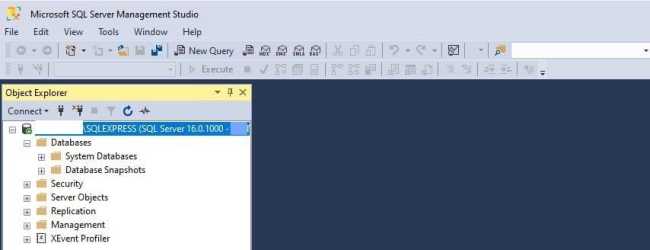
Remove SQL Server 2022
To uninstall or remove SQL Server 2022, please use the Apps and Features settings and search for SQL Server and remove it. For the complete steps, please see “How to uninstall Microsoft SQL Server on Windows“.

As you can see, the removal is complete.

FAQs on how to install SQL Server 2022 Express and SSMS Tool
How do I specify the authentication mode and administrator for the database engine?
During the installation process, you can select mixed mode for both SQL Server and Windows authentication and enter a password for SQL authentication.
What are the system requirements for installing SQL Server 2022 Express and SQL Server Management Studio?
The system requirements may vary based on the specific components you choose to install. However, SQL Server 2022 Express and SSMS need a compatible Windows operating system, sufficient disk space, and the necessary system resources.
Can I install SQL Server Management Studio separately from SQL Server 2022 Express?
SQL Server Management Studio (SSMS) can be installed separately from SQL Server 2022 Express. While earlier versions might have been bundled together, Microsoft now provides SSMS as a standalone installation.
I hope you found this article on Install SQL Server 2022 Express and SSMS Tool (SQL Server Management Studio) useful. Please feel free to leave a comment below.