Skip to content

TechDirectArchive

Hands-on IT, Cloud, Security & DevOps Insights

  • Home
  • About
  • Advertise With US
  • Reviews
  • Contact
  • Toggle search form
Home » Windows Server » Enable SSH and Remote Desktop Connection in Windows Server
  • windows 11 desktop 1
    Windows 11 Hardware and Software Requirements: Upgrade to Windows 11 Windows
  • screenshot 2020 03 13 at 20.24.17
    How to view installed packages in Cygwin on Windows Windows
  • Screenshot
    Change Active Directory Domain name from dot local to dot com Windows Server
  • tux through window 620x354 1
    WSL Error 0x8007019e: WSL Register Distribution failed with error Windows
  • Prevent Windows from Saving RDP Connection
    Prevent Windows from Saving RDP Connection History Windows
  • sysprep
    SysPrep was unable to validate your Windows Installation Virtualization
  • sdfgh 1
    How to fix “Unable to Sign In: Domain Not Available” Windows Server
  • Implementing DHCP Server
    Comprehensive Guide to Install DHCP Server on Windows Server Windows Server

Enable SSH and Remote Desktop Connection in Windows Server

Posted on 18/02/202618/02/2026 Christian By Christian No Comments on Enable SSH and Remote Desktop Connection in Windows Server
Enable SSh And RDP In Windows Server

Remote Desktop Protocol (RDP) lets you access a Windows PC remotely from another device. It’s available on Windows Pro and Enterprise editions but not Home. In this guide, we shall discuss how to Enable SSH and Remote Desktop Connection in Windows Server. Please, see Create an NFS Storage on Synology NAS and Present it to XCP-ng, and how to Run Mendeley Reference Manager and Cite for Word on Windows.

Recently, I have always consented by the Hyper Manager to my VMs. Recently, I decided to set up Devolusions Remote Desktop Manager on Windows as you can see below.

Add a new connection to rdm

But, when I tried to initiate a connection to a VM, I could not. Also, see how to install and license Devolutions Remote Desktop Manager on Mac, and Disable credential Prompts for Remote Desktop Connections.

Enable RDP

There are numerous ways to do this in Windows (Windows Server). This could be via the Windows Settings, Control Panel, Run Console, Windows Search Bar, GPO, Registry Keys, and the Command Prompt etc. In Windows, there are always numerous ways to get a task done.

As you can see in the Server Manager image below, Remote Desktop is disabled. We will have to enable it by clicking on the link Disabled close to the enabled button.

enable remote desktop connection

This will launch the System properties window as shown below. Under Remote Desktop, please, select “Allow remote connections to this computer”, and also select “Allow connections only from computers running Remote Desktop with Network Level Authentication (recommended).

Optionally, you can select the Users that you would want to grant RDP access to this VM. When done, click on OK.

Enable RDP

As you can see below, we have enabled RDP on this Server.

enabled

You can verify this also from the Windows Settings, Systems and then Remote Desktop as shown below.
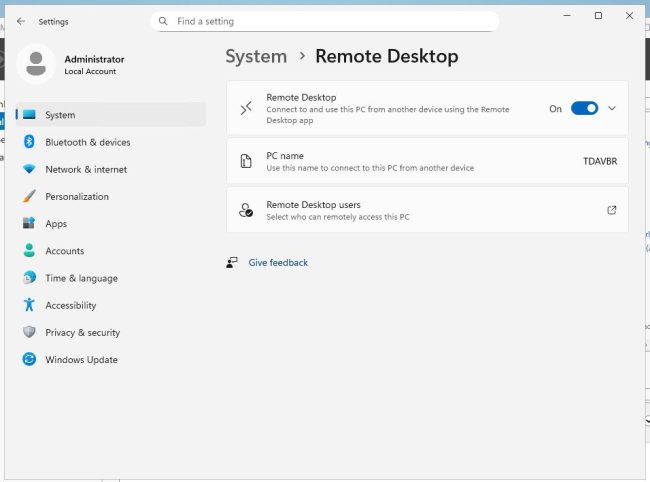
Alternative RDP setup

You can also achieve this via PowerShell with the command below.

Set-ItemProperty -Path "HKLM:\System\CurrentControlSet\Control\Terminal Server" -Name "fDenyTSConnections" -Value 0 -Force
Enable-NetFirewallRule -DisplayGroup "Remote Desktop"
Start-Service -Name "TermService" -ErrorAction SilentlyContinue

Please, see “Is RDP enabled? Enable and disable Remote Desktop in Windows 10 for all users or selected users, how to associate SSH Public key with Azure Linux VM, how to fix Remote Desktop can’t connect to the remote computer for one of these reasons.

Enable SSH Access

Windows 10 and Windows 11 include OpenSSH Client and OpenSSH Server as built‑in, optional features, allowing secure command‑line access without installing third‑party tools.

Windows Server 2019, 2022, 2025, and newer versions also include OpenSSH Server as an optional Feature on Demand, which can be installed via Settings, Server Manager, or PowerShell.

To enable OpenSSH, you can click on the Disabled link from the Server Manager and follow the prompts as shown in the image below to enable it.

Enable SSH

You can install OpenSSH via the PowerShell command below with administrative privilege. The below command will install, start, and auto-start SSH and enable firewall rule on port 22.

Add-WindowsCapability -Online -Name OpenSSH.Server~~~~0.0.1.0

Start-Service sshd

Set-Service -Name sshd -StartupType Automatic

New-NetFirewallRule -Name "OpenSSH" -DisplayName "OpenSSH Server" -Enabled True -Direction Inbound -Protocol TCP -LocalPort 22

When done, you can test connectiveilty by using the following command below.

ssh username@server-ip

Here are some security recommendations to consider when running OpenSSH. Change default SSH settings in “sshd_config” if exposed to the internet (e.g., disable password auth, use key-based login).

I hope you found this guide on how to Enable SSH and Remote Desktop Connection in Windows Server very useful. Please, feel free to leave a comment below.

5/5 - (1 vote)

Thank you for reading this post. Kindly share it with others.

  • Share on X (Opens in new window) X
  • Share on Reddit (Opens in new window) Reddit
  • Share on LinkedIn (Opens in new window) LinkedIn
  • Share on Facebook (Opens in new window) Facebook
  • Share on Pinterest (Opens in new window) Pinterest
  • Share on Tumblr (Opens in new window) Tumblr
  • Share on Telegram (Opens in new window) Telegram
  • Share on WhatsApp (Opens in new window) WhatsApp
  • Share on Pocket (Opens in new window) Pocket
  • Share on Mastodon (Opens in new window) Mastodon
  • Share on Bluesky (Opens in new window) Bluesky
  • Share on Threads (Opens in new window) Threads
  • Share on Nextdoor (Opens in new window) Nextdoor
Windows Server Tags:enable RDP Windows Server, enable SSH Windows, OpenSSH Windows Server, Remote Desktop Windows Server, SSH, Windows Server administration, Windows Server configuration, Windows Server firewall, Windows Server RDP, Windows Server remote access, Windows Server SSH

Post navigation

Previous Post: Create an NFS Storage on Synology NAS and Present it to XCP-ng
Next Post: How to fix Error 401 Permission denied for invalid PVE ticket

Related Posts

  • article 1280x720.192a2586 1 1
    No valid offer received: WDS PXE-E16 error when booting clients Windows Server
  • wacxx
    How to set up System Insights on Windows Admin Center Windows Server
  • cv
    Add languages to Windows images using DISM and PowerShell Windows Server
  • Internet Explorer
    How to uninstall Internet Explorer from your Windows Device Windows
  • Featured image wifipass
    Find saved Wi-Fi Passwords in Windows 10 and 11 Network | Monitoring
  • trrdf
    Remote Desktop cannot find the computer this in the specified network: Verify the computer name and domain that you are trying to connect Windows Server

More Related Articles

article 1280x720.192a2586 1 1 No valid offer received: WDS PXE-E16 error when booting clients Windows Server
wacxx How to set up System Insights on Windows Admin Center Windows Server
cv Add languages to Windows images using DISM and PowerShell Windows Server
Internet Explorer How to uninstall Internet Explorer from your Windows Device Windows
Featured image wifipass Find saved Wi-Fi Passwords in Windows 10 and 11 Network | Monitoring
trrdf Remote Desktop cannot find the computer this in the specified network: Verify the computer name and domain that you are trying to connect Windows Server

Leave a Reply Cancel reply

You must be logged in to post a comment.

Microsoft MVP

VEEAMLEGEND

vexpert-badge-stars-5

Virtual Background

GoogleNews

Categories

veeaam100

sysadmin top30a

  • windows 11 desktop 1
    Windows 11 Hardware and Software Requirements: Upgrade to Windows 11 Windows
  • screenshot 2020 03 13 at 20.24.17
    How to view installed packages in Cygwin on Windows Windows
  • Screenshot
    Change Active Directory Domain name from dot local to dot com Windows Server
  • tux through window 620x354 1
    WSL Error 0x8007019e: WSL Register Distribution failed with error Windows
  • Prevent Windows from Saving RDP Connection
    Prevent Windows from Saving RDP Connection History Windows
  • sysprep
    SysPrep was unable to validate your Windows Installation Virtualization
  • sdfgh 1
    How to fix “Unable to Sign In: Domain Not Available” Windows Server
  • Implementing DHCP Server
    Comprehensive Guide to Install DHCP Server on Windows Server Windows Server

Subscribe to Blog via Email

Enter your email address to subscribe to this blog and receive notifications of new posts by email.

Join 1,825 other subscribers
  • RSS - Posts
  • RSS - Comments
  • About
  • Authors
  • Write for us
  • Advertise with us
  • General Terms and Conditions
  • Privacy policy
  • Feedly
  • Telegram
  • Youtube
  • Facebook
  • Instagram
  • LinkedIn
  • Tumblr
  • Pinterest
  • Twitter
  • mastodon

Tags

AWS Azure Bitlocker Microsoft Windows PowerShell WDS Windows 10 Windows 11 Windows Deployment Services Windows Server 2016

Copyright © 2025 TechDirectArchive


Loading Comments...
 

You must be logged in to post a comment.