Skip to content

TechDirectArchive

Hands-on IT, Cloud, Security & DevOps Insights

  • Home
  • About
  • Advertise With US
  • Reviews
  • Contact
  • Toggle search form
Home » Windows » How to set up Devolusion Remote Desktop Manager on Windows

How to set up Devolusion Remote Desktop Manager on Windows

Posted on 29/01/202629/01/2026 Christian By Christian No Comments on How to set up Devolusion Remote Desktop Manager on Windows
DEvolusion RDP Manager

In this guide, we shall discuss how to set up Devolusion Remote Desktop Manager on Windows. Devolusion Remote Desktop Manager is an application that integrates a comprehensive set of tools and managers to meet the needs of any IT team. It is designed to centralise remote connection technologies, credentials, and secure access to these resources. Please, see Prevent Microsoft Teams from starting automatically on Windows, and What are the differences between dnf and apt package managers?

Note: Most connections are established using either an external library or third-party software. This tool is compatible with over 200 relevant tools and technologies, including Apple Remote Desktop, Citrix, Dameware, FTP, Hyper-V, LogMeIn, Radmin, RDP (Microsoft Remote Desktop), Remote Desktop Services, SSH Port Forward, SSH Shell, TeamViewer, Telnet, VMware, VNC, SCP, X Windows to mention a few

Also, see “Free Remote Desktop Software for Windows“, and “How to Install and License Devolutions Remote Desktop Manager on Mac“.

Download Devolutions Remote Desktop Manager

There are numerous ways to get this tool installed on your PC. One of which is via the Microsoft Store, as shown below. You can also download it from here.
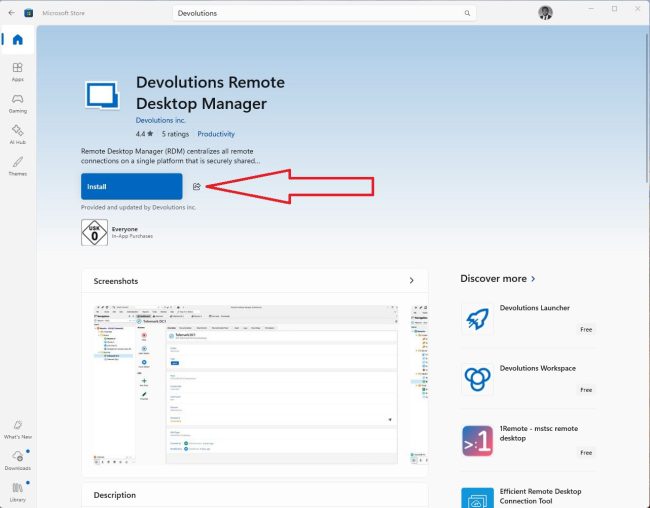
Devolution RDP

Shortly, I am prompted to fulfil the requirements of running Devolutions. I will click on Download.

download dotnet

Click on the link as shown below. You can download .NET 9.0 Desktop Runtime (v9.0.12),  

dontnet download

Hit the install button

installing dotnt

As shown below, the Microsoft Windows Desktop runtime is being installed.

installation in progress

Close the window when complete.

installation complete

Please, see Unable to edit MDT XML unattended file: Could not load file, how to hetermine the Remote Desktop Client Version, and Veeam Host Components: Unable to reinstall Deploy Service SSH.

Configure A Data Source or Personal Hub

Data sources are at the heart of Remote Desktop Manager, acting as containers for entries. For me, I will be using the Devoluion Hub Personal as shown below. This is because, with “Devolutions Hub Personal”. I can use the secure personal passwords in a secure vault for free as an individual.

Note: A data source can be a local file or a database (either local or shared). Multiple data sources can be managed at the same time.

personal use

Since I already have an account, I will log in as shown below.

existing account

Enter your email when redirected.

Personalhub

I will proceed to create a new account.

create account

Hub created successfully.

Download the emergency kit as it is required to continue.

download emergency kit

Save the kit to a location on your device.

save

Please, see Import certificates into Trusted Root and Personal certificate store, and how to Fix Keep personal files and apps option greyed out during Upgrade.

Define User Preference

I am fine with the defaults and will click Next to proceed

user interface

Fine with all major and minor updates

update preference

If you would like to stay connected, you can subscribe and click next

subscribe

As you can see, you have successfully set up your Devolusion Tool.

import with netwok scan

Please, see Hardening Your Infrastructure: A Guide to VMware VBS and MS GPO Credential Guard in Veeam v13, and how to fix the Filesystem root is running low on Disk space.

Import Connections with Network Scans

Devolusion Remote Desktop Manager (RDM) allows you to automatically discover and add multiple assets to your database at once, rather than manually configuring every single connection, which I will show you very shortly.

Note: To simplify deployment for multiple users, it is possible to export and import data source configurations. Also, instead of exporting and importing data sources and settings separately, it is possible to create a custom installer. The custom installer service replicates the configuration of a Remote Desktop Manager instance.

Since I am importing with the network scan. The IP range will be automatically detected. Next, click on Scan.

connection import

You can use the button to uncheck and import as shown below.

import

As you can see below, the import has been successful.

close window

When prompted to access your Devolutions Remote Desktop Manager Personal Hub, enter your password and click on continue.

login

As you can see from the Devolusion Desktop Manager, we have successfully accessed one f ur servers.

rdp connection establised

Please see Modern Backup Strategy with Veeam and Wasabi: Truly Immutable and Using IBM Library with Veeam to improve security in your environment.

Manual RDP connection setup

To automate the manual creation of new entries, click on the “+” sign and select the session type as shown below. I will select RDP and proceed.

Add connection

As you can see below, we have added the host IP and hard-coded the username and password as shown below. When done, click on “Add”.

specify connection details

Add License

You can register and manage its licences in your preferred advanced data source in Remote Desktop Manager. You can initiate the license addition from within the RDM or from your Devolusion Personal Hub. Enter your license and click on Add.

add license
For me, as a Veeam Legend, Microsoft MVP and vExpert, etc. I got a unique license for the products in the Starter Pack

As you can see, I have successfully added my license. If you do not have a license, you can start a 30-day trial or purchase one from the Devolutions Store.

license

I hope you found this guide useful on how to set up Devolusion Remote Desktop Manager on Windows. Please, feel free to leave a comment below.

5/5 - (1 vote)

Thank you for reading this post. Kindly share it with others.

  • Share on X (Opens in new window) X
  • Share on Reddit (Opens in new window) Reddit
  • Share on LinkedIn (Opens in new window) LinkedIn
  • Share on Facebook (Opens in new window) Facebook
  • Share on Pinterest (Opens in new window) Pinterest
  • Share on Tumblr (Opens in new window) Tumblr
  • Share on Telegram (Opens in new window) Telegram
  • Share on WhatsApp (Opens in new window) WhatsApp
  • Share on Mastodon (Opens in new window) Mastodon
  • Share on Bluesky (Opens in new window) Bluesky
  • Share on Threads (Opens in new window) Threads
  • Share on Nextdoor (Opens in new window) Nextdoor
Windows Tags:Devolusion Remote Desktop Manager, manual RDP connection setup, Microsoft Windows, RDP, Windows 10, Windows 11, Windows Server 2016, Windows Server 2019, Windows Server 2022, Windows Server 2025

Post navigation

Previous Post: Hardening Your Infrastructure: A Guide to VMware VBS and MS GPO Credential Guard in VBR v13
Next Post: What Ransomware Recovery looks like when the clock is ticking

Related Posts

  • MBAM report errors
    Understanding MBAM compliance state and error status Windows
  • screenshot 2020 03 14 at 22.47.56
    How to block apps from running in Windows Windows
  • Feature image   Hiren's boot
    Recover your data after system failure with Hiren’s boot Backup
  • jmeterlogo 3
    Install and conduct performance testing using Apache JMeter on your Web App Configuration Management Tool
  • schedulepythontasksinWindows
    Task Scheduler shows task still running despite successful Windows
  • mdtxxxxx
    Failed to run the action install Operating System: Lifetouch deployment failed, Return Code = -2147467259 0x80004005 when installing Windows image via MDT Windows

More Related Articles

MBAM report errors Understanding MBAM compliance state and error status Windows
screenshot 2020 03 14 at 22.47.56 How to block apps from running in Windows Windows
Feature image   Hiren's boot Recover your data after system failure with Hiren’s boot Backup
jmeterlogo 3 Install and conduct performance testing using Apache JMeter on your Web App Configuration Management Tool
schedulepythontasksinWindows Task Scheduler shows task still running despite successful Windows
mdtxxxxx Failed to run the action install Operating System: Lifetouch deployment failed, Return Code = -2147467259 0x80004005 when installing Windows image via MDT Windows

Leave a Reply Cancel reply

You must be logged in to post a comment.

Microsoft MVP

VEEAMLEGEND

vexpert-badge-stars-5

Virtual Background

GoogleNews

Categories

veeaam100

Veeam Vanguard

  • EFK Stack
    EFK Stack Installation on Docker Virtualization
  • Header image
    How to setup a Third-Party DNS Server on a Linux Server Linux
  • Windows Image Converation from Evaluation to retail Edition
    Convert Windows Server Essentials or Evaluation to Retail Edition Windows
  • How to Disable Windows Startup Sound in Windows 11 banner
    How to Disable and Enable Startup Sound in Windows 11 Windows
  • Featured image DNS Server settings
    Do not use Public DNS in Prod: Change DNS Server in Windows Network | Monitoring
  • screenshot 2020 04 17 at 17.09.01
    How to configure a remote Windows Server to Support Ansible Windows Server
  • windows store icon
    Application User Model ID: How to find the AUMID of an installed UWP App Windows
  • S3 Bucket Public Access 1
    How to grant public access to S3 Bucket using Policy AWS/Azure/OpenShift

Subscribe to Blog via Email

Enter your email address to subscribe to this blog and receive notifications of new posts by email.

Join 1,808 other subscribers
  • RSS - Posts
  • RSS - Comments
  • About
  • Authors
  • Write for us
  • Advertise with us
  • General Terms and Conditions
  • Privacy policy
  • Feedly
  • Telegram
  • Youtube
  • Facebook
  • Instagram
  • LinkedIn
  • Tumblr
  • Pinterest
  • Twitter
  • mastodon

Tags

AWS Azure Bitlocker Microsoft Windows PowerShell WDS Windows 10 Windows 11 Windows Deployment Services Windows Server 2016

Copyright © 2025 TechDirectArchive


Loading Comments...
 

You must be logged in to post a comment.