Skip to content

TechDirectArchive

Hands-on IT, Cloud, Security & DevOps Insights

  • Home
  • About
  • Advertise With US
  • Reviews
  • Contact
  • Toggle search form
Home » Virtualization » How to use Hyper-V checkpoint to restore a VM to its previous state
  • MDt
    Failure 5456: Unable to determine destination disk, partition, and/or drive, see BDD Log Windows
  • Screenshot 2022 04 02 at 23.18.48
    CVE-2022-26503: Veeam Agent for Microsoft Windows Vulnerability Backup
  • Enable TPM and ecure boot on HyperV to run windoows 11
    How to run Windows 11 on HyperV Virtualization
  • Bang ad Olufsen.
    Bang and Olufsen Bluetooth connection: How to connect and remove Beoplay E8 3rd Generation to Mac Mac
  • a Multiple SPF Records  Issues and Examples@2x
    How to setup SPF and TXT Records in AWS AWS/Azure/OpenShift
  • UEFI vs BIOS What's the Difference
    What are the Differences between UEFI and BIOS Windows
  • Windows Image Converation from Evaluation to retail Edition
    Convert Windows Server Essentials or Evaluation to Retail Edition Windows
  • RDP
    Fix Windows 11 Remote Desktop Connectivity Error code 0x204 Windows

How to use Hyper-V checkpoint to restore a VM to its previous state

Posted on 24/01/202015/11/2023 Christian By Christian No Comments on How to use Hyper-V checkpoint to restore a VM to its previous state

With Hyper-V checkpoints, you can quickly restore a VM to the state when the checkpoint was created. However, this is completely different from restoring a VM from a backup. In this article, we shall discuss how to use “Hyper-V checkpoint to restore a VM to its previous state”. Please see How to create a Microsoft HyperV checkpoint, the differences between a Virtual Machine Snapshot vs Backup, how to Check if Windows Updates were installed, and How to Back Up and Restore the Windows Registry.

One fundamental benefit to virtualization is the ability to save the state of a virtual machine. In Hyper-V, this can be achieved by the use of virtual machine checkpoints. You may want to create a virtual machine checkpoint before making important software configuration changes, applying a software update, or installing new software.

If a system change were to cause an issue, the virtual machine can be reverted to the state at which it was when the checkpoint was taken.

Note: Using Hyper-V Manager you can create up to 50 checkpoints for a single virtual machine, and up to 64 checkpoints using System Center Virtual Machine Manager.

Types of Hyper-V Checkpoints

Since Windows Server 2016 and Windows 10, Hyper-V includes two types of checkpoints. They are (1) Standard Checkpoints, and (2) Production Checkpoints.

Checkpoint-types

Standard Checkpoints (formerly known as Hyper-V snapshots): This takes a snapshot of the VM and its memory state. This allows you to capture the VM state at a particular point in time. A standard snapshot doesn’t enable application consistency. That is, it causes data consistency issues with systems that replicate data between different nodes.

This may result in incomplete data transactions. This is important for systems running Active Directory, Microsoft Exchange, SQL Server, or any other application/database which transfers data between different nodes.

Production Checkpoints: This form of snapshot creates a data-consistent backup with the help of Volume Shadow Copy Service (for VMs running on Windows) or File System Freeze (for VMs running on Linux). But, but do not take snapshots of the virtual machine’s memory state.

Production checkpoints are created in accordance with the backup technology inside the guest OS. When creating a production checkpoint, no snapshot of the VM memory state is taken.

Production checkpoint is selected by default, you can change it using Hyper-V Manager or PowerShell

Restore a VM to When Checkpoint was created

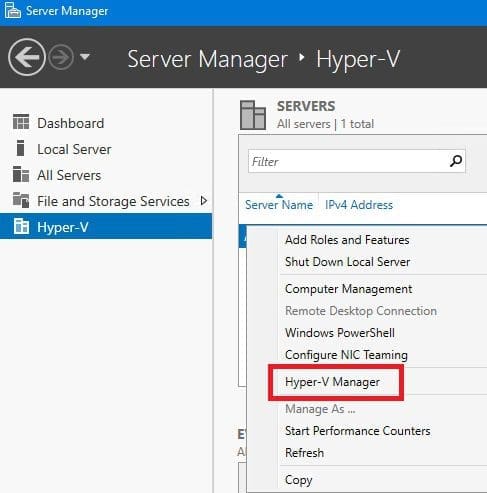
If you would like to see how this can be done via Powershell. To do this via the console, Launch Hyper-V Manager
HyperV-manager

Launch Hyper-V Manager, and select the VM you want to revert to an old (previous) state. Next, check the created checkpoints of this VM in the Checkpoints section.

When a checkpoint is created, it will be added to the checkpoint tree. Each subsequent checkpoint is a branch of the previous one, incrementally storing the differences since the last checkpoint was created.

Under the Checkpoint pane, select the checkpoint you would like to restore (revert). Right-click on it and select Apply

Next, the apply dialogue box appears. Click on apply.

When this is applied, this will turn off (shut down) the VM. Click to start to start the VM and click on connect to open a session (connection) to the VM

The VM will reboot and revert to the desired state you want it (have selected).

Conclusion

Hyper-V checkpoints are vital when it comes to backing up your virtual infrastructure. Creating checkpoints enables you to revert the VM to a previous state. This enables you to discard all the unwanted configuration changes and updates, which have caused issues within the system

I hope you found this article on how to use Hyper-V checkpoint to restore a VM to its previous state useful. If you have any questions, please let me know in the comment session.

Rate this post

Thank you for reading this post. Kindly share it with others.

  • Click to share on X (Opens in new window) X
  • Click to share on Reddit (Opens in new window) Reddit
  • Click to share on LinkedIn (Opens in new window) LinkedIn
  • Click to share on Facebook (Opens in new window) Facebook
  • Click to share on Pinterest (Opens in new window) Pinterest
  • Click to share on Tumblr (Opens in new window) Tumblr
  • Click to share on Telegram (Opens in new window) Telegram
  • Click to share on WhatsApp (Opens in new window) WhatsApp
  • Click to share on Pocket (Opens in new window) Pocket
  • Click to share on Mastodon (Opens in new window) Mastodon
  • Click to share on Bluesky (Opens in new window) Bluesky
  • Click to share on Threads (Opens in new window) Threads
  • Click to share on Nextdoor (Opens in new window) Nextdoor
Virtualization Tags:HyperV VMs, Microsoft Windows, Restore, Snapshot, VMs, Windows 10, Windows 11

Post navigation

Previous Post: The following error occurred attempting to rename the computer Account already exists
Next Post: How to block automatic delivery of Microsoft Edge Chromium-based

Related Posts

  • VMware Aria
    VMSA-2022-0026: An arbitrary file read vulnerability in VMware Aria Operations Security | Vulnerability Scans and Assessment
  • how to Configure Autologin for a VM in VMware Workstation
    Configure Autologin for a VM in VMware Workstation Virtualization
  • How to Remove Hyper V
    How to uninstall Hyper-V on a Windows PC Virtualization
  • Enable Hyper V on Windows 11 Create a VM with PowerShell
    Run Hyper-V on Windows 11: Convert Physical PC to Hyper-V VM Virtualization
  • Screenshot
    Setup iSCSI Target and Storage LUN on Synology DS923+ for VBR Reviews
  • VMware Tech Showcase
    Great details on VMware Tech Showcase Virtualization

More Related Articles

VMware Aria VMSA-2022-0026: An arbitrary file read vulnerability in VMware Aria Operations Security | Vulnerability Scans and Assessment
how to Configure Autologin for a VM in VMware Workstation Configure Autologin for a VM in VMware Workstation Virtualization
How to Remove Hyper V How to uninstall Hyper-V on a Windows PC Virtualization
Enable Hyper V on Windows 11 Create a VM with PowerShell Run Hyper-V on Windows 11: Convert Physical PC to Hyper-V VM Virtualization
Screenshot Setup iSCSI Target and Storage LUN on Synology DS923+ for VBR Reviews
VMware Tech Showcase Great details on VMware Tech Showcase Virtualization

Leave a Reply Cancel reply

You must be logged in to post a comment.

Microsoft MVP

VEEAMLEGEND

vexpert-badge-stars-5

Virtual Background

GoogleNews

Categories

veeaam100

sysadmin top30a
 
  • MDt
    Failure 5456: Unable to determine destination disk, partition, and/or drive, see BDD Log Windows
  • Screenshot 2022 04 02 at 23.18.48
    CVE-2022-26503: Veeam Agent for Microsoft Windows Vulnerability Backup
  • Enable TPM and ecure boot on HyperV to run windoows 11
    How to run Windows 11 on HyperV Virtualization
  • Bang ad Olufsen.
    Bang and Olufsen Bluetooth connection: How to connect and remove Beoplay E8 3rd Generation to Mac Mac
  • a Multiple SPF Records  Issues and Examples@2x
    How to setup SPF and TXT Records in AWS AWS/Azure/OpenShift
  • UEFI vs BIOS What's the Difference
    What are the Differences between UEFI and BIOS Windows
  • Windows Image Converation from Evaluation to retail Edition
    Convert Windows Server Essentials or Evaluation to Retail Edition Windows
  • RDP
    Fix Windows 11 Remote Desktop Connectivity Error code 0x204 Windows

Subscribe to Blog via Email

Enter your email address to subscribe to this blog and receive notifications of new posts by email.

Join 1,841 other subscribers
  • RSS - Posts
  • RSS - Comments
  • About
  • Authors
  • Write for us
  • Advertise with us
  • General Terms and Conditions
  • Privacy policy
  • Feedly
  • Telegram
  • Youtube
  • Facebook
  • Instagram
  • LinkedIn
  • Tumblr
  • Pinterest
  • Twitter
  • mastodon

Tags

AWS Azure Bitlocker Microsoft Windows PowerShell WDS Windows 10 Windows 11 Windows Deployment Services Windows Server 2016

Copyright © 2025 TechDirectArchive


Loading Comments...
 

You must be logged in to post a comment.