Skip to content

TechDirectArchive

Hands-on IT, Cloud, Security & DevOps Insights

  • Home
  • About
  • Advertise With US
  • Reviews
  • Contact
  • Toggle search form
Home » Mac » How to record the screen of macOS
  • Add camaeras
    Add additional CC400W Cameras to Synology Surveillance Station Backup
  • AssignBitLockerBackuprights
    How to delegate permissions for backing up TPM password Network | Monitoring
  • windows admin center banner 825x400 1
    Fix failed to create new Scheduled Task RemoteException Windows Server
  • Trellix Native Encryption
    Manage BitLocker and FileVault with Trellix Native Encryption Mac
  • FQWD
    Logoff or Restart or Shutdown Windows PC remotely Windows
  • MDt
    Failure 5456: Unable to determine destination disk, partition, and/or drive, see BDD Log Windows
  • Restrict Access to USB Drives
    Deny Execute Access: Restrict Access to USB Drives on Windows [Part 1] Windows
  • whois4578uh
    How to get Domain information using WHOIS Command in Linux Linux

How to record the screen of macOS

Posted on 11/05/202001/10/2023 Christian By Christian No Comments on How to record the screen of macOS
screen record on macOS

Apple does include a screen-recording called QuickTime Player for its products. Below are the steps to record the screen of macOS with QuickTime Player. Kindly refer to these related guides: How to change the default screen capture format in macOS, and How to enable or disable automatic Live Caption on macOS.
– Alternative Method: ActivePresenter

Launch the QuickTime Player as shown below

launch the quick time player

– On the Menu bar, click on File and select New Screen Recording

click on File and select New Screen Recording

– Or, right-click on the QuickTime Player on the Dock and
– Select New Screen Recording

Click New Screen Recording

When you click on “New Screen Recording,” provided you have granted the necessary permission to record your screen, you will be prompted to initiate the recording.

Open System Preferences

– Click on Open System Preferences as shown below
– Click on QuickTime Player
– This will notify you that QuickTime Player needs to quit before it can record the content of your screen.

Click on QuickTime Player
Select Quit Now
Select Quit Now

The screenshot below indicates that you have selected QuickTime and is now capable of recording your screen.

You can now record via QuickTime Player

Now, launch QuickTime again to start recording
– Click on New Screen Recording as discussed in the above steps

This will prompt the window below below requesting access to your microphone.

Click on OK

After this, Launch the QuickTime player again
– Select the “New Screen Recording”

When this is done, a new window will appear on the screen as shown below

Select the area on the screen you would like to record and click on record.

Select the area on the screen you would like to record and click on record.

Note: You can use the on-screen control as marked in the screenshot above to select either to
1: Record the entire screen
2: Record a selected portion of the screen by using the drag and drop (or aligning the portion correctly).

To stop recording, click the stop icon in the menu bar, or press Command-Control-Esc (Escape). 

Note: By ending the recording, the screen recording is automatically stopped and saved to your desktop. You can change this behavior as you wish. See below for changing the settings of QuickTime Player.

Change the settings

You can modify the behavior of the QuickTime player in the following ways. Click Options in the onscreen controls to change these settings.
– Save to: Choose where your recordings are automatically saved, such as Desktop, Documents, or Clipboard.
– Timer: Choose when to begin recording: immediately, 5 seconds, or 10 seconds after you click to record.
– Microphone: To record your voice or other audio along with your recording, choose a microphone.
– Show Floating Thumbnail: Choose whether to show the thumbnail.
– Remember Last Selection: Choose whether to default to the selections you made the last time you used this tool.
– Show Mouse Clicks: Choose whether to show a black circle around your pointer when you click in the recording.

That’s how you can record the screen of macOS. I hope you found this blog post helpful. If you have any questions, please let me know in the comment session.
5/5 - (1 vote)

Thank you for reading this post. Kindly share it with others.

  • Click to share on X (Opens in new window) X
  • Click to share on Reddit (Opens in new window) Reddit
  • Click to share on LinkedIn (Opens in new window) LinkedIn
  • Click to share on Facebook (Opens in new window) Facebook
  • Click to share on Pinterest (Opens in new window) Pinterest
  • Click to share on Tumblr (Opens in new window) Tumblr
  • Click to share on Telegram (Opens in new window) Telegram
  • Click to share on WhatsApp (Opens in new window) WhatsApp
  • Click to share on Pocket (Opens in new window) Pocket
  • Click to share on Mastodon (Opens in new window) Mastodon
  • Click to share on Bluesky (Opens in new window) Bluesky
  • Click to share on Threads (Opens in new window) Threads
  • Click to share on Nextdoor (Opens in new window) Nextdoor
Mac

Post navigation

Previous Post: Configuring DHCP Scope: Post-deployment of Dynamic Host Configuration Protocol
Next Post: How to remove printers from HP Utility

Related Posts

  • PNG JPGconversion 2
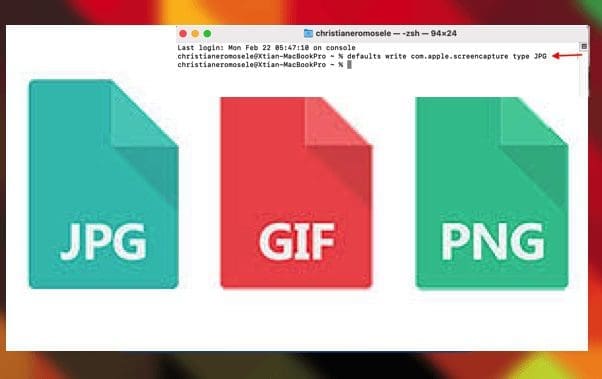
    How to change the default screen capture format in macOS Mac
  • log out due to inactivity
    Automatically Log Out After a Period of Inactivity on Mac Mac
  • Synergy software kvm
    Why Software KVMs such as Synergy is replacing Hardware KVMs Linux
  • fba7f screenshot 2019 04 15 at 18.33.30
    File System Overview: How to decide on the right File System to use for your USB Linux
  • powershell
    How to install and uninstall PowerShell on macOS via Homebrew Mac
  • image 10
    Change Visual Studio Code UI language JIRA|Confluence|Apps

More Related Articles

PNG JPGconversion 2 How to change the default screen capture format in macOS Mac
log out due to inactivity Automatically Log Out After a Period of Inactivity on Mac Mac
Synergy software kvm Why Software KVMs such as Synergy is replacing Hardware KVMs Linux
fba7f screenshot 2019 04 15 at 18.33.30 File System Overview: How to decide on the right File System to use for your USB Linux
powershell How to install and uninstall PowerShell on macOS via Homebrew Mac
image 10 Change Visual Studio Code UI language JIRA|Confluence|Apps

Leave a Reply Cancel reply

You must be logged in to post a comment.

Microsoft MVP

VEEAMLEGEND

vexpert-badge-stars-5

Virtual Background

GoogleNews

Categories

veeaam100

sysadmin top30a

  • Add camaeras
    Add additional CC400W Cameras to Synology Surveillance Station Backup
  • AssignBitLockerBackuprights
    How to delegate permissions for backing up TPM password Network | Monitoring
  • windows admin center banner 825x400 1
    Fix failed to create new Scheduled Task RemoteException Windows Server
  • Trellix Native Encryption
    Manage BitLocker and FileVault with Trellix Native Encryption Mac
  • FQWD
    Logoff or Restart or Shutdown Windows PC remotely Windows
  • MDt
    Failure 5456: Unable to determine destination disk, partition, and/or drive, see BDD Log Windows
  • Restrict Access to USB Drives
    Deny Execute Access: Restrict Access to USB Drives on Windows [Part 1] Windows
  • whois4578uh
    How to get Domain information using WHOIS Command in Linux Linux

Subscribe to Blog via Email

Enter your email address to subscribe to this blog and receive notifications of new posts by email.

Join 1,836 other subscribers
  • RSS - Posts
  • RSS - Comments
  • About
  • Authors
  • Write for us
  • Advertise with us
  • General Terms and Conditions
  • Privacy policy
  • Feedly
  • Telegram
  • Youtube
  • Facebook
  • Instagram
  • LinkedIn
  • Tumblr
  • Pinterest
  • Twitter
  • mastodon

Tags

Active Directory AWS Azure Bitlocker Microsoft Windows PowerShell WDS Windows 10 Windows 11 Windows Server 2016

Copyright © 2025 TechDirectArchive


Loading Comments...
 

You must be logged in to post a comment.