Skip to content

TechDirectArchive

Hands-on IT, Cloud, Security & DevOps Insights

  • Home
  • About
  • Advertise With US
  • Contact
  • Reviews
  • Toggle search form
Home » Windows Server » Error 0x800f0830: Discard the modified Image and start again, no operation was performed
  • Feature image nagios
    How to Install and Configure Nagios on Ubuntu Linux
  • Delete Edit or Revert a Snapshot on vSphere
    Manage VMware Snapshots: Delete or Edit or Revert a Snapshot Virtualization
  • images copy
    HA-Proxy Configuration File: Copy Between Nodes on Proxmox VE Virtualization
  • Screenshot 2024 02 29 at 8.03.48 PM
    How to create an Elastic Beanstalk environment in AWS AWS/Azure/OpenShift
  • hero activedirectory 2
    Concept of Active Directory Computer Account Windows Server
  • image 190
    Creating Profiles for your AWS Access Credentials for AWS Toolkit in Visual Studio AWS/Azure/OpenShift
  • encrypt your Data with Trellix Data Encryption
    How to encrypt your system with Trellix Data Encryption Security | Vulnerability Scans and Assessment
  • Windows Server 2019
    The virtual machine has terminated unexpectedly during startup with exit code 1 (1×0): Failed to open a session for the virtual machine Windows Server 2019 Virtualization

Error 0x800f0830: Discard the modified Image and start again, no operation was performed

Posted on 24/10/202030/12/2023 Christian By Christian No Comments on Error 0x800f0830: Discard the modified Image and start again, no operation was performed
Windows error 0x800f0830

Deployment Image Servicing and Management (DISM) mounts a Windows image (.wim) file or virtual hard disk (.vhd or .vhdx) for servicing. In this guide, we will discuss the following Error 0x800f0830: Discard the modified Image and start again, no operation was performed. Please see Error 183: The specified image is currently being serviced by another DISM operation, and how to modify Windows 11 Taskbar via Intune and GPO.

You can also use the DISM image management command to list the image index numbers, verify the architecture for the image that you are mounting, append an image, apply an image, capture an image, and delete an image.

0x800f0830 Image Error Restart and Discard Changes

Here are some DISM-related errors: Failure 5627: How to fix error 0x800f0805. And error 0xc1420127: The specified image in the specified wim is already mounted for read and write access.

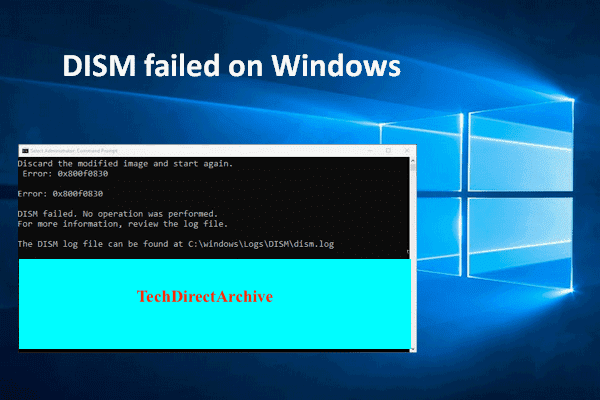
The following error "Error 0x800f0830, discard the modified Image and start again: DISM failed, no operation was performed" was prompted because the packages were already installed and as such could not install the packages again.
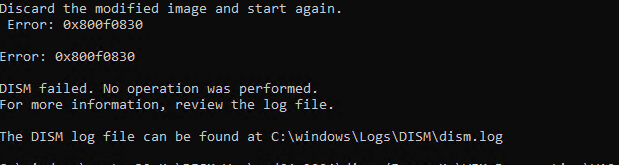
In this case, you have nothing to fix. Simply use the command below to determine if the application has truly been installed.

dism /Image:<MountedDir> /get-features

See ADK, MDT, Microsoft Endpoint Configuration Manager (SCCM), Intune, Autopilot, and WSUS. Also, see how to configure and deploy Windows using Microsoft Deployment Toolkit, and Windows Deployment Services for Windows 10.

FAQs

How can I use DISM to check the health of my Windows image?

You can use the following DISM command to check the health of a Windows image: DISM /Online /Cleanup-Image /CheckHealth

Can DISM be used for driver management in Windows?

DISM can be used for managing drivers in Windows. You can use DISM to add or remove drivers from a Windows image or an offline Windows installation. The /Add-Driver and /Remove-Driver options are used for adding or removing drivers, respectively. See this command for example: DISM /Image:C:\Offline /Add-Driver /Driver:C:\Drivers\MyDriver.inf

I hope you found this blog post helpful on how to fix Error 0x800f0830: Discard the modified Image. Please let me know in the comment session if you have any questions.

Rate this post

Thank you for reading this post. Kindly share it with others.

  • Click to share on X (Opens in new window) X
  • Click to share on Reddit (Opens in new window) Reddit
  • Click to share on LinkedIn (Opens in new window) LinkedIn
  • Click to share on Facebook (Opens in new window) Facebook
  • Click to share on Pinterest (Opens in new window) Pinterest
  • Click to share on Tumblr (Opens in new window) Tumblr
  • Click to share on Telegram (Opens in new window) Telegram
  • Click to share on WhatsApp (Opens in new window) WhatsApp
  • Click to share on Pocket (Opens in new window) Pocket
  • Click to share on Mastodon (Opens in new window) Mastodon
  • Click to share on Bluesky (Opens in new window) Bluesky
  • Click to share on Threads (Opens in new window) Threads
  • Click to share on Nextdoor (Opens in new window) Nextdoor
Windows Server Tags:DISM, Microsoft Deployment Toolkit (MDT), WDS, Windows 10

Post navigation

Previous Post: The action cannot be completed because the folder or file is open in another program: Determine where a file is open in Windows
Next Post: Error 0xc1420117: The directory could not be completely unmounted

Related Posts

  • upgrade 2
    How to upgrade Windows Server Evaluation to Full Version Windows Server
  • unnamed 1
    NSlookup Displays Error: UnKnown Default Server Windows Server
  • How to Check what files are taking up space
    How to Check what files are taking up space on Windows 11 Windows
  • sandbox
    How to Configure Windows Sandbox Virtualization
  • Could not load file or assembly
    Unable to edit MDT XML unattended file: Could not load file Windows Server
  • 0318 4
    Active Directory Authentication methods: How do Kerberos and NTLM work Windows Server

More Related Articles

upgrade 2 How to upgrade Windows Server Evaluation to Full Version Windows Server
unnamed 1 NSlookup Displays Error: UnKnown Default Server Windows Server
How to Check what files are taking up space How to Check what files are taking up space on Windows 11 Windows
sandbox How to Configure Windows Sandbox Virtualization
Could not load file or assembly Unable to edit MDT XML unattended file: Could not load file Windows Server
0318 4 Active Directory Authentication methods: How do Kerberos and NTLM work Windows Server

Leave a Reply Cancel reply

You must be logged in to post a comment.

Microsoft MVP

VEEAMLEGEND

vexpert-badge-stars-5

Virtual Background

GoogleNews

Categories

veeaam100

sysadmin top30a

  • Feature image nagios
    How to Install and Configure Nagios on Ubuntu Linux
  • Delete Edit or Revert a Snapshot on vSphere
    Manage VMware Snapshots: Delete or Edit or Revert a Snapshot Virtualization
  • images copy
    HA-Proxy Configuration File: Copy Between Nodes on Proxmox VE Virtualization
  • Screenshot 2024 02 29 at 8.03.48 PM
    How to create an Elastic Beanstalk environment in AWS AWS/Azure/OpenShift
  • hero activedirectory 2
    Concept of Active Directory Computer Account Windows Server
  • image 190
    Creating Profiles for your AWS Access Credentials for AWS Toolkit in Visual Studio AWS/Azure/OpenShift
  • encrypt your Data with Trellix Data Encryption
    How to encrypt your system with Trellix Data Encryption Security | Vulnerability Scans and Assessment
  • Windows Server 2019
    The virtual machine has terminated unexpectedly during startup with exit code 1 (1×0): Failed to open a session for the virtual machine Windows Server 2019 Virtualization

Subscribe to Blog via Email

Enter your email address to subscribe to this blog and receive notifications of new posts by email.

Join 1,836 other subscribers
  • RSS - Posts
  • RSS - Comments
  • About
  • Authors
  • Write for us
  • Advertise with us
  • General Terms and Conditions
  • Privacy policy
  • Feedly
  • Telegram
  • Youtube
  • Facebook
  • Instagram
  • LinkedIn
  • Tumblr
  • Pinterest
  • Twitter
  • mastodon

Tags

Active Directory AWS Azure Bitlocker Microsoft Windows PowerShell WDS Windows 10 Windows 11 Windows Server 2016

Copyright © 2025 TechDirectArchive


Loading Comments...
 

You must be logged in to post a comment.