Skip to content

TechDirectArchive

Hands-on IT, Cloud, Security & DevOps Insights

  • Home
  • About
  • Advertise With US
  • Reviews
  • Contact
  • Toggle search form
Home » Windows Server » Generate a self-signed SSL certificate: Enable LDAP over SSL
  • Screenshot
    How to configure Synology Active Insights Network | Monitoring
  • opsworks for automate blog
    How to setup Chef Automate on AWS Configuration Management Tool
  • Trellix MVISOSN
    How to install Trellix MVISON Endpoint Security | Vulnerability Scans and Assessment
  • banner
    How to Disable Touchpad on Windows 11 Windows
  • powershell
    Set PowerShell Execution Policy via Windows Settings Windows
  • banner 3
    How to Create a React App with Vite Version Control System
  • How to configure Cisco switches A step by step guide
    How to configure a console port password on Cisco Router Network | Monitoring
  • officeonlineserver
    How to set up and Configure Office Online Server Microsoft Exchange/Office/365

Generate a self-signed SSL certificate: Enable LDAP over SSL

Posted on 13/11/202127/03/2024 Temitope Odemo By Temitope Odemo No Comments on Generate a self-signed SSL certificate: Enable LDAP over SSL
How to enable LDAP over SSL with a self-signed certificate

In this article, we shall discuss “Generate a self-signed SSL certificate: Enable LDAP over SSL”. SSL stands for Secure Sockets Layer; this is a standard secure layer for keeping an internet connection secure and safeguarding any sensitive data that is being sent between two endpoints. See How to fix the issue “The Security Database on the Server does not have a Computer Account for this Workstation Trust Relationship” on Windows Server [Part 2], and How to Quickly Fix Windows Search Bar Not Working.

This security layer prevents criminals from having access to confidential and private contents that are moved across the internet and helps guide against reading and modifying any information transferred.

Many people do find it difficult to get a signed SSL certificate for a local IP address unlike when you want to purchase an SSL certificate for your registered domain which is pretty easier. This guide will show you how you can easily generate a self-signed SSL certificate for your IP address or localhost.

For guides on resolving some windows issues please check these: How to fix the issue “The remote session was disconnected because there are no Remote Desktop License Servers available to provide a license”.

In this guide, we will be using LDP which is a network protocol to connect to the domain controller with an SSL connection. First on our remote server which also serves as the remote system let's install the Active Directory Lightweight Directory Services under the server manager server roles. Want to learn more about LDAP, please take a look at this guide: What is Lightweight Directory Access Protocol.

Troubleshooting LDP Connection

This is required to be able to launch the LDP and connect to the domain controller via an SSL connection.
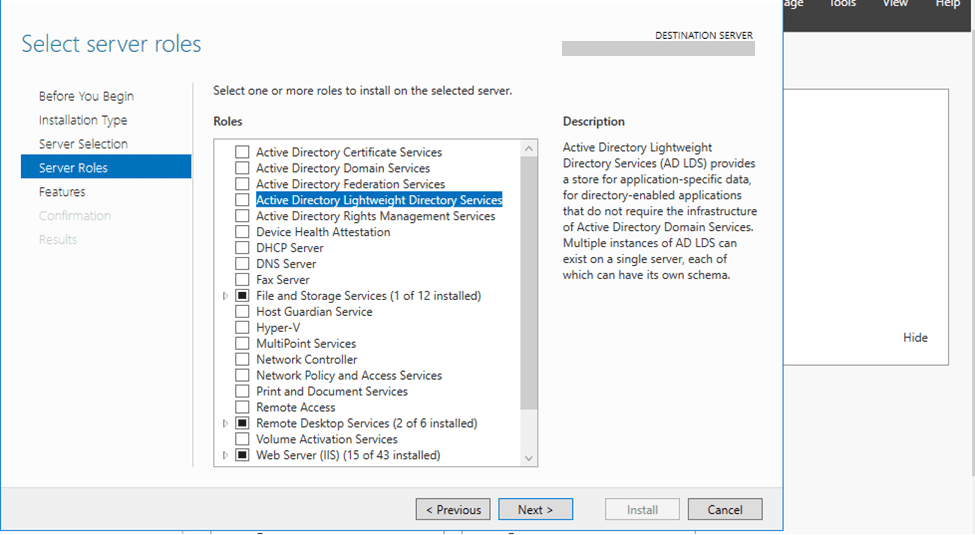
Selecting Server Roles

Add all the features required for the Active Directory Lightweight Directory Services.
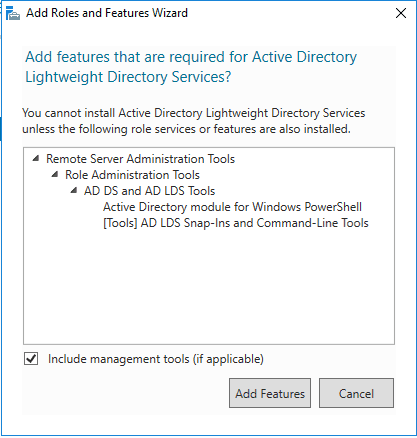
Adding features to AD LDS

After adding the roles complete the installation with the AD LDS installation.
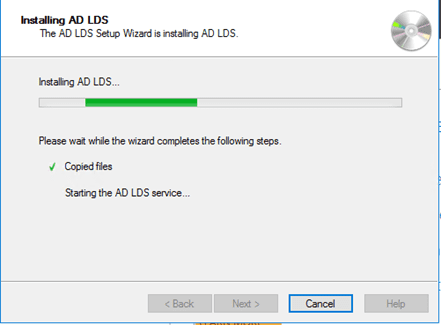
Installing AD LDS
Installing AD LDS

Now try launching the Ldp via the command prompt by typing ldp and tap the enter key. The Ldp page will be displayed, go ahead and enter the server IP and check SSL and click OK.

Launching the Ldp
Launching the Ldp

If there is an SSL certificate implemented already the LDP will connect successfully to the domain controller. However, if the SSL is not implemented yet then you will get the below result.

Failed Connection
Failed Connection

Please refer to this guide for more information on this issue “Cannot open connection via the ldp.exe tool: How to fix LDAP connection error 81“.

Fixing LDP Connection

Step 1: Installing Active Directory Certificate Services

Let’s correct this error by installing Active Directory Certificate Services via the server manager server roles.
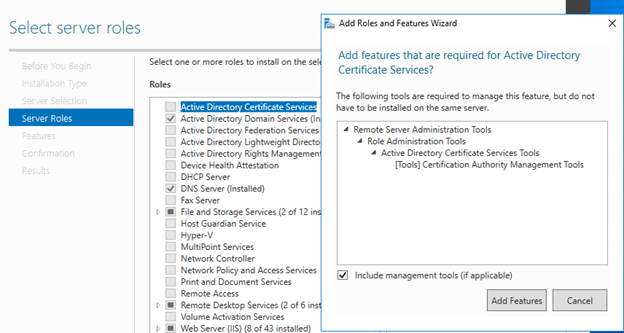
Selecting Server Roles

You can install the Certificate Authority, Certificate Enrollment Policy Web Service, or Certificate Enrollment Web Service. But our concentration is on the first one CA.
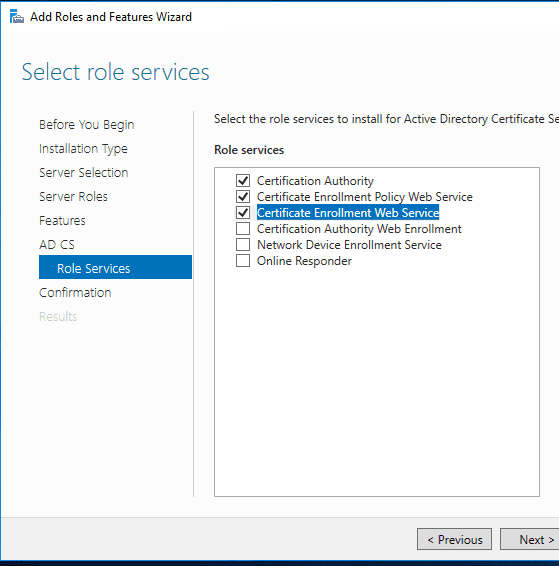
Selecting role services

Step 2: Configure Active Directory Certificate Services

After the installation makes sure you complete the configuration of the Active Directory Certificate Services.

Configuring Active Directory Certificate Services
Configuring Active Directory Certificate Services.

Select all the necessary role services that are needed

Selecting Role Services to configure

Specify Enterprise CA as the setup type of the CA
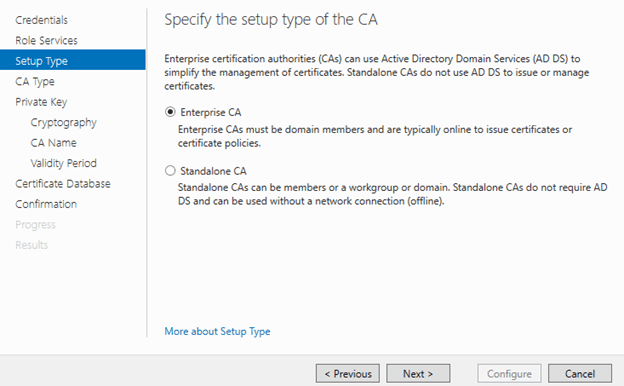
Specifying the setup type of the CA

Specify Root CA as the type of the CA

Specifying the type of the CA

Make sure you check the Allow administrator. Checkbox and stay with SHA256 and 2048 as the key length.

Specifying the Cryptographic options

Please see Unable to bind to LDAP or AD in Pleasant Password Server, Restore AD Objects: How to restore deleted user accounts in Active Directory with Microsoft LDP and PowerShell, and “Generate self-signed certificate and export in PFX format via PowerShell [Part 2]”.

Step 3: Configure Certificate Authority and Create Certificate Template

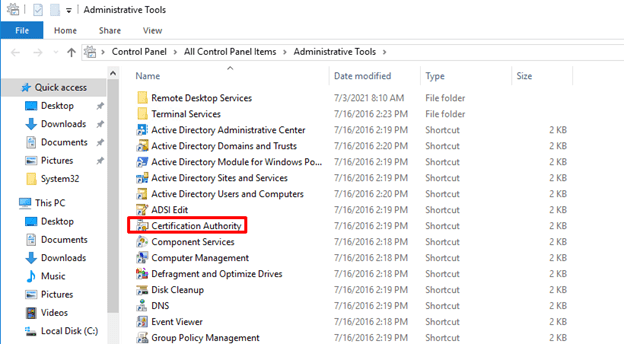
After completing the configuration, you can restart your computer. After your system boot back, go to the administrative tools
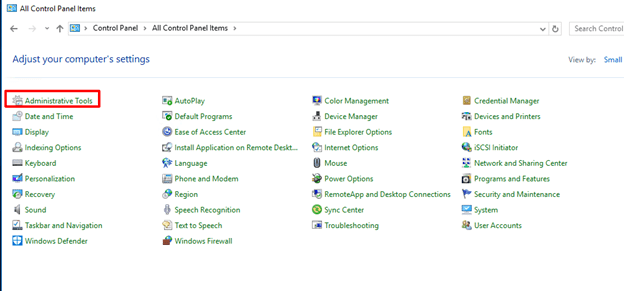
Administrative Tools

Open Certification Authority

Certification Authority

Right-click the Certificate Templates and select Manage.
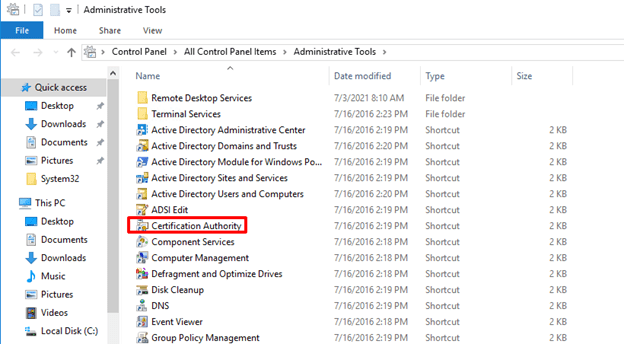
Certification Authority

Right-click the Domain Controller and click on Duplicate Template

Domain Controller Duplicate Template

Select the General tab and insert your Template display name, Template name, the Validity period.

Setting up of Template

On the Request Handling tab, check the Allow private key to be exported check box.

Setting up of Template

On the Subject Name tab select the Supply in the request option and click OK

Setting up of New Template Properties

Click Apply and OK. Close the Properties of New Template. On the Certificate Authority right-click the Certificate Templates and select New > Certificate Template to Issue

Issuing New Certificate Template

Search for the template that you initially added. We created “IP_SSL”

Enabling Certificate Template

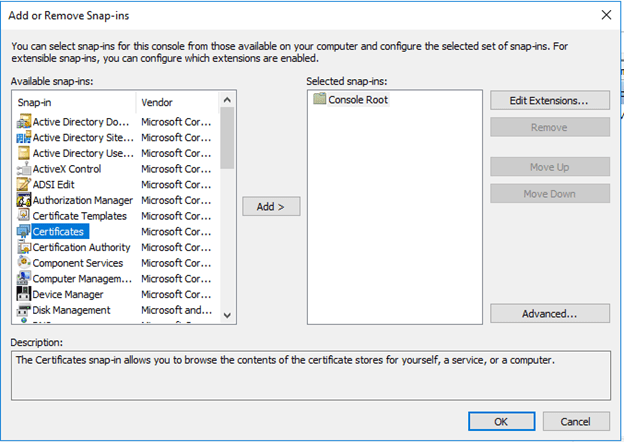
Next open Microsoft Management Console using mmc.exe via Run. Open the Add/Remove Snap-in
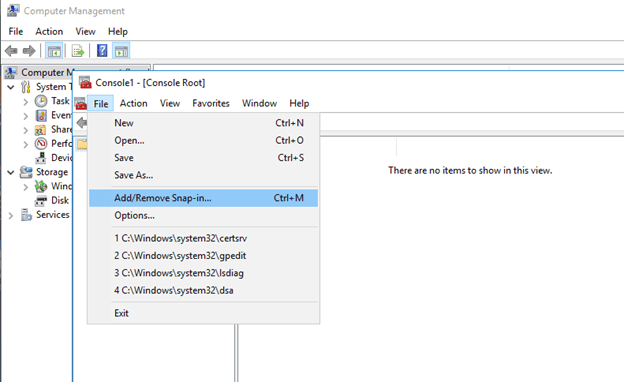
Computer Management
Computer Management

Open Certificates

Adding or Removing Snap-ins

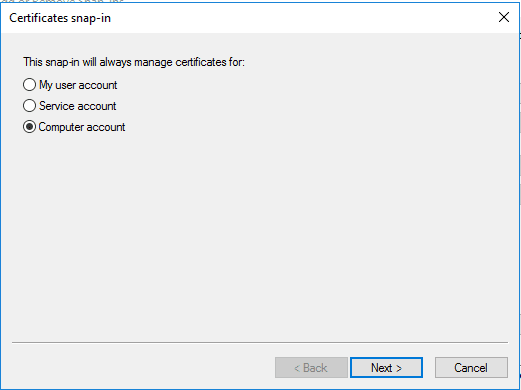
Select Computer account

Certificates snap-in

Right-click and select All Tasks > Request New Certificate

Certificate Authority

We are going to select the certificate template that we have added “IP_SSL”. Click the “More information is………..” and configure
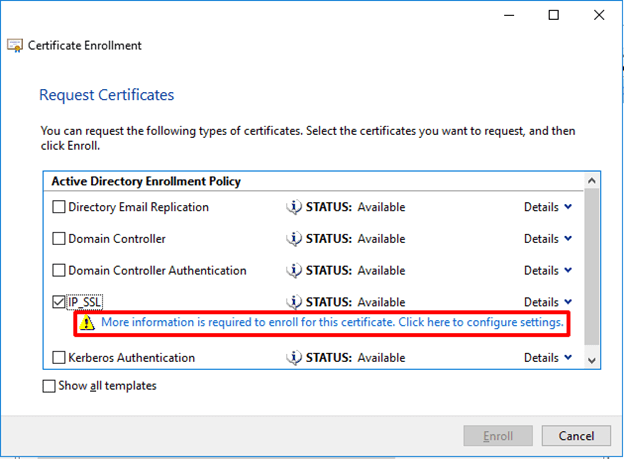
Certificate Enrollment

Select Common name as Type and enter your value in the form of IP. Your IP and DNS should carry the same value. Make sure you also add the FQDN to the DNS.
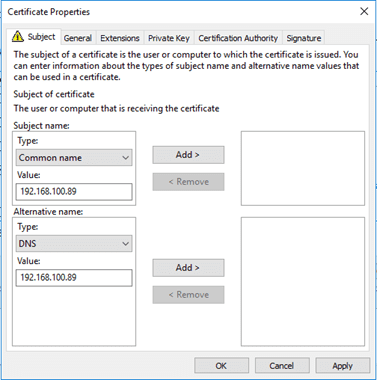
Certificate Properties

Click OK and Enroll

Certificate Enrollment

Export Private key

Its now time to export the certificate to the remote client machine and install. Click on Export

Certificate Console
Certificate Console

Select “Yes, export the private key”

Certificate Export Wizard

Enter the password for security purposes. This will later be used to install the certificate.

Certificate Export Wizard

Browse to where you want to save the certificate and give the certificate a name.

Click finish and go ahead to copy the certificate file and install on the remote machine. Run the installation and select Local Machine
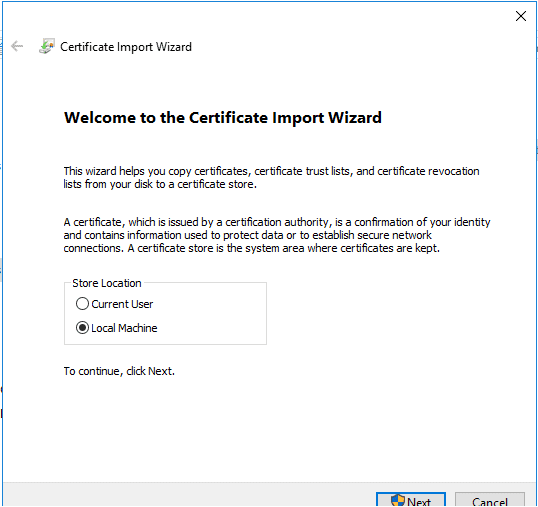
Certificate Import Wizard

Enter the password we created earlier.

image-44
Certificate Import Wizard

Make sure you place the certificate in Personal and Trusted Root Certification Authorities. Which means you will repeat the procedure twice.
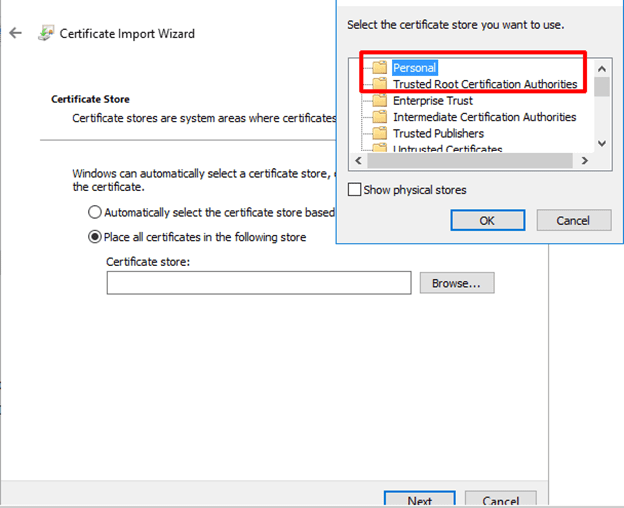
Certificate Import Wizard

Step 5: Test LDP Connection

Now test the Ldp connection again

image-55

You have now successfully generated a self-signed SSL certificate and you should be able to connect now.

image-54
Connection Successful

I hope you found this blog post on How to generate a self-signed SSL certificate for an IP address very interesting and helpful. In case you have any questions do not hesitate to ask in the comment section.

Rate this post

Thank you for reading this post. Kindly share it with others.

  • Click to share on X (Opens in new window) X
  • Click to share on Reddit (Opens in new window) Reddit
  • Click to share on LinkedIn (Opens in new window) LinkedIn
  • Click to share on Facebook (Opens in new window) Facebook
  • Click to share on Pinterest (Opens in new window) Pinterest
  • Click to share on Tumblr (Opens in new window) Tumblr
  • Click to share on Telegram (Opens in new window) Telegram
  • Click to share on WhatsApp (Opens in new window) WhatsApp
  • Click to share on Pocket (Opens in new window) Pocket
  • Click to share on Mastodon (Opens in new window) Mastodon
  • Click to share on Bluesky (Opens in new window) Bluesky
  • Click to share on Threads (Opens in new window) Threads
  • Click to share on Nextdoor (Opens in new window) Nextdoor
Windows Server Tags:Active Directory Certificate Services, Certificate Authority, Certificate Templates, IP Address, SSL, ssl certificate

Post navigation

Previous Post: Create and monitor Apps using the Azure Kubernetes Service manifest
Next Post: Fix LDAP Connection Error 81: Cannot open connection via the ldp.exe tool

Related Posts

  • sql server installation
    How to Install all Editions of Microsoft SQL Server 2025 Oracle/MSSQL/MySQL
  • Screenshot 2020 07 28 at 15.34.51
    Nslookup unknown: Fix cannot find non-existent domain Windows Server
  • How does key rotation work in MBAM
    How does Key Rotation work in MBAM? Oracle/MSSQL/MySQL
  • Interactive logon Message for Users via Windows Registry
    Display logon banners for Windows PCs via Windows Registry Windows
  • WinRM set up for specific IP
    Configure WinRM to accept connection from a specific IP Address Windows
  • dasfdg
    Unable to execute: The application GUID not found in the application list Windows Server

More Related Articles

sql server installation How to Install all Editions of Microsoft SQL Server 2025 Oracle/MSSQL/MySQL
Screenshot 2020 07 28 at 15.34.51 Nslookup unknown: Fix cannot find non-existent domain Windows Server
How does key rotation work in MBAM How does Key Rotation work in MBAM? Oracle/MSSQL/MySQL
Interactive logon Message for Users via Windows Registry Display logon banners for Windows PCs via Windows Registry Windows
WinRM set up for specific IP Configure WinRM to accept connection from a specific IP Address Windows
dasfdg Unable to execute: The application GUID not found in the application list Windows Server

Leave a Reply Cancel reply

You must be logged in to post a comment.

Microsoft MVP

VEEAMLEGEND

vexpert-badge-stars-5

Virtual Background

GoogleNews

Categories

veeaam100

sysadmin top30a
 
  • Screenshot
    How to configure Synology Active Insights Network | Monitoring
  • opsworks for automate blog
    How to setup Chef Automate on AWS Configuration Management Tool
  • Trellix MVISOSN
    How to install Trellix MVISON Endpoint Security | Vulnerability Scans and Assessment
  • banner
    How to Disable Touchpad on Windows 11 Windows
  • powershell
    Set PowerShell Execution Policy via Windows Settings Windows
  • banner 3
    How to Create a React App with Vite Version Control System
  • How to configure Cisco switches A step by step guide
    How to configure a console port password on Cisco Router Network | Monitoring
  • officeonlineserver
    How to set up and Configure Office Online Server Microsoft Exchange/Office/365

Subscribe to Blog via Email

Enter your email address to subscribe to this blog and receive notifications of new posts by email.

Join 1,841 other subscribers
  • RSS - Posts
  • RSS - Comments
  • About
  • Authors
  • Write for us
  • Advertise with us
  • General Terms and Conditions
  • Privacy policy
  • Feedly
  • Telegram
  • Youtube
  • Facebook
  • Instagram
  • LinkedIn
  • Tumblr
  • Pinterest
  • Twitter
  • mastodon

Tags

AWS Azure Bitlocker Microsoft Windows PowerShell WDS Windows 10 Windows 11 Windows Deployment Services Windows Server 2016

Copyright © 2025 TechDirectArchive


Loading Comments...
 

You must be logged in to post a comment.