Skip to content

TechDirectArchive

Hands-on IT, Cloud, Security & DevOps Insights

  • Home
  • About
  • Advertise With US
  • Reviews
  • Contact
  • Toggle search form
Home » Windows » How to restrict additional Microsoft Support Diagnostic Tool Downloads on Windows

How to restrict additional Microsoft Support Diagnostic Tool Downloads on Windows

Posted on 30/08/202215/12/2023 Matthew By Matthew No Comments on How to restrict additional Microsoft Support Diagnostic Tool Downloads on Windows
Featured-image_MSDT.
Microsoft Support Diagnostic Tool: Restrict tool download

In this article, we shall discuss how to restrict additional Microsoft Support Diagnostic Tool Downloads. The Microsoft Support Diagnostic Tool (MSDT) collects diagnostic data for support professionals to analyze. MSDT may prompt users to download extra debugging tools for some issues. Please see Smart App Control and how to enable Phishing Protection: Windows 11 New Security Features, and New Windows 11 encryption features and security enhancements will help protect hybrid work.

These tools are necessary to troubleshoot the issue fully. If tool download is restricted, it may be impossible to identify the source of the problem. If you enable this policy setting for remote troubleshooting, MSDT will request the user to download additional tools to diagnose problems solely on remote PCs.

Enabling this policy for local and remote troubleshooting ensures Windows prompts for additional tool downloads. Disabling it prevents MS from diagnosing remote issues through tool downloads.

When not configured, users are notified by Microsoft Support before downloading tools. No reboots or service restarts are necessary for this policy setting to take effect. Changes take effect immediately.

How to Restrict Microsoft Support Diagnostic Tool Download Using Group Policy Editor

Follow the steps below to stop the troubleshooting wizard from downloading additional tools on your Microsoft Support using the Group Policy Editor.

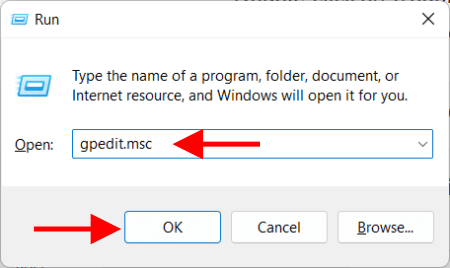
Press Windows key + R to open the Run Dialog Box and type gpedit.msc to open the Group Policy Editor.
Microsoft Support Diagnostic Tool
Opening Group Policy Editor

Go to: Computer Configuration > Administrative Templates > System >Troubleshooting and Diagnostics > Microsoft Support Diagnostic Tool
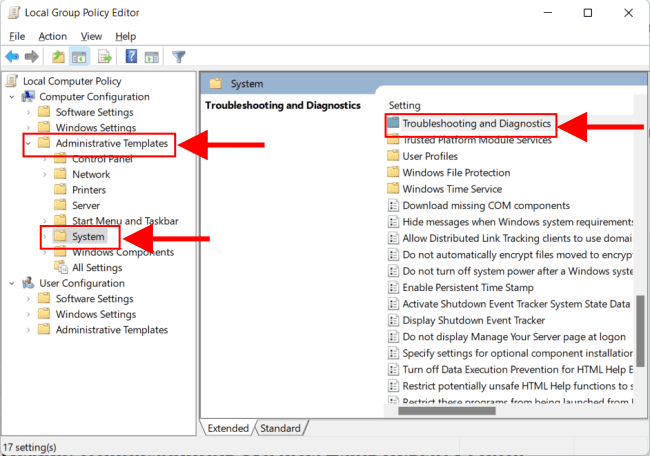
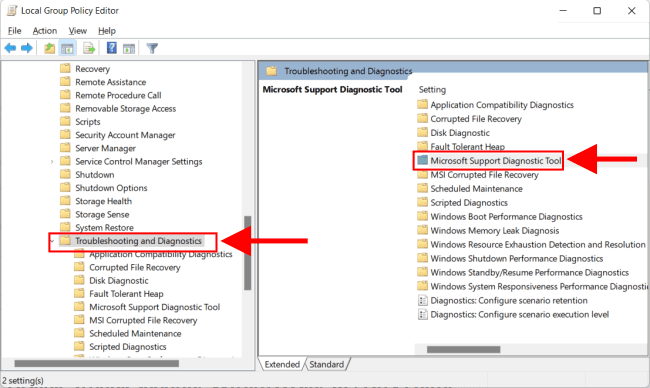
Windows diagnostic tool management
Microsoft Support restrictions

Double-click on the Microsoft Support Diagnostic: Restrict Tool Download.

Microsoft Support tool download control
Microsoft Support Diagnostic Tool group policy setting

In the pop-up window, check Disabled and click on Ok.

image5
Microsoft Support Diagnostic Tool group policy setting

To learn more on some tools, you can read these: Workaround for Microsoft Support Diagnostic Tool Vulnerability, and How to turn on Windows 10 Tamper Protection for Microsoft Defender.

How to Restrict MSDT Download via the Registry

To stop the troubleshooting wizard from downloading additional tools on your PC via the registry, follow the steps below.

Press Windows key + R to open the Run Dialog Box and type regedit to open the Registry Editor.

Picture3
Opening the Registry Editor

Enter the following path in the registry editor search bar:

Computer\HKEY_LOCAL_MACHINE\SOFTWARE\Policies\Microsoft\Windows\WDI{C295FBBA-FD47-46ac-8BEE-B1715EC634E5}
image6
Registry Editor

Double-click on DownloadToolsEnabled and change the value data from 0 to 1 if not already so.

image7
Registry Editor

Also, see How to manage Microsoft Defender Antivirus with Group Policy and Microsoft Malware Protection via the Command Line Utility, and How to Delete Diagnostic Data in Windows 10 and Windows 11.

I hope you found this blog post on how to restrict additional Microsoft Support Diagnostic Tool Downloads helpful. If you have any questions, please let me know in the comment session.

Rate this post

Thank you for reading this post. Kindly share it with others.

  • Share on X (Opens in new window) X
  • Share on Reddit (Opens in new window) Reddit
  • Share on LinkedIn (Opens in new window) LinkedIn
  • Share on Facebook (Opens in new window) Facebook
  • Share on Pinterest (Opens in new window) Pinterest
  • Share on Tumblr (Opens in new window) Tumblr
  • Share on Telegram (Opens in new window) Telegram
  • Share on WhatsApp (Opens in new window) WhatsApp
  • Share on Mastodon (Opens in new window) Mastodon
  • Share on Bluesky (Opens in new window) Bluesky
  • Share on Threads (Opens in new window) Threads
  • Share on Nextdoor (Opens in new window) Nextdoor
Windows Tags:Microsoft Windows, Windows 11

Post navigation

Previous Post: How to Overlay two files with UnionFs in a Linux System
Next Post: Prevent your PC from sending Diagnostics Feedback off via Windows Settings and Group Policy

Related Posts

  • How to Decrypt Files and Folders Encrypted with EFS in Windows 10
    How to decrypt Files and Folders Encrypted with an Encryption File System (EFS) in Windows Windows
  • How to Remove Hyper V
    How to uninstall Hyper-V on a Windows PC Virtualization
  • How to Enable or Disable Inherited Permissions for Files and Folders in Windows
    How to Enable or Disable Inherited Permissions for Files and Folders in Windows Windows
  • Groovy
    How to install Groovy on Linux and Windows Configuration Management Tool
  • Featured image 8
    How to restore quarantined files in Microsoft Defender Antivirus Security | Vulnerability Scans and Assessment
  • Windows Admin Center Apply Update
    How to Apply and Enable Automatic Windows Admin Center Update Windows

More Related Articles

How to Decrypt Files and Folders Encrypted with EFS in Windows 10 How to decrypt Files and Folders Encrypted with an Encryption File System (EFS) in Windows Windows
How to Remove Hyper V How to uninstall Hyper-V on a Windows PC Virtualization
How to Enable or Disable Inherited Permissions for Files and Folders in Windows How to Enable or Disable Inherited Permissions for Files and Folders in Windows Windows
Groovy How to install Groovy on Linux and Windows Configuration Management Tool
Featured image 8 How to restore quarantined files in Microsoft Defender Antivirus Security | Vulnerability Scans and Assessment
Windows Admin Center Apply Update How to Apply and Enable Automatic Windows Admin Center Update Windows

Leave a Reply Cancel reply

You must be logged in to post a comment.

Microsoft MVP

VEEAMLEGEND

vexpert-badge-stars-5

Virtual Background

GoogleNews

Categories

veeaam100

sysadmin top30a

  • TrueCrypt to BitLocker
    How to Migrate from TrueCrypt to BitLocker Backup
  • Fix error Microsoft Outlook cannot sign or encrypt this message when sending email.
    How to fix error “Microsoft Outlook cannot sign or encrypt this message” when sending email? Network | Monitoring
  • Featured image IE mode.
    How to Enable Internet Explorer Mode in Edge in Windows 11 Windows
  • image 1
    Install and License Devolutions Remote Desktop Manager on Mac Mac
  • drivelock 1
    How to activate DriveLock License on Windows Server Windows Server
  • Show or Hide File Extensions
    How to Show or Hide File Extensions on Windows 11 Windows
  • How to configure Cisco switches A step by step guide
    How to configure a console port password on Cisco Router Network | Monitoring
  • teams feature
    How to install and configure Microsoft Teams on Ubuntu Linux

Subscribe to Blog via Email

Enter your email address to subscribe to this blog and receive notifications of new posts by email.

Join 1,825 other subscribers
  • RSS - Posts
  • RSS - Comments
  • About
  • Authors
  • Write for us
  • Advertise with us
  • General Terms and Conditions
  • Privacy policy
  • Feedly
  • Telegram
  • Youtube
  • Facebook
  • Instagram
  • LinkedIn
  • Tumblr
  • Pinterest
  • Twitter
  • mastodon

Tags

AWS Azure Bitlocker Microsoft Windows PowerShell WDS Windows 10 Windows 11 Windows Deployment Services Windows Server 2016

Copyright © 2025 TechDirectArchive


Loading Comments...
 

You must be logged in to post a comment.