When hackers or bad actors attack, they attempt to disable security measures on your systems, such as antivirus protection. Bad actors like to disable your security measures to gain easy access to your data, install malware, or otherwise abuse your data, identity, and devices. In this article, you will learn how to Tamper Protection for Microsoft Defender on Windows 10 [Part 1]. Please see New Windows 11 encryption features and security enhancements will help protect hybrid work, and Files On-Demand with OneDrive: Microsoft OneDrive Setup On Windows 10 and 11 and Key Features Explained.
Tamper protection helps in the prevention of such incidents. According to Microsoft, tamper protection blocks malicious programs from doing acts such as Disabling virus and threat protection, disabling real-time protection, turning off behaviour monitoring, disabling antivirus protection, such as IOfficeAntivirus (IOAV), disabling cloud-delivered protection, removing security intelligence updates, disabling automatic actions on detected threats, and suppressing notifications in the Windows Security app.
Here are other related guides: Microsoft Endpoint Manager: How to manage safety system with Group Policy and Microsoft threats safety via the Command Line Utility, Smart App Control and how to enable Phishing safety: Windows 11 New safety Features,
How Windows Tamper Protection Works
Tamper protection locks Microsoft Defender Antivirus to safe settings, preventing modification by programs or techniques like:
- Using Registry Editor to alter settings on your Windows device
- Modifying settings with PowerShell cmdlets
- Changing or deleting security settings using Group Policy
You may still see your security settings despite tamper protection. Furthermore, tampering prevention has no effect on how non-Microsoft antivirus software register with the Windows Security app.
Individual users cannot modify the tamper protection setting if your business is running Windows 10 Enterprise E5; in those circumstances, tamper protection is controlled by your security team.
Ways to enable tamper protection in windows
There may be a reliance on cloud-delivered protection based on the method or management tool you select to provide tamper prevention. Cloud security is cloud protection or Microsoft Advanced Protection Service (MAPS).
The table below contains information on the techniques, tools, and dependencies.
| How tamper protection is enabled | Dependency on cloud protection |
| Microsoft Intune | No |
| Microsoft Endpoint Configuration Manager with Tenant Attach | No |
| Microsoft 365 Defender portal (https://security.microsoft.com) | Yes |
How to enable tamper protection on an individual device
If you are using a personal system that is not subject to settings managed by an organization’s security team, you can manage tamper protection using the Windows Security app. To update security settings such as tamper protection, you must have proper admin permissions on your device.
Press the Windows key to open Start menu, then type Windows Security and select the result that best match your search.

You may be prompted to enable Tamper Protection. To enable it, simply click “Turn On.” If not, click the “Virus & threat protection” icon.

Click the “Manage Settings” link under Virus & threat protection settings.

Locate the Tamper Protection option and toggle it from “Off” to “On.”

How to Turn on Tamper Protection in Registry
The registry can also be used to enable this setting. It can be found under the following key:
HKEY_LOCAL_MACHINE\SOFTWARE\Microsoft\Windows Defender\Features

Double-click on TamperProtection and set its value data to 0 or 1 to enable or disable it.
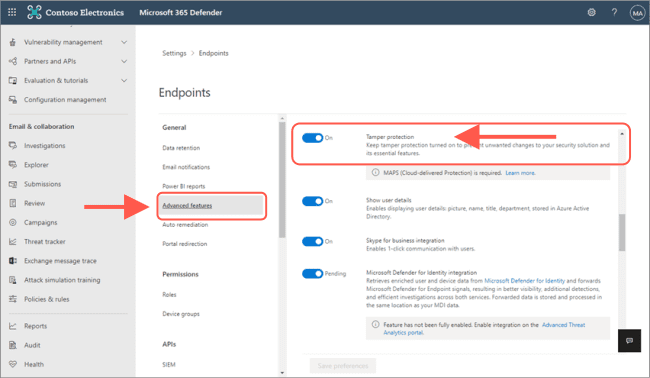
How to turn it on (or off) in the Microsoft 365 Defender portal
1: Go to the Microsoft 365 Defender portal (https://security.microsoft.com) and sign in.
2: Choose Settings > Endpoints.
3: Go to General > Advanced features, and then turn tamper protection on.
How to turn it on (or off) in Microsoft Endpoint Manager
The Microsoft 365 Defender Portal allows users to update this setting globally. This has an impact on all devices linked with that tenant.
On the client, the relevant option in the Settings app is grayed out, preventing local administrators from changing it.
- Navigate to Endpoint security > Antivirus in the Microsoft Endpoint Manager admin center, and then select Create Policy.
- Select Windows 10 and later from the Platform list.
- Select Windows Security experience from the Profile list.
- Create a profile that includes the following settings: To prevent Microsoft Defender being disabled, enable Windows 10 Safety Enhancer: Enable

- Assign the profile to one or more groups.
If you don’t want to toggle Windows Windows 10 Safety Enhancer on and off globally, you can utilize Intune or Configuration Manager 2006 with tenant attach. Specific devices can thus be addressed in a targeted manner.
I hope you found this article useful on Tamper Protection for Microsoft Defender on Windows 10 [Part 1]. Please feel free to leave a comment below.