Selfservice Recovery: Trellix BitLocker and fileVault Recovery


Trellix Management for Native Encryption (MNE) is a management product that allows ePO administrators to manage Apple FileVault and Microsoft BitLocker. These programs are the native encryption offerings on macOS and Windows operating systems. MNE can also help users in system recovery, and provides rich audit and reporting capabilities. In this article, we shall discuss “Trellix BitLocker and fileVault Recovery: Perform Selfservice Recovery”. Please see How to Test Web Applications Using Scandium, how to Install and Set Lively Wallpaper on Windows 11, and How to Perform a Reverse Image Search on Your Browsers.
If you wish to follow along, you can request an online DEMO account fro Test as shown below.

Force BitLocker Recovery Mode
BitLocker is a feature in Microsoft Windows that provides encryption for the entire operating system volume and data volumes. Sometimes, due to various reasons like hardware changes, system updates, or forgotten passwords, BitLocker may enter into a recovery state, requiring a recovery key or password to unlock the drive.
To simulate the above scenarios and get into the recovery mode. We will have to launch the Command Prompt or PowerShell window and type the following command depending on the drive you wish to initiate the recovery on.
manage-bde -ForceRecovery C:
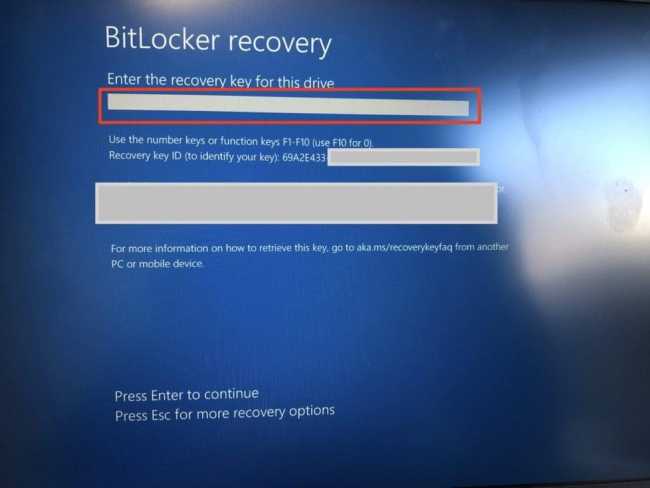
You will be required to restart. You can use the command line or use the restart button. When the PC restarts, you will be prompted with the BitLocker Recovery Mode.
See Mac FileVault Encryption: How to enable FileVault disk encryption, how to perform Trellix ePolicy Orchestrator Installation on Windows Server, and How to upgrade Trellix ePolicy Orchestrator.
Part 1: Provide the recovery key to the user
Login to Trellix ePO as shown below as an administrator.

Under the Data Protection, click on Trellix Management of Native Encryption. Please see BitLocker Windows Update Shutdown or Reboot option behavior.

In the NME wizard, please enter the recovery key ID as shown in the BitLocker Recovery mode above. When you start typing the initial keys, Trellix will pre-populate these fields. Click on it to proceed.

You will be able to find your BitLocker Recovery key in this Window. When you are done, click close.

FileVault Recovery
FileVault is the native operating system encryption product from Apple. It encrypts the entire OS X startup volume, typically including the home directory, but not non-OS volumes. It supports a user-based preboot.
Follow through the same steps as above to access “import FileVault recovery”.

Follow the prompt by entering the serial number of recovery key

Recover Client PC: Provide the BitLocker Recovery key to the user
Now that we have been able to access the BitLocker Recovery. Please enter the retrieved key and hit the enter button on your keyboard to access your PC.
Assign BitLocker Recovery to the Trellix Help Desk Team
As shown above, you were able to perform the BitLocker/FileValut recovery because you are an administrator of the ePO server. What if you want to grant just the ability to recovery BitLocker Recovery Keys to a not so technical person? For example, a help-desk. Follow the steps below to achieve this.
Part 1: Enable AD Users to Logon
First, you would have to allow AD users the ability to logon unto ePO.

Click on ePO menu, and select Server Settings under Configuration. Edit this settings by selecting the associated checkmark. When done, click on SAVE.

As you can see, we have enabled ePO logon when an AD user has at least a single permission set assigned.

Part 2: Create a New Permission Set
As you can see, unlike MBAM. Trellix MNE does not have the traditional helpdesk feature. I will have to use the permission set to achieve this. To do this, launch the permission set.

Great a new permission set

Upon clicking on the add button, a select Group window will open up. Please select the group of your choice and click OK.
Note: See this guide if you wish to assign a permission set to an AD user-group. I will discuss these steps below.

Assign Trellix MNE to the newly created permission set. To do this, edit the permission for access the Trellix Management of Native Encryption.

Assign the desired permission and save!

Create an AD User Account on Trellix
Please populate the field as you wish to create a user on Trellix. When complete, click OK. Do not forget to select the permission set created above.

Here is how to Disable SQL Auto Close: Auto Close is enabled for both ePO and ePO Events Databases, and how To Setup A New Computer Without A Microsoft Account on Windows 11.
Access the Trello ePO with the new user account
As you can see, the user only has the selected permission set we have assigned.
You can now follow the prompt to import FileVault Recovery Key.
Part 2: Perform Self-service Bitlocker Recovery
Note: Make sure that you have installed the dpssp.zip extension on the Trellix ePO – On-prem server before performing this task. But because, I checked in all extensions and components, I did not manually have to do this. See Manage BitLocker and FileVault with Trellix Native Encryption.
Since we have been able to perform BitLocker recovery from the console and by assigning a subset of permission to a users.
Now, let’s enable self-recovery portal

Click to Edit the self-service portal.

Enter the information and save. Next to Authentication, AD is selected by default as the Active Directory sever.

Create a New Permission Set to assign Self-Service Portal Permission that will be associated to this user. Follow the same steps as above to create a new permission set.

IF you do not already have a user and would like to assign this right to a new user Please create a new ePO user that will utilise Windows Authentication.

Perform Trellix Self Service Recovery
When DPSSP is used for recovery with systems managed with Trellix MNE, the user must open the DPSSP portal, enter the serial number or recovery key ID for the FileVault or BitLocker system respectively, and obtain the recovery key.
In the event that both Trellix MNE and Drive Encryption are installed within the customer environment, the user is required to choose the product for which recovery is being requested.
In the address bar of a web browser, enter the URL: domain:8444/dpssp/selfRecovery, then press Enter to open the Data Protection Self Service Portal (DPSSP) page.
Enter your domain name and password.

Upon a successful login to DPSSP, you should be able to perform self service bitLocker/FileVault recovery.

FAQs
Why add management of Windows BitLocker with MNE when we already have Drive Encryption (DE) or Endpoint Protection for PC (EEPC)?
According to Trellix “MNE for BitLocker is a secondary option for our existing DE customers and new prospects. One of the goals is to provide customers an option if they want only basic encryption.
This goal is especially for customers who are already using BitLocker on all or a group of endpoints. One application of MNE for a Windows system is to enable management through ePO of small clusters of systems that you can’t currently manage with DE”.
Why must I enable key-rotation in the server settings page for MNE?
BitLocker recovery keys have no random element. This statement means that until the recovery key is changed, the recovery key can continue to be used. If the recovery key falls into the wrong hands, an attacker can gain access to the system.
When you enable the server-settings key-rotation settings, it protects against anyone who views the recovery key in ePO (via MNE recovery or Data Protection Self ServicePortal (DPSSP)).
The reason is because the server instructs the endpoint to change the recovery keys. The recovery keys change to something new at the next opportunity. This action closes this security hole.
Is it possible to configure MNE for FileVault to only allow for one user at preboot?
No. After MNE enables FileVault, Mac OS X adds the currently logged in user to the FileVault preboot.
After FileVault is enabled on the system, when a new user is created on the system, Mac OS X adds that user to FileVault preboot logon automatically. MNE does not support restricting logon for a single user on the system because MNE doesn’t control FileVault user management.
I hope you found this article on “Selfservice Recovery: Trellix BitLocker and fileVault Recovery” useful. Please feel free to leave a comment below.


