Skip to content

TechDirectArchive

Hands-on IT, Cloud, Security & DevOps Insights

  • Home
  • About
  • Advertise With US
  • Reviews
  • Contact
  • Toggle search form
Home » AWS/Azure/OpenShift » ENA Driver on Amazon EC2: Easy Installation Guide

ENA Driver on Amazon EC2: Easy Installation Guide

Posted on 10/03/201816/08/2023 Christian By Christian No Comments on ENA Driver on Amazon EC2: Easy Installation Guide
ENA Driver

The ENA Driver on Amazon EC2 introduces a specialized network interface designed to provide exceptional throughput, delivering impressive packet per second (PPS) performance and reliably low latencies. This enhancement empowers EC2 instances with the capability to harness a remarkable 20 Gbps of network bandwidth, specifically applicable to select instance types. However, it’s important to remember that this feature is unavailable for activation on T2 Instances.

Most times, when you increase or change the instance type of a server, the adapter changes, and this can cause issues for you. Please refer to these articles on Driver Management on AWS, Windows clients, and servers. “How to remove a Printer from Windows 10 via PowerShell, Windows registry and Print Management, how to configure Windows instance using EC2 Launch for Server 2016, how to launch an EC2 instance, and how to upgrade AWS Network Adapter from Redhat to Citrix PV and then to AWS PV driver.

Here are the steps for installing the ENA Driver:
-Install the driver for the operating system from this link.
– Locate the Operating system relevant to you and right by selecting copy link address

To set up enhanced networking performance, navigate to the browser of your Amazon EC2 instance where you intend to install the ENA Driver. By pasting this link, a zip file encompassing the ENA network adapter will be promptly downloaded.

Enhancing Network Performance with the ENA Driver Installation

To optimize network performance on your Amazon EC2 instance, make sure to install the ENA Driver on Amazon EC2. Begin by opening the command prompt (CLI) and navigating to the directory containing the necessary files. Then, execute the following command: “pnputil -i -a ena.inf”. This step will ensure the proper installation of the ENA Driver, enhancing network capabilities for your EC2 instance.

Amazon EC2

4. Now stop the instance by shutting it down

5. Enable ENA support on the instance, run this command below
Note: (This step has to be done from your local computer) on on the instance

6. Open the command prompt (CLI)
Type in aws configure and follow the prompt (instruction) and enter your keys

7. Modifying the instance Attribute (AWS-CLI)
aws ec2 modify-instance-attribute –instance-id instance_id –ena-support

And to describe the instance (AWS CLI)

aws ec2 describe-instances --instance-ids instance_id --query "Reservations[].Instances[].EnaSupport"

i.e,

aws ec2 modify-instance-attribute --instance-id i-0fxxxxxx82 --ena-support
aws ec2 describe-instances --instance-ids i-0fxxxxxx682 --query "Reservations[].Instances[].EnaSupport"

Note: At the moment the steps have changed used by AWS but the syntax still remains the same
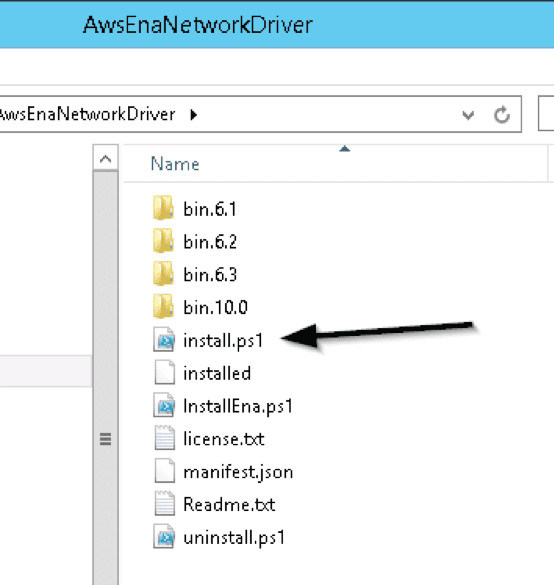
Now you have to download, navigate to the folder, and run the install.ps.

And follow the steps above again
I hope you found this blog post helpful. If you have any questions, please let me know in the comment session. I welcome you to subscribe to my YouTube Channel.

Rate this post

Thank you for reading this post. Kindly share it with others.

  • Share on X (Opens in new window) X
  • Share on Reddit (Opens in new window) Reddit
  • Share on LinkedIn (Opens in new window) LinkedIn
  • Share on Facebook (Opens in new window) Facebook
  • Share on Pinterest (Opens in new window) Pinterest
  • Share on Tumblr (Opens in new window) Tumblr
  • Share on Telegram (Opens in new window) Telegram
  • Share on WhatsApp (Opens in new window) WhatsApp
  • Share on Mastodon (Opens in new window) Mastodon
  • Share on Bluesky (Opens in new window) Bluesky
  • Share on Threads (Opens in new window) Threads
  • Share on Nextdoor (Opens in new window) Nextdoor
AWS/Azure/OpenShift Tags:Enhanced Networking Adapter, Windows Server 2016

Post navigation

Previous Post: How to reset MySQL Root password
Next Post: How to implement N2WS Backup & Recovery (CPM)

Related Posts

  • azure logo 1
    How to use the built-in Azure Active Directory Connect tool AWS/Azure/OpenShift
  • cloudqueryfeature
    How to Manage Cloud Assets in AWS with CloudQuery AWS/Azure/OpenShift
  • azure logo
    Azure CLI commands: How to use Azure Command-line Interface AWS/Azure/OpenShift
  • article 1280x720.192a2586 1
    How to apply Windows Updates from WSUS to AWS Instances AWS/Azure/OpenShift
  • Microsoft Enterprise Root Certification Authority and Forest Domain to Azure migration
    Migrate Microsoft Enterprise Root Certification Authority and Forest Domain to Azure AWS/Azure/OpenShift
  • banner2 1
    How to use GitHub as Source Provider for AWS CodePipeline AWS/Azure/OpenShift

More Related Articles

azure logo 1 How to use the built-in Azure Active Directory Connect tool AWS/Azure/OpenShift
cloudqueryfeature How to Manage Cloud Assets in AWS with CloudQuery AWS/Azure/OpenShift
azure logo Azure CLI commands: How to use Azure Command-line Interface AWS/Azure/OpenShift
article 1280x720.192a2586 1 How to apply Windows Updates from WSUS to AWS Instances AWS/Azure/OpenShift
Microsoft Enterprise Root Certification Authority and Forest Domain to Azure migration Migrate Microsoft Enterprise Root Certification Authority and Forest Domain to Azure AWS/Azure/OpenShift
banner2 1 How to use GitHub as Source Provider for AWS CodePipeline AWS/Azure/OpenShift

Leave a Reply Cancel reply

You must be logged in to post a comment.

Microsoft MVP

VEEAMLEGEND

vexpert-badge-stars-5

Virtual Background

GoogleNews

Categories

veeaam100

Veeam Vanguard

  • WindowsServer2022
    Windows Server 2022 Capabilities: Register Windows Admin Center with Azure Windows Server
  • Screenshot 2020 06 22 at 23.27.40
    How to fix unable to install msodbcsql17 tool on Ubuntu Oracle/MSSQL/MySQL
  • Azure VMware Solution Private Cloud
    How To Deploy Azure VMware Solution Private Cloud AWS/Azure/OpenShift
  • CVE 2026 25177 Privilege Escalation In AD
    Unicode Manipulation: CVE-2026-25177 Privilege Escalation in AD Windows Server
  • Domain
    Connectivity to a writable domain controller from a node could not be determined because of an error Virtualization
  • Enable a Pre Boot BitLocker PIN on Windows
    How to Enable a Pre-Boot BitLocker PIN on Windows Security | Vulnerability Scans and Assessment
  • enable or disable WinRM
    How to enable or disable WinRM via the command-line Network | Monitoring
  • Screenshot 2021 02 01 at 12.25.27
    How to import a MySQL Database via the command line Oracle/MSSQL/MySQL

Subscribe to Blog via Email

Enter your email address to subscribe to this blog and receive notifications of new posts by email.

Join 1,813 other subscribers
  • RSS - Posts
  • RSS - Comments
  • About
  • Authors
  • Write for us
  • Advertise with us
  • General Terms and Conditions
  • Privacy policy
  • Feedly
  • Telegram
  • Youtube
  • Facebook
  • Instagram
  • LinkedIn
  • Tumblr
  • Pinterest
  • Twitter
  • mastodon

Tags

Active Directory Azure Bitlocker Microsoft Windows PowerShell WDS Windows 10 Windows 11 Windows Deployment Services Windows Server 2016

Copyright © 2025 TechDirectArchive


Loading Comments...
 

You must be logged in to post a comment.