

If you want to create a connection to AWS CodeCommit repositories is by configuring Git credentials for CodeCommit in the IAM console. In this article, you shall learn how to setup HTTPS users using Git credentials and Pushing Code to AWS CodeCommit. Kindly check these pages to read more on AWS: How to Deploy Dynamic Website to AWS EC2, Lear how to host Static Website and Versioning on AWS S3, How to deploy an Angular App to AWS S3, how to manage cost with AWS Budgets, and Setup a Continuous Deployment Pipeline with AWS CodePipeline.
This credential can be used for HTTPS connections and can create access for you to push your code to AWS CodeCommit. These same credentials can be used with a third-party tool or IDE that supports HTTPS authentication that uses a username and password.
Now follow the below steps to set up an AWS account, IAM user, and access to CodeCommit. You can sign up an AWS account by going to the link below. Please see AWS CodeCommit: A Guide to Efficient Usage.
http://aws.amazon.com
Create an IAM User
You can create an IAM user, or use an existing one, in your AWS account. You can read this guide Creating IAM Users, Adding MFA and Policies on AWS on how to create an IAM user.
Navigate to the URL below, sign in to the AWS Management Console and open the IAM console.
https://console.aws.amazon.com/iam/
In the IAM console, navigate to the users you want to configure for CodeCommit access.

On the Permissions tab, click Add Permissions. Also, see AWS CodeCommit: A Guide to Efficient Usage.
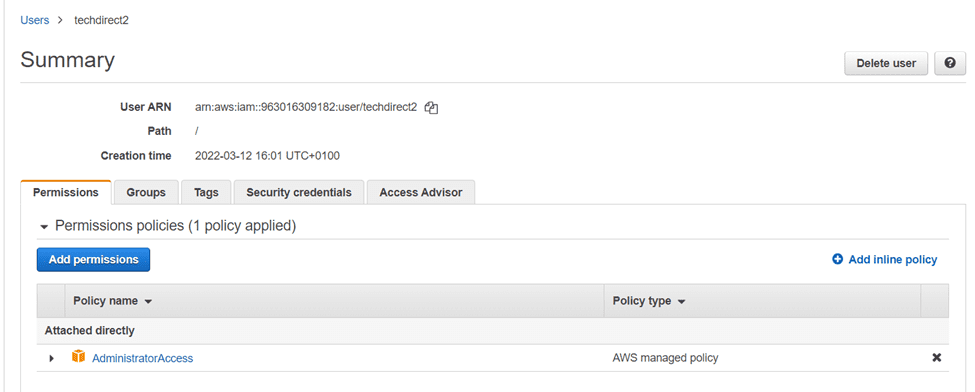
In the Grant permissions page, select Attach existing policies directly and filter out and select AWSCodeCommitPowerUser. Then choose Next: Review to complete the policy addition.

Installing Git
If you will be working with files, commits, and other access to CodeCommit repositories, you must install Git on your local machine. Use this link to install Git.
Now let us Create Git credentials for HTTPS connections to CodeCommit. After installing Git, go ahead to create Git credentials for your IAM user in your IAM console.
- Go back to the AWS Management Console and open the IAM console.
- Make sure to sign in as the IAM user who will create and use the Git credentials to connect to CodeCommit.
- In the IAM console select the IAM user from the list of users.
- On the users summary page, click the Security Credentials tab

Scroll down. Then click HTTPS Git credentials for AWS CodeCommit, and choose Generate.


Make sure you copy the user name and password that was generated by copying or downloading the CSV file to a safe location on your computer.
Clone the repository
Now go to the CodeCommit console and clone the repository by following the below steps:
You can access the CodeCommit console at the URL below.
https://console.aws.amazon.com/codesuite/codecommit/home.
Select the repository you want to connect to from the list of repositories. Next Choose Clone URL, and select the protocol you want to use when cloning or connecting to the repository.
Note: You will copy the HTTPS URL if you will be using Git credentials with your IAM user
- You will copy the HTTPS (GRC) URL if you will be using the git-remote-codecommit command on your local computer.
- You will copy the SSH URL if you will be using an SSH public/private key pair with your IAM user.
Here are some related guides: Practical Git use with markdown, how to install Git on macOS, and how to clone a repository and install software from GitHub.
Utilizing HTTPS Clone URL for Repository Cloning
In this guide, we will be using HTTPS clone URL. Open a Git bash and run the git clone command with the HTTPS clone URL you copied to clone the repository.
For instance, if you want to clone a repository named techdirectarchive2 to a local repo named techdirectarchive_repo use this command below
git push https://git-codecommit.eu-west-3.amazonaws.com/v1/repos/techdirectarchive2 --all
You will need to supply the Git credentials you earlier saved in a location. The first time you connect, you are prompted for the username and password for the repository.

To achieve successful integration, follow these steps to set up HTTPS users using Git while ensuring secure code transfer to the AWS CodeCommit repository. Execute the required Git commands and conclude with the designated final step for a smooth process.
git push https://git-codecommit.eu-west-3.amazonaws.com/v1/repos/NameOfYourRepo --all
Use the following git commands to move your code online


All the code has been successfully moved to AWS CodeCommit Repository.

Discover the steps to effortlessly set up HTTPS users using Git credentials and Push Code to AWS CodeCommit in this concise guide. If you have any queries, drop them in the comments.
I hope you found this blog post helpful on how to Setup HTTPS users using Git credentials and Pushing Code to AWS CodeCommit. Please let me know in the comment section if you have any questions.



Thanks for a great article. Is there something I can do so that I don’t have to enter my username and password every time I do a git push?
Thanks Smiffy for reading the article. To answer your question can you read this article https://techdirectarchive.com/2023/08/02/how-to-fix-git-always-asking-for-my-username-and-password/