Skip to content

TechDirectArchive

Hands-on IT, Cloud, Security & DevOps Insights

  • Home
  • About
  • Advertise With US
  • Contact
  • Reviews
  • Toggle search form
Home » Windows Server » How to create a capture image on Windows Deployment Services

How to create a capture image on Windows Deployment Services

Posted on 27/05/202008/09/2024 Christian By Christian No Comments on How to create a capture image on Windows Deployment Services
capture image

A capture Image is required for an environment where you are deploying similar Operating Systems that contain the same basic applications. The image is used to create a capture image. For the differences between Capture image, Discover image, Install and Boot images (Windows PE). In this article, you will learn about How to create a capture image on Windows Deployment Services. Please see how to add images to WDS and configure Multicast transmission via the GUI.

Create a capture image

Follow the steps to have this done. Click on the boot image. Right-click on the boot image on the right pane of the window and select Create Capture Image as shown below. This is the first step to create a capture image on Windows Deployment Services.

Note: In this Window, you can do a lot of stuff, as shown below. Furthermore, Here, we want to create a Captured Image

Windows Deployment Services

Enter the Image Name

However, Enter the image’s name and description as well to proceed with creating a capture image.

image creation

For more information on this, see ” how to configure Windows Deployment Services on Windows Server 2019“

Browse to the RemoteInstall Directory

For location and file name, click on browse and browse to the path where the RemoteInstall” folder is when we installed WDS role.

create image
Screenshot 2020 05 27 at 22.36.14

Moreover, This will ensure we have the Capture Image folder created under the RemoteInstall Directory, crucial for creating a capture image on Windows Deployment Services.

Windows Deployment Services
capture image
Screenshot 2020 05 27 at 22.43.25

In addition, The Metadata and location will be like this as shown below. Click on Next

image creation

This will continue the installation process and when done

capture image

Click on Finish (Now the Capture Image has been created)

create image

Now we have successfully created a captured image. Now we can see the captured file in the RemoteInstall location as shown below

image creation

Next, you will have to upload this image to WDS. This can be done by following the steps below. See how to add the Lite-Touch Images to WDS for a similar example.

Launch the WDS console

Launch the WDS console and right-click on the Boot image to effectively create a capture image on Windows Deployment Services.

capture image

In the Add Image Wizard, browse to the image file as shown below

Screenshot 2020 06 06 at 23.52.45
Screenshot 2020 06 06 at 23.53.09

Click on Next to proceed when the image file has been selected.

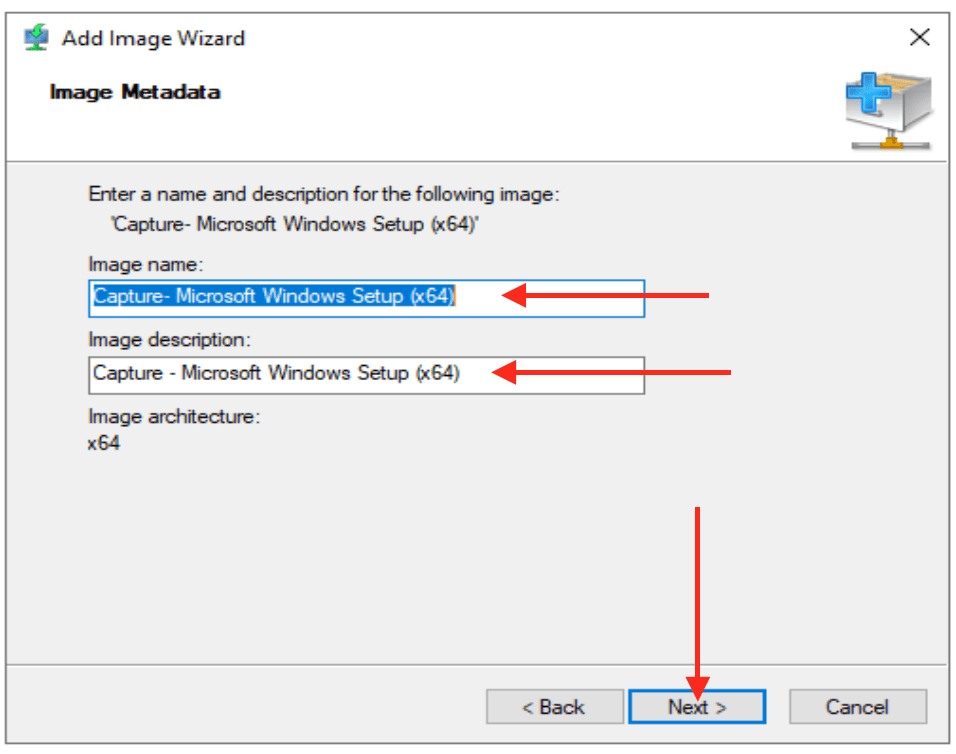
In the Image Metadata window, click on Next. You can add a descriptive name in your environment when you create a capture image.
Review the summary as shown below and click on Next

When the image upload is completed, click on Finish as shown below.

Screenshot 2020 06 06 at 23.57.35
Screenshot 2020 06 06 at 23.59.08

As we can see on the WDS console, under the boot images, the Capture image we created has been uploaded successfully.

Nonetheless, I hope you found this blog post on how to create a capture image on Windows Deployment Services helpful. Consequently, Please let me know in the comment session if you have any questions.


5/5 - (1 vote)

Thank you for reading this post. Kindly share it with others.

  • Share on X (Opens in new window) X
  • Share on Reddit (Opens in new window) Reddit
  • Share on LinkedIn (Opens in new window) LinkedIn
  • Share on Facebook (Opens in new window) Facebook
  • Share on Pinterest (Opens in new window) Pinterest
  • Share on Tumblr (Opens in new window) Tumblr
  • Share on Telegram (Opens in new window) Telegram
  • Share on WhatsApp (Opens in new window) WhatsApp
  • Share on Mastodon (Opens in new window) Mastodon
  • Share on Bluesky (Opens in new window) Bluesky
  • Share on Threads (Opens in new window) Threads
  • Share on Nextdoor (Opens in new window) Nextdoor
Windows Server Tags:WDS, WDSUTIL, Windows Deployment Services, Windows Server 2016

Post navigation

Previous Post: How to remove WDS role via the GUI and PowerShell
Next Post: Windows Deployment Services: WDSUTIL CommandLine Options on Windows Server 2019

Related Posts

  • task manager not responding thumbnail
    Process Explorer: Replace built-in Task Manager Windows Server
  • Uninstall SQL Server 2025
    Uninstall Microsoft SQL Server 2025 from Windows Oracle/MSSQL/MySQL
  • Object Firt OOTBI offline and online cluster update
    Offline and Online Update for Object First Out-of-the-Box Cluster Windows Server
  • Comprehensive guide on WSUS setup
    How to install WSUS on Windows Server 2022 Windows Server
  • backupvssnapshot
    Virtual Machine Snapshot vs Backup Version Control System
  • ansible business cards 1600x0 c default
    Kerberos error: Clock skew too great while getting initial credentials Windows Server

More Related Articles

task manager not responding thumbnail Process Explorer: Replace built-in Task Manager Windows Server
Uninstall SQL Server 2025 Uninstall Microsoft SQL Server 2025 from Windows Oracle/MSSQL/MySQL
Object Firt OOTBI offline and online cluster update Offline and Online Update for Object First Out-of-the-Box Cluster Windows Server
Comprehensive guide on WSUS setup How to install WSUS on Windows Server 2022 Windows Server
backupvssnapshot Virtual Machine Snapshot vs Backup Version Control System
ansible business cards 1600x0 c default Kerberos error: Clock skew too great while getting initial credentials Windows Server

Leave a Reply Cancel reply

You must be logged in to post a comment.

Microsoft MVP

VEEAMLEGEND

vexpert-badge-stars-5

Virtual Background

GoogleNews

Categories

veeaam100

Veeam Vanguard

  • 111615smarthomeNG
    Unspecified GSS failure: How to fix Clock skew too great Web Server
  • maxresdefault
    How to fix Error reading setup initialization file Windows
  • Fixed drives not encrypted by BitLocker via MBAM
    Why is BitLocker unable to encrypt Removable Drives via MBAM? Windows
  • MBAM roles
    Understanding Microsoft BitLocker Administration and Monitoring Roles Windows
  • Set Microsoft Defender AV to Passive mode on a Windows Server
    Set Microsoft Defender AV to Passive mode on a Windows Server Security | Vulnerability Scans and Assessment
  • azure just in time
    How to secure access to your Virtual Machine with Just-in-Time (JIT) VM Access AWS/Azure/OpenShift
  • mailx
    [MAILX ERROR: STATUS=BOUNCED] Fixing Mailx error when sending emails from Command line Linux
  • Featured image Periodic scanning
    How to enable or disable Windows Defender Antivirus Scanning periodically on Windows via Windows Settings Security | Vulnerability Scans and Assessment

Subscribe to Blog via Email

Enter your email address to subscribe to this blog and receive notifications of new posts by email.

Join 1,817 other subscribers
  • RSS - Posts
  • RSS - Comments
  • About
  • Authors
  • Write for us
  • Advertise with us
  • General Terms and Conditions
  • Privacy policy
  • Feedly
  • Telegram
  • Youtube
  • Facebook
  • Instagram
  • LinkedIn
  • Tumblr
  • Pinterest
  • Twitter
  • mastodon

Tags

Active Directory Azure Bitlocker Microsoft Windows PowerShell WDS Windows 10 Windows 11 Windows Deployment Services Windows Server 2016

Copyright © 2025 TechDirectArchive


Loading Comments...
 

You must be logged in to post a comment.