Skip to content

TechDirectArchive

Hands-on IT, Cloud, Security & DevOps Insights

  • Home
  • About
  • Advertise With US
  • Reviews
  • Contact
  • Toggle search form
Home » Virtualization » ESXI 6.7 ALARM: Seat disk exhaustion on 10
  • Windows Admin Center v2   2401 install   2306 to 2311 upgrade
    Upgrade Windows Admin Center 2306 – 2311: Install WACmg 2410 Network | Monitoring
  • powershell01
    How to add servers to the Trusted Hosts list Scripts
  • dtjdhn
    The action cannot be completed because the folder or file is open in another program: Determine where a file is open in Windows Windows
  • SA
    How to Create Service Accounts, Organisation Units and Active Directory Security Groups Windows Server
  • Uninstall MicrosoftDefenderUpdate
    Remove Microsoft Defender Update on Windows 10 & Server Windows
  • ePO installation on Windows Server
    Trellix ePolicy Orchestrator Installation on Windows Server Security | Vulnerability Scans and Assessment
  • Featured image
    How to use the voice input instead of typing on Windows Windows
  • AzureMonitor
    Configure Azure Monitor for VMs on Azure Stack Hub AWS/Azure/OpenShift

ESXI 6.7 ALARM: Seat disk exhaustion on 10

Posted on 20/09/202004/05/2024 Dickson Victor By Dickson Victor No Comments on ESXI 6.7 ALARM: Seat disk exhaustion on 10
ESXi 6.7

In this article, you will learn more about seat disk exhaustion on 10. In vSphere, alarms are notifications that occur in response to certain events or conditions that occur with an object in vCenter Server. It is possible to create alarms for vCenter Server objects such as VMs, ESXi hosts, networks, and datastores. Please see how to encrypt a partition with Cryptsetup on Linux and how to disable RC4 Cipher Algorithms support in SSH Server.

Based on the object, these alarms can monitor resource consumption or the state of the object and alert you when certain conditions have been met, such as high resource usage or low disk space. Alarms are very useful because they allow you to be more proactive in the administration of your vSphere environment.

How to add a new partition to an existing Linux server, How to setup and configure a lamp stack, ESXI 6.7 ALARM: Seat disk exhaustion on 10, how to setup up WatchGuard Log and Report Server in a VM,

Note: vCenter Server provides a list of default alarms, which monitor the operations of vSphere inventory objects. Each alarm type has three types of actions in common:
- Send a notification email: Informs you of the condition by email.
- Send a notification trap: Informs you of the condition by Simple Network Management Protocol (SNMP) trap.
- Run a command: Runs a script in order to correct the problem the object is experiencing.

Why was this warning prompted?

Few weeks ago, I upgraded ESXi hosts from 6.0 to 6.7 and everything went well. However, I observed this alarm on the Vcenter server a few days ago.

alarm

From checks online, I saw that this was a common error with esxi 6.7, where the disk size of a particular SEAT partition is almost exhausted and will be fixed in newer releases.

Trying to log into vCenter server again yesterday, I got the error below

disk exhaustion

This meant I could not log into Vcenter or access all servers and hosts. However, I could log in individually into the hosts. So, I decided to fix this.

Resolve ESXI 6.7 ALARM: Seat disk exhaustion on 10

There are two ways to fix this seat disk exhaustion issue temporarily. However, the permanent fix will be in newer releases/patches from VMware.

The first way to fix this is to increase the disk size of the partition, however, this will also fill up in no time. The second method is what I will be showing today.

Log in to the Virtual Center appliance as root. Stop all services but postgres

service-control --stop –all
10
service-control --start vmware-vpostgres

ESXi 6.7

For ESXi 6.7, truncate DB (to run with the script file below

/opt/vmware/vpostgres/current/bin/psql -U postgres -v TaskMaxAgeInDays=0 -v EventMaxAgeInDays=0 -v StatMaxAgeInDays=0 -d VCDB -t -q -f /download-path/2110031_Postgres_task_event_stat.sql

(The script file will be downloaded on the VMware portal and imported to a directory on the server)
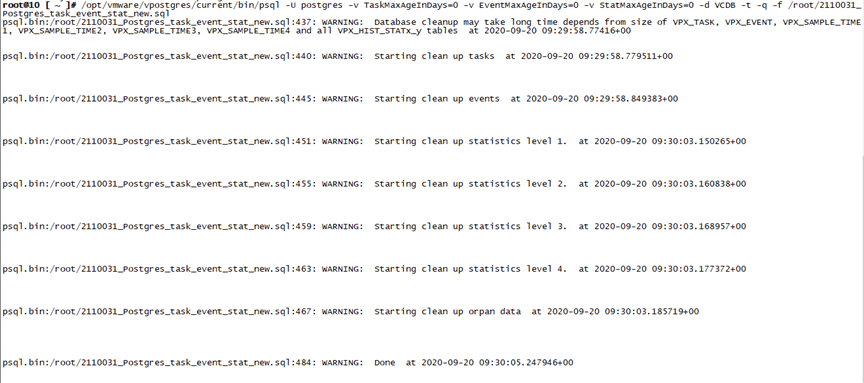
alarm

Run vacuum

/opt/vmware/vpostgres/current/bin/vacuumdb -U postgres -d VCDB –verbose

Then start all services

service-control --start –all

This should clear the SEAT partition and allow you back into the vCenter. You will then need to ensure that your vCenter is patched to the latest version, 6.7 U3C to resolve this permanently.

I hope you found this blog post on how to fix ESXI 6.7 ALARM: Seat disk exhaustion on 10 helpful. If you have any questions on seat disk exhaustion on 10, please let me know in the comment session.
Rate this post

Thank you for reading this post. Kindly share it with others.

  • Share on X (Opens in new window) X
  • Share on Reddit (Opens in new window) Reddit
  • Share on LinkedIn (Opens in new window) LinkedIn
  • Share on Facebook (Opens in new window) Facebook
  • Share on Pinterest (Opens in new window) Pinterest
  • Share on Tumblr (Opens in new window) Tumblr
  • Share on Telegram (Opens in new window) Telegram
  • Share on WhatsApp (Opens in new window) WhatsApp
  • Share on Pocket (Opens in new window) Pocket
  • Share on Mastodon (Opens in new window) Mastodon
  • Share on Bluesky (Opens in new window) Bluesky
  • Share on Threads (Opens in new window) Threads
  • Share on Nextdoor (Opens in new window) Nextdoor
Virtualization Tags:ESXi, Hypervisor, virtualization, VMware

Post navigation

Previous Post: How to fix the system cannot find the file specified when adding LP, LIP, and FoD packages to Windows Images
Next Post: Adding a new partition to an existing Linux server

Related Posts

  • Downgrade
    Downgrade VMware Workstation: Fix the Processor does not support xsave on VMware Workstation Virtualization
  • nested virtualization
    Enable the Virtual Machine Platform Windows Feature and ensure Virtualization is enabled in the BIOS Virtualization
  • ESNAS Virtualization 01
    How to remove Recent vSphere Client Connections Virtualization
  • OpenVz
    OpenVZ template on Proxmox Server: How to Guide Virtualization
  • sandboxx
    Use Windows Sandbox as a security feature Virtualization
  • hero windowsserver hyperv
    Why does the legacy PXE not does work on Generation 2 VM Virtualization

More Related Articles

Downgrade Downgrade VMware Workstation: Fix the Processor does not support xsave on VMware Workstation Virtualization
nested virtualization Enable the Virtual Machine Platform Windows Feature and ensure Virtualization is enabled in the BIOS Virtualization
ESNAS Virtualization 01 How to remove Recent vSphere Client Connections Virtualization
OpenVz OpenVZ template on Proxmox Server: How to Guide Virtualization
sandboxx Use Windows Sandbox as a security feature Virtualization
hero windowsserver hyperv Why does the legacy PXE not does work on Generation 2 VM Virtualization

Leave a Reply Cancel reply

You must be logged in to post a comment.

Microsoft MVP

VEEAMLEGEND

vexpert-badge-stars-5

Virtual Background

GoogleNews

Categories

veeaam100

sysadmin top30a

  • Windows Admin Center v2   2401 install   2306 to 2311 upgrade
    Upgrade Windows Admin Center 2306 – 2311: Install WACmg 2410 Network | Monitoring
  • powershell01
    How to add servers to the Trusted Hosts list Scripts
  • dtjdhn
    The action cannot be completed because the folder or file is open in another program: Determine where a file is open in Windows Windows
  • SA
    How to Create Service Accounts, Organisation Units and Active Directory Security Groups Windows Server
  • Uninstall MicrosoftDefenderUpdate
    Remove Microsoft Defender Update on Windows 10 & Server Windows
  • ePO installation on Windows Server
    Trellix ePolicy Orchestrator Installation on Windows Server Security | Vulnerability Scans and Assessment
  • Featured image
    How to use the voice input instead of typing on Windows Windows
  • AzureMonitor
    Configure Azure Monitor for VMs on Azure Stack Hub AWS/Azure/OpenShift

Subscribe to Blog via Email

Enter your email address to subscribe to this blog and receive notifications of new posts by email.

Join 1,832 other subscribers
  • RSS - Posts
  • RSS - Comments
  • About
  • Authors
  • Write for us
  • Advertise with us
  • General Terms and Conditions
  • Privacy policy
  • Feedly
  • Telegram
  • Youtube
  • Facebook
  • Instagram
  • LinkedIn
  • Tumblr
  • Pinterest
  • Twitter
  • mastodon

Tags

AWS Azure Bitlocker Microsoft Windows PowerShell WDS Windows 10 Windows 11 Windows Deployment Services Windows Server 2016

Copyright © 2025 TechDirectArchive


Loading Comments...
 

You must be logged in to post a comment.