Skip to content

TechDirectArchive

Hands-on IT, Cloud, Security & DevOps Insights

  • Home
  • About
  • Advertise With US
  • Reviews
  • Contact
  • Toggle search form
Home » Virtualization » vSwitches: How to delete Virtual Switches from Hyper-V

vSwitches: How to delete Virtual Switches from Hyper-V

Posted on 16/07/202131/08/2023 Christian By Christian No Comments on vSwitches: How to delete Virtual Switches from Hyper-V
vSwitch management

Virtual Switch (vSwitch) are software constructs that are responsible for receiving and transmitting Ethernet frames into and out of their assigned virtual machine or the management operating system. vSwitch allows communication between virtual machines and they d not just forward packets, they also intelligently direct the communication on a network by checking packets before moving them to a destination. Kindly refer to the following related guides: How to install and configure iSCSI Target Server and iSCSI Initiator on a Windows Server, and how to install and Configure Hyper-V on Windows Server on Windows Server 2019, and 2022 via the Server Manager, PowerShell or DISM.

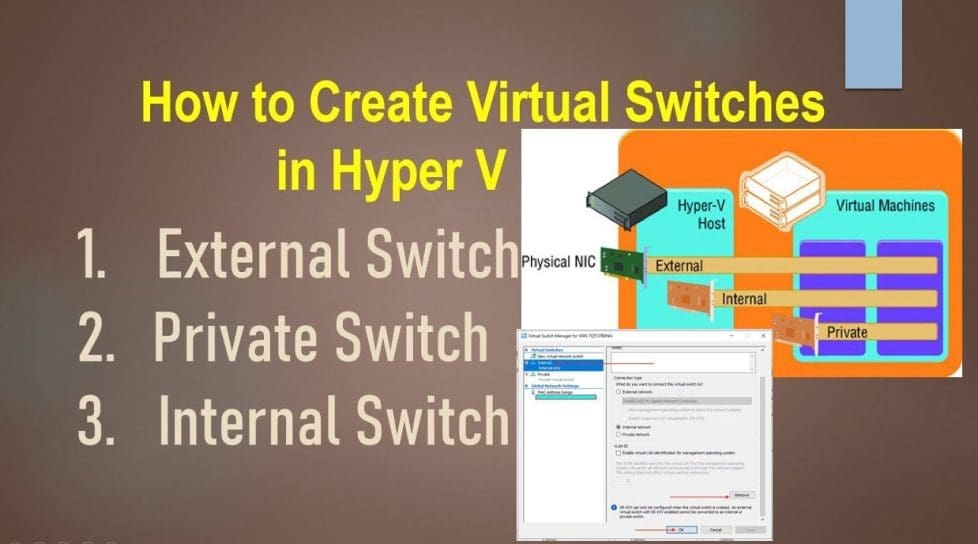
vSwitch Modes for the Hyper-V: The Hyper-V virtual switch presents three different operational modes.

- Private Virtual Switch: A Hyper-V virtual switch in private mode allows communications only between virtual adapters connected to virtual machines.
- Internal Virtual Switch: A Hyper-V virtual switch in internal mode allows communications only between virtual adapters connected to virtual machines and the management operating system.
- External Virtual Switch: A Hyper-V virtual switch in external mode allows communications between virtual adapters connected to virtual machines and the management operating system. It uses single or teamed physical adapters to connect to a physical switch, thereby allowing communications with other systems.

Kindly refer to the following guides: Why does the legacy PXE not does work on Generation 2 VM, How to set up a VM via PXE boot on a Generation 1 VM, and Generation 2 VM: How to set up a Hyper-V Virtual Machine through PXE boot.

Virtual Machine Network Adapters

The most prevalent virtual network adapters are found in virtual machines and they can be seen in both PowerShell (Get-VMNetworkAdapter) and in Hyper-V Manager’s GUI.
– Furthermore, To delete Virtual Switches from Hyper-V, kindly follow the same steps used in creating vSwitches. To do this, launch the Server Manager, click on Tools and click on the Hyper-V Manager as shown below.

Hyper-V network

However, Click on the Virtual Switch Manager as shown below to proceed.

Virtual switch removal

This will open the Virtual Switch Manager for the server. Under the Virtual Switches, click on the External vSwitch and click on Remove.

Hyper-V networking

As you can see, the virtual switch is being deleted. The External vSwitch is deleted.

vSwitch management

To delete the Internal vSwitch, click on the Internal vSwitch and click on Remove.

Hyper-V network

To delete the Private Switch, select the Private vSwitch and click on Remove as shown below.

Screenshot-2021-07-12-at-23.10.18

In the Virtual Switch Properties window, click on External and click on Ok as shown below.

Screenshot-2021-07-12-at-23.21.16

In the Apply Networking change window, click on YES as shown below. Afterward, a new dialog window will appear showing the settings are being applied.

Screenshot-2021-07-12-at-23.41.11-1024x843-1

I hope you found this blog post helpful. If you have any questions, please let me know in the comment session.
Rate this post

Thank you for reading this post. Kindly share it with others.

  • Share on X (Opens in new window) X
  • Share on Reddit (Opens in new window) Reddit
  • Share on LinkedIn (Opens in new window) LinkedIn
  • Share on Facebook (Opens in new window) Facebook
  • Share on Pinterest (Opens in new window) Pinterest
  • Share on Tumblr (Opens in new window) Tumblr
  • Share on Telegram (Opens in new window) Telegram
  • Share on WhatsApp (Opens in new window) WhatsApp
  • Share on Mastodon (Opens in new window) Mastodon
  • Share on Bluesky (Opens in new window) Bluesky
  • Share on Threads (Opens in new window) Threads
  • Share on Nextdoor (Opens in new window) Nextdoor
Virtualization Tags:Microsoft Windows, Windows 10, Windows Server 2016

Post navigation

Previous Post: Failover Cluster Manager failed while managing one or more clusters, the error was unable to determine if the computer exists in the domain
Next Post: DNS Bad key 9017: The Cluster Name registration failed of one or more associated DNS names

Related Posts

  • HyperV
    How to install free Hyper-V Server on a VMware Workstation Virtualization
  • VMware Type 1 Hypervisor installation
    How to install ESXi on a Beelink EQ12 Mini PC Virtualization
  • Cloud Cost
    How to Control Cloud Cost Using Azure VM AWS/Azure/OpenShift
  • screenshot 2020 04 06 at 04.12.00
    How to install and Configure Pleasant Reset Password Virtualization
  • Fix this PC cannot run Windows 11
    Bypass unsupported CPU and Processor by upgrading to Windows 11 via Windows Update Virtualization
  • copy and paste between host machines and VirtualBox VM
    How to copy and paste between host machines and VirtualBox VM Virtualization

More Related Articles

HyperV How to install free Hyper-V Server on a VMware Workstation Virtualization
VMware Type 1 Hypervisor installation How to install ESXi on a Beelink EQ12 Mini PC Virtualization
Cloud Cost How to Control Cloud Cost Using Azure VM AWS/Azure/OpenShift
screenshot 2020 04 06 at 04.12.00 How to install and Configure Pleasant Reset Password Virtualization
Fix this PC cannot run Windows 11 Bypass unsupported CPU and Processor by upgrading to Windows 11 via Windows Update Virtualization
copy and paste between host machines and VirtualBox VM How to copy and paste between host machines and VirtualBox VM Virtualization

Leave a Reply Cancel reply

You must be logged in to post a comment.

Microsoft MVP

VEEAMLEGEND

vexpert-badge-stars-5

Virtual Background

GoogleNews

Categories

veeaam100

Veeam Vanguard

  • Cloud Cost
    How to Control Cloud Cost Using Azure VM AWS/Azure/OpenShift
  • Featured image WSL2 installation
    How to install WSL2 on Windows Server Linux
  • VBAWS comprehensive guide
    Deep Dive into Protecting AWS EC2, RDS Instances and VPC AWS/Azure/OpenShift
  • Amazon EC2 and S3
    How to sync S3 Bucket with an EC2 instance AWS/Azure/OpenShift
  • sync
    AD Connect Sync Service Not Running: Start ADSync to Continue AWS/Azure/OpenShift
  • Deploy static website to azure blog storage
    Deploy a Static Website to Azure Storage from VSCode AWS/Azure/OpenShift
  • Featured image BSOD
    How to troubleshoot and fix Windows 11 blue screen Windows
  • WSUS Post deployment Configuration Failed
    The schema version of the database is from a newer version of wsus Windows Server

Subscribe to Blog via Email

Enter your email address to subscribe to this blog and receive notifications of new posts by email.

Join 1,817 other subscribers
  • RSS - Posts
  • RSS - Comments
  • About
  • Authors
  • Write for us
  • Advertise with us
  • General Terms and Conditions
  • Privacy policy
  • Feedly
  • Telegram
  • Youtube
  • Facebook
  • Instagram
  • LinkedIn
  • Tumblr
  • Pinterest
  • Twitter
  • mastodon

Tags

Active Directory Azure Bitlocker Microsoft Windows PowerShell WDS Windows 10 Windows 11 Windows Deployment Services Windows Server 2016

Copyright © 2025 TechDirectArchive