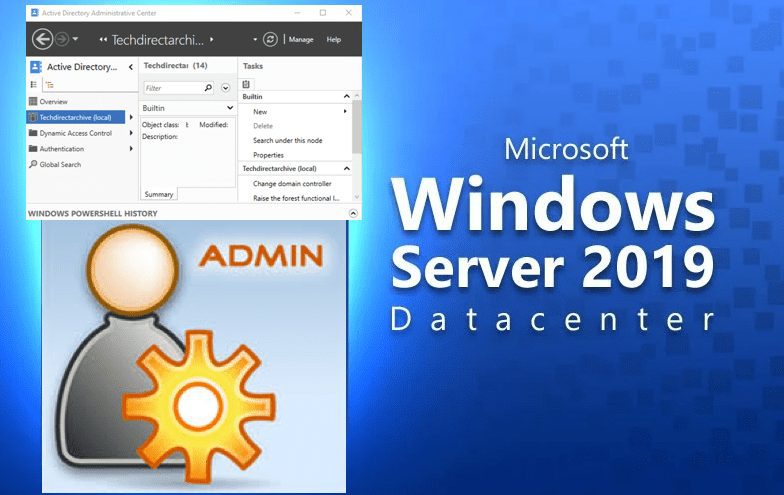
In this post, you will learn “Enable Active Directory Recycle Bin: How to delete and restore objects using Active Directory Administrative Center”. Active Directory (AD) is Microsoft’s proprietary directory service and it stores information about objects on the network and makes this information easy for administrators and users to find and use. See this guide on how to remove Microsoft Exchange Server from Active Directory and also the sign-in method you are trying to use is not allowed.
Note: You can also use the following methods to restore a deleted objects and I will be discussing all this tools in a different (single) blog post.
- PowerShell commands
- LDP utility
- The ADRestore Tool
There are many methods to restore a deleted user account, computer account, and security groups from Active Directory. These objects are known collectively as security principals.
For some related content on Active Directory, see the following guides. Active Directory Authentication methods: Kerberos and NTLM, Concept of AD Computer Account, and how to create a contact in AD.
Enable AD Recycle Bin
The method involves enabling the AD Recycle Bin in order to be able to recover a user object via the ADAC.
Active Directory Recycle Bin can be activated only where all domain controllers are running Windows Server 2008 R2, Windows Server 2012, Windows Server 2012 R2, Windows Server 2016, and on Windows Server 2019.
To enable AD Recycle bin with the ADAC, follow the steps below. Launch the AD Administrative Center.
Click on enable recycle bin by right-clicking on your domain or under the “Task”, and select Enable recycle bin.

You will be asked to confirm if you wish to perform the operation.Note: When is Active Directory Recycle Bin, it cannot be reversed (disabled).
Click on OK to enable the Recycle Bin.

Now, we have successfully enabled the AD Recycle Bin as shown below.

If you are having issues or prompted with permission errors when enabling the recycle bin, please visit this guide “how to fix insufficient access right to perform this operation“.

Enable AD Recycle Bin via PowerShell
Alternatively, you can also execute the following command to enable Active Directory Recycle Bin.
The following Windows PowerShell cmdlet perform the same function as the preceding procedure. Enter each cmdlet on a single line.
Enable-ADOptionalFeature -Identity 'CN=Recycle Bin Feature,CN=Optional Features,CN=Directory Service,CN=Windows NT,CN=Services,CN=Configuration,DC=techdirectarchive,DC=local' -Scope ForestOrConfigurationSet -Target 'techdirectarchive.local'

Step 2: Furthermore, Delete an AD User Object. Before I proceed, I would love to demonstrate the process of deleting a user account.
However, Let me work you through how a user account can be deleted in AD.
Delete a user account in Active Directory
Launch the Active Directory User and Computer Object and locate the OU and right-click on the user to delete

Moreover, Click on delete to delete the object as shown below.

As you can see below, the user object has been deleted.

Restore the Deleted User Account
In addition, Now that we have the AD Recycle Bin enabled. We can now restore this user using Active Directory Administrative Center (ADAC).
The Active Directory Administrative Center (ADAC) in Windows Server includes enhanced management experience features. These features ease the administrative burden for managing Active Directory Domain Services (AD DS).
Nonetheless, Now that we are sure that we have deleted this user object. Let’s proceed and have it recovered using the ADAC method.
Navigate to Start and type dsac.exe or open “Active Directory Administrative Centre” from the Server Manager as shown below

This will open the Active Directory Administrative Center (ADAC) window.
- Consequently, In the left pane, click domain name and
- Select the “Deleted Objects” container in the context menu.
- Click on Restore to restore the object and that is all.

Alternatively, you can click “Restore to,” as shown in the image above, and restore it to a different OU. Object restored successfully, as shown in the image below.

Navigate to Active Directory User and Computers. Similarly, You will have to verify if the object has been restored.
- Click on the OU and refresh it.
- You should now see the user in the list as shown below

FAQs

This means, the computer account you’re trying to delete is associated with other objects or dependencies in AD, such as: BitLocker Recovery keys information, Active Directory user accounts or group memberships, Group Policy Objects (GPOs) that apply to that computer. Also, shared resources or trust relationships tied to the computer account.
These sub-objects could be things like security groups, organizational units (OUs), or links that are connected to the computer account. If you proceed with the deletion, it will remove not just the computer account but also these associated objects or references, which may impact other components or users within your AD environment. It is vital to review the dependencies before deleting the object.
I hope you found this blog post on “Enable Active Directory Recycle Bin: How to delete and restore objects using Active Directory Administrative Center” helpful. Please let me know in the comment session if you have any questions.