Skip to content

TechDirectArchive

Hands-on IT, Cloud, Security & DevOps Insights

  • Home
  • About
  • Advertise With US
  • Contact
  • Reviews
  • Toggle search form
Home » Windows Server » How to create a contact in Active Directory

How to create a contact in Active Directory

Posted on 25/01/202022/09/2023 Christian By Christian No Comments on How to create a contact in Active Directory
Active Directory

Active Directory contacts include information about a person or business, such as phone numbers, email addresses, and fax numbers. Creating and managing AD contacts is vital for organizations, as contacts can be listed in a Global Address List (GAL) or another address list, allowing users to access contact information and send messages. For a brief overview on the differences about Active Directory user account and contact, see https://techdirectarchive.com/2020/04/09/difference-between-a-contact-and-a-user-object/

Why would you want to create a contact in Active Directory (AD)?


– Contact is most times needed in AD when you have a member that is not a regular user in your organization, such as an external (3rd party contractor). This will ensure a user account is not created for the user.
– Contact accounts will also help maintain a high level of security in your organization.
– Lastly, it will help save contact and help email software access the contact details.

Note: Contact only contains details about a person and does not contain the SID enabled on the user
Noe: This is similar to contacts in O365

Create a contact in Active Directory
– Under Tools,
– Launch Active Directory Users and Computers
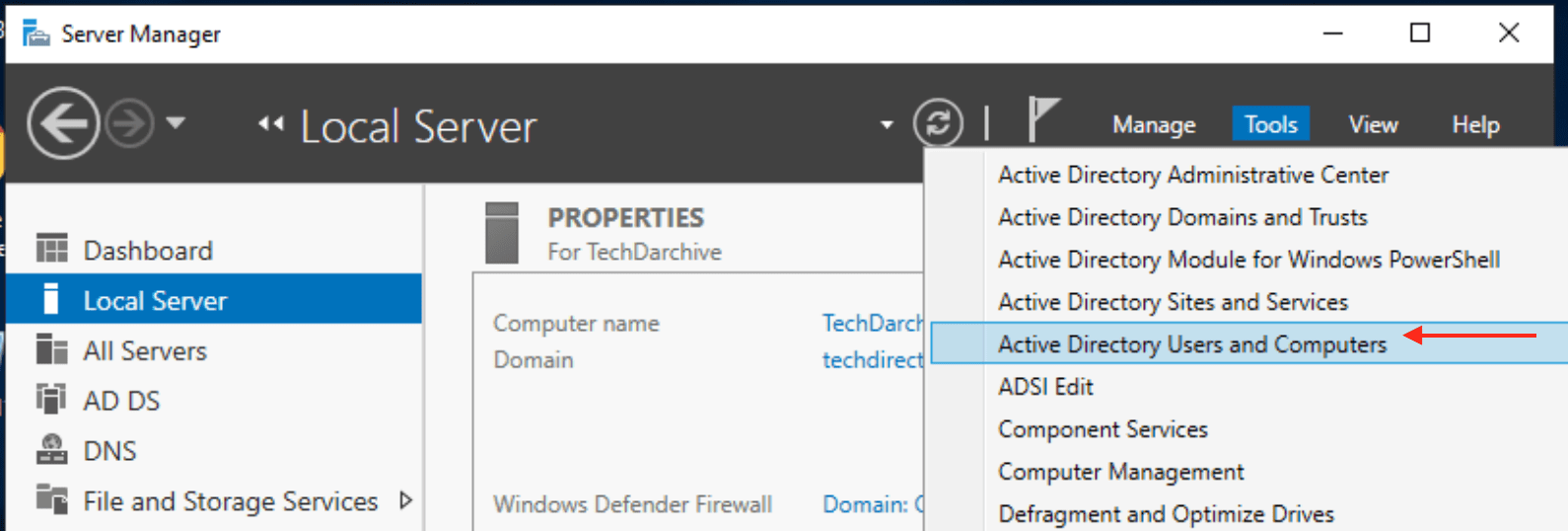
create contact

Right-click on the OU, where you want the contact to be created.
– Click on New
– Click on Contact
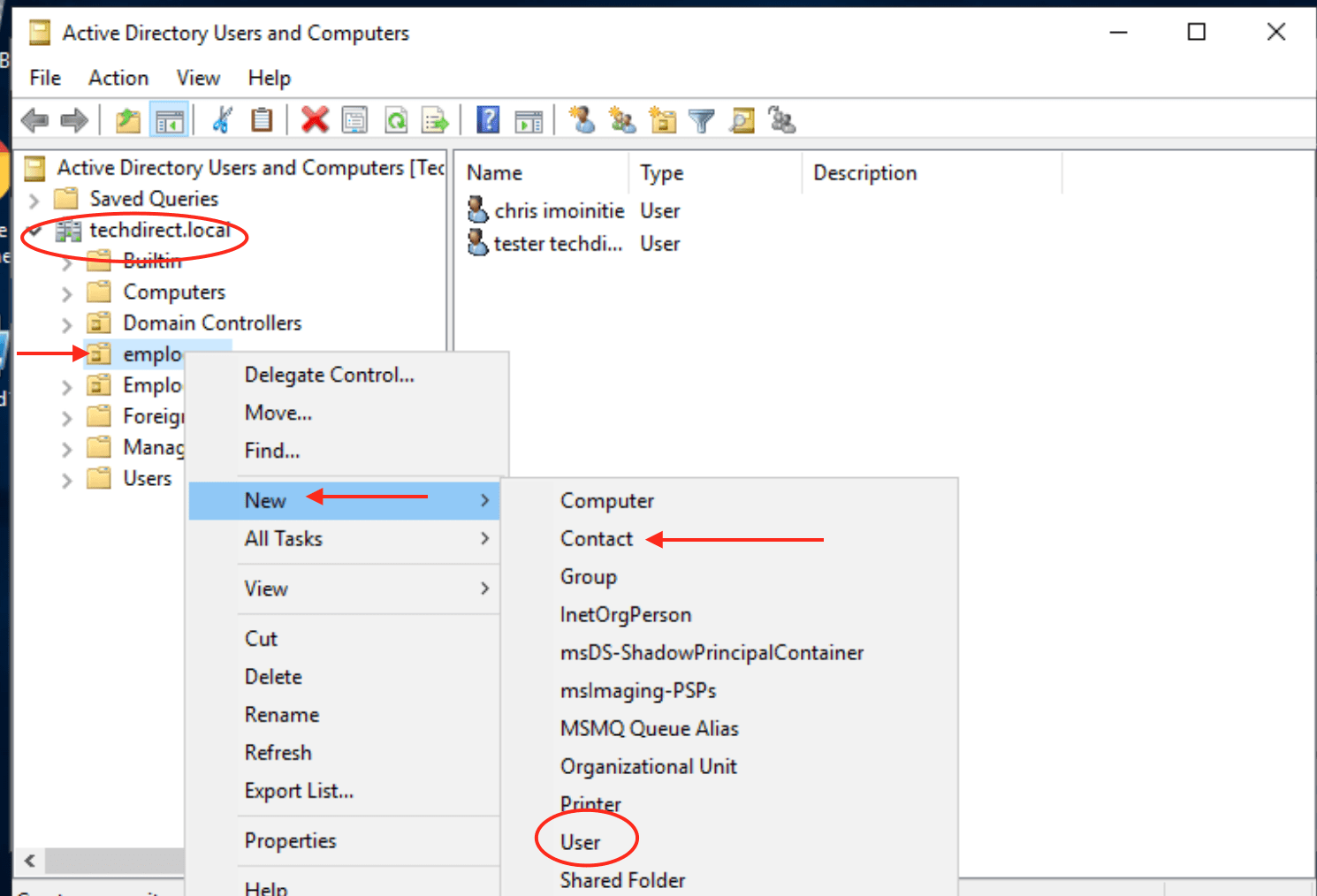
And follow the dialog box displayed to perform the tasks.

When you have it created here, there is no need creating it again an Exchange Server as the exchange server will be able to access the details.

– To configure additional properties
– Right-click on the contact and select properties

Note: You can add the contact to the group etc., despite not having a SID.
Because it does not have the SID enabled, they are not granted access to the group they belong to but only on getting emails sent to the group they belong to.

Rate this post

Thank you for reading this post. Kindly share it with others.

  • Share on X (Opens in new window) X
  • Share on Reddit (Opens in new window) Reddit
  • Share on LinkedIn (Opens in new window) LinkedIn
  • Share on Facebook (Opens in new window) Facebook
  • Share on Pinterest (Opens in new window) Pinterest
  • Share on Tumblr (Opens in new window) Tumblr
  • Share on Telegram (Opens in new window) Telegram
  • Share on WhatsApp (Opens in new window) WhatsApp
  • Share on Mastodon (Opens in new window) Mastodon
  • Share on Bluesky (Opens in new window) Bluesky
  • Share on Threads (Opens in new window) Threads
  • Share on Nextdoor (Opens in new window) Nextdoor
Windows Server Tags:Active Directory, users

Post navigation

Previous Post: Download and use Windows Sysinternals Tools locally
Next Post: Integrating on-premise AD with Azure Active Directory and MFA

Related Posts

  • Resolvederror MBAM
    MBAM Policy was detected: Verify the OU used for pre-deployment does not apply MBAM policy Windows Server
  • Clone a Virtual Machine via Export and Import
    Clone a VM via Export and Import: Copy Virtual Hard Disk on Hyper-V Virtualization
  • BitLocker
    Hide Default BitLocker Drive Encryption item in Windows Windows Server
  • Rules of Delegation
    Assign users with rights to reset password in Active Directory Windows Server
  • sadx
    Error 0x80070002: When trying to mount an image file Windows Server
  • Add additional Windows drives
    How to Add Another Hard Drive to a Virtual Machine in HyperV  Virtualization

More Related Articles

Resolvederror MBAM MBAM Policy was detected: Verify the OU used for pre-deployment does not apply MBAM policy Windows Server
Clone a Virtual Machine via Export and Import Clone a VM via Export and Import: Copy Virtual Hard Disk on Hyper-V Virtualization
BitLocker Hide Default BitLocker Drive Encryption item in Windows Windows Server
Rules of Delegation Assign users with rights to reset password in Active Directory Windows Server
sadx Error 0x80070002: When trying to mount an image file Windows Server
Add additional Windows drives How to Add Another Hard Drive to a Virtual Machine in HyperV  Virtualization

Leave a Reply Cancel reply

You must be logged in to post a comment.

Microsoft MVP

VEEAMLEGEND

vexpert-badge-stars-5

Virtual Background

GoogleNews

Categories

veeaam100

Veeam Vanguard

  • Lets Encryp
    How to install Let’s Encrypt Certificates with IIS on a Windows Server Windows
  • Screenshot 1
    Fix SMB Freezes That Break Backups on Critical Linux Servers Network | Monitoring
  • Active Directory with IPMI for Out of Band Management
    Integrate Active Directory with IPMI for Out-of-Band Management Backup
  • Enable Hyper V on Windows 11 Create a VM with PowerShell
    Run Hyper-V on Windows 11: Convert Physical PC to Hyper-V VM Virtualization
  • msinfo32 thumbnail
    How to use MSINFO32 to view System Information Windows
  • Group Policy Error
    How to Fix Failed to open the Group Policy Object on this Computer Windows
  • ADO Self hosted agent
    How to Create Self-Hosted Agent for Azure DevOps Pipelines Automation
  • WDS server unable to start with Error Information 0xFFFFFDF0
    WDS server unable to start with Error Information 0xFFFFFDF0 Windows Server

Subscribe to Blog via Email

Enter your email address to subscribe to this blog and receive notifications of new posts by email.

Join 1,808 other subscribers
  • RSS - Posts
  • RSS - Comments
  • About
  • Authors
  • Write for us
  • Advertise with us
  • General Terms and Conditions
  • Privacy policy
  • Feedly
  • Telegram
  • Youtube
  • Facebook
  • Instagram
  • LinkedIn
  • Tumblr
  • Pinterest
  • Twitter
  • mastodon

Tags

AWS Azure Bitlocker Microsoft Windows PowerShell WDS Windows 10 Windows 11 Windows Deployment Services Windows Server 2016

Copyright © 2025 TechDirectArchive

Loading Comments...

You must be logged in to post a comment.