


How to convert images from PNG to JPG on WordPress, Windows, and Mac

In this article, we shall discuss “How to convert images from PNG to JPG on WordPress”. The Joint Photographic Group is also referred to as “JPG or JPEG ” and it is a format often used for photography on the internet. JPEG files are web-friendly because the files are smaller than PNG files. I had to dive into this topic which is a bit different from my area of expertise. Please see vCenter Converter removed from available downloads on VMware – Use Veeam instead.
Recently, I had to fix load time issues (image), and the steps I will be discussing later were used to correct this problem and optimize my images. Several online tools are capable of doing this.
Also, see WordPress site on Azure: How to create a website hosted in Azure, How to Backup and Restore your WordPress Files and Database, and how to perform Batch rename multiple files on Windows.
Reasons for converting from one Image format to another
Here are the reasons for converting images from PNG to JPG format. They are faster, it helps decrease bounce rates due to faster load time thereby increasing your google ranking and reducing storage.
To further reduce your images, you could use smush! I will be explaining both below. Kindly refer to this guide on how to change the default screen capture format in macOS.
The PNG image file is a Portable Network Graphic file which is a raster image and the file builds graphics piece-by-piece. The PNG uses lossless compression, which allows large files to shrink into smaller sizes without losing resolution. If a PNG is reverted to its original size the resolution remains the same. PNG is better with limited color images, such as logos, and with image transparency.
The JPG image file is a widely-used file type because of its small size. The JPG compression makes it a manageable size which lowers the quality of images. It is more frequently used on the web (upload or download a large number of images).
If you’re creating a website or uploading a lot of images, the PNG might give you some issues. Consider taking the above steps to convert to a JPG to solve these problems.
As you can see, there is no difference between JPG and JPEG. JPG simply arose from a three-letter file extension limitation with earlier versions of Windows or DOS. You can convert your photos to both JPG and JPEG to take advantage of the small file size and vibrant colors since they are the same type.
What is my assertion right now?
I will choose JPG over PNG because it is considered the best format for photos, images with gradients, and images with millions of colors. Never use original images directly from your camera or from your screenshot, please cultivate the habit of resizing before uploading on the web.
You can resize images directly in your WordPress Media Library. Click on the Media, select the image you want to edit (resize), and click on Edit Image. Enter the right dimensions of your images and that is all. Without further ado, let me proceed with how to convert PNG to JPEG.
See WDS server unable to start with Error Information 0xFFFFFDF0, and how to fix Invalid Credentials “Fix Failed to Connect a Hyper-V Standalone to Veeam Backup”.
How to convert PNG to JPEG on WordPress
Download and install the “PNG to JPG” from the following link and upload this to WordPress. Note: You can also navigate to the plugin session on your website and search for “PNG to JPG” and install it and activate it as well.
As you can see below, I have already installed and activated it and my conversion is also running 🙂
Be extremely CAREFUL with this plugin as it can break your site!!! 
Now that you have activated the plugin, you will have to navigate to the Media Menu on WordPress in order to use the tool.
Now you will have to navigate to the General Tab as shown below and select your desired options and click on Save.

Next, you will have to navigate to the Convert existing PNGs window and “select all transparent PNGs” and this will be processed by the tool. When complete, you should click on “Convert selected PNGs“.
Transparency is possible in a number of graphics file formats. The term "transparency" is something that is completely invisible. Only part of a graphic should be fully transparent, or there would be nothing to see. A PNG is an image file type that allows you to have no background color, therefore, I will be removing transparentcy for these files and convert them to JPG.
When the conversion is completed, you will get a done status message.
Note: Before embarking on the method described above, ensure you have pulled a backup of your WordPress site as shown below should in case anything goes wrong, you will be able to revert easily to a good state.


There are numerous ways to convert from PNG to JPG, but the following methods below for Windows and Mac are relatively easy to follow.Steps to convert PNG to JPG on Windows
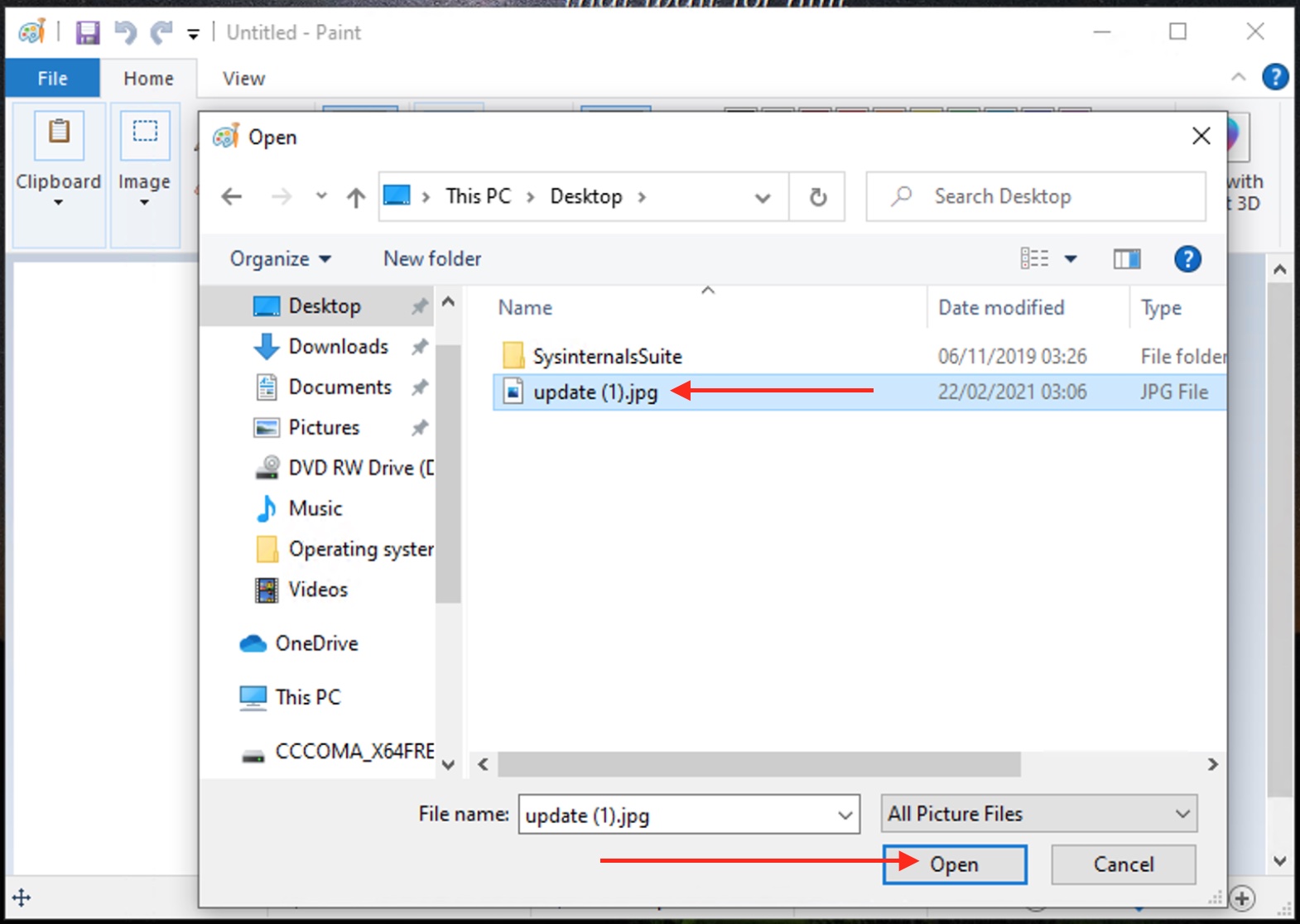
Below are the steps on how to do this on Windows without downloading a 3rd party tool or using a free online tool. Therefore, launch Paint and click on the file. Click on Open, and select the file you wish to open as shown below.
Next, you will have to click on File again, and select “Save as” as shown below.
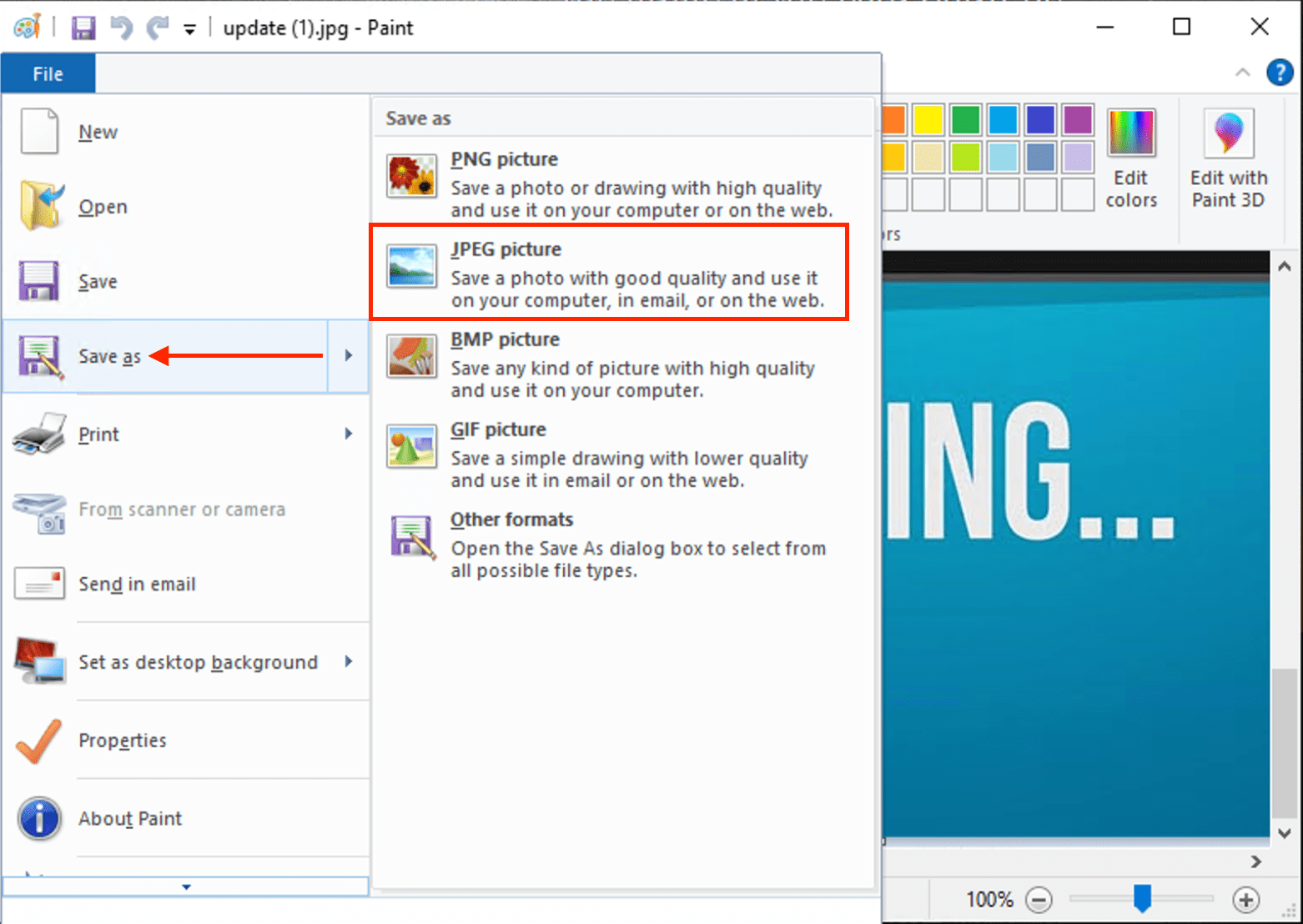
This will open the “Save as” window. So, enter the desired file name in the ‘File name’ space and click on the ‘Save as type’ dropdown menu and select ‘JPEG as shown below.

Click ‘Save’ and the file will be saved into the selected destination
How to convert PNG to JPG using Mac
Below are the steps on how to do this on a Mac PC without downloading a 3rd party tool or using a free online tool. Double-click on the PNG image in Preview you wish to convert and click on ‘File’ as shown below and select ‘Export’

Next, you will have to choose JPG from the list and then click on ‘Save’ as shown below.
JPEG 2000 is an image coding system that uses state-of-the-art compression techniques based on wavelet technology and offers an extremely high level of scalability and accessibility. This file format is currently not supported by WordPress.
To convert images from PNG to JPG, I would recommend switching to a WordPress business plan as it supports all features to make your loads fast such as lazy loading and WebP or using a different CDN that supports WebP.
You will be leveraging the Photon image service on WordPress which provides seamless support for the WebP image format.
This new feature provides size reductions of up to 34 per cent for served images compared to a JPEG image of an equivalent visual quality level. This will in turn help your viewers save a lot of time loading your pages. However, the only limitation here is, that WebP isn’t currently supported by all browsers.
I hope you found this blog post on how to convert images from PNG to JPG on WordPress helpful. If you have any questions, please let me know in the comment session.


