Skip to content

TechDirectArchive

Hands-on IT, Cloud, Security & DevOps Insights

  • Home
  • About
  • Advertise With US
  • Contact
  • Reviews
  • Toggle search form
Home » Windows Server » How to fix Remote Desktop can’t connect to the remote computer for one of these reasons
  • article 1280x720.192a2586 1
    Veles Software: MPA Tools Review and Product Details Reviews
  • check and assign privileges to a MySQL User
    How to check and assign privileges to a MySQL User Oracle/MSSQL/MySQL
  • Err connection timed out DNS
    How to Fix Err Connection Timed Out DNS Error Windows
  • jhgfx
    How to make Cortana use your default web browser such as Google Chrome Windows
  • awscli56
    Configure AWS Command Line Interface AWS/Azure/OpenShift
  • server 2022
    Upgrade Windows Server 2019 to 2022 via iDRAC Windows Server
  • feature image mongo
    How to Install MongoDB on a Linux System Linux
  • sdfgh 1
    How to fix “Unable to Sign In: Domain Not Available” Windows Server

How to fix Remote Desktop can’t connect to the remote computer for one of these reasons

Posted on 15/03/202106/09/2023 Christian By Christian No Comments on How to fix Remote Desktop can’t connect to the remote computer for one of these reasons
Remote Desktop troubleshooting

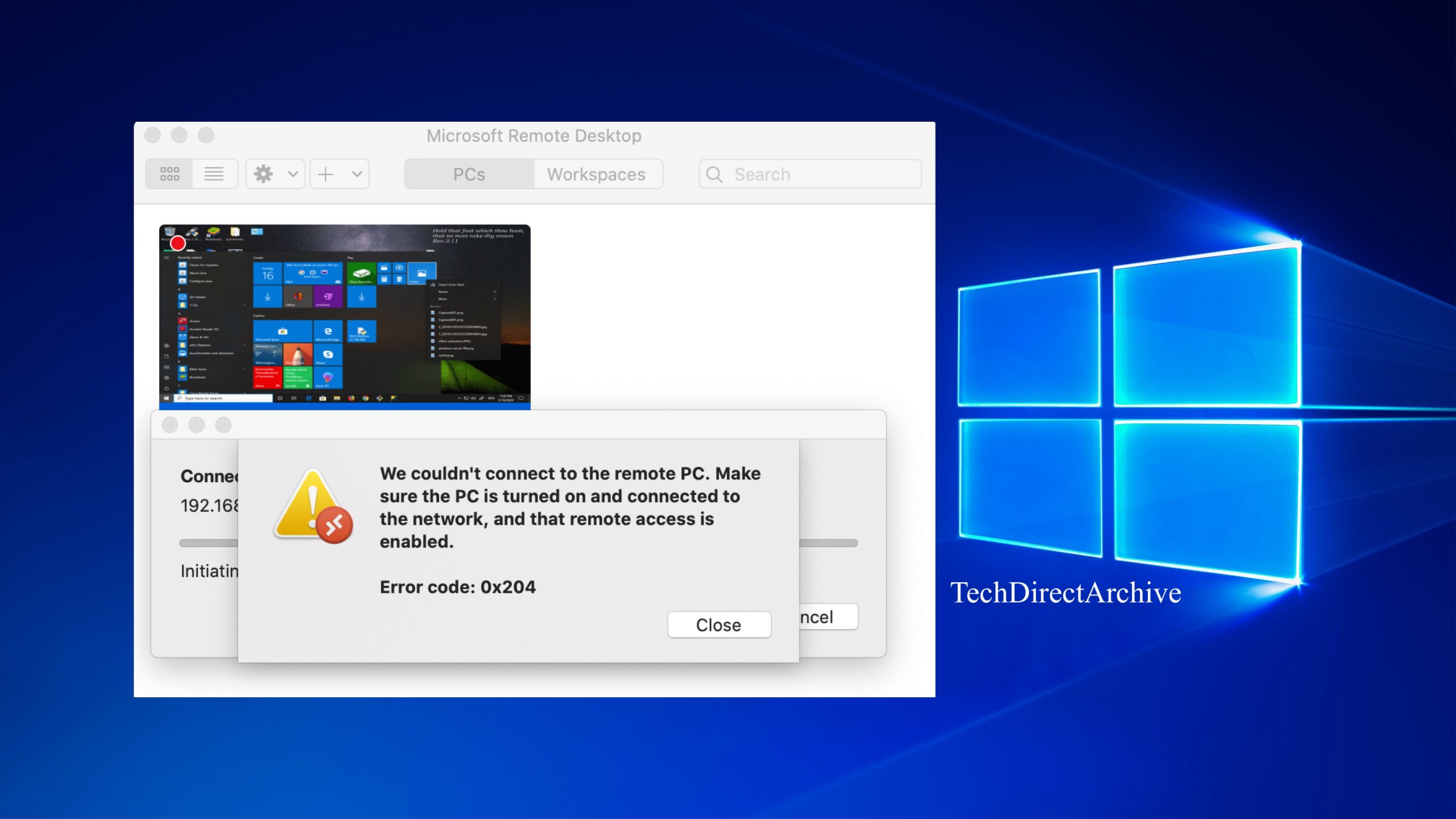
Remote Desktop is one of the rich features of Windows 10 which enables users to remotely connect to computer devices. With the help of an internet connection, users can share their desktop screen with any other computer device located remotely. For other topics on RDP, see the following hyperlinks. How to allow saved credentials for RDP connection, how to remove saved RDP credentials entries in Windows 10, how to remove histor entries from RDP, Remote Desktop can not find the computer FQDN and this might mean that FQDN does not belong to the specified network, how to disconnect a Remote Desktop User, and how to resolve we could not connect to the remote PC with error code 0x204 and make sure the PC is turned on and connected to the network.

This issue can actually get you confused if you are very experienced and can not find any related firewall wall related issue or misconfigured settings to enable RDP. Below is the error that was prompted when I wanted to connect to a server via RDP. 
Remote Desktop connection issues

Solution: I resolved this issue by disabling the remote DDP connection temporarily and re-enabled it as shown below. In this way, I was able to connect to the server via RDP.

Remote Desktop troubleshooting tips
Screenshot 2021 03 15 at 20.23.56
Remote Desktop error codes
Screenshot 2021 03 15 at 20.26.37

Therefore, you have to re-enable the “Allow remote connection to this computer”. I hope this helps in you case as well. Additionally, If not, please proceed with the steps discussed below.

Remote Desktop troubleshooting
This might end up not being your solution. If this is so, kindly refer to the additional steps discussed below. The error "Remote Desktop can’t connect to the remote computer for one of these reasons" can occur due to many other reasons including wrong login credentials etc. 

1 – Verify the RDP service is running: Similarly, Please also verify that the RDP service is running. You can do this by typing services.msc or simply typing “services”. Nevertheless, This will open the

Screenshot-2021-03-15-at-20.47.33

2 – Ensure Remote Desktop feature has not been blocked through Windows Firewall: In addition, Double check this to ensure RDP is allowed. Nonetheless, To do this, please follow the steps below.
– Consequently, Open Start Menu and type “Allow an app through Windows Firewall” or search through Windows Control Panels.
– Click on Allow an Apps through Windows Firewall”

Screenshot-2021-03-15-at-20.42.23

Note: There might be other reasons for this. Please pay good attention to your environment to see if there are firewall rules restricting connections to the Server. However, There are also many Registry tweaks and GPO settings that might be blocking RDP, but I do not think it is relevant to discuss those details for this error. Moreover, Please refer to this hyperlink for GPO and registry settings relating to the Remote Desktop connection.

I hope you found this blog post helpful. Furthermore, If you have any questions, please let me know in the comment session.
Rate this post

Thank you for reading this post. Kindly share it with others.

  • Click to share on X (Opens in new window) X
  • Click to share on Reddit (Opens in new window) Reddit
  • Click to share on LinkedIn (Opens in new window) LinkedIn
  • Click to share on Facebook (Opens in new window) Facebook
  • Click to share on Pinterest (Opens in new window) Pinterest
  • Click to share on Tumblr (Opens in new window) Tumblr
  • Click to share on Telegram (Opens in new window) Telegram
  • Click to share on WhatsApp (Opens in new window) WhatsApp
  • Click to share on Pocket (Opens in new window) Pocket
  • Click to share on Mastodon (Opens in new window) Mastodon
  • Click to share on Bluesky (Opens in new window) Bluesky
  • Click to share on Threads (Opens in new window) Threads
  • Click to share on Nextdoor (Opens in new window) Nextdoor
Windows Server Tags:Remote Desktop, Remote Server Administration Tools, RemoteConnection, Windows 10, Windows Server 2016

Post navigation

Previous Post: Fix EFI network timeout on VMware Workstation
Next Post: How to add an account to the local IIS_IUSRS group

Related Posts

  • Banner
    Enabling and Configuring WinRM via GPO Windows
  • Screenshot 2021 10 07 at 00.00.32
    How to fix this computer is a domain controller: The snap-in cannot be used on a domain controller Windows Server
  • OOBEZDP
    OOBEZDP: Something went wrong during the Windows deployment Windows
  • FileNotFoundError Errno 2 No such file or directory
    Fix FileNotFoundError: [Errno 2] No such file or directory Scripts
  • banner
    How to Edit Windows Hosts File via PowerToy Editor Utility Web Server
  • How to Install Windows Admin Center on Windows 10 11​
    Install Windows Admin Center on Windows 10 and Windows 11 Windows

More Related Articles

Banner Enabling and Configuring WinRM via GPO Windows
Screenshot 2021 10 07 at 00.00.32 How to fix this computer is a domain controller: The snap-in cannot be used on a domain controller Windows Server
OOBEZDP OOBEZDP: Something went wrong during the Windows deployment Windows
FileNotFoundError Errno 2 No such file or directory Fix FileNotFoundError: [Errno 2] No such file or directory Scripts
banner How to Edit Windows Hosts File via PowerToy Editor Utility Web Server
How to Install Windows Admin Center on Windows 10 11​ Install Windows Admin Center on Windows 10 and Windows 11 Windows

Leave a Reply Cancel reply

You must be logged in to post a comment.

Microsoft MVP

VEEAMLEGEND

vexpert-badge-stars-5

Virtual Background

GoogleNews

Categories

veeaam100

sysadmin top30a

  • article 1280x720.192a2586 1
    Veles Software: MPA Tools Review and Product Details Reviews
  • check and assign privileges to a MySQL User
    How to check and assign privileges to a MySQL User Oracle/MSSQL/MySQL
  • Err connection timed out DNS
    How to Fix Err Connection Timed Out DNS Error Windows
  • jhgfx
    How to make Cortana use your default web browser such as Google Chrome Windows
  • awscli56
    Configure AWS Command Line Interface AWS/Azure/OpenShift
  • server 2022
    Upgrade Windows Server 2019 to 2022 via iDRAC Windows Server
  • feature image mongo
    How to Install MongoDB on a Linux System Linux
  • sdfgh 1
    How to fix “Unable to Sign In: Domain Not Available” Windows Server

Subscribe to Blog via Email

Enter your email address to subscribe to this blog and receive notifications of new posts by email.

Join 1,839 other subscribers
  • RSS - Posts
  • RSS - Comments
  • About
  • Authors
  • Write for us
  • Advertise with us
  • General Terms and Conditions
  • Privacy policy
  • Feedly
  • Telegram
  • Youtube
  • Facebook
  • Instagram
  • LinkedIn
  • Tumblr
  • Pinterest
  • Twitter
  • mastodon

Tags

AWS Azure Bitlocker Microsoft Windows PowerShell WDS Windows 10 Windows 11 Windows Deployment Services Windows Server 2016

Copyright © 2025 TechDirectArchive


Loading Comments...
 

You must be logged in to post a comment.