Skip to content

TechDirectArchive

Hands-on IT, Cloud, Security & DevOps Insights

  • Home
  • About
  • Advertise With US
  • Contact
  • Reviews
  • Toggle search form
Home » Windows » Failed to run the action install Operating System: Lifetouch deployment failed, Return Code = -2147467259 0x80004005 when installing Windows image via MDT
  • M0365VBO
    Why should you use Veeam to protect your Microsoft 365 Data? Backup
  • VeeamIgnite2022
    Veeam at Microsoft Ignite 2022 from 12-14 October Backup
  • maxresdefault
    Error 0x8007232B: Can’t activate Windows on this device as we can’t connect to your organization’s activation server Windows
  • remote desktop connection tabs   rdp tabs
    Guide to Remote Desktop Connection Properties for Secure Access Windows
  • How to Find Out Which Users Are Logged on Windows Server
    How to Find Out Which Users Are Logged on Windows Server Windows
  • VBR upgrade to 12.2.3
    Upgrade Veeam Backup and Replication v12.3.x to 12.3.2 Backup
  • Screenshot 2022 04 27 at 17.51.48
    Remote Desktop Services Setup on Windows Server Windows Server
  • ddf
    How to configure Windows Deployment Services on Windows Server Windows Server

Failed to run the action install Operating System: Lifetouch deployment failed, Return Code = -2147467259 0x80004005 when installing Windows image via MDT

Posted on 03/11/202130/09/2023 Christian By Christian No Comments on Failed to run the action install Operating System: Lifetouch deployment failed, Return Code = -2147467259 0x80004005 when installing Windows image via MDT
Microsoft deployment Toolkit

Image deployment in MDT is defined by task sequences, which are a set of instructions that tell the program how to create or deploy an image. For example, a task sequence can be created that will deploy an operating system and perform Windows updates on a reference virtual machine. Task sequences are the heart and soul of the deployment solution. When creating a task sequence, you need to select a template. The templates are located in the Templates folder in the MDT installation directory, and they determine which default actions are present in the sequence.

Kindly see these related guides too: ADK, MDT, Microsoft Endpoint Configuration Manager (SCCM), Intune, Autopilot, and WSUS. No bootable media found system halted: Unable to PXE boot WDS to Virtualbox, WDS/DHCP scenarios: How to configure DHCP Server option 60, 66, and 67 for Windows Deployment Services, Uninstall WDS: How to remove Windows Deployment Services role via the GUI and PowerShell.

Microsoft Deployment Toolkit (MDT) is a unified collection of tools, processes, and guidance for automating desktop and server deployment. MDT has been in existence since 2003, when it was first introduced as Business Desktop Deployment (BDD) 1.0. The toolkit has evolved, both in functionality and popularity, and today it is considered fundamental to Windows operating system and enterprise application deployment. 

You can use it to create reference images or as a complete deployment solution. MDT is one of the most important tools available to IT professionals today. Here is a guide on how to install ADK, MDT, and WDS: How to deploy Windows images via Microsoft Deployment Toolkit and Windows Deployment Services.

I was testing Windows 11 in my Lab and the following error was prompted. You may be prompted with the same error when trying to deploy a Windows image via MDT. This error appears when the TS gets to “Install Operating System” on the Task Sequence (TS) and fails. As you can see in the image below, it says “Failed to run the action: Install Operating System”.

Deployment summary - Failure

More Failure Reasons

When you access the BDD log, the following log entry will also be present. This error is because the “Task Sequence Engine failed! Code: enExecutionFail“. This is because Windows was unable to activate the license key. As a result the error occurs and then the OS could not be deployed.

Task Sequence Engine failed! Code: enExecutionFail
Error code 0x80004005. This problem may occur if a file that the Windows Product Activation (WPA) requires is damaged or missing.

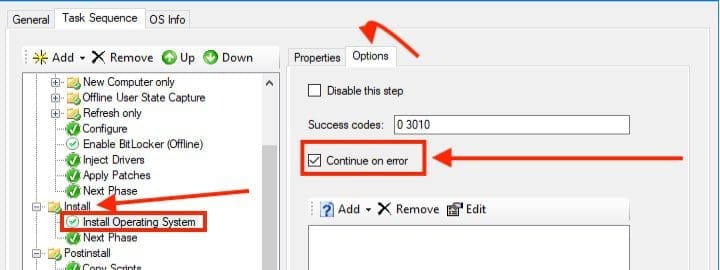
Solution: Enable “Continue on error”:

To fix this issue, you will have to check the button to continue on error as shown below. This is a temporary fix, kindly ensure the root cause “Windows Product Activation” issue is resolved later. This guide will not be discussing that at the moment. Here is a related guide: Disable Task Sequence Step: How to disable Microsoft Deployment Toolkit Task Sequence property sheet.
Capture-continue-on-error

Alternatively, If you have your task sequence configured to activate the OS correctly, then you can disable this step. Which will solve error as well. Also try to ensure you have the latest ADK version installed. Here are some related guides also: PowerShell Deployment Extension for MDT: How to deploy Windows using PSD, Microsoft Deployment Toolkit, and Windows Deployment Services, Disable Task Sequence Step: How to disable Microsoft Deployment Toolkit Task Sequence property sheet, and how to update Microsoft Defender Antivirus into the install image of Windows (install.wim). How to check if Windows Updates were installed on your device

I hope you found this blog post on fixing “Failed to run the action install Operating System” when installing Windows image via MDT helpful. If you have any questions, please let me know in the comment session.

Rate this post

Thank you for reading this post. Kindly share it with others.

  • Share on X (Opens in new window) X
  • Share on Reddit (Opens in new window) Reddit
  • Share on LinkedIn (Opens in new window) LinkedIn
  • Share on Facebook (Opens in new window) Facebook
  • Share on Pinterest (Opens in new window) Pinterest
  • Share on Tumblr (Opens in new window) Tumblr
  • Share on Telegram (Opens in new window) Telegram
  • Share on WhatsApp (Opens in new window) WhatsApp
  • Share on Pocket (Opens in new window) Pocket
  • Share on Mastodon (Opens in new window) Mastodon
  • Share on Bluesky (Opens in new window) Bluesky
  • Share on Threads (Opens in new window) Threads
  • Share on Nextdoor (Opens in new window) Nextdoor
Windows Tags:deployment, Microsoft Deployment Tool kit, Microsoft Deployment Toolkit (MDT), Microsoft Windows, Windows 10, Windows Deployment Services, Windows Server 2016

Post navigation

Previous Post: How to upgrade macOS Big Sur to macOS Monterey
Next Post: Fix Failed to open session in VirtualBox to install Windows 11 Image 

Related Posts

  • image 43
    Configure GPS location “Google Map” on your Android Studio Emulator Windows
  • Extend C drive with additional Software
    Fix unable to Extend Volume on Windows protected by BitLocker Windows
  • Featured image BSOD
    How to troubleshoot and fix Windows 11 blue screen Windows
  • BANNER
    How to Install and Set Lively Wallpaper on Windows 11 Windows
  • perform0
    How to work with Windows Performance Toolkit Windows
  • banner
    How to Disable Touchpad on Windows 11 Windows

More Related Articles

image 43 Configure GPS location “Google Map” on your Android Studio Emulator Windows
Extend C drive with additional Software Fix unable to Extend Volume on Windows protected by BitLocker Windows
Featured image BSOD How to troubleshoot and fix Windows 11 blue screen Windows
BANNER How to Install and Set Lively Wallpaper on Windows 11 Windows
perform0 How to work with Windows Performance Toolkit Windows
banner How to Disable Touchpad on Windows 11 Windows

Leave a Reply Cancel reply

You must be logged in to post a comment.

Microsoft MVP

VEEAMLEGEND

vexpert-badge-stars-5

Virtual Background

GoogleNews

Categories

veeaam100

sysadmin top30a

  • M0365VBO
    Why should you use Veeam to protect your Microsoft 365 Data? Backup
  • VeeamIgnite2022
    Veeam at Microsoft Ignite 2022 from 12-14 October Backup
  • maxresdefault
    Error 0x8007232B: Can’t activate Windows on this device as we can’t connect to your organization’s activation server Windows
  • remote desktop connection tabs   rdp tabs
    Guide to Remote Desktop Connection Properties for Secure Access Windows
  • How to Find Out Which Users Are Logged on Windows Server
    How to Find Out Which Users Are Logged on Windows Server Windows
  • VBR upgrade to 12.2.3
    Upgrade Veeam Backup and Replication v12.3.x to 12.3.2 Backup
  • Screenshot 2022 04 27 at 17.51.48
    Remote Desktop Services Setup on Windows Server Windows Server
  • ddf
    How to configure Windows Deployment Services on Windows Server Windows Server

Subscribe to Blog via Email

Enter your email address to subscribe to this blog and receive notifications of new posts by email.

Join 1,836 other subscribers
  • RSS - Posts
  • RSS - Comments
  • About
  • Authors
  • Write for us
  • Advertise with us
  • General Terms and Conditions
  • Privacy policy
  • Feedly
  • Telegram
  • Youtube
  • Facebook
  • Instagram
  • LinkedIn
  • Tumblr
  • Pinterest
  • Twitter
  • mastodon

Tags

Active Directory AWS Azure Bitlocker Microsoft Windows PowerShell WDS Windows 10 Windows 11 Windows Server 2016

Copyright © 2025 TechDirectArchive


Loading Comments...
 

You must be logged in to post a comment.