Enable TPM: Determine if TPM is present


The trusted platform module (TPM) is a hardware component that computer manufacturers install in many newer computers. It works with BitLocker to help protect user data and ensure that no one has tampered with the computer while it was offline. In this article, you will learn about “Enable TPM: Determine if TPM is present”. Kindly refer to the following TPM-related guides. How to upgrade Windows 10 with an unsupported CPU and TPM 1.0 to Windows 11, and How to Install Windows 11 in Oracle VirtualBox with no TPM Support,
BitLocker offers the option to lock the normal startup process until the user supplies a personal identification number (PIN) or inserts a removable USB device. Such as a flash drive, that contains a startup key.
These additional security measures provide multifactor authentication and assurance that the computer will not start or resume hibernation until the correct PIN or startup key is presented.
Here are some similar guides. How to delegate permissions for backing up TPM passwords, and how to clear the TPM via the management console or Windows Defender Center App.
Trusted Platform Module
The TPM Chip also known as the Trusted Platform Module is a hardware security module on your motherboard.
TPM was designed by the Trusted Computing Group Consortium.
The “TPM is ready for use” confirms that the device has a TPM and it’s enabled and ready for us.
The tpmtool utility can be used to get information about Trusted Platform Module (TPM). boot process, and Windows 11 Feature-specific, Hardware and Software Requirements: How to upgrade to Windows 11 from Windows 10 as a Windows Insider.
To achieve the security status, configure systems to UEFI mode with TPM enabled and secure boot. TPM 2.0 functions fully in UEFI mode.
Determine if TPM is present and enable TPM in the BIOS
Use the commands below to check the TPM status and determine if it is enabled, activated, or owned.
wmic /namespace:\\root\cimv2\security\microsofttpm path win32_tpm get IsEnabled_InitialValue

wmic /namespace:\\root\cimv2\security\microsofttpm path win32_tpm get IsActivated_InitialValue

wmic /namespace:\\root\cimv2\security\microsofttpm path win32_tpm get IsOwned_InitialValue
Alternatively, run the following command to check if the system has taken TPM ownership. (Press CTRL + R, type cmd, then right-click cmd.exe and select Run as administrator).
Wmic /namespace:\\root\CIMV2\Security\MicrosoftTpm path Win32_Tpm get /value
TPM is a chip that is either integrated into your device (not available on all PCs’) motherboard. Or added separately into the CPU.
Its purpose is to help protect encryption keys, user credentials, and other sensitive data behind a hardware barrier so that malware and attackers can’t access or tamper with that data. Below are TPM States:
Disabled
- The TPM chip is disabled,
you need to enable it in the BIOS.
Enabled, Not Ready
- No owner password is set,
you need to initialize the TPM
Enabled, Ready
- A Password is set and is ready for use.
Please use the following command to quickly view the TPM information of the device as shown in the image below.
tpmtool getdeviceinformation
You could check if your device has TPM via the Command Prompt: To do this, open the elevated Command Prompt and run the following command below. You could also use the command “get-tpm” to get your desired result.
wmic /namespace:\\root\cimv2\security\microsofttpm path win32_tpm get * /format:tpmlist.xsl
When the TPM isn’t present on the device, the following error message will appear. Run this command in PowerShell or Command Prompt.


Determine if TPM is present via the TPM.MSC snapin
Ensure you have your device’s “TPM chipset 2.0” enabled and activated. There are numerous ways to determine this.
Check this via the following basic steps
- Device Manager,
- TPM Management snap-in (tpm.msc), or via the Windows Settings. I highly recommend taking a look at this guide for other steps to determine if TPM is present on your device: How to check if you have Secure Boot and TPM enabled.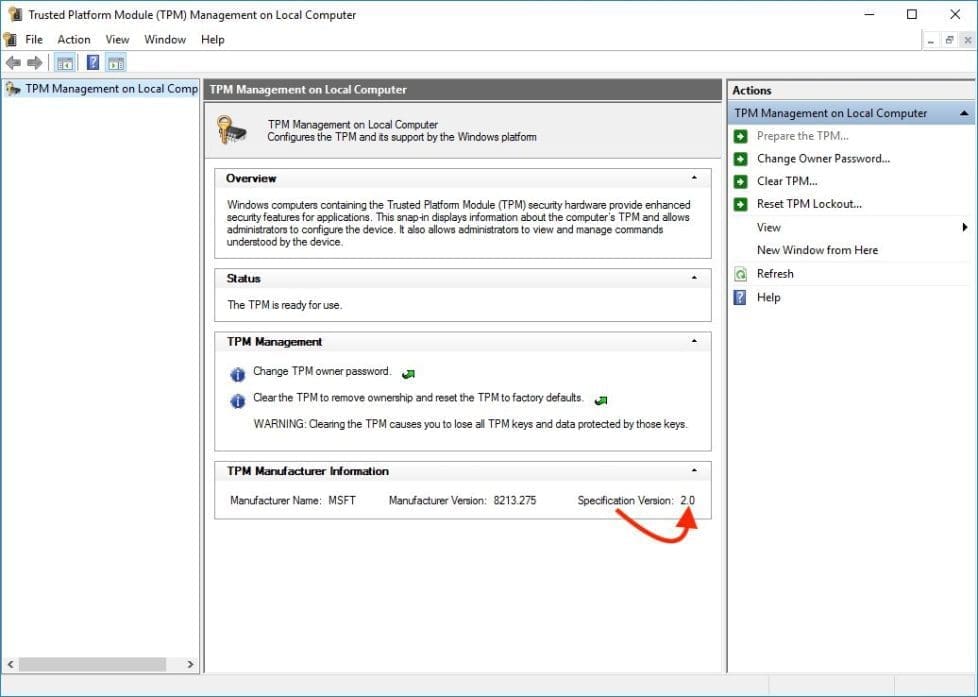
Enable TPM via PowerShell
If the TPM is disabled through the BIOS settings. Re-enable it in BIOS or run the following Windows PowerShell command as an administrator.
$tpm = gwmi -n root\cimv2\security\microsofttpm win32_tpm
$tpm.SetPhysicalPresenceRequest(6)
After you run the command, you must restart the operating system and accept any BIOS prompts.
Enable TPM Manually
To enable TPM (Trusted Platform Module). Please follow the steps discussed below. Kindly refer to this guide for more information on “how to clear, enable or disable TPM in Windows via the BIOS or UEFI“.
- Boot the computer using F2 into the BIOS setup mode
- Locate the “Security” option on the left and expand
- Locate the “TPM” option nested under the “Security” setting
- To enable the TPM settings you must check the box saying. “TPM Security” to enable the TPM hard drive security encryption
- Ensure the “
Activate” radio button is turned on in order to ensure the TPM option works - If the TPM is ‘
Deactivated’, or the TPM Security is not enabled the drive will not encrypt until those settings are made - TPM changes
sometimes need to be verified by restarting after they are applied

Manage-bde TPM Command
This session applies to Windows Server 2022, Windows Server 2019, Windows Server 2016, Windows Server 2012 R2, Windows Server 2012 only, and NOT Windows workstation. To turn on the TPM, type:
manage-bde tpm -turnon
Below is a command to configure the computer’s Trusted Platform Module (TPM).
Note: Attached also is the description of all available parameters that can be used with the command.
manage-bde -tpm [-turnon] [-takeownership <ownerpassword>] [-computername <name>] [{-?|/?}] [{-help|-h}]| Parameter | Description |
|---|---|
| -turnon | Enables and activates the TPM, allowing the TPM owner password to be set. You can also use -t as an abbreviated version of this command. |
| -takeownership | Takes ownership of the TPM by setting an owner password. You can also use -o as an abbreviated version of this command. |
<ownerpassword> | Represents the owner password that you specify for the TPM. |
| -computername | Specifies that manage-bde.exe will be used to modify BitLocker protection on a different computer. You can also use -cn as an abbreviated version of this command. |
<name> | Represents the name of the computer on which to modify BitLocker protection. Accepted values include the computer’s NetBIOS name and the computer’s IP address. |
| -? or /? | Displays brief Help at the command prompt. |
| -help or -h | Displays complete Help at the command prompt. |
FAQs
How to fix “The trusted platform module failed to execute a TPM command”?
Cause: This problem occurs because of an issue with the TPM device. It prevents Windows from communicating and using the TPM device for the functionalities that rely on TPM, such as BitLocker, Modern Authentication, and Next Generation Credentials.
Workaround: Make sure the following updates are installed:
– Latest Servicing Stack Update (SSU) and monthly Cumulative Update (CU) in Windows (Was not applicable to me).
– Available update of the BIOS Firmware or TPM Device Firmware on manufacturer’s support websites. (This update was performed but did not resolve the issue).
Note: Microsoft recommedns if the issue persists, contact the hardware vendor or the device manufacturer to diagnose your TPM device.
What is the difference between TPM 1.2 and TPM 2.0?
TPM 1.2 and TPM 2.0 are two versions of the Trusted Platform Module. The primary differences are:
– TPM 1.2 supports only SHA-1 for hashing which is less secure compared to more modern cryptographic algorithms.
– With TPM 2.0 supports advanced algorithms like SHA-256. Thereby making it more secure and better suited for modern security standards.
It is worth noting that TPM 2.0 also offers greater flexibility, interoperability, and broader application support. This is why it is required for modern systems including Windows 11.
I hope you found this blog post helpful. In this guide, you have learned how to Enable TPM: Determine if TPM is present. If you have any questions, please let me know in the comment session.