Fix System Partition not available or large enough on Microsoft BitLocker Administration and Monitoring [Part 1]


In this article, we shall discuss how to Fix System Partition not available or large enough on Microsoft BitLocker Administration and Monitoring. The BdeHdCfg.exe is a BitLocker Drive Encryption (Drive Preparation Tool). This file is part of the Microsoft Windows Operating System. It is a system and hidden file and is usually located in the %SYSTEM% folder. Please see how to create and delete a custom AD DS partition with the NTDSUTIL.EXE Tool on Windows Server (Applies to 2012, 2016, 2019, and 2022 versions.
Partitions are necessary because you can’t write files to a blank drive. You must first create at least one container with a file system. We call this container a partition. You can have one partition that contains all the storage space on the drive or divide the space into different partitions.
Either way, you need at least one partition on the drive. To encrypt drives and verify boot integrity, BitLocker requires at least two partitions. These two partitions make up a split-load configuration. A split-load configuration separates the main operating system partition from the active system partition from which the computer starts.
To fix system partition error, you need Windows installed in UEFI mode and not in legacy BIOS model. If the issue still persists, please follow the steps below. Please see how to fix System Partitions not available or large enough on Microsoft BitLocker Administration and Monitoring [Part 2].
Partitioning your Drive
MBAM doesn’t create the system partition automatically. You can use the BitLocker drive preparation utility (bdehdcfg.exe) to create the system partition. But, most installations of Windows will not need to use this tool because BitLocker setup includes the ability to prepare and repartition drive as required. This is because, by default, most system drives are prepared for BitLocker.
Prepares a hard drive with the partitions necessary for BitLocker Drive Encryption if the need be.
You may also want to see “How to convert a GPT disk into an MBR disk – Error: Windows cannot be installed on drive 0 Partition 1“, How to extend System Drive Partition, and Initialize and format a virtual disk: How to add and remove a new virtual disk from a VM on VMware Workstation.

What causes the error?
Endpoints automatically install the required .NET Framework version for Device Encryption. Use this command line to create the required Bitlocker partition. As discussed above, you rarely have to do this.
However, if you encounter the problem “system partition not available or large enough,” please utilize the following command to fix it. This implies that the system drive creates a distinct BitLocker partition. You may also want to see how to resolve the following issue “waiting for auto-provisioning“.
Kindly refer to these related guides: How to encrypt a partition with Cryptsetup, how to add a new partition to an existing Linux server, ESXI 6.7 ALARM: Seat disk exhaustion on 10, how to setup up WatchGuard Log and Report Server in a VM, How to add a new partition to an existing Linux server, and a brief introduction to Linux and how to create disk partition in Ubuntu Linux.
Fixing the Error?
BdeHdCfg -target default -quiet
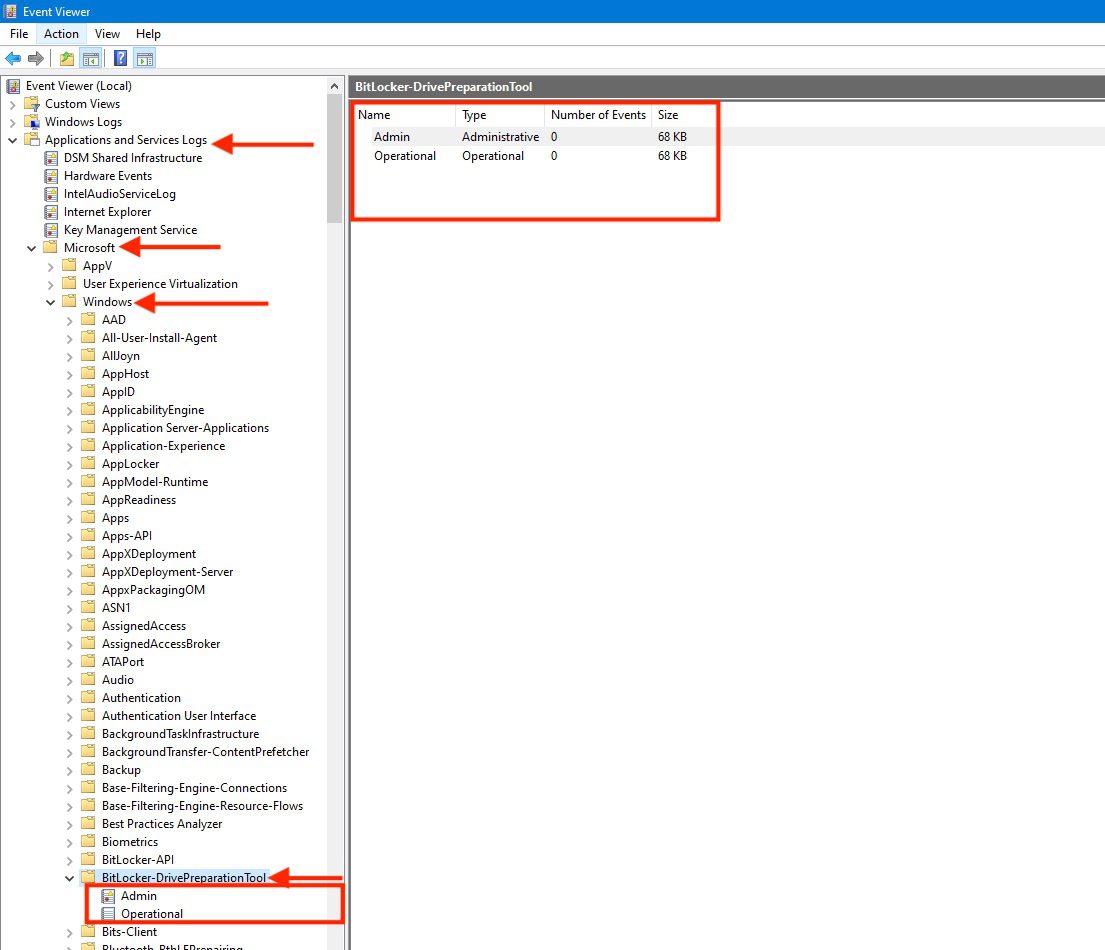
The switch “-quiet” can be omitted if you wish to see the output in the command-line interface. If the switch is included, to view any errors that occurred during drive preparation, review the system event log under the Microsoft-Windows-BitLocker-DrivePreparationTool event provider.
BdeHdCfg -target defaultThe BitLocker Drive Preparation Tool automates the following processes to make the computer ready for BitLocker:
- Creating the second volume that BitLocker requires
- Migrating the boot files to the new volume
- Making the volume an active volume
When the tool finishes, you must restart the computer to change the system volume to the newly created volume. Upon restart, BitLocker will appropriately configure the drive. You may also have to initialize the Trusted Platform Module (TPM) before you turn BitLocker on.
In the given example, Bdehdcfg is employed with the default drive to establish a 500 MB system partition. Because no drive letter is specified, the new system partition will not have a drive letter.
bdehdcfg -target default -size 500In this example, Bdehdcfg utilizes the default drive to generate an unallocated-space-based system partition (P:) of the default 300 MB size. The tool won’t require user input or display errors. After the system drive has been created, the computer will automatically restart.
bdehdcfg -target unallocated –newdriveletter P: -quiet -restartWhat does the “bdehdcfg “-quiet” Switch” mean?
bdehdcfg “-quiet” Switch – This informs the bdehdcfg a command-line tool that all actions and errors are not to be displayed in the command-line interface. Any Yes/No (Y/N) prompts displayed during the drive preparation will assume a “Yes” answer.
To view any error that occurred during drive preparation, review the system event log under the Microsoft-Windows-BitLocker-DrivePreparationTool event provider as shown below.
Note: There is a known conflict with the Deny writes access to fixed drives not protected by BitLocker Group Policy setting located in Computer Configuration\Administrative Templates\Windows Components\BitLocker Drive Encryption\Fixed Data Drives.
Issues you may encounter when using bdehdcfg
When bdehdcfg is run on a computer when this policy setting is enabled, you may encounter the following issues:
- If you tried to shrink the drive and establish the system drive, the drive size reduction will succeed, forming a raw partition. However, the raw partition will not be formatted. Hence, resulting in the error message: “The new active Drive cannot be formatted.” You may need to manually prepare your drive for BitLocker.
- If you attempted to use unallocated space to create the system drive, a raw partition will be created. However, the raw partition will not be formatted. The following error message is displayed: The new active Drive cannot be formatted. You may need to manually prepare your drive for BitLocker.
- When attempted to merge an existing drive into the system drive, the tool will fail to copy the required boot file onto the target drive to create the system drive. The following error message is displayed: BitLocker setup failed to copy boot files. You may need to manually prepare your drive for BitLocker.
- With this policy setting is being enforced, a hard drive cannot be repartitioned because the drive is protected. If you are upgrading computers in your organization from a previous version of Windows and those computers were configured with a single partition, you should create the required BitLocker system partition before applying the policy setting to the computers.
Command and Parameters that can be used
Below is a detailed command and parameters that can be used
bdehdcfg [–driveinfo ] [-target {default|unallocated| shrink| merge}] [–newdriveletter] [–size ] [-quiet]bdehdcfg -target {default|unallocated|<drive_letter> shrink|<drive_letter> merge} -quiet| Parameter | Description |
|---|---|
| bdehdcfg: driveinfo | Displays the drive letter, the total size, the maximum free space, and the partition characteristics of the partitions on the drive specified. Only valid partitions are listed. Unallocated space is not listed if four primary or extended partitions already exist. |
| bdehdcfg: target | Defines which portion of a drive to use as the system drive and makes the portion active. |
| bdehdcfg: newdriveletter | Assigns a new drive letter to the portion of a drive used as the system drive. |
| bdehdcfg: size | Determines the size of the system partition when a new system drive is being created. |
| bdehdcfg: quiet | Prevents the display of all actions and errors in the command-line interface and directs bdehdcfg to use the Yes answer to any Yes/No prompts that may occur during subsequent drive preparation. |
| bdehdcfg: restart | Directs the computer to restart after the drive preparation has finished. |
| /? | Displays Help at the command prompt. |
Note: A partition subject to encryption cannot be marked as an active partition (this applies to the operating system, fixed data, and removable data drives).
- When installed on a new computer, Windows will automatically create the partitions that are required for BitLocker.
I hope you found this blog post on how to fix System Partition not available or large enough helpful. If you have any questions, please let me know in the comment section.