Skip to content

TechDirectArchive

Hands-on IT, Cloud, Security & DevOps Insights

  • Home
  • About
  • Advertise With US
  • Reviews
  • Contact
  • Toggle search form
Home » Windows » How to Disable Internet Explorer with Group Policy & Registry
  • windows 10 logo 100739284 large
    Application pool has been disabled or Changing identity user for IIS Application Pool (Event ID 5059) Web Server
  • Windows Productivity Tips
    Windows Productivity Tips To Get The Most Out Of Your PC Windows
  • fast user switching in windows 10 2
    To enable or disable fast User Switching in Windows 10 Windows
  • PSD
    PowerShell Deployment Extension for MDT: How to deploy Windows using PSD, Microsoft Deployment Toolkit, and Windows Deployment Services Windows Server
  • react 1
    How to deploy a React Application to AWS S3 AWS/Azure/OpenShift
  • images 6
    Important Areas to Master on WSUS Windows Server
  • Pluggin cable
    System check found some issues during MBAM encryption: Fail, the Power cable must be connected Windows
  • Feature post
    Disable Bing Search in Windows: Quick Guide for Windows Windows

How to Disable Internet Explorer with Group Policy & Registry

Posted on 25/06/202211/12/2023 Matthew By Matthew No Comments on How to Disable Internet Explorer with Group Policy & Registry
Featured-image-1

Discover how to disable Internet Explorer on Windows 11. With the release of Windows 11, users have observed the retirement and end of support for Internet Explorer 11, especially on specific Windows 10 versions. Microsoft advises users relying on IE11 for specific applications to transition to the Microsoft Edge browser. Microsoft Edge’s Internet Explorer mode (IE mode) offers a smooth, single-browser experience for businesses that use Internet Explorer 11 (IE11) for legacy compatibility. Instead of switching back to IE11, users can access old programs directly from Microsoft Edge.

Using group policy or registry settings, you can disable IE11 as a stand-alone browser after configuring IE mode without compromising IE mode functionality in your organization.

This article explains how to disable Internet Explorer 11 from your system’s list of available browsers. Here are other related guides: How to forcefully remove Microsoft Edge Browser the hard way from your device, how to Block downloads on Microsoft Edge using GPO on Windows Server 2019 and 2022, and Set Google Chrome as default: How to set a browser as default in Windows.

What user experience following traffic redirection to Microsoft Edge

All Internet Explorer 11 (IE11) activity is routed over to Microsoft Edge when the disabled Internet Explorer 11 as a standalone browser policy is enabled, and users encounter the following:

  • The task bar and Start Menu will no longer contain any IE11 icons.
  • Users will be routed to access the same file or URL in Microsoft Edge when they attempt to start shortcuts or file associations that require IE11.
  • Microsoft Edge will launch in its place when users attempt to start IE11 by using the iexplore.exe binary directly.

You can choose to display a redirect notice for each user who attempts to start IE11 as part of configuring the policy for this experience. The display options for this message are “Always” or “Once per user.”

Please see Uninstall Internet Explorer: Windows PC & Server Guide, how to Enable Internet Explorer Mode in Edge in Windows 11, and Process Explorer: Replace built-in Task Manager.

How to Disable Internet Explorer: Group Policy Method

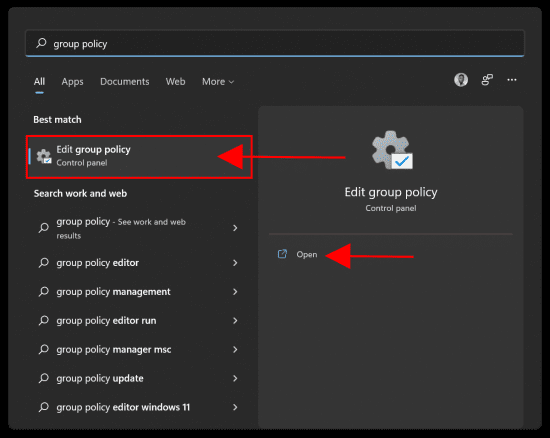
To open the Group Policy Editor, click the Windows Start Menu, then search for Group Policy Editor, then run it as administrator as shown below.
Windows OS

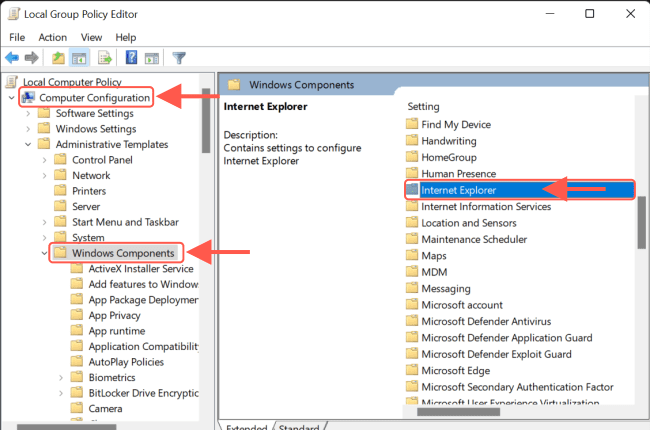
Navigate to the following path:

Computer Configuration>>Administrative Templates>>Windows Components>>Internet Explorer
Browser Management

In the Internet Explorer settings, double-click Disable Internet Explorer 11 as a standalone browser.

Disabling Web Browsing

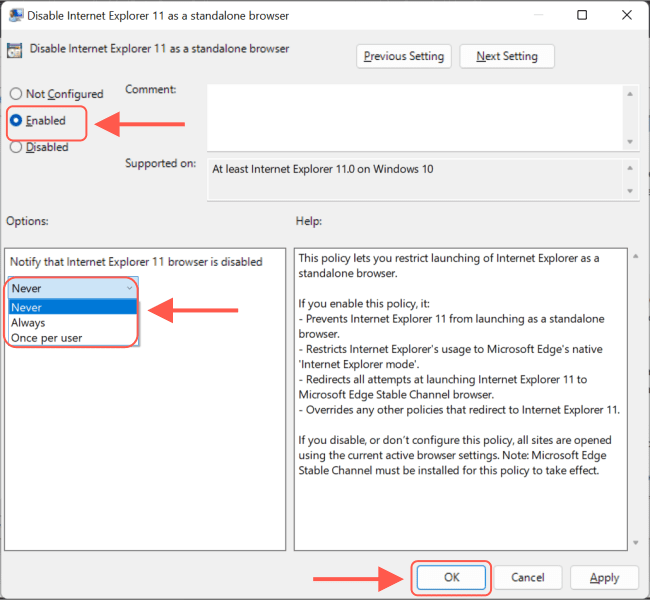
Next select Enabled.

System Optimization

Select one of the following under Notify that Internet Explorer 11 browser is disabled:

  • Never: if you don’t want users to be notified that IE11 is deactivated.
  • Always: if you want to warn users whenever they are redirected from IE11.
  • Once per user: If you just want to tell users the first time they are redirected.

To save this policy option, select OK or Apply.

Also, see How to use the Process Explorer from SysInternals Tools, and how To Add Google Drive To File Explorer in Windows.

How to disable IE via Registry settings

You can disable Internet Explorer in Windows by creating and editing a new registry value named “NotifyDisableIEOptions.” Here’s how:

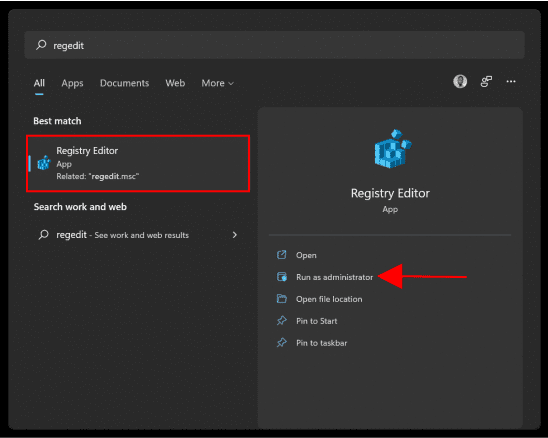
First, search for “Registry Editor” in the Start menu and run as administrator.
Windows OS

Navigate to “HKEY_LOCAL_MACHINE\SOFTWARE\Policies\Microsoft” folder. Then Right-click on the “Microsoft” folder and select “New >> Key.”

Image6-1

Name the Key “Internet Explorer”. Then right-click on the “Internet Explorer” folder and select “New >> Key.”

Image7-2

Type “Main” as the new folder name. Then right-click on the “Main” folder and select the “New >> DWORD (32-bit) Value” option.
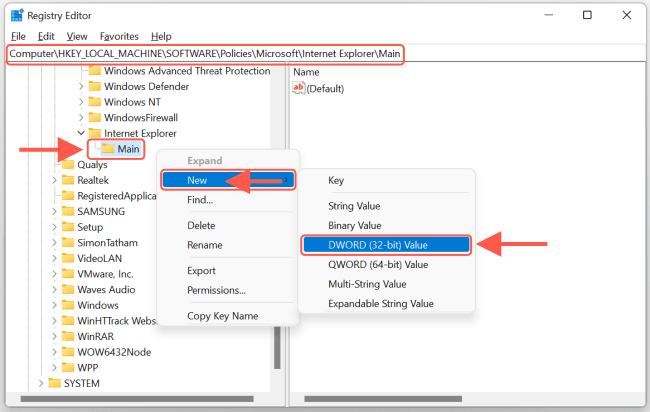
Image8-1

To disable Internet Explorer, create a new value named ‘NotifyDisableIEOptions’. Next, double-click on this value and set the Value Data to ‘0, 1, or 2.’ This is how to disable Internet Explorer effectively.

Image9-1

The Value data 0, 1, and 2 represent the following:

  • Never (0): if you don’t want users to be notified that IE11 is deactivated.
  • Always (1): if you want to warn users whenever they are redirected from IE11.
  • Once per user (2): If you just want to tell users the first time they are redirected.

Click “Ok” close the registry editor and restart Windows.

I hope you found this blog post helpful. If you have any questions, please let me know in the comment session.

Rate this post

Thank you for reading this post. Kindly share it with others.

  • Click to share on X (Opens in new window) X
  • Click to share on Reddit (Opens in new window) Reddit
  • Click to share on LinkedIn (Opens in new window) LinkedIn
  • Click to share on Facebook (Opens in new window) Facebook
  • Click to share on Pinterest (Opens in new window) Pinterest
  • Click to share on Tumblr (Opens in new window) Tumblr
  • Click to share on Telegram (Opens in new window) Telegram
  • Click to share on WhatsApp (Opens in new window) WhatsApp
  • Click to share on Pocket (Opens in new window) Pocket
  • Click to share on Mastodon (Opens in new window) Mastodon
  • Click to share on Bluesky (Opens in new window) Bluesky
  • Click to share on Threads (Opens in new window) Threads
  • Click to share on Nextdoor (Opens in new window) Nextdoor
Windows Tags:Edge Browser, Google Chrome, Internet, microsoft, Microsoft Edge, Microsoft Windows, Web-browser, Website, Windows 10, Windows 11

Post navigation

Previous Post: Azure CLI: How To Upload Batch Files to Azure Storage Account
Next Post: How to delete Windows old folder in Windows 11

Related Posts

  • MBAM
    Fix MBAM Client Deployment is only supported on MBAM 2.5 SP1 Windows
  • Fix OneDrive Error
    How to Fix OneDrive Error 0x80071129: The tag present in the reparse point buffer is invalid Windows
  • MBRGPT
    Run MBR and GPT conversion with the best GPT converter Windows
  • Rport
    RPORT the free and open source remote management tool Linux
  • dd
    How to update Microsoft Defender Antivirus into the install image of Windows (install.wim) Windows
  • Screenshot 2022 04 28 at 22.35.11
    Fix “There was a problem starting logilda.dll” in Windows Windows

More Related Articles

MBAM Fix MBAM Client Deployment is only supported on MBAM 2.5 SP1 Windows
Fix OneDrive Error How to Fix OneDrive Error 0x80071129: The tag present in the reparse point buffer is invalid Windows
MBRGPT Run MBR and GPT conversion with the best GPT converter Windows
Rport RPORT the free and open source remote management tool Linux
dd How to update Microsoft Defender Antivirus into the install image of Windows (install.wim) Windows
Screenshot 2022 04 28 at 22.35.11 Fix “There was a problem starting logilda.dll” in Windows Windows

Leave a Reply Cancel reply

You must be logged in to post a comment.

Microsoft MVP

VEEAMLEGEND

vexpert-badge-stars-5

Virtual Background

GoogleNews

Categories

veeaam100

sysadmin top30a

  • windows 10 logo 100739284 large
    Application pool has been disabled or Changing identity user for IIS Application Pool (Event ID 5059) Web Server
  • Windows Productivity Tips
    Windows Productivity Tips To Get The Most Out Of Your PC Windows
  • fast user switching in windows 10 2
    To enable or disable fast User Switching in Windows 10 Windows
  • PSD
    PowerShell Deployment Extension for MDT: How to deploy Windows using PSD, Microsoft Deployment Toolkit, and Windows Deployment Services Windows Server
  • react 1
    How to deploy a React Application to AWS S3 AWS/Azure/OpenShift
  • images 6
    Important Areas to Master on WSUS Windows Server
  • Pluggin cable
    System check found some issues during MBAM encryption: Fail, the Power cable must be connected Windows
  • Feature post
    Disable Bing Search in Windows: Quick Guide for Windows Windows

Subscribe to Blog via Email

Enter your email address to subscribe to this blog and receive notifications of new posts by email.

Join 1,839 other subscribers
  • RSS - Posts
  • RSS - Comments
  • About
  • Authors
  • Write for us
  • Advertise with us
  • General Terms and Conditions
  • Privacy policy
  • Feedly
  • Telegram
  • Youtube
  • Facebook
  • Instagram
  • LinkedIn
  • Tumblr
  • Pinterest
  • Twitter
  • mastodon

Tags

AWS Azure Bitlocker Microsoft Windows PowerShell WDS Windows 10 Windows 11 Windows Deployment Services Windows Server 2016

Copyright © 2025 TechDirectArchive


Loading Comments...
 

You must be logged in to post a comment.