Skip to content

TechDirectArchive

Hands-on IT, Cloud, Security & DevOps Insights

  • Home
  • About
  • Advertise With US
  • Reviews
  • Contact
  • Toggle search form
Home » Windows » How to delete Windows old folder in Windows 11

How to delete Windows old folder in Windows 11

Posted on 25/06/202211/12/2023 Matthew By Matthew No Comments on How to delete Windows old folder in Windows 11
Featured-image-2

In this article, we shall discuss how to delete Windows old folder in Windows 11. When upgrading Windows versions, it creates a folder called Windows.old, containing all information from the prior installation. If you don’t like the new version of Windows, you may use it to restore your system to the previous version. Explore the Windows.old folder. Find the exact file you need, in case it wasn’t copied correctly to the new Windows installation. For a similar issue, see how to resolve “Error 740: Elevated permissions are required to run DISM“, and how to create a hidden share (Administrative share) folder on Windows devices.

In essence, the Windows.old folder just holds the previous version of Windows. From your installed applications to the Windows system files to the settings and data for each user account. In case you want to revert to that earlier version of Windows or if you need to search around for a file, the current version of Windows retains it around.

In order to save up space, Windows will automatically remove the Windows.old folder after a month. However, if the folder is still present after a month or you need to delete it immediately, follow the instructions below.

Here are other related guides: Folder Access Denied, you require permission from SYSTEM: Unable to delete old windows folder. File Access Denied, You require permission from trusted installer: How to delete or rename files protected by Trusted Installer.

Let’s now look at how to remove the Windows.old folder will help you free up some system space.

Delete the Windows.old Folder to Free Up Space in Windows 11

The Windows.old folder can take a lot of disk space. Depending on the size of your prior Windows installation, it may easily use up 15 GB or more of disk space.

See the two methods listed below to remove windows.old folder in Windows 11.

Delete Windows.old from the File Explorer.

You can delete the Windows.old folder from File Explorer like you would any other folder. To do this, open the file explorer and navigate to the C: folder. Then right-click and click delete
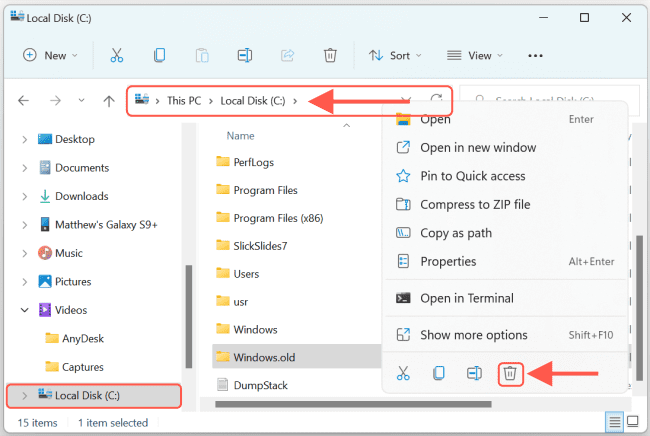
Windows 11

You’ll be prompted to provide administrator permission to delete the folder, click Continue.
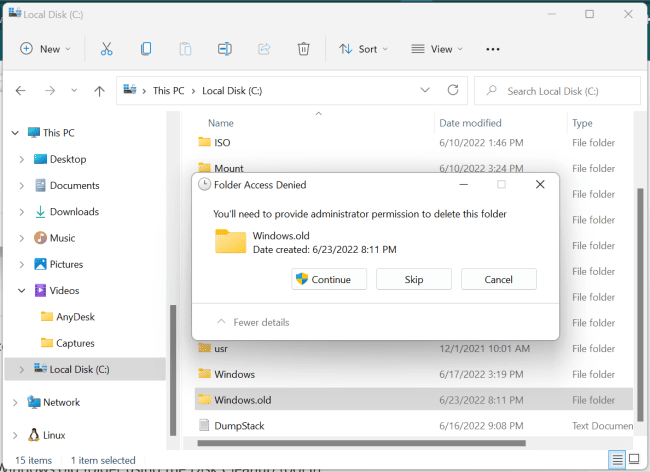
cleanup

Once you provide the administrator permission the folder will be deleted.

Note: If the Windows.old folder is for another user, you will need to take ownership of the folder before it can be deleted. See Folder Access Denied, you require permission from SYSTEM: Unable to delete old windows folder.

Delete the Windows.old folder using Windows Disk Cleanup tool

Another easy way to delete the Windows.old folder in Windows 11 is through the Windows Disk Cleanup tool.

First, click the Windows Start button, then search for Disk Cleanup, under Best match, click Disk Cleanup app as shown below. You can also right-click the C:\ drive in File Explorer, select Properties, and then click the “Disk Clean-up” button on the “General” tab.

disk space

From the Disk Cleanup window, press the “Clean up System Files” button at the bottom.
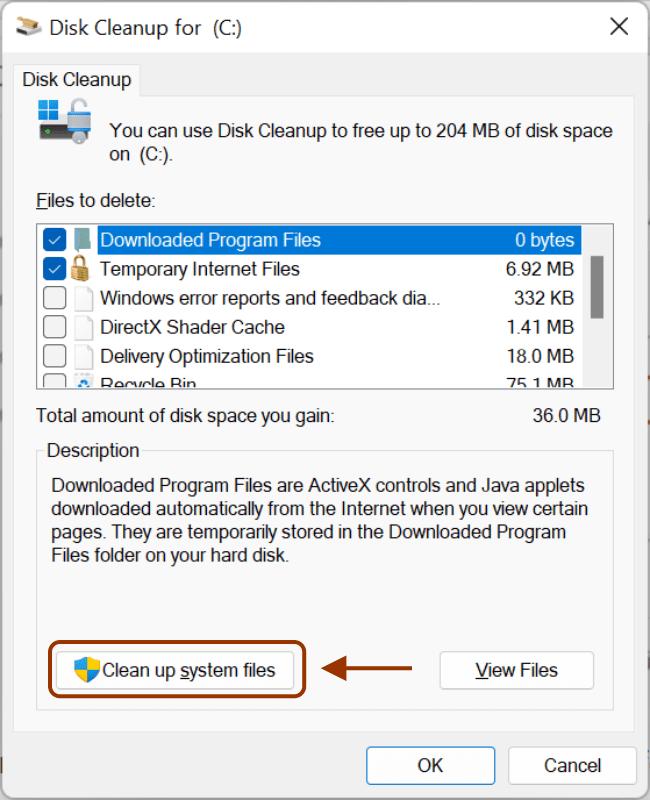
storage management

The Disk Cleanup tool will scan your computer for unused files depending on the speed and size of your hard drive.
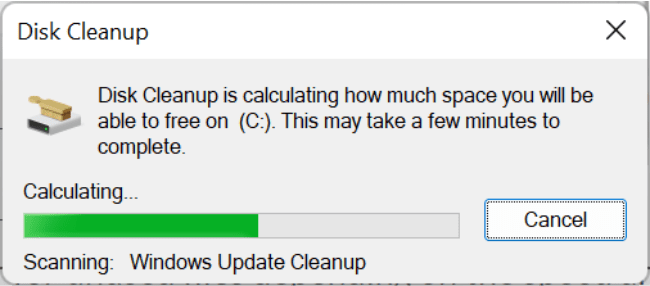
Windows 11

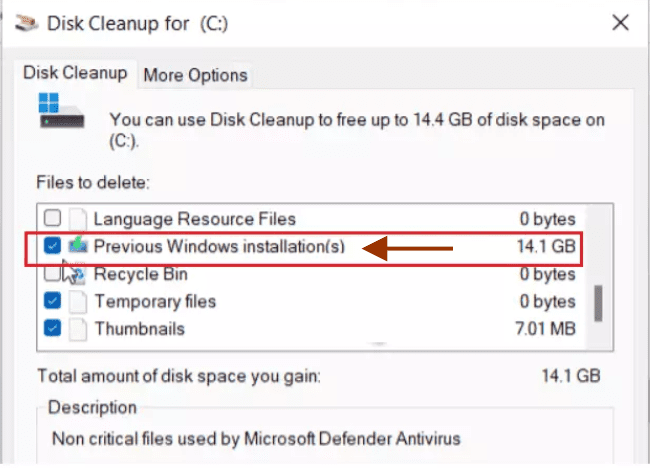
Once the tool finishes scanning your drive, it will show items you can safely delete from your drive to free up space. On the list you should see the Previous Windows installation(s) item which is the Windows.old content.
cleanup

Tick the boxes of the items you want to remove. It safe to check all and click the OK button. You’ll get a prompt to confirm that you want to delete the files.
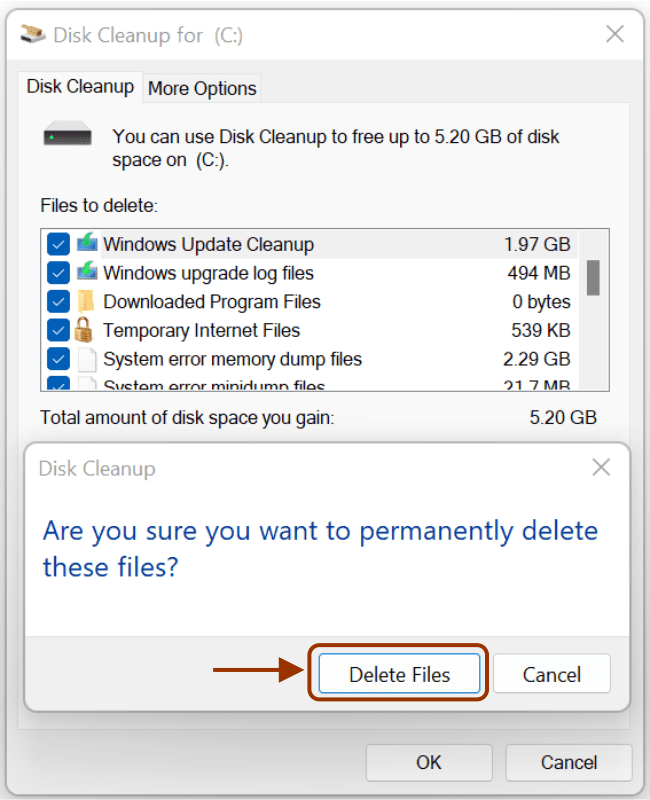
image9

You may also get a second prompt to confirm that you want to delete Windows installations or temporary installations file. Click Yes to confirm and delete.
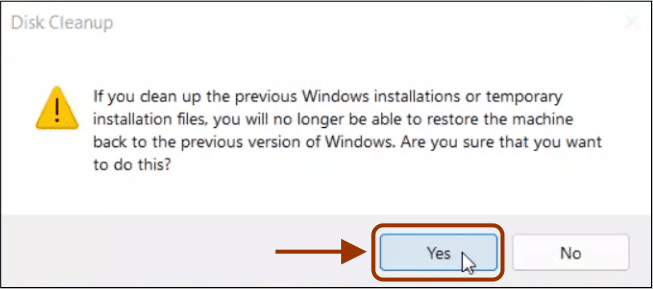
image10

Removing the Windows.old directory has no downsides. You can delete the Windows.old folder as long as you’re satisfied with your current Windows setup, don’t want to downgrade, and you are certain that you have all of your necessary files, and don’t need to take any leftovers from there. 

I hope you found this article useful on how to delete Windows old folder in Windows 11. Please feel free to leave a comment below.

Rate this post

Thank you for reading this post. Kindly share it with others.

  • Share on X (Opens in new window) X
  • Share on Reddit (Opens in new window) Reddit
  • Share on LinkedIn (Opens in new window) LinkedIn
  • Share on Facebook (Opens in new window) Facebook
  • Share on Pinterest (Opens in new window) Pinterest
  • Share on Tumblr (Opens in new window) Tumblr
  • Share on Telegram (Opens in new window) Telegram
  • Share on WhatsApp (Opens in new window) WhatsApp
  • Share on Mastodon (Opens in new window) Mastodon
  • Share on Bluesky (Opens in new window) Bluesky
  • Share on Threads (Opens in new window) Threads
  • Share on Nextdoor (Opens in new window) Nextdoor
Windows Tags:deletion, Folder, Microsoft Windows, Permission, Windows 10, Windows 11

Post navigation

Previous Post: How to Disable Internet Explorer with Group Policy & Registry
Next Post: How to enable or disable color filters in Windows

Related Posts

  • image 2
    How to Fix Microsoft Edge Not Responding Windows
  • Anyviewer Review
    Free Remote Desktop Software for Windows Windows
  • change keyboard layout windows 10 thumb800
    How to use the On-Screen Keyboard Windows
  • Banner
    How to Stop OneDrive from Starting Up Automatically on Windows 11 Windows
  • How to Hide or Fix HP Printer Updates Windows Error 0x800f020b
    Hide Windows Updates: How to Hide or Fix HP Printer Windows Updates Error 0x800f020b Windows
  • Test your webcam and microphone before meeting
    How to Test Your Webcam And Microphone Before Meeting Windows

More Related Articles

image 2 How to Fix Microsoft Edge Not Responding Windows
Anyviewer Review Free Remote Desktop Software for Windows Windows
change keyboard layout windows 10 thumb800 How to use the On-Screen Keyboard Windows
Banner How to Stop OneDrive from Starting Up Automatically on Windows 11 Windows
How to Hide or Fix HP Printer Updates Windows Error 0x800f020b Hide Windows Updates: How to Hide or Fix HP Printer Windows Updates Error 0x800f020b Windows
Test your webcam and microphone before meeting How to Test Your Webcam And Microphone Before Meeting Windows

Leave a Reply Cancel reply

You must be logged in to post a comment.

Microsoft MVP

VEEAMLEGEND

vexpert-badge-stars-5

Virtual Background

GoogleNews

Categories

veeaam100

Veeam Vanguard

  • images 1
    WARNING: The provided hosts list is empty only the localhost is available and note that the implicit localhost does not match all Configuration Management Tool
  • cisco general
    How to update Cisco ASA Network | Monitoring
  • 71PSZcv0RL. AC SX425
    How to disable unused Cisco Access Ports Network | Monitoring
  • ycx
    How to use SysInternals Live Tools Windows Server
  • wac
    Fix Windows Admin Center cannot be reached Windows
  • Enale FIPS compliance mode on Windows
    How to enable FIPS mode on Windows Server Oracle/MSSQL/MySQL
  • screenshot 2020 02 13 at 22.47.41
    Active Directory Flexible Single-Master Operations Roles [FSMO] Windows Server
  • How to Install Winget on Windows Server
    How to Install Winget on Windows Server Windows Server

Subscribe to Blog via Email

Enter your email address to subscribe to this blog and receive notifications of new posts by email.

Join 1,808 other subscribers
  • RSS - Posts
  • RSS - Comments
  • About
  • Authors
  • Write for us
  • Advertise with us
  • General Terms and Conditions
  • Privacy policy
  • Feedly
  • Telegram
  • Youtube
  • Facebook
  • Instagram
  • LinkedIn
  • Tumblr
  • Pinterest
  • Twitter
  • mastodon

Tags

AWS Azure Bitlocker Microsoft Windows PowerShell WDS Windows 10 Windows 11 Windows Deployment Services Windows Server 2016

Copyright © 2025 TechDirectArchive


Loading Comments...
 

You must be logged in to post a comment.