Skip to content

TechDirectArchive

Hands-on IT, Cloud, Security & DevOps Insights

  • Home
  • About
  • Advertise With US
  • Contact
  • Reviews
  • Toggle search form
Home » Windows » How to enable Adblocker on Microsoft Edge

How to enable Adblocker on Microsoft Edge

Posted on 29/10/202217/11/2023 Temitope Odemo By Temitope Odemo No Comments on How to enable Adblocker on Microsoft Edge
edge7

It is not new for people who use Microsoft Edge to get flashes of advertisements. Sometimes these Ads can disturb and be irritating as they can pop up anytime and can also disrupt any operations you are currently carrying out on the system. Sometimes advertisers hide this advert and it may sometimes be difficult to block it but with Microsoft, Edge add-ons can act as an adblocker that can block any hidden ads. In this guide, I will be showing you how to enable Adblocker on Microsoft Edge. Please see how to Stop Apps from running automatically on MAC, and How to configure a new tab page URL in Microsoft Edge.

Ad blockers don’t just remove ads. They also enhance your online privacy and security by blocking potential sources of malware and tracking scripts. Here is a YouTube video of how to enable adblocker on Microsoft Edge.

You can also learn how to disable Ads in Windows 11, and why Samsung Agrees To Stop Ads on Preloaded Apps, you may also want to know how to Fix Google Chrome redirects: How to remove unwanted site redirects or pop-up from Google Chrome on Mac and Windows.

To install and enable the adblocker follow these steps:

1: Open Microsoft Edge and click the three dots at the top right corner and select the extension
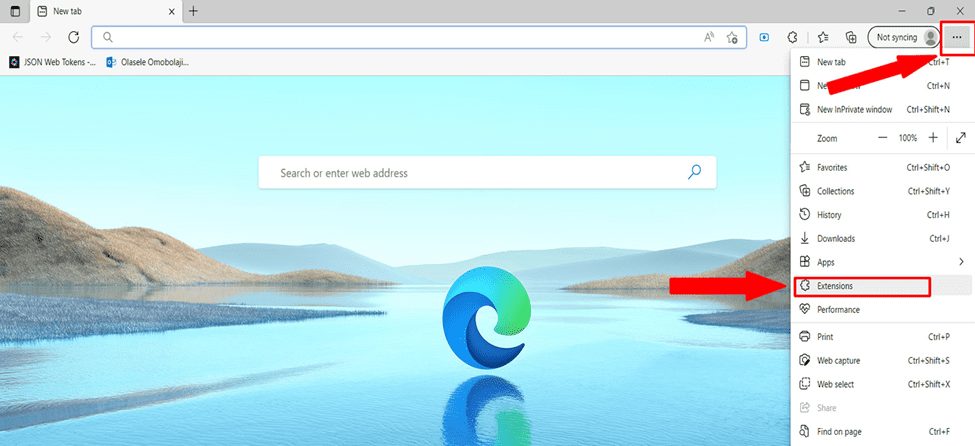
image-59

2. Click Open Microsoft Edge Add-ons.
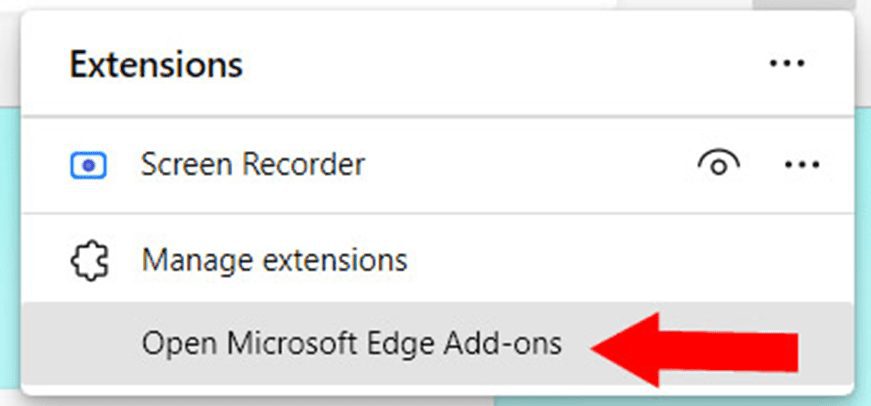
image-60

3. In the search box search for adblocker and you can select your choice from the list
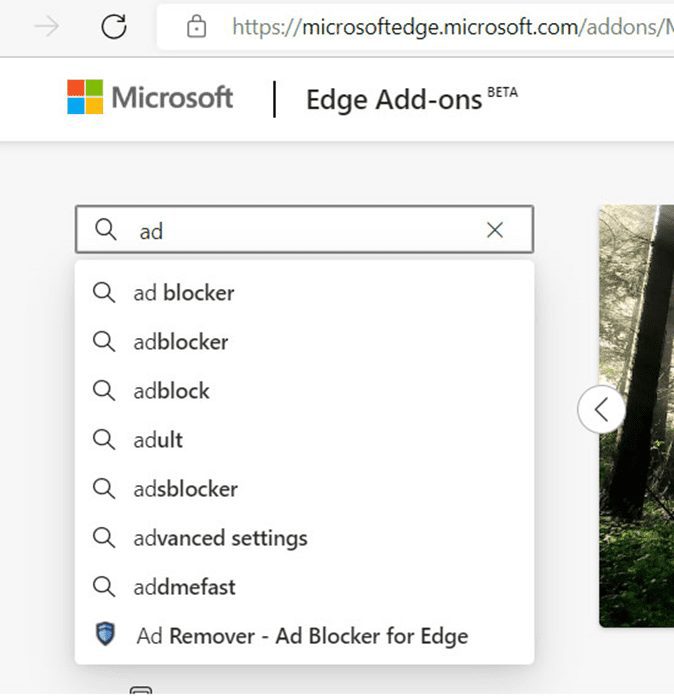
image-61

4. Pick any of the Adblockers and click Get. Then click Add extension
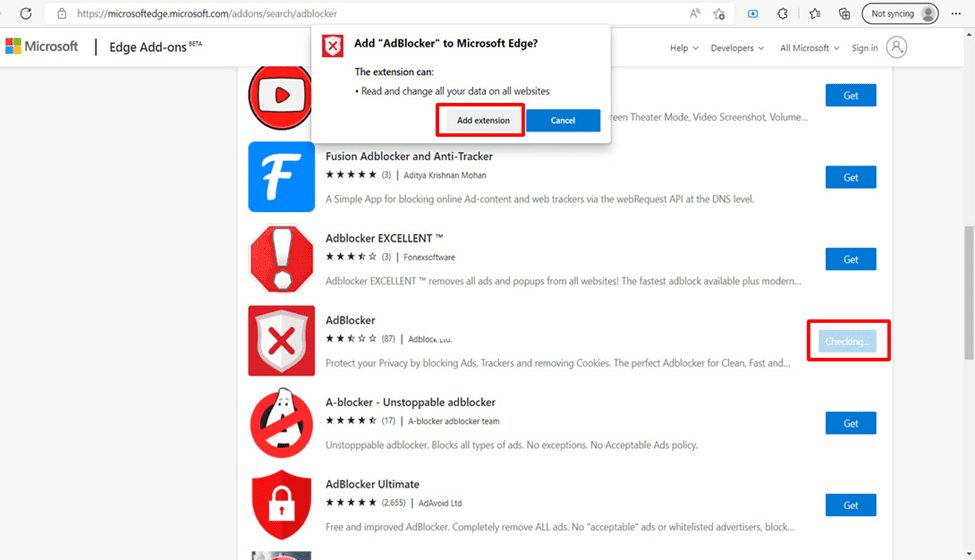
image-62

5. Once it’s installed you will see it on the extensions menu.
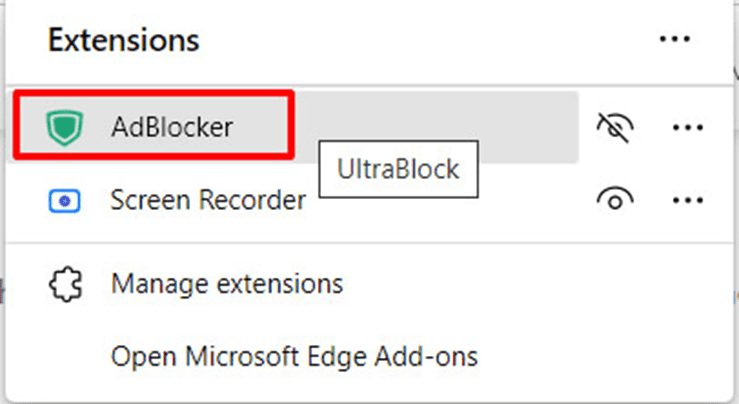
image-63

6. Immediately you will start seeing the Adblocker blocking some unnecessary services and you can switch it OFF and ON.

image-64

7. Once you are ready to remove it from the extension. Click on the three dots and select Remove from Microsoft Edge
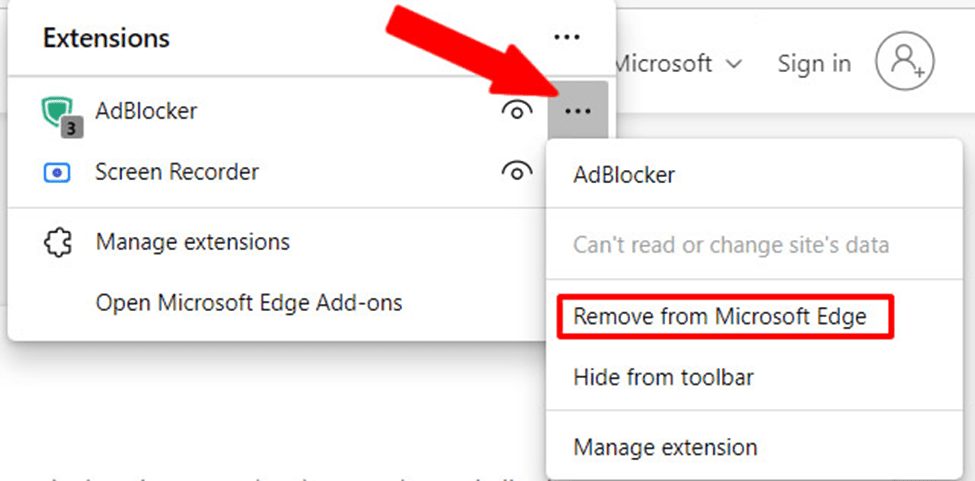
image-65

Also, see Edge GPO settings: All Group Policies available to configure Microsoft Edge Settings, how to Install Microsoft Edge on Ubuntu: Manage Edge Browser on Linux, and how to configure static page in Microsoft Edge browser via Local Group Policy on Windows.

FAQs relating to Adblocker on Microsoft Edge

Do Ad blockers affect website revenue or functionality?

Ad blockers can impact website revenue since they prevent ads from displaying, which is a source of income for many websites. To support content creators and publishers. You can disable your ad blocker on specific websites or use ad blockers with acceptable ads programs.

Are Ad blockers safe to use with Microsoft Edge?

most ad blockers available for Microsoft Edge are safe to use. However, it’s essential to download extensions only from trusted sources like Microsoft Add-ons store to avoid malicious or counterfeit ad blockers.

I hope you found this blog post on Edge Addons: How to enable Adblocker on Microsoft Edge Interesting and helpful. In case you have any questions do not hesitate to ask in the comment section.

Rate this post

Thank you for reading this post. Kindly share it with others.

  • Share on X (Opens in new window) X
  • Share on Reddit (Opens in new window) Reddit
  • Share on LinkedIn (Opens in new window) LinkedIn
  • Share on Facebook (Opens in new window) Facebook
  • Share on Pinterest (Opens in new window) Pinterest
  • Share on Tumblr (Opens in new window) Tumblr
  • Share on Telegram (Opens in new window) Telegram
  • Share on WhatsApp (Opens in new window) WhatsApp
  • Share on Mastodon (Opens in new window) Mastodon
  • Share on Bluesky (Opens in new window) Bluesky
  • Share on Threads (Opens in new window) Threads
  • Share on Nextdoor (Opens in new window) Nextdoor
Windows, Windows Server Tags:Edge Addons, Microsoft Edge, Windows 10

Post navigation

Previous Post: How to clear Cache and Manually Update Microsoft Defender
Next Post: Rename or Move Files or Directories in Linux with Bash Terminal

Related Posts

  • Reset folder view settings on File Explorer for Windows 11 and 10
    Reset folder view settings on File Explorer for Windows 11 and 10 Windows
  • Featured image dataTransfer.
    How to transfer data from an old PC to a new PC Windows
  • How to Disable device encryption
    How to Disable device encryption on Windows Windows
  • How to Disable the Command Prompt on Windows 11
    How to Disable the Command Prompt on Windows 11 Windows
  • Screenshot 2022 04 27 at 02.18.50
    Why does MBAM not automatically re-encrypt MBAM or Bitlocker-protected devices? Windows
  • ios microsoft remote desktop app
    Prevent the Saving of RDP Credentials in Windows 10 Windows

More Related Articles

Reset folder view settings on File Explorer for Windows 11 and 10 Reset folder view settings on File Explorer for Windows 11 and 10 Windows
Featured image dataTransfer. How to transfer data from an old PC to a new PC Windows
How to Disable device encryption How to Disable device encryption on Windows Windows
How to Disable the Command Prompt on Windows 11 How to Disable the Command Prompt on Windows 11 Windows
Screenshot 2022 04 27 at 02.18.50 Why does MBAM not automatically re-encrypt MBAM or Bitlocker-protected devices? Windows
ios microsoft remote desktop app Prevent the Saving of RDP Credentials in Windows 10 Windows

Leave a Reply Cancel reply

You must be logged in to post a comment.

Microsoft MVP

VEEAMLEGEND

vexpert-badge-stars-5

Virtual Background

GoogleNews

Categories

veeaam100

Veeam Vanguard

  • Prevent the downloads of apps without password on App store
    Download Apps without passwords on App Store Mac
  • Razer
    Administrative rights gained through Razer devices on Windows 10 Security | Vulnerability Scans and Assessment
  • banner
    How to install and configure FSRM in Microsoft Windows Server Windows Server
  • Shared Folder
    How to access shared resources from two different domains Windows
  • how to bypass windows admin log in password 2
    Disable or Enable Auto log on in Windows Windows
  • wingettool
    Install Applications with Winget CLI on Windows Windows Server
  • PersonalHow to Create Symbolic Links in Linux
    All You Need to Know About Symbolic Links in Linux Linux
  • DeleteAzureVM
    Remove Azure VM: How to delete a Virtual Machine via the Azure Portal AWS/Azure/OpenShift

Subscribe to Blog via Email

Enter your email address to subscribe to this blog and receive notifications of new posts by email.

Join 1,811 other subscribers
  • RSS - Posts
  • RSS - Comments
  • About
  • Authors
  • Write for us
  • Advertise with us
  • General Terms and Conditions
  • Privacy policy
  • Feedly
  • Telegram
  • Youtube
  • Facebook
  • Instagram
  • LinkedIn
  • Tumblr
  • Pinterest
  • Twitter
  • mastodon

Tags

Active Directory Azure Bitlocker Microsoft Windows PowerShell WDS Windows 10 Windows 11 Windows Deployment Services Windows Server 2016

Copyright © 2025 TechDirectArchive


Loading Comments...
 

You must be logged in to post a comment.