Skip to content

TechDirectArchive

  • Home
  • About
  • Advertise With US
  • Contact
  • Reviews
  • Toggle search form
Home » Version Control System » Fix Git is not recognised as an internal or external command
  • winn 11 3
    Enable HyperV on Windows: How to install Windows 11 on HyperV Windows
  • plain screenshot 1
    How to make a screenshot on a macOS device Mac
  • SysInternals
    Use Active Directory Explorer from Sysinternals Windows
  • Featured image Audioissue
    How to Fix Audio Services Not Responding on Windows 10 and 11 Windows
  • MBAM Replacement
    MBAM extended support ends April 2026: Find alternative solution Security | Vulnerability Scans and Assessment
  • maxresdefault
    How to join a computer to the Domain Windows Server
  • shortcut
    How to make a desktop shortcut available for all users in Windows 7 and 10 Windows
  • How to fix BitLocker always prompting for Recovery Key
    How to fix BitLocker always prompting for Recovery Key Windows

Fix Git is not recognised as an internal or external command

Posted on 12/07/202204/09/2023 Imoh Etuk By Imoh Etuk No Comments on Fix Git is not recognised as an internal or external command
Git not Recognized Image banner
Git not Recognized

In some situations, you might have run into the error “bash: git: command not found or ‘git’ is not recognized as an internal or external command, operable program, or bash file”. In this troubleshooting guide, you will learn how to “Fix Git is not recognised as an internal or external command”. The first error, that bash: git: command not found, is caused by a reason that is entirely different from the second error. But, we’re going to see how we can resolve the two issues. The first error is likely to occur even when you have Git installed on your PC.

I have experienced the first error numerous times, which is why I have decided to write about it now.

The second ('git' is not recognized as an internal or external command, operable program, or bash file). 

Kindly see some of these related errors: The term “git” was not used as the name of a cmdlet, function, script file, or executable Program recognized. Also, see Azure DevOps and GitHub integration for Docker and Kubernetes deployment.

The issue is due to the approach used during Git installation on your Windows PC. To sum it all up, both issues could occur even if you have Git installed on your PC. Here are some related guides: How to install Git on macOS, How to uninstall Git on macOS, and Practical Git use with markdown.

Root causes of “Git is not recognised command“

When trying to run a git command in Windows Command Prompt, the error “git is not recognized as an internal or external command” occurs, according to users. Here are two common causes of this problem:

  1. During the Git installation, the Command Prompt in your PC was already running
  2. You did not correctly configure the Git Path or you didn’t remember to configure it at all

Resolve “Git is not recognised as an internal or external command“

The steps to fix the“git is not recognized” or “git command not found” are listed in the following sections. If you are experiencing the same error, you can try them one at a time to resolve the issue.

Step 1 – Restart the Command Prompt

If you opened Command Prompt before installing Git for Windows. The most recent variable changes may not have been updated, which could be one of the reasons you received the error message “git is not recognized.” You can solve the problem by exiting the Command Prompt and reopening it as an administrator.

To do this search for CMD by pressing Win + S to open the Windows Search utility. When the search utility shows up, type CMD and right-click it. Then select Run as administrator. See the screenshot below:

Open-CMD-as-an-Admin-1
Run the Command Prompt as an Admin

Then try running the git command again to see if the error goes away. If this does not work, proceed to the next solution but if it works, you should see a screen display similar to the screenshot below:

Git-Now-Available-in-CDM-1
Git Commands found in CMD

Step 2 – Reinstall Git for Windows

If step 1 doesn’t work for you, try this step 2 by reinstalling Git for Windows. This is necessary if your Git path is incorrectly configured.

You may receive the error “git is not recognized as an internal or external command, operable program, or batch file.” You can try reinstalling Git for Windows to automatically set the path.

Here is an interesting article: Running Docker commands returns Docker is not recognized as an internal or external command.

Uninstall Git

Kindly follow these steps to uninstall Git. Press Win + R to open the Run command. Type appwiz.cpl into the box and press Enter.

Open-Cpanel-1
Opening cPanel

This will open up Uninstall or change a program window for you. Right-click on Git and click on uninstall.

Uninstalled-Git-1
Uninstalling Git

Next, browse the official website of Git for Windows and download the latest program. After, downloading Git for Windows;

To install Git for Windows, run the downloaded file and follow the wizard. When the “Adjusting your PATH environment” window appears, select Git from the command line and also from 3rd-party software and then click Next.

Ensure-the-Third-Party-option-is-selected-1
Installing Git

Restart your computer once the installation is complete. You can now open Command Prompt after reinstalling Git for Windows to see if it works properly. If not, proceed to the last step.

Step 3 – Manually Configure the Git Path to resolve Git command not found

This last step serves as an alternative method to step 2. With this method, uninstalling and reinstalling your Git for Windows won’t be required. Below are some detailed steps:

Press Win + E to open File Explorer and go to the Git for Windows installation folder and open the cmd folder. By default, it’s in one of the following locations:

C:\Program Files\git\cmd
C:\Program Files (x86)\git\cmd
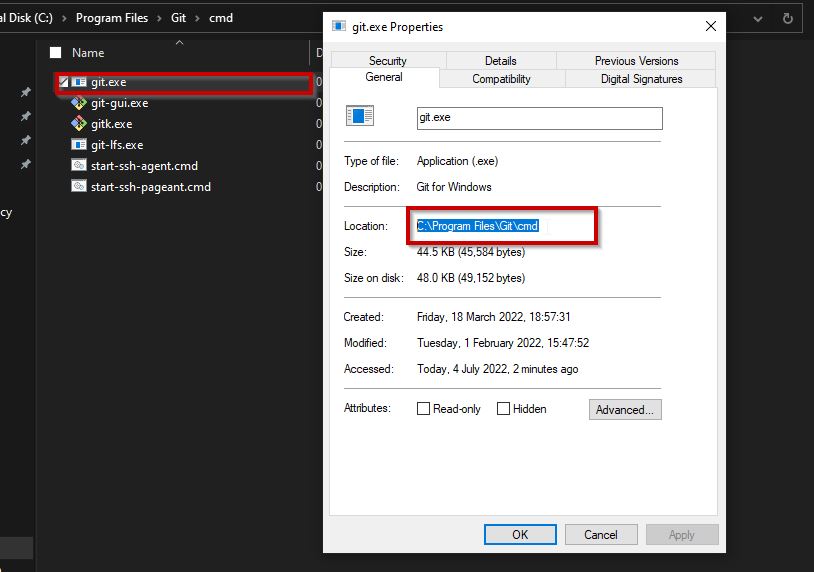
Copy-Path-1
Git Path

Right-click git.exe as shown above and select Properties. In the pop-up window, copy the location.

Next, Press Win + R to open the Run window. Then type sysdm.cpl in the box and click OK to open System Properties.

sysdm-cpl
Opening system properties

When the system properties open,  Click the Advanced tab and select Environment Variables.
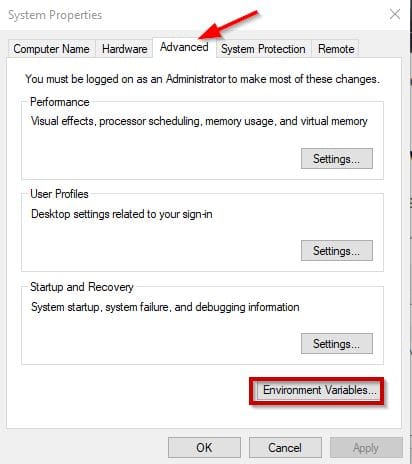
Advanced-Environment-Variables
System Properties

Under the Environment variables section, select Path and click Edit as shown below.
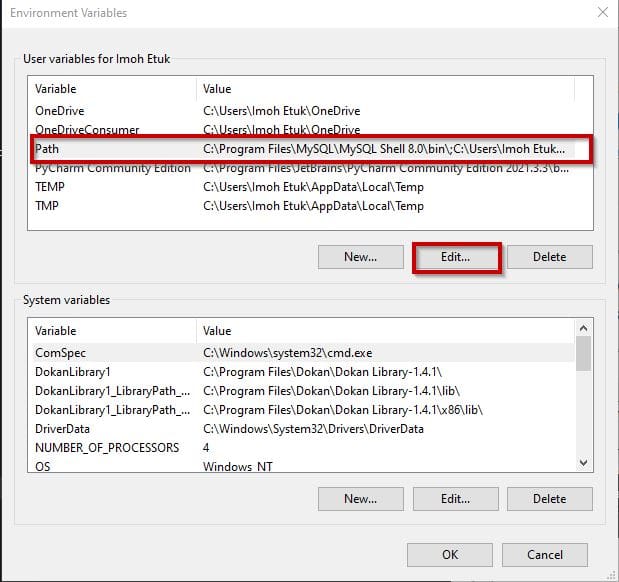
Select-Path-and-Edit
Select Path

In the following window, click the New button and paste the location you copied in the previous step above. Then press Enter to create the path.

Git-Path-added
Adding the New Path

Finally, click on OK to save the settings. Now, you have learned how to resolve how to fix “Git is not recognised as an internal or external command”.

To sum it all up, both issues could occur even if you have Git installed on your PC. Free feel to let us know the method that works for you. Cheers!

Rate this post

Thank you for reading this post. Kindly share it with others.

  • Click to share on X (Opens in new window) X
  • Click to share on Reddit (Opens in new window) Reddit
  • Click to share on LinkedIn (Opens in new window) LinkedIn
  • Click to share on Facebook (Opens in new window) Facebook
  • Click to share on Pinterest (Opens in new window) Pinterest
  • Click to share on Tumblr (Opens in new window) Tumblr
  • Click to share on Telegram (Opens in new window) Telegram
  • Click to share on WhatsApp (Opens in new window) WhatsApp
  • Click to share on Pocket (Opens in new window) Pocket
  • Click to share on Mastodon (Opens in new window) Mastodon
  • Click to share on Bluesky (Opens in new window) Bluesky
  • Click to share on Threads (Opens in new window) Threads
  • Click to share on Nextdoor (Opens in new window) Nextdoor
Version Control System Tags:Git, Git Bash, Github

Post navigation

Previous Post: How to install Microsoft Teams on a macOS
Next Post: Install CNF Certified Kubernetes in AWS

Related Posts

  • mgithub
    How to use Command-Line on Git Bash and GitHub Desktop to PUSH local code to GitHub Version Control System
  • banner
    How to fix Git always asking for my Username and Password Version Control System
  • backupvssnapshot
    Virtual Machine Snapshot vs Backup Version Control System
  • Screenshot 2022 03 20 at 21.08.50
    How to integrate AWS CodeBuild and AWS CodeCommit to SonarCloud AWS/Azure/OpenShift
  • coding
    Git GUI and Gitk won’t open “Missing Tcl / Tk Aqua libraries” Version Control System
  • Deploy Web App from GitHub
    Deploy Code from GitHub to Azure Apps Services via the Command line AWS/Azure/OpenShift

More Related Articles

mgithub How to use Command-Line on Git Bash and GitHub Desktop to PUSH local code to GitHub Version Control System
banner How to fix Git always asking for my Username and Password Version Control System
backupvssnapshot Virtual Machine Snapshot vs Backup Version Control System
Screenshot 2022 03 20 at 21.08.50 How to integrate AWS CodeBuild and AWS CodeCommit to SonarCloud AWS/Azure/OpenShift
coding Git GUI and Gitk won’t open “Missing Tcl / Tk Aqua libraries” Version Control System
Deploy Web App from GitHub Deploy Code from GitHub to Azure Apps Services via the Command line AWS/Azure/OpenShift

Leave a Reply Cancel reply

You must be logged in to post a comment.

VEEAMLEGEND

vexpert-badge-stars-5

Virtual Background

GoogleNews

Categories

veeaam100

Microsoft MVP

  • winn 11 3
    Enable HyperV on Windows: How to install Windows 11 on HyperV Windows
  • plain screenshot 1
    How to make a screenshot on a macOS device Mac
  • SysInternals
    Use Active Directory Explorer from Sysinternals Windows
  • Featured image Audioissue
    How to Fix Audio Services Not Responding on Windows 10 and 11 Windows
  • MBAM Replacement
    MBAM extended support ends April 2026: Find alternative solution Security | Vulnerability Scans and Assessment
  • maxresdefault
    How to join a computer to the Domain Windows Server
  • shortcut
    How to make a desktop shortcut available for all users in Windows 7 and 10 Windows
  • How to fix BitLocker always prompting for Recovery Key
    How to fix BitLocker always prompting for Recovery Key Windows

Subscribe to Blog via Email

Enter your email address to subscribe to this blog and receive notifications of new posts by email.

Join 1,843 other subscribers
  • RSS - Posts
  • RSS - Comments
  • About
  • Authors
  • Write for us
  • Advertise with us
  • General Terms and Conditions
  • Privacy policy
  • Feedly
  • Telegram
  • Youtube
  • Facebook
  • Instagram
  • LinkedIn
  • Tumblr
  • Pinterest
  • Twitter
  • mastodon

Tags

AWS Azure Bitlocker Microsoft Windows PowerShell WDS Windows 10 Windows 11 Windows Deployment Services Windows Server 2016

Copyright © 2025 TechDirectArchive


Loading Comments...
 

You must be logged in to post a comment.