Skip to content

TechDirectArchive

Hands-on IT, Cloud, Security & DevOps Insights

  • Home
  • About
  • Advertise With US
  • Reviews
  • Contact
  • Toggle search form
Home » Windows » How to fix an attempt was made to reference a Token that does not exist
  • Perform Site Maintenance or reset this site greyed out
    Fix “Perform Site Maintenance or reset this site” greyed out Windows Server
  • smart
    Application in bin: You can not open this application Mac
  • unnamed 2
    How to create a contact in Active Directory Windows Server
  • RDlicensePerUser
    RDS client access licenses: How to install a new Per User Remote Desktop Services license Windows Server
  • Featured image Clearing cache
    How to clear cache in Windows 11 Windows
  • Disable Microsoft SQL Auto Close Option
    Disable SQL Auto Close: Auto Close is enabled for both ePO and ePO Events Databases Oracle/MSSQL/MySQL
  • Windows Logo
    Restrict IP Address Range on Windows PC Windows
  • 1 WeXxkEX0JG3oB781HD8Hrg
    Error 0x204: Unable to Connect to Remote PC [Part 1] Windows Server

How to fix an attempt was made to reference a Token that does not exist

Posted on 18/07/202212/12/2023 Imoh Etuk By Imoh Etuk No Comments on How to fix an attempt was made to reference a Token that does not exist
Explorer-Error

I encountered this error after resetting my Windows Registry since the Task Scheduler Services was not running. This error is one of the many errors Windows Users likely experience on their daily PC usage. In this article, we shall discuss “How to fix an attempt was made to reference a Token that does not exist”. Many other Users also experience the request to add or remove features on the specified server failed, Windows Error 0x80070057,  Unknown Hard Error, and Hard Drive is Not Accessible.

One other major cause of this error is a corrupt system registry, files, or the installation of unknown and incompatible software on your PC. This error can also occur after upgrading to Windows 10 or installing an inconsistent Windows update. Please see how to fix insufficient System Resources Exist to Complete the Requested Service, and DISM Error 87: The package is unknown to name but a few. At times, this error occurs when you open Windows File Explorer.

Fix Windows 10 reference a Token that does not exist Error

Ultimately, corrupt system files or registry are the two major things that usually provoke the explorer.exe issue. Here is a guide on how to synchronize your on-premises AD with Azure Active Directory using the Azure AD Connect tool, and how to use the built-in AAD Connect troubleshooting tool.

1st Solution – Repair Corrupted Files

As stated above, the main cause of "an attempt to reference a token that does not exist" is registry system file corruption. In this case, the problem can be resolved by executing specific commands. Here’s how you do it:

Step 1 – To open the elevated Command Prompt, press Win + R to open the Run dialog box, then type cmd in it and hit Ctrl + Shift + Enter.

Windows version 10
Open CMD

Note: Alternatively, you can type cmd in the search box, and then right-click the Command Prompt app and select Run as administrator.

Step 2 – Type the following command in the elevated command prompt and press Enter to be in the right path.

cd %WINDIR%\System32

Step 3 – To repair a series of corrupted DLL files that might trigger the error, type the following command, and hit Enter.

for /f %s in ('dir /b *.dll') do regsvr32 /s %s

Restart your computer after exiting the Command Prompt. Open File Explorer and check to see if the error message "An attempt was made to reference a token that does not exist" still appears.

2nd Solution – Run System File Checker

As previously stated, corrupt system files can cause Windows 10 to attempt to refer to a token that does not exist. System File Checker is the most effective utility for repairing system files. It is extremely simple to use.

Open the Command Prompt in an elevated mode just as stated in the 1st solution above, type sfc /scannow and press Enter. Then, take a chill pill and wait for the process to complete the repair.

Win 10
Corrupted Files Successfully Repaired using the sfc /scannow command

3rd Solution –  Go Back to the Previous Version of Windows

If the explorer.exe attempt was made to reference a token that does not exist error appears only after installing the most recent Windows 10 updates you can reverse the changes by performing a system restore. To do so, follow these steps:

Step 1 –  Press the Win + R keys to open the Run app, and then type rstrui.exe and press Enter.

Microsoft's latest operating system
Microsoft's OS iteration 10
Starting System Restore

Step 2 – Select the restore point option in your Windows 10. As shown below, use the recommended restore option.
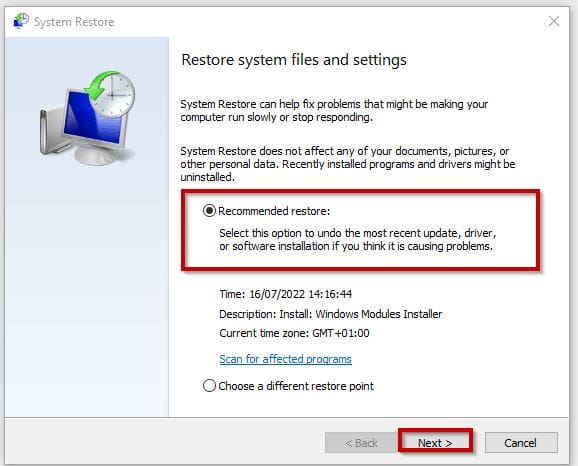
Windows version 10
Selecting Restore Point Option

Step 3 – Select the last restore point created and click on Finish for the system restore to take place. See how to Create a Restore Point in Windows 11 and how to Create a Restore Point in Windows 10 and Windows 11 to learn how to create a system restore point.

Restore-Point
Selecting the last Restore Point

That’s all you need to fix the Windows 10 error. Let us know the step that works for you.

I hope you found this blog post helpful on How to fix an attempt was made to reference a Token that does not exist. Please let me know in the comment section if you have any questions.

Rate this post

Thank you for reading this post. Kindly share it with others.

  • Click to share on X (Opens in new window) X
  • Click to share on Reddit (Opens in new window) Reddit
  • Click to share on LinkedIn (Opens in new window) LinkedIn
  • Click to share on Facebook (Opens in new window) Facebook
  • Click to share on Pinterest (Opens in new window) Pinterest
  • Click to share on Tumblr (Opens in new window) Tumblr
  • Click to share on Telegram (Opens in new window) Telegram
  • Click to share on WhatsApp (Opens in new window) WhatsApp
  • Click to share on Pocket (Opens in new window) Pocket
  • Click to share on Mastodon (Opens in new window) Mastodon
  • Click to share on Bluesky (Opens in new window) Bluesky
  • Click to share on Threads (Opens in new window) Threads
  • Click to share on Nextdoor (Opens in new window) Nextdoor
Network | Monitoring, Windows, Windows Server Tags:Microsoft Windows, Windows 10, Windows 11

Post navigation

Previous Post: How to Exit Linux Vim or Vi Editor
Next Post: How to add WhatsApp UWP on Windows 11

Related Posts

  • DC creation as recommended by Microsoft
    Setup a Domain Controller as Recommended by Microsoft Windows Server
  • image 1
    How to Enable the End Task Option on Windows 11 Taskbar Windows
  • Exchange
    Update Global Address List: Recognition Error Network | Monitoring
  • media8
    How to create a Windows 11 Bootable USB drive Windows
  • screenshot 2020 04 07 at 02.14.53
    SSH and Telnet on Cisco ASA 5505: Quick Setup Guide Network | Monitoring
  • How to Fix 0xc000007b Error banner
    Fix 0xc000007b Error on Windows 11 While Launching a Game Windows

More Related Articles

DC creation as recommended by Microsoft Setup a Domain Controller as Recommended by Microsoft Windows Server
image 1 How to Enable the End Task Option on Windows 11 Taskbar Windows
Exchange Update Global Address List: Recognition Error Network | Monitoring
media8 How to create a Windows 11 Bootable USB drive Windows
screenshot 2020 04 07 at 02.14.53 SSH and Telnet on Cisco ASA 5505: Quick Setup Guide Network | Monitoring
How to Fix 0xc000007b Error banner Fix 0xc000007b Error on Windows 11 While Launching a Game Windows

Leave a Reply Cancel reply

You must be logged in to post a comment.

Microsoft MVP

VEEAMLEGEND

vexpert-badge-stars-5

Virtual Background

GoogleNews

Categories

veeaam100

sysadmin top30a
 
  • Perform Site Maintenance or reset this site greyed out
    Fix “Perform Site Maintenance or reset this site” greyed out Windows Server
  • smart
    Application in bin: You can not open this application Mac
  • unnamed 2
    How to create a contact in Active Directory Windows Server
  • RDlicensePerUser
    RDS client access licenses: How to install a new Per User Remote Desktop Services license Windows Server
  • Featured image Clearing cache
    How to clear cache in Windows 11 Windows
  • Disable Microsoft SQL Auto Close Option
    Disable SQL Auto Close: Auto Close is enabled for both ePO and ePO Events Databases Oracle/MSSQL/MySQL
  • Windows Logo
    Restrict IP Address Range on Windows PC Windows
  • 1 WeXxkEX0JG3oB781HD8Hrg
    Error 0x204: Unable to Connect to Remote PC [Part 1] Windows Server

Subscribe to Blog via Email

Enter your email address to subscribe to this blog and receive notifications of new posts by email.

Join 1,841 other subscribers
  • RSS - Posts
  • RSS - Comments
  • About
  • Authors
  • Write for us
  • Advertise with us
  • General Terms and Conditions
  • Privacy policy
  • Feedly
  • Telegram
  • Youtube
  • Facebook
  • Instagram
  • LinkedIn
  • Tumblr
  • Pinterest
  • Twitter
  • mastodon

Tags

AWS Azure Bitlocker Microsoft Windows PowerShell WDS Windows 10 Windows 11 Windows Deployment Services Windows Server 2016

Copyright © 2025 TechDirectArchive


Loading Comments...
 

You must be logged in to post a comment.