How to solve /var/lib/dpkg/lock Error in Ubuntu Linux

For this short article, we shall be troubleshooting my Ubuntu 22.04 together to clear /var/lib/dpkg/lock error. So, if you are reading this, I assume you have probably encountered the issue as well and are looking for ways to resolve it. Read on to learn how to solve the /var/lib/dpkg/lock error in Linux. For other similar guides please check: Error 1385: The user has not been granted the requested logon type at this time, How to disable automatic screen lock in Ubuntu Linux, and how to disable Lock Screen on Windows 10.
Steps to solving /var/lib/dpkg/lock error
To resolve the “/var/lib/dpkg/lock” error, follow these steps: Please see How to hold comments for review on YouTube, and How to Lock the Find My Device Option in Windows 11.
root@raphael:/home/rdgmh# sudo apt install openjdk-8-jdk -y
Waiting for cache lock: Could not get lock /var/lib/dpkg/lock-frontend. It is heWaiting for cache lock: Could not get lock /var/lib/dpkg/lock-frontend. It is held by process 3372 (aptd)
Waiting for cache lock: Could not get lock /var/lib/dpkg/lock-frontend. It is heWaiting for cache lock: Could not get lock /var/lib/dpkg/lock-frontend. It is held by process 3372 (aptd)
Waiting for cache lock: Could not get lock /var/lib/dpkg/lock-frontend. It is heWaiting for cache lock: Could not get lock /var/lib/dpkg/lock-frontend. It is held by process 3372 (aptd)
Waiting for cache lock: Could not get lock /var/lib/dpkg/lock-frontend. It is heWaiting for cache lock: Could not get lock /var/lib/dpkg/lock-frontend. It is held by process 3372 (aptd)
Waiting for cache lock: Could not get lock /var/lib/dpkg/lock-frontend. It is heWaiting for cache lock: Could not get lock /var/lib/dpkg/lock-frontend. It is held by process 3372 (aptd)
Waiting for cache lock: Could not get lock /var/lib/dpkg/lock-frontend. It is heWaiting for cache lock: Could not get lock /var/lib/dpkg/lock-frontend. It is held by process 3372 (aptd)
Waiting for cache lock: Could not get lock /var/lib/dpkg/lock-frontend. It is heWaiting for cache lock: Could not get lock /var/lib/dpkg/lock-frontend. It is held by process 3372 (aptd)
Waiting for cache lock: Could not get lock /var/lib/dpkg/lock-frontend. It is heWaiting for cache lock: Could not get lock /var/lib/dpkg/lock-frontend. It is held by process 3372 (aptd)
Waiting for cache lock: Could not get lock /var/lib/dpkg/lock-frontend. It is heWaiting for cache lock: Could not get lock /var/lib/dpkg/lock-frontend. It is held by process 3372 (aptd)
Waiting for cache lock: Could not get lock /var/lib/dpkg/lock-frontend. It is he^C by process 3372 (aptd)... 9s
root@raphael:/home/rdgmh#
To locate and terminate the running process, use the Linux command line. Use the following command to accomplish this:
ps aux | grep -i aptThis will display the id of the process performing apt or apt-get. The process id in the example below is 38304. You can disregard the last line that contains ‘grep -color=auto’.

Then, you can terminate the process by sending the SIGTERM signal with the process id. Replace the process id> with the number from the preceding command’s output.
sudo kill <process_id>In addition, A simpler option to solve lock errors is to use the killall command. This will terminate all running instances of a program:
sudo killall apt apt-getThis should solve the problem. Run apt update again
apt update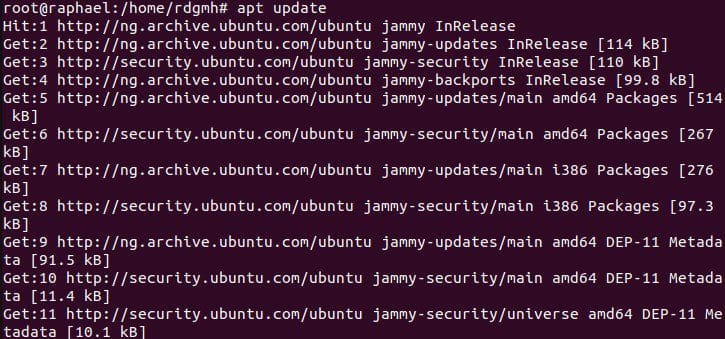
Solve /var/lib/dpkg/lock error by deleting lock files.
If the lock file is the main reason why you are experiencing the issue. The lock files are then used to prohibit two or more programs from accessing the same data. When you run the apt or apt-get programs, they create lock files in a few places.
If the last apt command was not correctly terminated, the lock files are not destroyed, preventing any future instances of apt-get or apt commands. All you have to do to solve the problem is delete the lock files.
But before you do that, you should halt any processes using the lock files. To obtain the process ID of the process that is holding the lock files, use the lsof command.
Examine the /var/lib/dpkg/lock error to identify what lock files it is complaining about and obtain the process ids holding these lock files.
Execute these commands one by one.
sudo lsof /var/lib/dpkg/lock
sudo lsof /var/lib/apt/lists/lock
sudo lsof /var/cache/apt/archives/lock
The commands may return nothing or only one number. In our case, as seen from the screenshot above, it returned nothing.
If they do produce at least one number, use the number(s) to kill the processes as follows (change the process id> with the numbers you obtained from the preceding commands):
sudo kill -9 <process_id>There is a peculiar error in the output shown above. To remove it, we need a command :
lsof -e /run/user/1000/gvfs -e /run/user/1000/docYou can now securely remove the lock files by using the following commands
sudo rm /var/lib/apt/lists/lock
sudo rm /var/cache/apt/archives/lock
sudo rm /var/lib/dpkg/lock
Then, reconfigure the packages as follows:
sudo dpkg --configure -aThis should resolve the issue
Solve /var/lib/dpkg/lock error by reconfiguring the package manager
If issues persist, consider solving /var/lib/dpkg/lock error by reconfiguration. Using the lsof command, as stated in previous sections, you should determine which process is holding the lock-frontend as shown in the command below:
sudo lsof /var/lib/dpkg/lock-frontendKILL -9 PID
sudo rm /var/lib/dpkg/lock-frontend
sudo dpkg --configure -a
This should solve the problem. Method 1 solved the issue I had with my machine. So if method 1 does not work for you, try 2; if 2 does not work, try the final one.
Summary
/var/lib/dpkg/lock is a common problem in Ubuntu. However, you can remove the error with either of the steps shown above. Guess you know how to solve the /var/lib/dpkg/lock error in Linux.