How to fix Microsoft Teams GIFs or Images not working

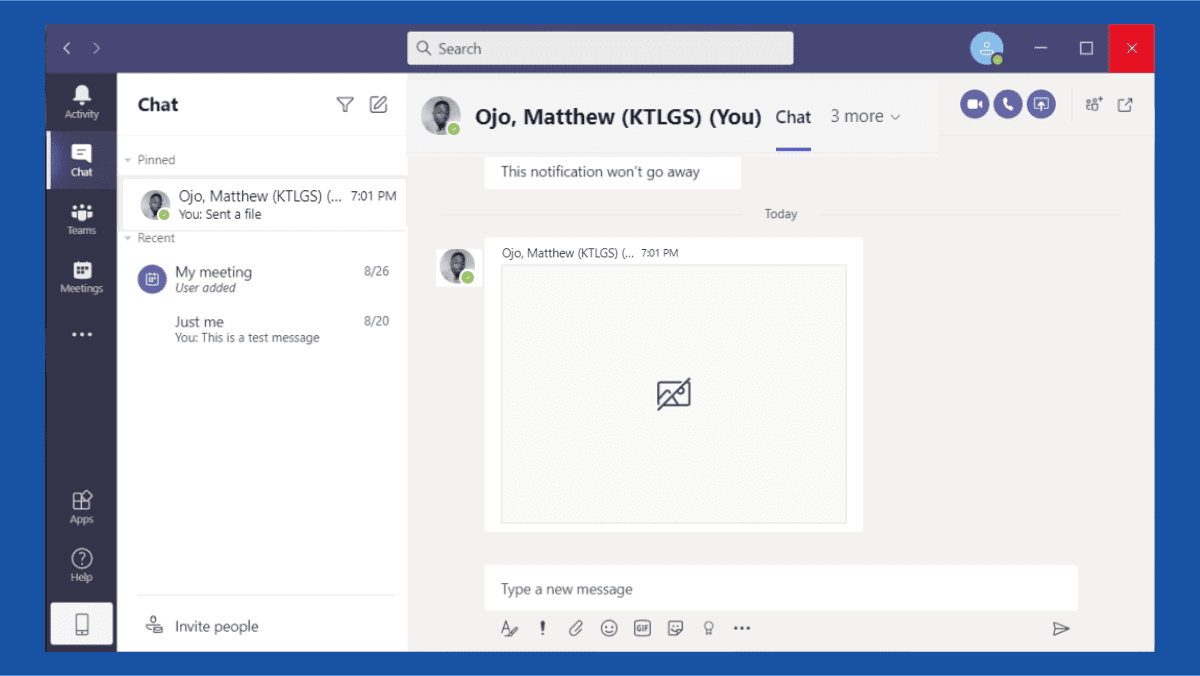
In this article, we shall discuss how to fix Microsoft Teams GIFs or Images not working. Microsoft Teams is a powerful collaboration tool that allows users to communicate and work together in real-time. Here are some interesting guides: How to install and configure Microsoft Teams on Ubuntu, and how new Windows 11 encryption features and security enhancements will help protect hybrid work. One of the features that makes it so popular is the ability to share and view GIFs and images. However, users may sometimes have trouble with GIFs or images not showing up right in Microsoft Teams.
If you’re having this issue, there are a few steps you can try to troubleshoot and fix it. This is a typical issue that many people have, and in this article, we will show you the best ways to help you resolve the issue. In this article, you will learn how to fix Microsoft Teams GIFs or Images not working.
Microsoft Teams has recently been at the forefront of video conferencing and remote collaboration. It has been a big hit with businesses that want a more professional way to work together, especially when most of the staff work from home.
Here are other interesting guides on Microsoft apps to read about: How to Use a Whiteboard in a Microsoft Teams Meeting, and how to Use a Whiteboard in a Microsoft Teams Meeting.
How to fix Images or GIFs not working in Microsoft Teams
Before trying any of the more advanced steps below, it’s usually a good idea to run some simple troubleshooters first.
Check the Image File Type: The next step is to verify the file type of the picture you are trying to upload. Microsoft Teams only supports a few file formats, including GIF, JPEG, PNG, and BMP. If you try to share a picture in a different format, Microsoft Teams may not be able to handle it.
Check your Internet connection: A bad internet connection is one of the most prevalent causes of GIFs or images not loading in Microsoft Teams. Before continuing, ensure that you have a stable connection. Loading multiple pages in your browser is the easiest way to check whether your internet connection is operating properly.
You should also check to see whether any other apps on your computer that need internet connectivity are working properly.
Check to see whether Teams’ servers are active: Another reason GIFs or images may not function in Teams is because Microsoft Teams’ servers are offline. By accessing the Office 365 Service Status page, you can immediately determine the status of the servers.
Also, see how to install Microsoft Teams on a Mac PC, and how to uninstall and prevent the installation of Teams in the future on Windows.
Method 1: Fix Teams GIFs/Images not working by restarting MS Teams
Microsoft Teams can often be fixed by completely closing and reopening the program.
Close the Teams app completely. To do this, Right-click on Teams icon on the Taskbar and click Quit. This will quickly clear the cache as well.

Open Teams again and check if the problem has been fixed. Please see how to fix White Screen in Microsoft Teams.
Method 2: Clear Microsoft Teams Cache
If you’ve been using Microsoft Teams for a while, the program may have gathered a lot of cache data. Sometimes, this cache data could cause problems with the program, like GIFs or images not working right. In this case, you will need to manually delete the Microsoft Teams app’s cache.
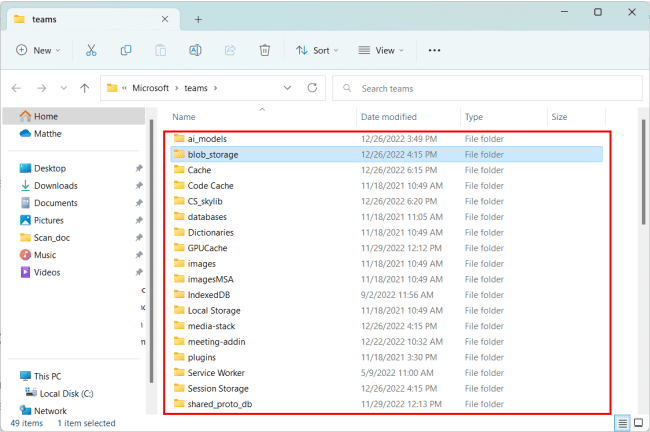
Close the Teams app completely as shown in method 1. To navigate to the Microsoft Teams folder, press the Windows + R keys to launch the Run utility and type the following path:
%appdata%\Microsoft\teams
Under the Teams folder, open one-by-one the following folders and delete the contents inside theme: blob_storage, Cache, Databases, GPUCache, IndexedDB, tmp.

When done, restart your system, launch the Teams app, and log in with your account. Check if the problem persists and if yes, continue to next method.
You might be interested in these: Pleasant User Group Permission and User Access, and Microsoft Teams: Uninstall & Prevent Future Installation.
Method 3: Update Microsoft Teams App
If you are unable to send or see GIFs and images in Teams, the issue may be with the Microsoft Teams app itself. In this case, the best thing to do is to update the program to the latest version.
Follow these steps to upgrade Microsoft Teams on Windows: Launch the Teams application and login to your account. Click on the three dots at the top-right corner of the app window and select the Check for updates option.

The app will start checking for the update and would automatically get updated if any update is found.
Method 4: Disable Hardware Acceleration in Teams
One of the most common reasons why GIFs or images don’t show up in Microsoft Teams is the hardware acceleration feature. So, launch Microsoft Teams and deactivate hardware acceleration as shown below.
Click on the three dots at the top-right corner of the app window and select Settings from the list.

Under the General tab, scroll down and check the Disable GPU hardware acceleration box under the Application heading.

Restart Microsoft Teams and check if the problem is resolved.
Method 5: Reinstall Microsoft Teams
The final method to fix Microsoft Teams issues is to completely reinstall the app. To do that: Press the Windows key + I to open Run utility and type appwiz.cpl to open the programs and features page in the control panel.

Select Microsoft teams and click Uninstall. Click Yes to confirm and restart your PC after the program has been uninstalled.

Press the Windows + R keys to open the Run utility. Type the following the hit Enter:
%appdata%\Microsoft\teamsSelect and delete all folders.
Download and install Microsoft Teams for desktop and check if the problem has been solved.
Conclusion on how to fix Microsoft Teams GIFs or Images not working
By following these steps, you should be able to resolve any issues you’re experiencing with GIFs or images not loading in Microsoft Teams.
I hope you find the post helpful on how to fix Microsoft Teams GIFs or Images not working. If you have any questions, please leave a comment below.


