How to Fix Cannot Save to Windows System32 Default.rdp Error

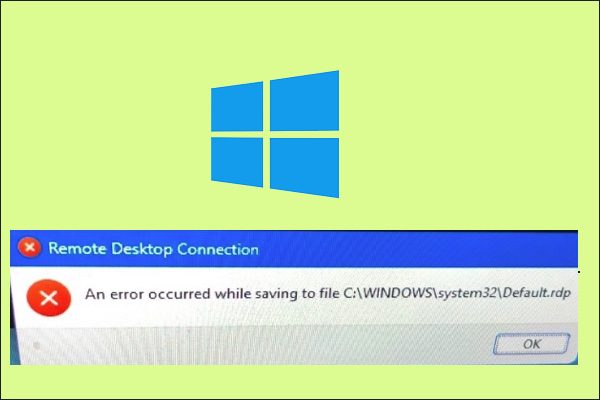
The built-in Windows Remote Desktop Connection (RDP) client (mstsc.exe) saves the remote computer name (or IP address) and the username that is used to log in after each successful connection to the remote computer. In this article, we will learn how to Fix Cannot Save to Windows System32 Default.rdp Error. On the next start, the RDP client offers the user to select one of the previously used connections. Please see How to allow saved credentials for RDP connection, how to Prevent the Saving of RDP Credentials in Windows 10, and How to change the default RDP port in Windows
The user can select the name of the RDP host from the list. And the client automatically fills in the username used earlier for login depending on your policy settings. In this article, you will learn how to fix cannot save to the location Windows\system32\Default.rdp.
Also see these exciting guides: WatchGuard Firebox: How to restore a back on an XTM Device, and how to perform SG300 Firmware Upgrade–Copy: Illegal software format.
Where is the RDP configuration file?
The default .rdp configuration file is stored for each user as a hidden file in the user’s Documents folder. User-created rdp files are saved by default in the user’s Documents folder but can be saved anywhere.
Please see how to fix “Remote Desktop cannot find the computer this in the specified network: Verify the computer name and domain that you are trying to connect“, and how to change the default Save and Download Location in Windows.
Why was the Error Prompted “Fix cannot save to the location Windows\system32\Default.rdp”?
The error message “Cannot save to the location Windows\system32\Default.rdp” typically occurs when attempting to save a file directly to the “Windows\system32” directory on a Windows system.
This directory is a protected system folder, and by default, regular users do not have write permissions to it. Only administrators or users with elevated privileges can modify files in this directory.
Upon upgrading from Windows 10 to Windows 11, the default.rdp file was no longer present in the document folder. But in the System32 folder.
As such, no new connection entries could be saved. I upgraded to another Windows 11 PC and tested and found this was a special case and I had to follow the steps below to resolve it.
Windows sometimes use system32 as the storage location when you run something "as an administrator". But that should never be the case with the Remote Desktop Client. Logically, you can't store anything in system32 either.
Please, see Download and update Synology DiskStation NAS to DSM 7.3. Here is how to patch Veeam Backup and replication 12.3.2.3617 to 12.3.2.4165.
As it was against how it should be!
Now that you are aware of the default.rdp location, let us further explain. The Default.rdp is stored for each user as a hidden file in the user’s Documents folder. User-created .rdp files are saved by default in the user’s Documents folder. But can also be saved anywhere.
When the Remote Desktop (RDP) client is launched it presents a menu with the ‘Connect’ and ‘Options’ choices. The behaviour is the same when started from the menu by ‘Start’ menu.

But what happens when these new connections are no longer saved? This can be frustrating as you will have to enter these entries at all times.
You would discover that after the upgrade, the file was created. Follow through the next section to resolve this.

Note: Information about all RDP (terminal) sessions is stored individually in the registry hive of each user. I.e. a non-admin won’t be able to view the RDP connection history of another user.
Please see how to fix the Error installing Proxmox VE: unable to create volume group at /usr/bin/proxinstall line 519.
Solution for the “Fix cannot save to the location Windows\system32\Default.rdp”
Ensure that the default RDP connection file (Default.rdp) which contains information about the latest rdp session is present in the Document Directory. As mentioned previously, this file is a hidden file located in the Documents directory is present.
NOTE! Instead of trying to save the file directly to the "Windows\system32" directory, Save the file to the Document foldern where you have write permissions.

I will not advise you to modify the permissions on the "Windows\system32" directory as it can introduce security risks and may interfere with system operations. If you need to save files to the "Windows\system32" directory, you can modify the permissions on the directory to grant write access to your user account.
If this file isn’t present in the Document folder, you will have to have to create or move it from the System32 folder to the Document folder as shown in the image below.

When this is done, the error should be fixed. Clear RDP Connection Entries
The following two registry keys:
- Default: Stores the history of the last 10 RDP connections and
- Servers: Contains the list of all rdp servers and usernames used previously to log in.
Soon, these remote desktop recent connection entries will be populated.

Note: If you wish also to clear the connection, expand the following registry key below which contains the list of 10 IP addresses or DNS names of remote rdp servers that have been used recently (MRU – Most Recently Used).
The name (or the IP address) of the remote desktop server is kept in the value of the key MRU*.
HKEY_CURRENT_USER\Software\Microsoft\Terminal Server Client\Default To clear the history of the most recent RDP connections, select all values with the names of MRU0-MRU9, right-click and select Delete
I hope you found the article on on how to Fix Cannot Save to Windows System32 Default.rdp Error. Please let me know in the comment section if you have any questions.


