Skip to content

TechDirectArchive

Hands-on IT, Cloud, Security & DevOps Insights

  • Home
  • About
  • Advertise With US
  • Reviews
  • Contact
  • Toggle search form
Home » Windows Server » How to find Dfs Referral Path and clear Dfs referral Cache
  • fghj
    Windows Profile: How to determine your windows username Windows
  • Repository time shift detected
    Fix Repository time shift detected: Immutability flag cannot be set Backup
  • windows 1
    How to query, stop and delete a service in Windows Windows
  • reset
    How to Reset a Snom Phone Network | Monitoring
  • SSU
    What to know about the servicing stack update and latest cumulative update in Windows Network | Monitoring
  • How to Register Devices to Microsoft Intune and EntraID Using My Company Portal
    Register Devices to Intune and EntraID Using Company Portal AWS/Azure/OpenShift
  • Enable or Disable Siri
    How to enable Siri on Mac devices Mac
  • VBR console update
    Veeam Backup Console must be updated to the latest version Backup

How to find Dfs Referral Path and clear Dfs referral Cache

Posted on 18/10/202325/11/2025 Christian By Christian No Comments on How to find Dfs Referral Path and clear Dfs referral Cache
Distributed File System_DFS

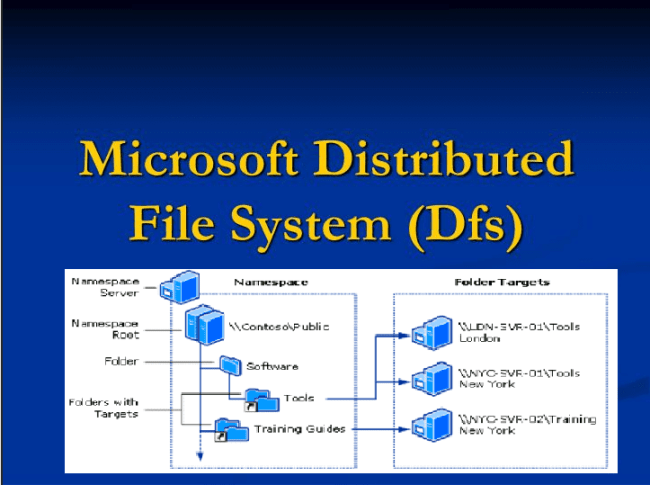
Distributed File System (Dfs) is a Windows Server role that enables you to group shared folders that are located on different servers into logically structured namespaces. Just as if they were accessing their local storage. In this article, we shall discuss the steps on how to find Dfs Referral Path and clear Dfs referral Cache. Please see how to Replicate MDT Deployment Share: How to Create a Selection Profile and Link MDT Deployment Shares.

This allows users to have a virtual view of the shared folders, with a single path leading to files that reside on multiple servers.

A referral list in DFS provides information about the available targets (servers). Users accessing a DFS namespace are directed to these targets based on various factors such as load balancing, proximity, and availability.

Note: This is not the target folder where data and contents are stored. Therefore, a folder without a folder target adds structure and hierarchy to the namespace. While folders with folder targets provide users with actual contents.

Therefore, when users browse a folder that has folder targets in the namespace. The client computer receives a referral that transparently redirects the client’s computer to one of the folder targets.

Find Any Distributed File System (Dfs) Referral Path

When you wish to determine the Dfs referral list for a file or folder that is hosted on a Distributed File System you are accessing via a mapped network drive that is local to your Windows login. The steps below will enable you to do so.

Want to learn more about Distributed File System, How to target WSUS clients with the registry keys, Active Directory Forest – Trees and Domain and Sites, and how to Cache in Windows 11: Easy Steps to Clear them from Your System.

Browse any of the mapped drives on your PC. Right-click on the file or folder and choose properties as shown below.

Find DFS path

Select the Dfs tab as shown below.

DFS Tab

You will see a referral list along with the full path name (server and DFS share name). This will transparently redirect the client’s computer to one of the folder targets.

DFS Referral List

Without Dfs, system administrators can run out of drive letters because of too many network connections.

Clear DFS Referral Cache On Windows PCs

As discussed above, a referral is an ordered list of targets that a PC receives from a domain controller or namespace server when the user accesses a namespace root or folder with targets in the namespace. You can adjust how long clients cache a referral before requesting a new one.

In this section, I would like to show you how to manually Flush the DFS referral cache via the Dfs properties in Windows and via the Command line.

Browse any of the mapped drives on your PC. Right-click on the file or folder and choose properties as shown below.

Next, select the Dfs tab as shown below. Click on Clear History as shown below. This action requires administrative rights.

Clear DFS Cache

Check DFS Status or Set Dfs Referral Target as Active

If you have multiple referrals target in the referral list. The ‘Set Active’ button is how you change the current referral to a different referral on your Windows PC. 

To see if the referral is active, use the check status button as shown below.

check status and set active

DFS Management Command Line Tools – Dfsutil

You can also use the following command below to clear Dfs cache in Windows 10 and 11 The DFSutil is a command used in managing DFS Namespaces, servers, and clients.

dfsutil /pktflush 

FAQs

Why is DFS important to users?

Dfs trees make network access easier for users, who no longer have to manually locate which server data is stored on. After connecting to the root of the Dfs tree.

Users can browse for and access all resources contained within the tree, regardless of where the resources are located.
– If a server crashes or must be replaced, or a volume must be moved from one server to another. Users do not need to be notified of the change. An administrator simply modifies the Dfs tree to refer to the new server location and users continue to use the same Dfs path to access resources.

How do users see DFS?

When a user views the contents of a root volume, they see the leaf volumes located under the root and the contents of the shared folder that comprises the root. Users can still use conventional \servernamesharename syntax to access shared folders that are part of Dfs trees.

I hope you found this blog post helpful on how to find Dfs Referral Path and clear Dfs referral Cache. Please let me know in the comment section if you have any questions.

5/5 - (1 vote)

Thank you for reading this post. Kindly share it with others.

  • Click to share on X (Opens in new window) X
  • Click to share on Reddit (Opens in new window) Reddit
  • Click to share on LinkedIn (Opens in new window) LinkedIn
  • Click to share on Facebook (Opens in new window) Facebook
  • Click to share on Pinterest (Opens in new window) Pinterest
  • Click to share on Tumblr (Opens in new window) Tumblr
  • Click to share on Telegram (Opens in new window) Telegram
  • Click to share on WhatsApp (Opens in new window) WhatsApp
  • Click to share on Pocket (Opens in new window) Pocket
  • Click to share on Mastodon (Opens in new window) Mastodon
  • Click to share on Bluesky (Opens in new window) Bluesky
  • Click to share on Threads (Opens in new window) Threads
  • Click to share on Nextdoor (Opens in new window) Nextdoor
Storage, Windows Server Tags:Microsoft Windows, Windows 10, Windows 11, Windows Server 2016

Post navigation

Previous Post: Network cable Unplugged: Fix VMware “Warning – Multiple default gateways are intended to provide redundancy to a single network
Next Post: How to schedule and join meetings with Microsoft Teams

Related Posts

  • DC Name
    Install and configure Active Directory Domain Services on Windows Server Windows
  • what is saml e1690630549650
    What is SAML – Security Assertion Markup Language Windows Server
  • Banner
    Enabling and Configuring WinRM via GPO Windows
  • article 1280x720.192a2586 1 2
    Fix error 0x800f0805, run DISM executable (Failure 5627) Windows Server
  • logon failure and requested session denied
    Logon Failure: User has not been granted the requested logon type Windows
  • PXE Boot Stuck or No Boot Image was found   Te bootloader did not find any operating system
    Fix PXE Boot Stuck or No Boot Image was found for HyperV VM Virtualization

More Related Articles

DC Name Install and configure Active Directory Domain Services on Windows Server Windows
what is saml e1690630549650 What is SAML – Security Assertion Markup Language Windows Server
Banner Enabling and Configuring WinRM via GPO Windows
article 1280x720.192a2586 1 2 Fix error 0x800f0805, run DISM executable (Failure 5627) Windows Server
logon failure and requested session denied Logon Failure: User has not been granted the requested logon type Windows
PXE Boot Stuck or No Boot Image was found   Te bootloader did not find any operating system Fix PXE Boot Stuck or No Boot Image was found for HyperV VM Virtualization

Leave a Reply Cancel reply

You must be logged in to post a comment.

Microsoft MVP

VEEAMLEGEND

vexpert-badge-stars-5

Virtual Background

GoogleNews

Categories

veeaam100

sysadmin top30a
 
  • fghj
    Windows Profile: How to determine your windows username Windows
  • Repository time shift detected
    Fix Repository time shift detected: Immutability flag cannot be set Backup
  • windows 1
    How to query, stop and delete a service in Windows Windows
  • reset
    How to Reset a Snom Phone Network | Monitoring
  • SSU
    What to know about the servicing stack update and latest cumulative update in Windows Network | Monitoring
  • How to Register Devices to Microsoft Intune and EntraID Using My Company Portal
    Register Devices to Intune and EntraID Using Company Portal AWS/Azure/OpenShift
  • Enable or Disable Siri
    How to enable Siri on Mac devices Mac
  • VBR console update
    Veeam Backup Console must be updated to the latest version Backup

Subscribe to Blog via Email

Enter your email address to subscribe to this blog and receive notifications of new posts by email.

Join 1,841 other subscribers
  • RSS - Posts
  • RSS - Comments
  • About
  • Authors
  • Write for us
  • Advertise with us
  • General Terms and Conditions
  • Privacy policy
  • Feedly
  • Telegram
  • Youtube
  • Facebook
  • Instagram
  • LinkedIn
  • Tumblr
  • Pinterest
  • Twitter
  • mastodon

Tags

AWS Azure Bitlocker Microsoft Windows PowerShell WDS Windows 10 Windows 11 Windows Deployment Services Windows Server 2016

Copyright © 2025 TechDirectArchive


Loading Comments...
 

You must be logged in to post a comment.