
Skip to content

TechDirectArchive

Hands-on IT, Cloud, Security & DevOps Insights

  • Home
  • About
  • Advertise With US
  • Reviews
  • Contact
  • Toggle search form
Home » Mac » Fix AirDrop issue “No People found and there is no one nearby to share with” on Mac
  • MBAM report errors
    Understanding MBAM compliance state and error status Windows
  • Slide1 1
    Enable or disable Secure Boot in Windows via UEFI Firmware Settings Windows
  • Safeguard Your PC Against Common Malware Entry Points
    Safeguard Your PC Against Common Malware Entry Points Security | Vulnerability Scans and Assessment
  • image 63
    Protect Remote Desktop credentials with Windows Defender Remote Credential Guard or Restricted Admin Mode Windows
  • remote video disconnected
    Video Remoting was disconnected on Hyper V Windows Server
  • Featured image
    Latest Improvement to File Explorer on Windows 11 Windows
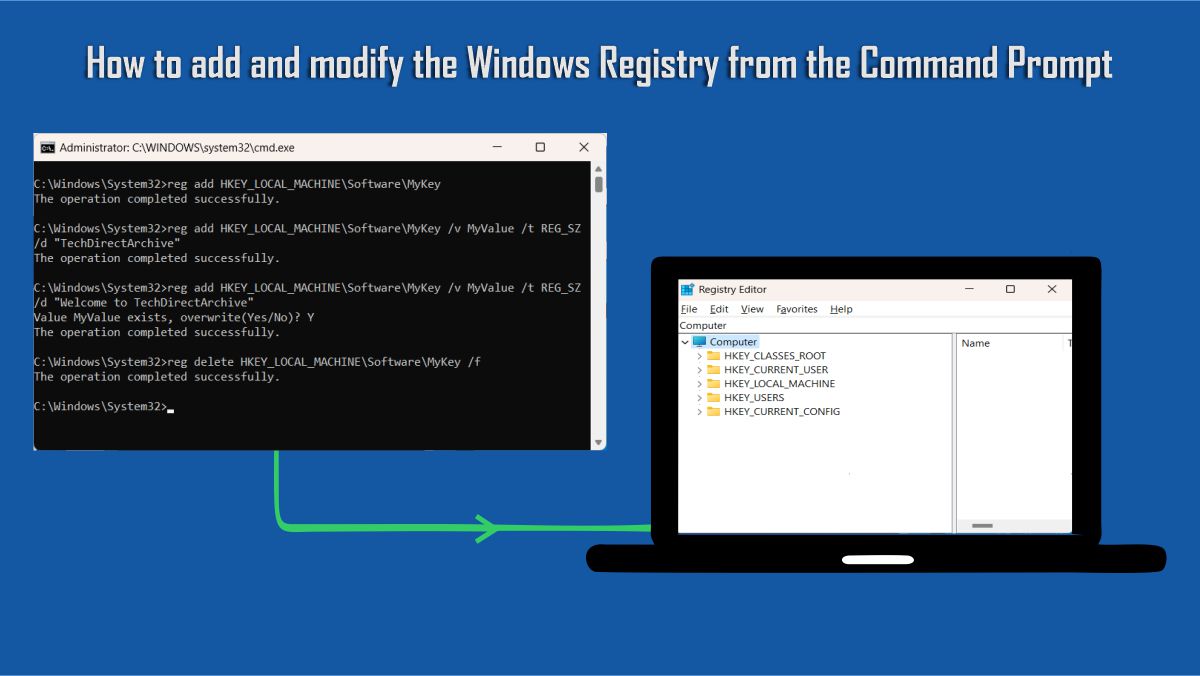
  • Using the Command Prompt to add and modify the Windows registry
    How to add and modify the Windows Registry from the Command Prompt Windows
  • Featured image IE mode.
    How to Enable Internet Explorer Mode in Edge in Windows 11 Windows

Fix AirDrop issue “No People found and there is no one nearby to share with” on Mac

Posted on 30/04/202430/04/2024 Christian By Christian No Comments on Fix AirDrop issue “No People found and there is no one nearby to share with” on Mac

If you’re experiencing issues with AirDrop, this article provides troubleshooting steps to help you overcome “AirDrop issue “No People found and there is no one nearby to share with” on Mac”. Please see How to Fix Windows 11 File Explorer Lags and Freezes Issue, and steps to Turn Focus On/Off: Enable or Disable Notifications for Apps on Mac. AirDrop, a convenient feature on Apple devices, enables users to discover nearby Macs, iPhones, and iPads and securely transfer items between them over Wi-Fi and Bluetooth. Additionally, larger transfers can continue over cellular connections.

Note: Enable Bluetooth and Wi-Fi: Ensure Bluetooth and Wi-Fi are turned on. AirDrop requires both Bluetooth and Wi-Fi to be enabled for proper functionality.

This is not actually an error or issue per se, but no devices are discoverable as shown below.

IMG_6905

To resolve this concern, we would have to set AirDrop to be discovered by contacts, everyone. To do this, follow the steps below. See below for how to adjust AirDrop settings on iPhone/iPad/Mac devices.

Screenshot

Please see How to transfer data from an old PC to a new PC, How to fix Windows Microsoft Store not opening, and How to fix Git always asking for my Username and Password

Adjust AirDrop Settings on iPhone and iPad

To make your iPhone and iPad discoverable, please launch the Settings app on your ‌iPhone‌ or ‌iPad‌. Scroll down and tap General.

IMG_6909

Tap the AirDrop icon to access AirDrop settings.

IMG_6910

Choose Visibility Settings: You’ll be presented with three visibility options:

  • Receiving Off: This option turns off AirDrop completely.
  • Contacts Only: This allows only your contacts to see your device for AirDrop purposes.
  • Everyone: This makes your device visible to all nearby devices with AirDrop enabled.

    Choose the visibility setting that suits your preference by tapping on it.

    Personally, I prefer contact only and I even occasionally switch it off and on when needed.

    IMG_6906
    IMG_6907

    Also, see How to create a contact in Active Directory, and Active Directory Contact and a User Account Object Differences.

    How to access AirDrop on Mac via Finder

    From Finder, click on Preferences as shown below.

    Screenshot-2022-06-02-at-11.46.01

    Select AirDrop to make it accessible from the “Favourite Pane”.

    Adjust AirDrop Settings on Mac

    To resolve this concern, we would have to set AirDrop to be discovered by contacts, or everyone.

    To do this, follow the steps below. Open a Finder window on your Mac. Select AirDrop from the Finder sidebar (if AirDrop isn’t listed, use the keyboard combination to open it.

    Command-Shift-R 

    First, luanch AirDrop Finder window Mac as discussed above. If not open a Finder window and select Airdrop from the sidebar.

    Next look at the setting of “Allow me to be discovered by…” and adjust it to include the owner of the iPhone. The options are: No one, Contacts only, Everyone. As you can see below, no one is selected and this is the issue.

    Select the AirDrop icon to access AirDrop settings. You will be presented with three visibility options as mentioned above:

    • Receiving Off: This option turns off AirDrop completely.
    • Contacts Only: This allows only your contacts to see your device for AirDrop purposes.
    • Everyone: This makes your device visible to all nearby devices with AirDrop enabled.

      Choose your desired visibility setting that suits your preference by tapping on it.

      Screenshot
      Now, AirDrop is enabled on your device and configured according to your chosen visibility settings. 

      You can now easily share files, photos, and more with nearby Apple devices using AirDrop.

      Screenshot

      I hope you found this guide useful on “Fix AirDrop issue “No People found and there is no one nearby to share with” on Mac”. Please feel free to leave a command below.

      Rate this post

      Thank you for reading this post. Kindly share it with others.

      • Share on X (Opens in new window) X
      • Share on Reddit (Opens in new window) Reddit
      • Share on LinkedIn (Opens in new window) LinkedIn
      • Share on Facebook (Opens in new window) Facebook
      • Share on Pinterest (Opens in new window) Pinterest
      • Share on Tumblr (Opens in new window) Tumblr
      • Share on Telegram (Opens in new window) Telegram
      • Share on WhatsApp (Opens in new window) WhatsApp
      • Share on Pocket (Opens in new window) Pocket
      • Share on Mastodon (Opens in new window) Mastodon
      • Share on Bluesky (Opens in new window) Bluesky
      • Share on Threads (Opens in new window) Threads
      • Share on Nextdoor (Opens in new window) Nextdoor
      Mac Tags:macOS Monterey, macOS Ventura

      Post navigation

      Previous Post: How to Fix Windows 11 File Explorer Lags and Freezes Issue
      Next Post: How to configure Synology Active Insights

      Related Posts

      • vvd
        Unable to connect to Eduroam WLAN: WiFi Username remembered on MAC Mac
      • dfghjk
        How to setup and arrange your external displays on your Mac Mac
      • Norton Antivirus Free Download For Mac 1st
        How to fix repeated app-blocking connection alerts from Norton on Mac Mac
      • zoom
        How to install Zoom on macOS Mac
      • stopsappsfromstart
        How to Hide or Stop Apps Like OneDrive from Auto-Opening Mac
      • Install FileZilla Client
        FileZilla Client on Mac: How to Transfer Files to WordPress via SFTP Mac

      More Related Articles

      vvd Unable to connect to Eduroam WLAN: WiFi Username remembered on MAC Mac
      dfghjk How to setup and arrange your external displays on your Mac Mac
      Norton Antivirus Free Download For Mac 1st How to fix repeated app-blocking connection alerts from Norton on Mac Mac
      zoom How to install Zoom on macOS Mac
      stopsappsfromstart How to Hide or Stop Apps Like OneDrive from Auto-Opening Mac
      Install FileZilla Client FileZilla Client on Mac: How to Transfer Files to WordPress via SFTP Mac

      Leave a Reply Cancel reply

      You must be logged in to post a comment.

      Microsoft MVP

      VEEAMLEGEND

      vexpert-badge-stars-5

      Virtual Background

      GoogleNews

      Categories

      veeaam100

      sysadmin top30a

      • MBAM report errors
        Understanding MBAM compliance state and error status Windows
      • Slide1 1
        Enable or disable Secure Boot in Windows via UEFI Firmware Settings Windows
      • Safeguard Your PC Against Common Malware Entry Points
        Safeguard Your PC Against Common Malware Entry Points Security | Vulnerability Scans and Assessment
      • image 63
        Protect Remote Desktop credentials with Windows Defender Remote Credential Guard or Restricted Admin Mode Windows
      • remote video disconnected
        Video Remoting was disconnected on Hyper V Windows Server
      • Featured image
        Latest Improvement to File Explorer on Windows 11 Windows
      • Using the Command Prompt to add and modify the Windows registry
        How to add and modify the Windows Registry from the Command Prompt Windows
      • Featured image IE mode.
        How to Enable Internet Explorer Mode in Edge in Windows 11 Windows

      Subscribe to Blog via Email

      Enter your email address to subscribe to this blog and receive notifications of new posts by email.

      Join 1,831 other subscribers
      • RSS - Posts
      • RSS - Comments
      • About
      • Authors
      • Write for us
      • Advertise with us
      • General Terms and Conditions
      • Privacy policy
      • Feedly
      • Telegram
      • Youtube
      • Facebook
      • Instagram
      • LinkedIn
      • Tumblr
      • Pinterest
      • Twitter
      • mastodon

      Tags

      Active Directory AWS Azure Bitlocker Microsoft Windows PowerShell WDS Windows 10 Windows 11 Windows Server 2016

      Copyright © 2025 TechDirectArchive


      Loading Comments...
       

      You must be logged in to post a comment.