Skip to content

TechDirectArchive

Hands-on IT, Cloud, Security & DevOps Insights

  • Home
  • About
  • Advertise With US
  • Reviews
  • Contact
  • Toggle search form
Home » Oracle/MSSQL/MySQL » How to change the default user password in PostgreSQL

How to change the default user password in PostgreSQL

Posted on 26/05/202513/11/2025 Christian By Christian No Comments on How to change the default user password in PostgreSQL
Change default postgreSQL database password

In this guide, we shall discuss how to change the default user password in PostgreSQL. PostgreSQL is a relational database management system (RDBMS) that provides an open-source solution for storing and managing data. It offers a variety of features for database administration, queries, and security. This blog post was birthed by the following question: “Resetting the Veeam built-in PostgreSQL Database password” in the Veeam Forum. Please, see how to install PostgreSQL on Ubuntu, and how to migrate Veeam Configuration Database to PostgreSQL Server.

PostgreSQL supports complex queries, indexes, and transactions. It also has an active developer community that is constantly bringing new features and improvements. It’s a popular choice for businesses and developers who need a high-performance, reliable, and scalable database.

Note: Unlike some database systems, PostgreSQL does not assign a default password to the database superuser account (postgres) during installation. Instead, it follows a secure approach, requiring the user to create and manage passwords explicitly

Therefore, when the password field is prompted. You can just click on OK to connect to your PostgreSQL server as shown below. Please, see how to upgrade PostgreSQL Engine used by VBR

PostgreSQL default password is null

You can also connect via the Command Line (psql) with the command below.

$ sudo -u postgres psql

Now that you are aware that the default PostgresSQL user neither requires nor uses a password for authentication. Instead, depending how Postgres was originally installed and what version you are using. Please, see how to install PostgreSQL on Windows server as Veeam Database Engine. The default authentication method will either be ident or peer.

  • ident authentication uses the operating system’s identification server running at TCP port 113 to verify the user’s credentials.
  • peer authentication on the other hand. Is used for local connections and verifies that the logged in username of the operating system matches the username for the Postgres database.

Set the Default User Password via Command Line (psql)

Note: Maintaining strong security in PostgreSQL is a critical responsibility for database administrators. One of the first steps is to set a strong, unique password for the default superuser account. By default, PostgreSQL creates a user named postgres, which has full administrative privileges. To enhance security and prevent unauthorized access, log in as the postgres user and assign a secure password to this account.

To changeset the default PostgreSQL user (postgres) password via command line on Windows using psql. Follow the steps below. If yo run into issues “SSPI authentication failed for user” after changing the VBR hostname, you will need to update the pg_ident.conf file with the new hostname for all local user accounts.

Launch SQL Shell

Launch Command Prompt as Administrator, and connect to the PostgreSQL via psql. The psql is available in the system PATH. If not, locate it (usually in C:\Program Files\PostgreSQL\<version>\bin) or run commands from the SQL Shell (psql) as previously suggested.

psql -U postgres -d postgres

Note: You will be prompted to enter the current password for the postgres user. As you already know, I do not have a password. If you have also never set a password and the authentication method is trust, it may let you in without one.

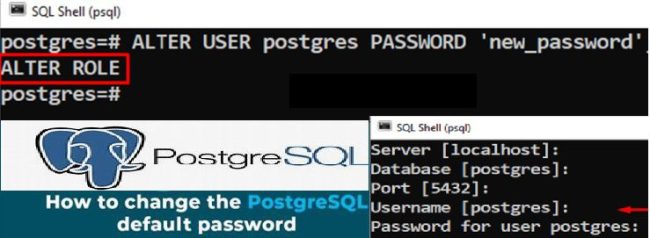
With a connection now established to Postgres at the psql prompt. Issue the ALTER USER command to change the password for the postgres user:

postgres=# ALTER USER postgres PASSWORD 'myPassword';
set postgresql password

Alternatively, you can execute the “ALTER ROLE” statement as shown below.

ALTER ROLE postgres PASSWORD 'my_new_password';
set the default postgresql user password

Please, see “Veeam backup for aws Processing postgres rds failed: No valid combination of the network settings was found for the worker configuration“, and how to upgrade Microsoft SQL Server 2019 to 2022

Exit the psql Shell

If successful, Postgres will output a confirmation of ALTER ROLE. Finally, exit the psql client by using the \q command.

postgres=# \q

The default PostgreSQL user now has a password associated with the account for use in your other applications.

Note: If you run into Trust authentication issues, you may have to modify the Postgres authentication config file (pg_hfa.conf).

I hope you found this article very useful on how to change the default user password in PostgreSQL. Please feel free to leave a comment below.

5/5 - (1 vote)

Thank you for reading this post. Kindly share it with others.

  • Share on X (Opens in new window) X
  • Share on Reddit (Opens in new window) Reddit
  • Share on LinkedIn (Opens in new window) LinkedIn
  • Share on Facebook (Opens in new window) Facebook
  • Share on Pinterest (Opens in new window) Pinterest
  • Share on Tumblr (Opens in new window) Tumblr
  • Share on Telegram (Opens in new window) Telegram
  • Share on WhatsApp (Opens in new window) WhatsApp
  • Share on Mastodon (Opens in new window) Mastodon
  • Share on Bluesky (Opens in new window) Bluesky
  • Share on Threads (Opens in new window) Threads
  • Share on Nextdoor (Opens in new window) Nextdoor
Oracle/MSSQL/MySQL Tags:Microsoft Windows, PostgreSQL, Windows 10, Windows 11, Windows Server 2016, Windows Server 2025

Post navigation

Previous Post: How to upgrade PostgreSQL Engine used by VBR
Next Post: Guide to Remote Desktop Connection Properties for Secure Access

Related Posts

  • mssql ubuntu install feature image
    How to reset MSSQL Server SA Password on Ubuntu Oracle/MSSQL/MySQL
  • Screenshot 2020 06 22 at 23.27.40
    How to fix unable to install msodbcsql17 tool on Ubuntu Oracle/MSSQL/MySQL
  • installer file too long fix
    Fix long path names to files on SQL Server installation media error Oracle/MSSQL/MySQL
  • Oracle momory increase
    What to do after increasing the Memory of Oracle Database Oracle/MSSQL/MySQL
  • the Execute permission was denied
    Fix An error has occurred during report processing (rsProcessingAborted) Oracle/MSSQL/MySQL
  • Enable or disable SA acocunt
    How to enable an SA account that has been disabled Oracle/MSSQL/MySQL

More Related Articles

mssql ubuntu install feature image How to reset MSSQL Server SA Password on Ubuntu Oracle/MSSQL/MySQL
Screenshot 2020 06 22 at 23.27.40 How to fix unable to install msodbcsql17 tool on Ubuntu Oracle/MSSQL/MySQL
installer file too long fix Fix long path names to files on SQL Server installation media error Oracle/MSSQL/MySQL
Oracle momory increase What to do after increasing the Memory of Oracle Database Oracle/MSSQL/MySQL
the Execute permission was denied Fix An error has occurred during report processing (rsProcessingAborted) Oracle/MSSQL/MySQL
Enable or disable SA acocunt How to enable an SA account that has been disabled Oracle/MSSQL/MySQL

Leave a Reply Cancel reply

You must be logged in to post a comment.

Microsoft MVP

VEEAMLEGEND

vexpert-badge-stars-5

Virtual Background

GoogleNews

Categories

veeaam100

Veeam Vanguard

  • Licensing
    Manage Windows Product key with Software Licensing Manager Windows
  • HighA
    Virtual Machine Scale Set: Demonstrating High Availability in Azure AWS/Azure/OpenShift
  • banner 5
    How to fix Wi-Fi not connecting on Windows 11 Windows
  • Panic failed
    Panic: Failed to register the GitLab-runner, you may be having network issues Version Control System
  • powershell01
    How to create a KDS root key using PowerShell Scripts
  • Ewfvt
    How to prevent a remote shutdown and restart in Windows Windows
  • db nginxseriesanisibleplaybook 1540x748 1
    How to install and configure Ansible on Ubuntu Configuration Management Tool
  • prometheus feature image
    How to use Prometheus for Monitoring Linux

Subscribe to Blog via Email

Enter your email address to subscribe to this blog and receive notifications of new posts by email.

Join 1,814 other subscribers
  • RSS - Posts
  • RSS - Comments
  • About
  • Authors
  • Write for us
  • Advertise with us
  • General Terms and Conditions
  • Privacy policy
  • Feedly
  • Telegram
  • Youtube
  • Facebook
  • Instagram
  • LinkedIn
  • Tumblr
  • Pinterest
  • Twitter
  • mastodon

Tags

Active Directory Azure Bitlocker Microsoft Windows PowerShell WDS Windows 10 Windows 11 Windows Deployment Services Windows Server 2016

Copyright © 2025 TechDirectArchive


Loading Comments...
 

You must be logged in to post a comment.