Skip to content

TechDirectArchive

Hands-on IT, Cloud, Security & DevOps Insights

  • Home
  • About
  • Advertise With US
  • Reviews
  • Contact
  • Toggle search form
Home » Windows Server » How to apply Windows Updates from WSUS to AWS Instances

How to apply Windows Updates from WSUS to AWS Instances

Posted on 17/05/201806/12/2023 Christian By Christian No Comments on How to apply Windows Updates from WSUS to AWS Instances
Patch management

Automate the process of applying Windows Updates from WSUS to multiple servers on AWS using RunCommand. Streamline your update management effortlessly. After having updates pushed to all servers from WSUS, in order to avoid the manual operation of installing updates, we can automate this process to a whole lot of servers on AWS using the RunCommand. To apply Updates on WSUS, use the run command. Please see How to Configure SSL between WSUS servers (Upstream and Downstream Servers), Handy WSUS Commands, Windows Server Update Services Commands, WAUACLT, PowerShell and USOClient.

For more articles I have written, see the following hyperlinks: Configuring WSUS Email Notification to Work With Office365, How to setup and configure Windows server update services (WSUS).

What to consider when applying WSUS updates

Some prerequisites must be met before applying Windows updates to production servers. They are as follows;

When applying Windows Updates from WSUS, make sure to deploy these updates to the Test-servers-group (Test servers). After applying updates on the test servers, access them via RDP before proceeding to update Production servers.

Other factors that must be considered:

  • Pull an AMI of all Production Server AMI (Ensure this is complete before applying windows updates)
  • Approve and install identical updates for the test-server-group. Once tested and applied, approve them for Production servers.

Step 2:  Proceed to AWS

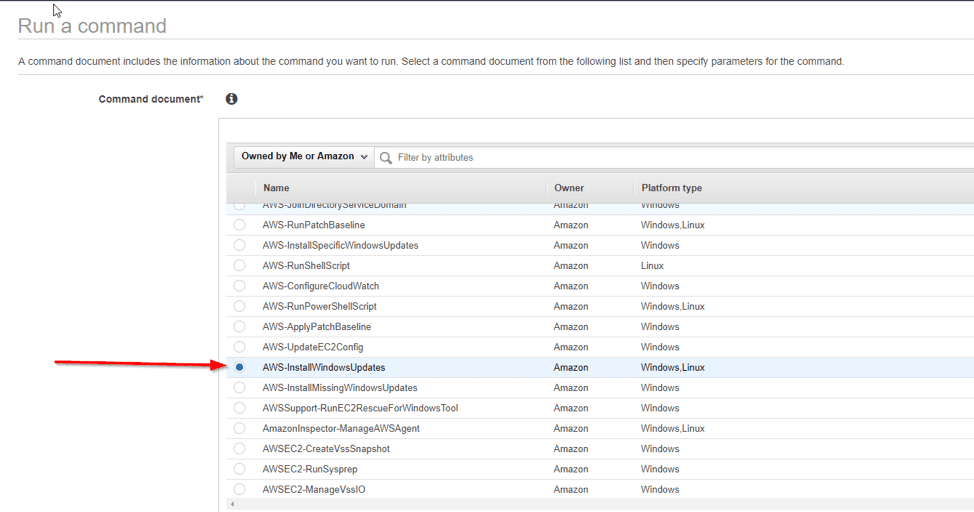
Access the RunCommand (within Systems Manager and Services) to seamlessly handle Windows Updates from WSUS for efficient management.

Choose AWS-ConfigureWindowsUpdates to enable automatic installation of Windows updates when triggered.
WSUS benefits

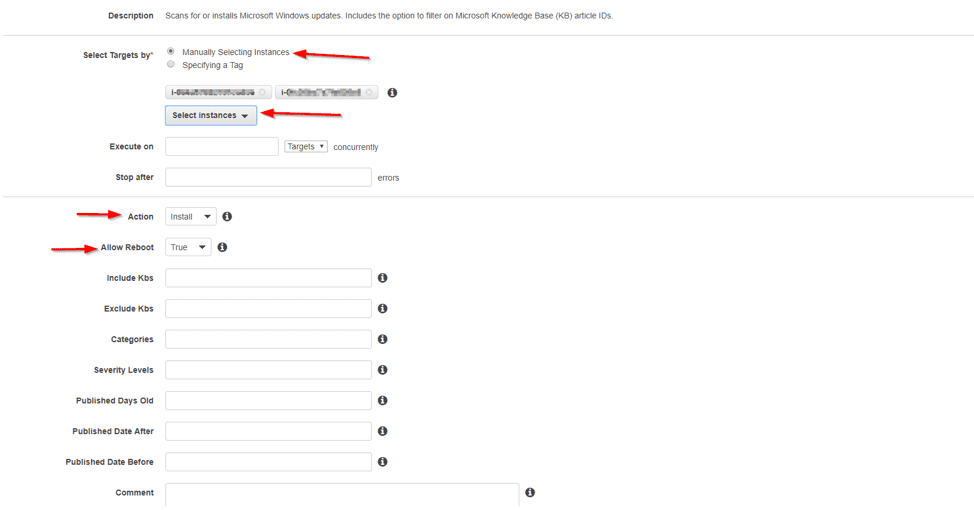
on the same page, select the instances.

Please see how to Start, Stop and Restart Windows Server Update Services (WSUS) via PowerShell and CMD, Windows Server Update Services: Windows 2016 Servers does not show up on WSUS console, and WSUS clients appear and disappear from the WSUS Update Services console.

The prerequisites to have these servers available are as follows

To maintain optimal performance, keep your EC2config for Windows Server 2008/2012 or EC2 Launch for Windows Server 2016 updated, including essential Windows Updates from WSUS.

The SSM agent attaches the appropriate role to all instances, ensuring correct configuration and functionality. You can never find the instances here if this is not the case.
Update deployment

And click on the run. Ensuring the installation of updates and automatic server reboot for seamless operation.

Other information

Note, you can view the status of the run command to see if any failed or succeeded as shown below


Check on the WSUS server after the updates are applied

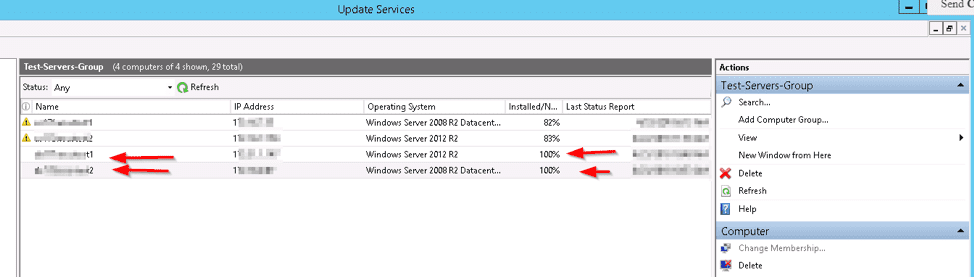
Check the WSUS console; it should display servers fully patched, as shown below. Furthermore, I confirmed non-problematic updates and accessible servers through Remote Desktop Manager (RDP).
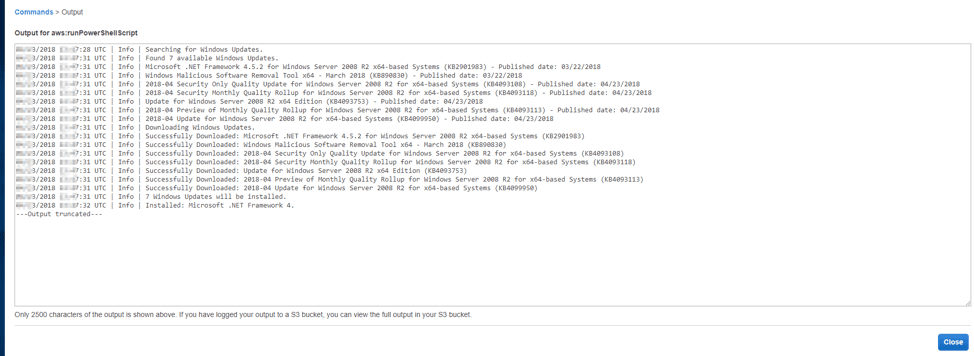
Note: Prerequisites determine an instance’s eligibility or discoverability via the run command. The RunCommand output will look like this below.

Also, see the “Important Areas to Master on WSUS (Installed and not applicable, Install 1/4, and Installed / Not applicable 100)”, Targeting WSUS Client with the Registry keys: How to configure WSUS Clients to get Updates from the WSUS server using Registry settings,
Windows Server upgrades

I hope you found this blog post on how to apply Windows Updates from WSUS to AWS instances helpful. If you have any questions, please let me know in the comment session.
Rate this post

Thank you for reading this post. Kindly share it with others.

  • Share on X (Opens in new window) X
  • Share on Reddit (Opens in new window) Reddit
  • Share on LinkedIn (Opens in new window) LinkedIn
  • Share on Facebook (Opens in new window) Facebook
  • Share on Pinterest (Opens in new window) Pinterest
  • Share on Tumblr (Opens in new window) Tumblr
  • Share on Telegram (Opens in new window) Telegram
  • Share on WhatsApp (Opens in new window) WhatsApp
  • Share on Mastodon (Opens in new window) Mastodon
  • Share on Bluesky (Opens in new window) Bluesky
  • Share on Threads (Opens in new window) Threads
  • Share on Nextdoor (Opens in new window) Nextdoor
AWS/Azure/OpenShift, Windows Server Tags:AWS, AWS CLI, services, Windows Deployment Services

Post navigation

Previous Post: Important Areas to Master on WSUS
Next Post: SimpleSAMLphp Setup on Windows Server [Part 1]

Related Posts

  • Clone a Virtual Machine via Export and Import
    Clone a VM via Export and Import: Copy Virtual Hard Disk on Hyper-V Virtualization
  • PSD
    PowerShell Deployment Extension for MDT: How to deploy Windows using PSD, Microsoft Deployment Toolkit, and Windows Deployment Services Windows Server
  • slide office 365 79
    Configure WSUS Email Notification for Office365 Windows Server
  • azure logo
    Azure CLI commands: How to use Azure Command-line Interface AWS/Azure/OpenShift
  • hero activedirectory
    How to move a computer object from one container (OU) to another Windows Server
  • Manually resize your partition
    KB5034439 Windows Update Error: Resize WinRE Partition Windows Server

More Related Articles

Clone a Virtual Machine via Export and Import Clone a VM via Export and Import: Copy Virtual Hard Disk on Hyper-V Virtualization
PSD PowerShell Deployment Extension for MDT: How to deploy Windows using PSD, Microsoft Deployment Toolkit, and Windows Deployment Services Windows Server
slide office 365 79 Configure WSUS Email Notification for Office365 Windows Server
azure logo Azure CLI commands: How to use Azure Command-line Interface AWS/Azure/OpenShift
hero activedirectory How to move a computer object from one container (OU) to another Windows Server
Manually resize your partition KB5034439 Windows Update Error: Resize WinRE Partition Windows Server

Leave a Reply Cancel reply

You must be logged in to post a comment.

Microsoft MVP

VEEAMLEGEND

vexpert-badge-stars-5

Virtual Background

GoogleNews

Categories

veeaam100

Veeam Vanguard

  • Featured image defaultStartPage
    Change the default start page for File Explorer on Windows 11 Windows
  • winn 11 3
    Enable HyperV on Windows: How to install Windows 11 on HyperV Windows
  • How To Remove Takeprize50.life Redirect From Mac unboxhow
    Remove unwanted site redirects or pop-ups from Google Chrome Mac
  • VMware Tools
    How to upgrade VMware Tools in vSphere Virtualization
  • Docker internal external
    Running Docker commands returns Docker is not recognized as an internal or external command Containers
  • Screenshot 2020 05 26 at 18.57.25
    WDS and DHCP Deployment Scenarios: Configure DHCP Options 60, 66, and 67 Windows Server
  • Security enhanced linux
    How to setup SELinux on a Linux server Linux
  • Screenshot 2022 04 28 at 22.35.11
    Fix “There was a problem starting logilda.dll” in Windows Windows

Subscribe to Blog via Email

Enter your email address to subscribe to this blog and receive notifications of new posts by email.

Join 1,813 other subscribers
  • RSS - Posts
  • RSS - Comments
  • About
  • Authors
  • Write for us
  • Advertise with us
  • General Terms and Conditions
  • Privacy policy
  • Feedly
  • Telegram
  • Youtube
  • Facebook
  • Instagram
  • LinkedIn
  • Tumblr
  • Pinterest
  • Twitter
  • mastodon

Tags

Active Directory Azure Bitlocker Microsoft Windows PowerShell WDS Windows 10 Windows 11 Windows Deployment Services Windows Server 2016

Copyright © 2025 TechDirectArchive


Loading Comments...
 

You must be logged in to post a comment.