




Access EC2 Linux Instance via the Password


An Amazon EC2 instance is a virtual server in Amazon’s Elastic Compute Cloud (EC2) for running applications on the Amazon Web Services (AWS) infrastructure. In this article, we will describe how to access EC2 Linux Instance via the Password. Please see Create Folders and Enable File sharing on Windows, How to deploy Ansible AWX on centos 8, how to determine Tombstone Lifetime in Active Directory, and how to setup and configure a Lamp stack on CentOS.
Access EC2 Linux Instance
The default username for CentOS instance (on AWS) is: centos. In CentOS use the below,
- sudo su in changing to a root user or
- Sudo su <username>
This article assumes that you have a running EC2 Linux Instance. Please see How to create an EC2 Instance.
Step 1: PuttyKeyGen
After creating an instance start the PuttyKeyGen. Click on Load
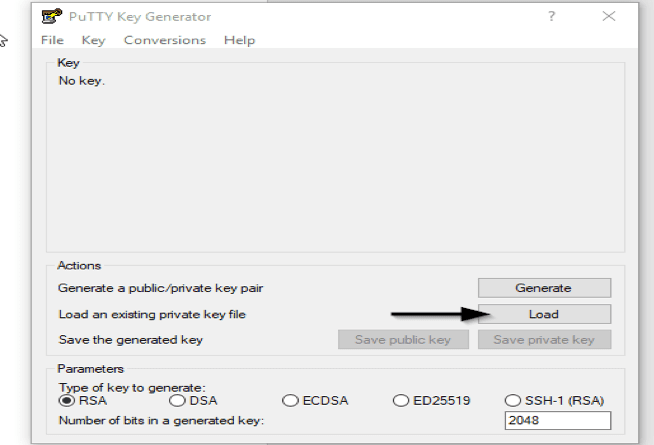
By default, PuTTYgen displays only files with the extension .ppk. To locate your .pem file, select the option to display files of all types.

Now you should be able to view the keyfile download from the instance containing the public.
Choose Save private key to save the key in the format that PuTTY can use. PuTTYgen displays a warning about saving the key without a passphrase. Choose Yes.
Here is how to Install and configure Ansible on Azure Virtual Machine, and How to change the system time zone under RedHat and CentOS.
Step 2: Launch Putty
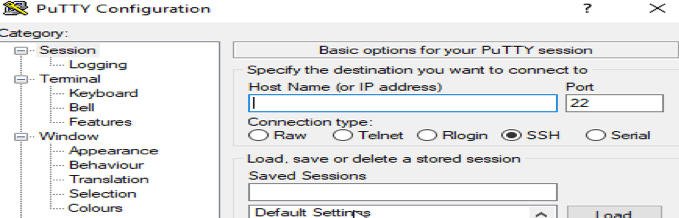
Enter the connection name or IP and select port 22
To have the private key entered. Expand Connection, expand SSH, and then choose Auth and choose Browse.
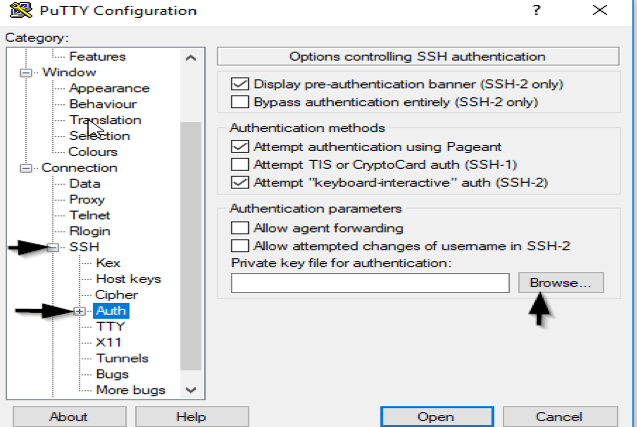
Now click on Open, you should be able to access the server. The default username for CentOS is centos
Steps 3: Create user password
To create a password for this user, edit the sshd_config setting and save it
vi /etc/ssh/sshd_config
change the PasswordAuthentication value as yes
PasswordAuthentication yes
:wq (means save and exit)
Step 4: Restart SSH service
To restart the SSH service, use the command(s) below.
service sshd restart

 or

/etc/init.d/sshd restart
Step 5: Add a user Account
To add a user account in order to connect to the EC2 instance via a username and password on CentOS
Step A: To add a user to the system, issue the useradd command to create a locked user account:
#useradd <username>Step B: Unlock the account by issuing the passwd command to assign a password and set password aging guidelines:
passwd <username>This must be the same user name in step A above. After this criteria has been met, then you should be able to set the password
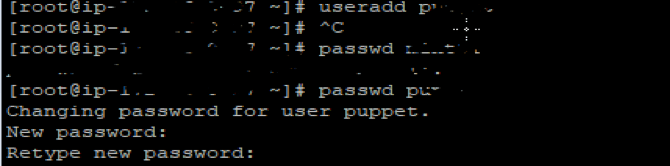
Now: Connect a new session and test with the user account created.
Add a user as a Sudoer on CentOS
Note: Because certain action can only be performed by Linux Administrators on Linux.
This makes the root by default have access to whatsoever on the Linux Machine. Since we have the root user account disabled, we will create a new user account and add the user to the Sudoer file thereby granting him all privileges he needs.
Procedure for Adding a Sudoer
- Steps 1: First Create a user account and the steps can be found in this document above
- Step 2: The file in Linux that determines if you are eligible to execute the Sudo is called “Sudoers” and this can be found in this location /etc/sudoers
But it is not recommended to modify this file as it is detrimental! Why is it so? This is because any syntax error found in this file could affect the entire system. So there is a unique used called visudo
[root@ip-11.1.1.22]# visudo
 After running this comment, use “i” to insert and search for the file (this will prompt the sudoer file for editing (modification)
 ## Allow root to run any commands anywhere

Below this you will see lines like (Add the username and permission as the root user) as shown in the screenshot below, e.g,
                               [username]     ALL=(ALL)        ALL
I hope you found this article on how to access EC2 Linux instance via the password very useful. Please feel free to leave a command below.


