With the “Widgets” feature in Windows 11, you can access a variety of informative flyouts, including those with weather, news, sports, stocks, traffic, entertainment, tasks, and family activities, without having to open your phone. If the feature appears familiar, it should, since it has the same concept as Windows 10’s “news and interests” feature. As soon as you click the icon in the Taskbar or use the “Windows key + W” keyboard shortcut, the Widgets board pops out from the left side of the screen. To open the board on a tablet or laptop with a touch screen, swipe from the left edge. In this article, you will learn how to use the Widgets feature on Windows 11. Please see these related guides: How to share an app window on Microsoft Teams, and how to remove a member from Trello Board.
Widgets feature on Windows 11
There are three parts to the board. At the top is the header, which shows the current time and links to the settings. Below that is where you can put your widgets, and at the very bottom is your feed, which won’t be fully customized until you change the settings. The Widgets icon in the Taskbar, which is next to the board, shows the weather with badge notifications and alerts for things like sports, finances, and breaking news.
Although some users may find the default settings to be ideal, Windows 11 gives you the ability to modify the experience and partially deactivate it to cut down on distractions. Here are other interesting articles you can read: How to change the default start page for File Explorer on Windows 11 2022 Update, How to check graphics card temperature on Windows 11, How to remove a Bluetooth device and connect a new Bluetooth device to Macbook, Microsoft Phone Link: How to Link and Unlink an Android Phone to Windows 11. To install and activate Microsoft Office 2019, see How to install and activate Office 2019 on your Mac PC.
How to add and remove widgets on Windows 11
On Windows 11, you can add, resize, rearrange, and remove any of the available widgets to make the experience more personal.
Add widgets
To add more widgets to the board, use these steps:
To open Widgets click the widgets icon in the bottom left corner of the screen or press Windows key + W. Click the Plus (+) button next to the profile menu.

Click the Plus (+) button for each widget you want to add.

Resize widget
To change the side of a widget, use these steps:
To open Widgets click the widgets icon in the bottom left corner of the screen or press Windows key + W.
Click the menu (three-dotted) and select one of the available sizes, including small, medium, or large (if available).

Once you complete the steps, the widget will change to your selected size.
Please refer to these exciting guides: Perform System Monitoring with CheckMK, how to update install, update, and uninstall extensions in Windows Admin Center, Best Free Disk Cloning Software to Clone a Hard Drive, how to Remove a member from Trello Workspace: How to add or remove a Board Guest to a Trello Board, and how to Hide or Remove the Search Button from Windows 11 Taskbar.
Re-arrange widget
To change the location of a widget, use these steps:
To open Widgets click the widget’s icon in the bottom left corner of the screen or press the Windows key + W.
Drag the widget by grabbing the title bar and dropping it in your desired location.
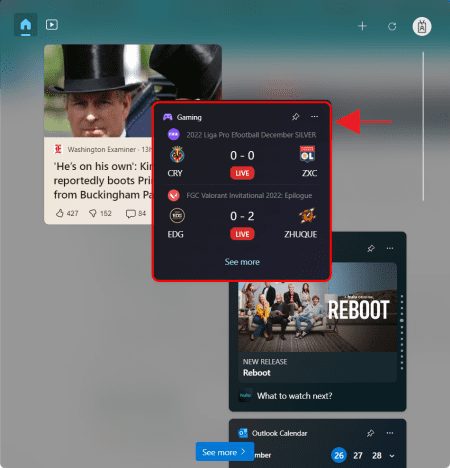
You can only rearrange your widgets, not the news feed widgets.
Remove widgets
To remove widgets from the board, use these steps:
To open Widgets click the widgets icon in the bottom left corner of the screen or press Windows key + W.
Click the menu (three-dotted) and select the Unpin widget option.
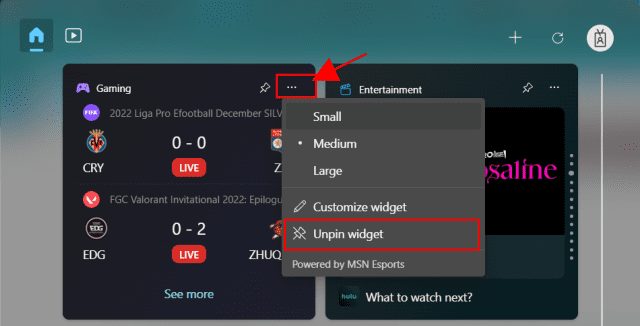
After you complete the steps, the widget will no longer be available on the board. You can only remove your widgets, not the ones in the news feed.
How to manage interests settings for widgets on Windows 11
The news stream shows you stories that are related to what you like. But if you don’t use Microsoft Edge, have a Microsoft account, and use Microsoft Bing, you may need to set your preferences to see content that fits your tastes.
Change widgets interests
To change the content that appears in the stream, use these steps:
To open Widgets click the widgets icon in the bottom left corner of the screen or press Windows key + W.
Click See more (three-dotted) button and select the Manage interests option which open up in a browser.
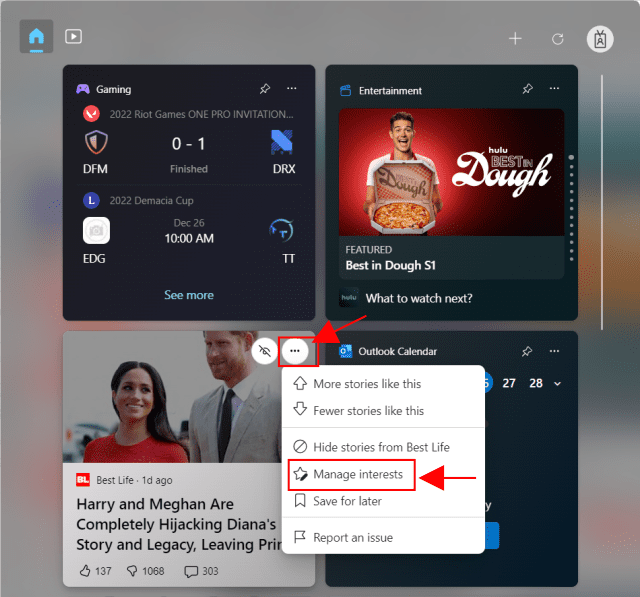
Click the plus sign (+) button for each category you want to see in your feed and click the Block button for the categories you don’t want to see in your feed. The topics you don’t choose any option may or may not appear in the feed.

Once you complete the steps, the news stream will update and reflect your changes.
Control widgets stream
To tweak the type of content you’d like to see in your stream of news, use these steps:
To open Widgets click the widgets icon in the bottom left corner of the screen or press Windows key + W.
In the “Top stories” widget, hover over the story widget, click the menu button for each story and choose the best option to manage your feed. For example, “More stories like this,” “Fewer stories like this,” “Hide stories from,” or “Save for later.”
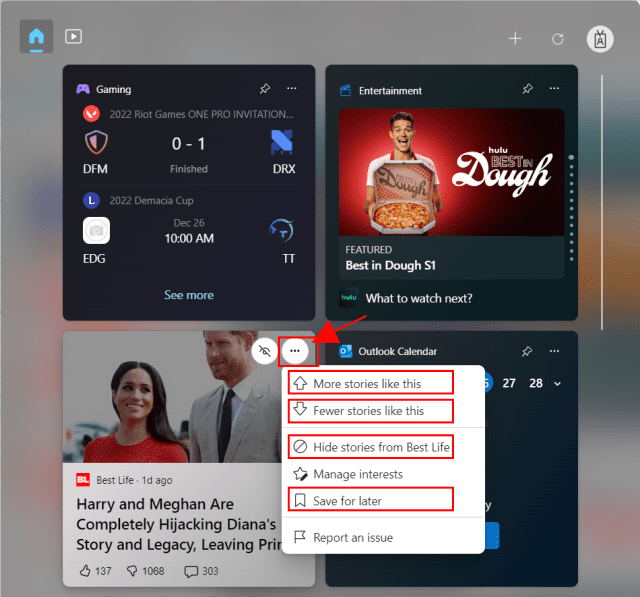
You can hide stories you don’t like by simply clicking the hide story button.
As you use your feed, it will learn to show you more stories that you are more likely to like. If you want to read a story later, you can access it through your Microsoft account.
How to enable or disable widgets icon in Taskbar on Windows 11
The widgets icon in the Taskbar can show different alerts with animations for sports, finance, breaking news, and the weather. For many people, this can be distracting. If you don’t find this feature useful and keep opening the board by accident when you hover over the icon, you can remove the icon from the Taskbar to reduce distractions.
Follow these steps to turn on or off the Taskbar widgets icon:
To open Settings, press Windows key + I and click on Personalization.
Click the Taskbar page on the right side.

Under the “Taskbar items” section, turn off the Widgets toggle switch to remove the icon from the Taskbar.

Turn on the Widgets toggle switch to add the icon in the Taskbar.
After you finish the steps, the icon in the Taskbar that shows dynamic content, and the weather will be gone. But if you use the keyboard shortcut “Windows key + W,” you can still get to the flyout.
I hope you find this guide helpful on how to use the Widgets feature on Windows 11. If you have any questions, feel free to leave them in the comment section below.