Skip to content

TechDirectArchive

Hands-on IT, Cloud, Security & DevOps Insights

  • Home
  • About
  • Advertise With US
  • Reviews
  • Contact
  • Toggle search form
Home » Windows Server » Installing and configuring SimpleSAMLphp [Part 2]
  • 87a26c60 0001 0004 0000 000001423515 w948 r1.77 fpx54.99 fpy56.04
    Administer LXC Containers: Easy Guide Virtualization
  • windows 1
    How to set up a VM via PXE boot on a Generation 1 VM Virtualization
  • banner
    How to create a password reset disk: Reset Windows Password Windows
  • Featured image 1
    How to Disable Internet Explorer with Group Policy & Registry Windows
  • Screenshot 2020 06 22 at 22.46.00
    How to use a dedicated MsSQL Db for Pleasant Password Oracle/MSSQL/MySQL
  • header picture
    Creating and Deploying Docker Registry Using Docker Image AWS/Azure/OpenShift
  • SQL Loves Linux 2 Twitter 002 640x358 1
    Install Microsoft SQL Server 2019 and MSSQL Command line tools on Ubuntu Linux Oracle/MSSQL/MySQL
  • banner 4
    How to Install Windows on VMware Workstation Windows

Installing and configuring SimpleSAMLphp [Part 2]

Posted on 18/05/201823/11/2025 Christian By Christian 1 Comment on Installing and configuring SimpleSAMLphp [Part 2]
Identity provider setup

When it comes to enhancing your authentication processes, Installing and configuring SimpleSAMLphp is a crucial step. Installing and configuring SimpleSAMLphp empowers your system with a versatile authentication framework, making it a pivotal aspect of your setup. In this guide, we will delve into the ins and outs of Installing and configuring SimpleSAMLphp, providing you with a step-by-step walkthrough. Please see SimpleSAMLphp Setup on Windows Server – Part 1, and how to upgrade VMware Tools in vSphere.

With a well-executed process of Installing and configuring SimpleSAMLphp, you can streamline authentication procedures and bolster security.

Enhancing Authentication Expertise with SimpleSAMLphp Mastery

By mastering the art, you can ensure seamless user authentication experiences. Moreover, Whether you’re a novice or an experienced developer, understanding the nuances of Installing and configuring SimpleSAMLphp will undoubtedly elevate your proficiency in managing authentication mechanisms.

So, let’s embark on this journey of Installing and configuring SimpleSAMLphp and unlock the potential of robust and efficient authentication.

However, SimpleSAMLphp is an award-winning application written in native PHP that deals with authentication. UNINETT leads the project and has a large user base, a helpful user community, and many external contributors. The main focus of SimpleSAMLphp is providing support for SAML 2.0 as a Service Provider (SP).

Configure SimpleSAMLphp

SAML SSO transfers the user’s identity from one place (the identity provider) to another (the service provider). This is done through an exchange of digitally signed XML documents.

SimpleSAMLPHP package can be downloaded from any of the links below and extract into C:inetpubwwwroot
- https://simplesamlphp.org/download
- https://community.esri.com/groups/arcgis-online-templates/blog/2014/12/31/setting-up-enterprise-logins-using-simplesamlphp
Single sign-on configuration

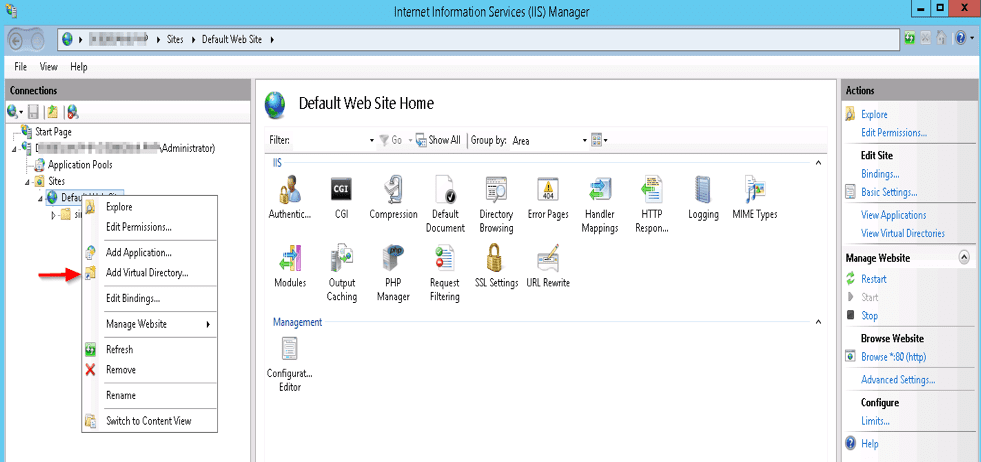
Add a new virtual directory in IIS by using IIS Manager. Right-click on “Default Web Site” and select “Add Virtual Directory”.
SAML authentication

Provide “simplesaml” as the Alias and “C:inetpubwwwrootsimplesamlphp-1.13.2www” as the physical path. Click OK to close the dialog.

Web application integration

Now it should look this way!

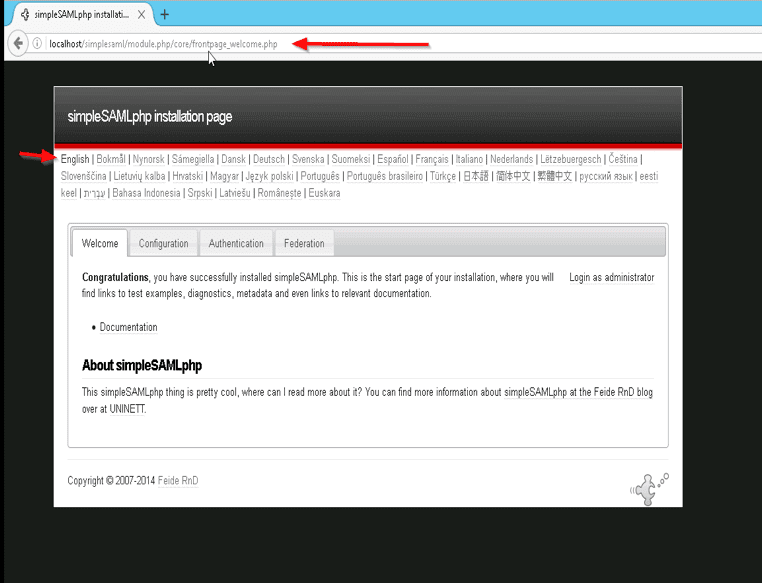
Ensure you have your firewall rules to allow HTTP. If everything is okay, the image below will be prompted. Open a web browser and navigate to http://localhost/simplesaml
I hope you found this blog post helpful. If you have any questions, please let me know in the comment session.

Rate this post

Thank you for reading this post. Kindly share it with others.

  • Click to share on X (Opens in new window) X
  • Click to share on Reddit (Opens in new window) Reddit
  • Click to share on LinkedIn (Opens in new window) LinkedIn
  • Click to share on Facebook (Opens in new window) Facebook
  • Click to share on Pinterest (Opens in new window) Pinterest
  • Click to share on Tumblr (Opens in new window) Tumblr
  • Click to share on Telegram (Opens in new window) Telegram
  • Click to share on WhatsApp (Opens in new window) WhatsApp
  • Click to share on Pocket (Opens in new window) Pocket
  • Click to share on Mastodon (Opens in new window) Mastodon
  • Click to share on Bluesky (Opens in new window) Bluesky
  • Click to share on Threads (Opens in new window) Threads
  • Click to share on Nextdoor (Opens in new window) Nextdoor
Windows Server Tags:IIS, Internet Information Services, Microsoft Windows, Windows 10, Windows Server 2016

Post navigation

Previous Post: SimpleSAMLphp Setup on Windows Server [Part 1]
Next Post: Configuring SimpleSAMLPHP

Related Posts

  • image 30
    How to Fix “Insufficient System Resources Exist to Complete the Requested Service” error Windows
  • image 23
    Copy Deployment Share between Servers without using linked Deployment Shares Windows
  • Migrate RDS CALs
    How to Migrate RDS CALs Windows
  • wingettool
    Install Applications with Winget CLI on Windows Windows Server
  • Capture 91
    How to install IIS Web Server on Windows Server Web Server
  • Hyper V Virtual Switch Copy
    How to Create VDI Collections on Windows Server 2022 Network | Monitoring

More Related Articles

image 30 How to Fix “Insufficient System Resources Exist to Complete the Requested Service” error Windows
image 23 Copy Deployment Share between Servers without using linked Deployment Shares Windows
Migrate RDS CALs How to Migrate RDS CALs Windows
wingettool Install Applications with Winget CLI on Windows Windows Server
Capture 91 How to install IIS Web Server on Windows Server Web Server
Hyper V Virtual Switch Copy How to Create VDI Collections on Windows Server 2022 Network | Monitoring

Comment (1) on “Installing and configuring SimpleSAMLphp [Part 2]”

  1. Avatar photo Arun says:
    22/07/2021 at 10:27 AM

    Hi, I have followed the above article to configure the simplesaml in IIS. But final output is not working properly. It shows error “No input File is Specified”. Could anyone drop an solution.

    Log in to Reply

Leave a Reply Cancel reply

You must be logged in to post a comment.

Microsoft MVP

VEEAMLEGEND

vexpert-badge-stars-5

Virtual Background

GoogleNews

Categories

veeaam100

sysadmin top30a
 
  • 87a26c60 0001 0004 0000 000001423515 w948 r1.77 fpx54.99 fpy56.04
    Administer LXC Containers: Easy Guide Virtualization
  • windows 1
    How to set up a VM via PXE boot on a Generation 1 VM Virtualization
  • banner
    How to create a password reset disk: Reset Windows Password Windows
  • Featured image 1
    How to Disable Internet Explorer with Group Policy & Registry Windows
  • Screenshot 2020 06 22 at 22.46.00
    How to use a dedicated MsSQL Db for Pleasant Password Oracle/MSSQL/MySQL
  • header picture
    Creating and Deploying Docker Registry Using Docker Image AWS/Azure/OpenShift
  • SQL Loves Linux 2 Twitter 002 640x358 1
    Install Microsoft SQL Server 2019 and MSSQL Command line tools on Ubuntu Linux Oracle/MSSQL/MySQL
  • banner 4
    How to Install Windows on VMware Workstation Windows

Subscribe to Blog via Email

Enter your email address to subscribe to this blog and receive notifications of new posts by email.

Join 1,841 other subscribers
  • RSS - Posts
  • RSS - Comments
  • About
  • Authors
  • Write for us
  • Advertise with us
  • General Terms and Conditions
  • Privacy policy
  • Feedly
  • Telegram
  • Youtube
  • Facebook
  • Instagram
  • LinkedIn
  • Tumblr
  • Pinterest
  • Twitter
  • mastodon

Tags

AWS Azure Bitlocker Microsoft Windows PowerShell WDS Windows 10 Windows 11 Windows Deployment Services Windows Server 2016

Copyright © 2025 TechDirectArchive


Loading Comments...
 

You must be logged in to post a comment.