Skip to content

TechDirectArchive

Hands-on IT, Cloud, Security & DevOps Insights

  • Home
  • About
  • Advertise With US
  • Reviews
  • Contact
  • Toggle search form
Home » Mac » Stop Apps from running automatically on MAC

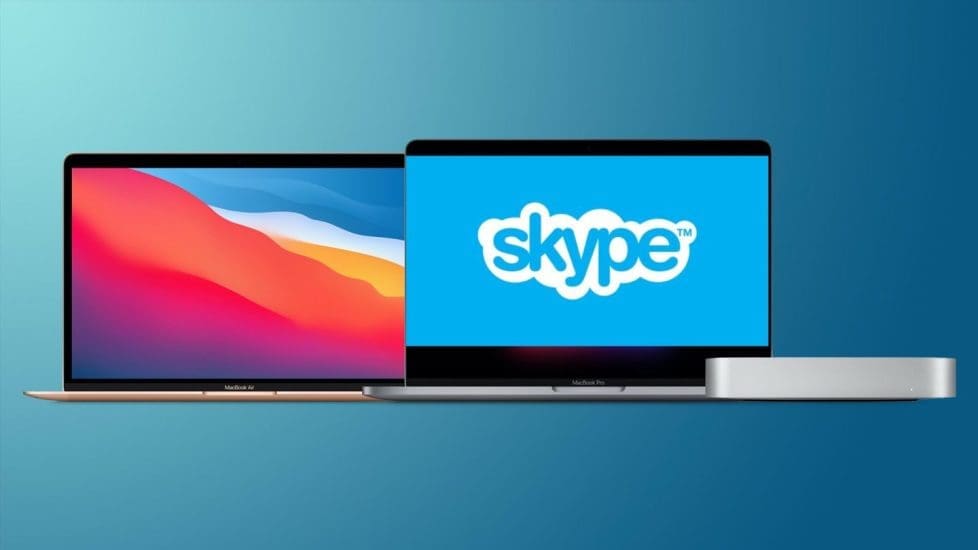
Stop Apps from running automatically on MAC

Posted on 08/08/201922/03/2023 Christian By Christian No Comments on Stop Apps from running automatically on MAC

OSX is Apple’s operating system that runs on Macintosh computers. It was first released in 2001 and over a few years replaced Mac OS9 (Mac OS Classic) as the standard OS for Macs. It was called “Mac OS X” until version OS X 10.8 when Apple dropped “Mac” from the name. When you start up a Mac, OS X loads automatically. It serves as the fundamental user interface but also works behind the scenes, managing processes and applications. For example, when you double-click an application icon, OS X launches the corresponding program and provides memory to the application while it is running. It reallocates memory as necessary and frees up used memory when an application is quit. In this article, you will learn how to Stop Apps from running automatically on MAC.

See the following guides on how to start an application automatically on macOS, how to stop TeamViewer from starting automatically on Mac, How to stop an application from starting up automatically on macOS, how to stop Cisco Webex Meetings from starting up automatically, how to enable or disable startup programs: How to view or change programs that run on startup, how to enable or disable automatic login on macOS, and how to enable and disable automatic login on Ubuntu Linux via the GUI and CLI.

Scenario: Apps from running automatically

Skype was always stating up whenever I turned my PC on. This was irritating and I needed to fix it. To ensure Skype for Business does not start automatically. Kindly follow the steps below.

  • Open System Preferences.
  • Click Users & Groups.
  • Click Login Items.
  • Select the app or apps you do not want to start automatically and
  • Click on the minus “-” symbol to remove the app(s).

Configure Apps to launch automatically

Note: You can also configure your apps to launch automatically by clicking on the + button and browsing to the desired app. When this is done, a user log-off of the system is required to ensure the changes are applied.

I hope you found this blog post helpful. Now, you have learned how to Stop Apps from running automatically on MAC. If you have any questions, please let me know in the comment session.

Rate this post

Thank you for reading this post. Kindly share it with others.

  • Share on X (Opens in new window) X
  • Share on Reddit (Opens in new window) Reddit
  • Share on LinkedIn (Opens in new window) LinkedIn
  • Share on Facebook (Opens in new window) Facebook
  • Share on Pinterest (Opens in new window) Pinterest
  • Share on Tumblr (Opens in new window) Tumblr
  • Share on Telegram (Opens in new window) Telegram
  • Share on WhatsApp (Opens in new window) WhatsApp
  • Share on Mastodon (Opens in new window) Mastodon
  • Share on Bluesky (Opens in new window) Bluesky
  • Share on Threads (Opens in new window) Threads
  • Share on Nextdoor (Opens in new window) Nextdoor
Mac Tags:Automatic Start, automaticstartup

Post navigation

Previous Post: LACP Configuration on Cisco 3650 Switch
Next Post: URL Rewrite: How to redirect from HTTP to HTTPS

Related Posts

  • commit trong git 640
    How to uninstall Git from MacOS Mac
  • tredfghgfde3456578
    How to install Java Runtime Environment on Mac OS Mac
  • VLC Media Player pcgh b2article artwork
    How to Set Quicktime or VLC as a default player on macOS Mac
  • chrome feature image light blue
    Set Chrome as default: How to set a browser as default on macOS Mac
  • macos12
    Enable or disable automatic login on macOS: Fix username greyed out for automatic login Mac
  • Locationservices
    Enable or Disable Location Services: How to allow apps and services to determine your location on Mac Mac

More Related Articles

commit trong git 640 How to uninstall Git from MacOS Mac
tredfghgfde3456578 How to install Java Runtime Environment on Mac OS Mac
VLC Media Player pcgh b2article artwork How to Set Quicktime or VLC as a default player on macOS Mac
chrome feature image light blue Set Chrome as default: How to set a browser as default on macOS Mac
macos12 Enable or disable automatic login on macOS: Fix username greyed out for automatic login Mac
Locationservices Enable or Disable Location Services: How to allow apps and services to determine your location on Mac Mac

Leave a Reply Cancel reply

You must be logged in to post a comment.

Microsoft MVP

VEEAMLEGEND

vexpert-badge-stars-5

Virtual Background

GoogleNews

Categories

veeaam100

Veeam Vanguard

  • images 1
    How to reset and reinstall Windows 10 locally Windows
  • SQL Server Management Studio 1
    How to manually check and update SQL Server Management Studio Oracle/MSSQL/MySQL
  • Stop teams from auto start
    Prevent Microsoft Teams from starting automatically on Windows Windows
  • Microsoft 365 Developer Program instant
    Get your free Microsoft 365 E5 Sandbox today AWS/Azure/OpenShift
  • Fix invalid backup repostory and delete not needed repo via Veeam Backup Repository
    Fix missing path and delete a Veeam Backup Repository Backup
  • Screenshot 2024 02 09 at 1.06.54 PM
    Programmatically Deploying App Service Resources in Azure AWS/Azure/OpenShift
  • Office 2021
    Upgrade Microsoft Office 2019 to 2021 on Mac JIRA|Confluence|Apps
  • Fix Failed To Connect To The Backup Serve
    Fix failed to connect to the backup server: Make sure it is online Backup

Subscribe to Blog via Email

Enter your email address to subscribe to this blog and receive notifications of new posts by email.

Join 1,819 other subscribers
  • RSS - Posts
  • RSS - Comments
  • About
  • Authors
  • Write for us
  • Advertise with us
  • General Terms and Conditions
  • Privacy policy
  • Feedly
  • Telegram
  • Youtube
  • Facebook
  • Instagram
  • LinkedIn
  • Tumblr
  • Pinterest
  • Twitter
  • mastodon

Tags

Active Directory Azure Bitlocker Microsoft Windows PowerShell WDS Windows 10 Windows 11 Windows Deployment Services Windows Server 2016

Copyright © 2025 TechDirectArchive


Loading Comments...
 

You must be logged in to post a comment.