Skip to content

TechDirectArchive

Hands-on IT, Cloud, Security & DevOps Insights

  • Home
  • About
  • Advertise With US
  • Reviews
  • Contact
  • Toggle search form
Home » Linux » Adding a new partition to an existing Linux server
  • Implement Azure Bicep
    How to Deploy Azure Resources Using Azure Bicep Automation
  • a3a5a8be58fa09468cd4f70d36869e98
    Restore AD Objects: How to restore deleted user accounts in Active Directory with Microsoft LDP and PowerShell Windows Server
  • windows 10 bjw3 1280x720 1
    How to Find the Pathname of a Mapped Network Drive Windows
  • FEATUREIMAGE
    How to work with Azure Cognitive Service AWS/Azure/OpenShift
  • template 1
    Install Group Policy Templates for Microsoft Edge and Google Chrome browsers on Windows Windows
  • Featured image Unblock Microsoft Store
    How to Unblock Microsoft Store on Windows 11 Windows
  • Updates Windows Apps with Norton
    How to update Windows Applications with Norton Updater Anti-Virus Solution
  • xyxc
    How to link a removable media to a Deployment Share: Replicate Deployment share to a removable device Windows Server

Adding a new partition to an existing Linux server

Posted on 20/09/202025/09/2023 Christian By Christian No Comments on Adding a new partition to an existing Linux server

Suppose you have an up and running Linux server and you have a need for a new partition, here is an easy way to do that from the command line. For this demonstration, I am using a CentOS. Read on to learn how to add a new partition to an existing Linux server.

Here is a summary of the partitions available on my server before creating the new partition using the lsblk command.
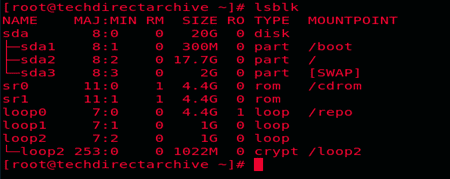
Linux server

For this post, I will be using the dd tool, other tools similar to dd in Linux are clonezilla, KDE Partition Manager, BXImage etc

  1. First, we use the dd command below to create a partition image. I will be creating a 1GB partition
dd if=/dev/zero of=1GB_HDD.img bs=1M count=1024

Once the above command is executed, the output should be something like this

add partition
  1. 2 Create a partition with the fdisk command.
fdisk 1GB_HDD.img

When you use the fdisk command, this automatically create a DOS partition table. Switch to a GPT table by entering “g” on the first fdisk prompt. To make this easy, accept the default values for partition number, first sector and last sector at the fdisk prompt by hitting the enter button when prompted.

Input “n” at the next prompt. This creates a new partition;

Then input “w” to write the changes made.

existing server
  1. 3 Now format the partition with a file system of your choice; I will be using the mkfs command
mkfs.ext4 1GB_HDD.img

press “y” for yes at the prompt

new partition

Next, use the losetup utility to assign the next available loop device to the newly created partition

If all these steps have been carried out properly, the partition should be available. Thus, the lsblk command should confirm that

However, Create a new directory for the new partition and mount it there

With the steps above, you should be able to create a new partition and mount it to an existing Linux server. Furthermore, Try this and let me know if it works for you.

Rate this post

Thank you for reading this post. Kindly share it with others.

  • Share on X (Opens in new window) X
  • Share on Reddit (Opens in new window) Reddit
  • Share on LinkedIn (Opens in new window) LinkedIn
  • Share on Facebook (Opens in new window) Facebook
  • Share on Pinterest (Opens in new window) Pinterest
  • Share on Tumblr (Opens in new window) Tumblr
  • Share on Telegram (Opens in new window) Telegram
  • Share on WhatsApp (Opens in new window) WhatsApp
  • Share on Pocket (Opens in new window) Pocket
  • Share on Mastodon (Opens in new window) Mastodon
  • Share on Bluesky (Opens in new window) Bluesky
  • Share on Threads (Opens in new window) Threads
  • Share on Nextdoor (Opens in new window) Nextdoor
Linux Tags:Partitions

Post navigation

Previous Post: ESXI 6.7 ALARM: Seat disk exhaustion on 10
Next Post: DISM failed with error 0x800f081f: Source file could not be found

Related Posts

  • MV command in Linux
    Rename or Move Files or Directories in Linux with Bash Terminal Linux
  • whois4578uh
    How to get Domain information using WHOIS Command in Linux Linux
  • S3 Bucket 1
    How to delete AWS S3 Bucket and Objects via  AWS CLI from Linux AWS/Azure/OpenShift
  • SUBVERSION FEATURE
    How to Install Apache Subversion on a Linux System Linux
  • GRADLE FEATURE
    How to install Gradle on Ubuntu Linux
  • Screenshot 2021 02 05 at 22.40.51
    Disable automatic screen lock on Ubuntu Desktop Linux

More Related Articles

MV command in Linux Rename or Move Files or Directories in Linux with Bash Terminal Linux
whois4578uh How to get Domain information using WHOIS Command in Linux Linux
S3 Bucket 1 How to delete AWS S3 Bucket and Objects via  AWS CLI from Linux AWS/Azure/OpenShift
SUBVERSION FEATURE How to Install Apache Subversion on a Linux System Linux
GRADLE FEATURE How to install Gradle on Ubuntu Linux
Screenshot 2021 02 05 at 22.40.51 Disable automatic screen lock on Ubuntu Desktop Linux

Leave a Reply Cancel reply

You must be logged in to post a comment.

Microsoft MVP

VEEAMLEGEND

vexpert-badge-stars-5

Virtual Background

GoogleNews

Categories

veeaam100

sysadmin top30a

  • Implement Azure Bicep
    How to Deploy Azure Resources Using Azure Bicep Automation
  • a3a5a8be58fa09468cd4f70d36869e98
    Restore AD Objects: How to restore deleted user accounts in Active Directory with Microsoft LDP and PowerShell Windows Server
  • windows 10 bjw3 1280x720 1
    How to Find the Pathname of a Mapped Network Drive Windows
  • FEATUREIMAGE
    How to work with Azure Cognitive Service AWS/Azure/OpenShift
  • template 1
    Install Group Policy Templates for Microsoft Edge and Google Chrome browsers on Windows Windows
  • Featured image Unblock Microsoft Store
    How to Unblock Microsoft Store on Windows 11 Windows
  • Updates Windows Apps with Norton
    How to update Windows Applications with Norton Updater Anti-Virus Solution
  • xyxc
    How to link a removable media to a Deployment Share: Replicate Deployment share to a removable device Windows Server

Subscribe to Blog via Email

Enter your email address to subscribe to this blog and receive notifications of new posts by email.

Join 1,832 other subscribers
  • RSS - Posts
  • RSS - Comments
  • About
  • Authors
  • Write for us
  • Advertise with us
  • General Terms and Conditions
  • Privacy policy
  • Feedly
  • Telegram
  • Youtube
  • Facebook
  • Instagram
  • LinkedIn
  • Tumblr
  • Pinterest
  • Twitter
  • mastodon

Tags

AWS Azure Bitlocker Microsoft Windows PowerShell WDS Windows 10 Windows 11 Windows Deployment Services Windows Server 2016

Copyright © 2025 TechDirectArchive


Loading Comments...
 

You must be logged in to post a comment.