Skip to content

TechDirectArchive

Hands-on IT, Cloud, Security & DevOps Insights

  • Home
  • About
  • Advertise With US
  • Reviews
  • Contact
  • Toggle search form
Home » Windows » MDT Invalid credentials: The network was not found
  • sshkey
    How to perform SSH key-based authentication in Linux Linux
  • cryptsetup
    How to encrypt a partition with Cryptsetup Linux
  • Disable download in Microsoft Edge
    How to disable file download in Microsoft Edge Windows
  • Featured image BitLocker AES XTX 256
    Enable BitLocker AES-XTX 256 Encryption Security | Vulnerability Scans and Assessment
  • Screenshot 2024 02 29 at 8.03.48 PM
    How to create an Elastic Beanstalk environment in AWS AWS/Azure/OpenShift
  • BitLocker Recovery Password Rotation in Active Directory
    Perform BitLocker Recovery Password Rotation in Active Directory Windows Server
  • Wordpress banner
    Fix WordPress Error “The Link You Followed Has Expired” Web Server
  • Enhancing Proactive Monitoring with Veeam ONE
    Enhanced Proactive Monitoring with Veeam ONE Backup

MDT Invalid credentials: The network was not found

Posted on 09/10/202030/12/2023 Christian By Christian No Comments on MDT Invalid credentials: The network was not found
MDT troubleshooting

In this article, you will learn how to fix MDT Invalid credentials: The network was not found. The error message ‘Invalid credentials’ is shown when one of your platforms has trouble connecting due to the provided credentials being incorrect or permission errors. Here are some related errors you will come across when modifying Windows Image. How to fix error 0xc1510114: The wim file needs to be remounted, error 0x80070002: When trying to mount an image file, and error code 15601: How to resolve DISM unspecified error when removing preinstalled packages

Why was the error “MDT Invalid credentials” prompted?

This error above was prompted because of permission issues associated with my Deployment Share. Also, I had to append the UserDomain to the bootstrap.ini. Below is the error prompt.
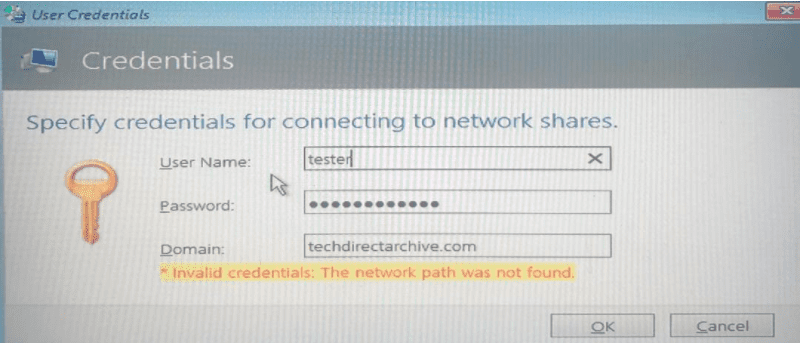
Invalid network credentials

Resolution

To fix this, locate the Deployment Share and right-click on it. Select Properties as shown below.

Network not found error

This will open the Deployment Share Properties Window as shown below.

Open the Advanced Security for the DeploymentShare

Click on the Security tab and click on the Advanced button as shown below in order to set inheritance and take ownership of the share.

MDT authentication issues

This will open the Advanced Security for the DeploymentShare.

Furthermore, Take ownership of the file and set the needed permission. Finally, click on “Replace all child object permission entries with inheritable permission entries from this object.

Next, we will have to edit the bootstrap.ini file in order to append the UserDomain to the bootstrap.ini. Open the Deployment Share file system.

Click on the control folder and edit the bootstrap.ini file and add “UserDomain=your domain here and save your file.

When you are done with the steps above, you will have to regenerate the Lite Touch boot file again. To do this, follow the steps below. 

See this guide for more information about “ADK, MDT, and WDS: How to configure and deploy Windows using Microsoft Deployment Toolkit, and Windows Deployment Services for Windows 10“.

Update Deployment” share

Right-click on the deployment share over the MDT and click on the “Update Deployment” share

After updating the Deployment Share folder. The system generates LiteTouch WIM files, placing them under the boot folder in the created Deployment Share.

To Add the Lite-Touch Images to WDS, follow the steps below.

On the WDS-SERVER, open Windows Deployment Services (WDS), right-click on the Boot Images and then click on Add Boot Image.

This still will go through the Lite Touch WinPE generation and when complete, you can replace the existing Lite Touch PE file on WDS.

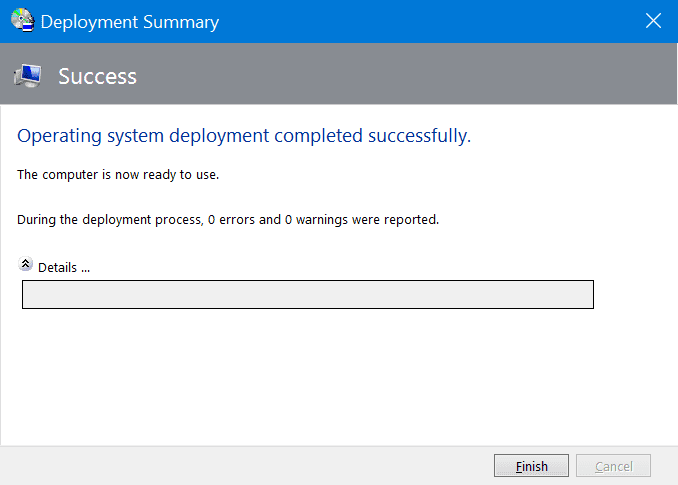
When next the client establishes a connection to the WDS server (PXE Server), the error will no longer be there and the installation will complete successfully as shown below.
For more on the configuration of MDT and WDS, see the following guides: ADK, MDT, and WDS: How to configure and deploy Windows using Microsoft Deployment Toolkit, and Windows Deployment Services for Windows 10. For WDS/DHCP scenarios: How to configure DHCP Server option 60, 66 and 67 for Windows Deployment Services, Uninstall WDS: How to remove Windows Deployment Services role via the GUI and PowerShell.

I hope you found this blog post on “MDT Invalid credentials: The network was not found” helpful. If you have any questions, please let me know in the comment session.

Rate this post

Thank you for reading this post. Kindly share it with others.

  • Click to share on X (Opens in new window) X
  • Click to share on Reddit (Opens in new window) Reddit
  • Click to share on LinkedIn (Opens in new window) LinkedIn
  • Click to share on Facebook (Opens in new window) Facebook
  • Click to share on Pinterest (Opens in new window) Pinterest
  • Click to share on Tumblr (Opens in new window) Tumblr
  • Click to share on Telegram (Opens in new window) Telegram
  • Click to share on WhatsApp (Opens in new window) WhatsApp
  • Click to share on Pocket (Opens in new window) Pocket
  • Click to share on Mastodon (Opens in new window) Mastodon
  • Click to share on Bluesky (Opens in new window) Bluesky
  • Click to share on Threads (Opens in new window) Threads
  • Click to share on Nextdoor (Opens in new window) Nextdoor
Windows Tags:Microsoft Deployment Toolkit (MDT), WDS, Windows 10, Windows 11, Windows Deployment Services, Windows Server 2016

Post navigation

Previous Post: Windows Profile: How to determine your windows username
Next Post: How to pause a PowerShell script

Related Posts

  • Cannot Start Proctored Exam
    DbxSvc Process: How to Fix “Cannot Start Proctored Exam” Windows
  • FixThunderboltissue
    Fix the Thunderbolt application is not in use and can be safely uninstalled Windows
  • Synergy software kvm
    Why Software KVMs such as Synergy is replacing Hardware KVMs Linux
  • Remote Desktop Connection
    Connect to the Remote Desktop Console from Command Prompt Windows
  • KIOSK AssignedAccess
    How to set up a Single App Kiosk Mode Configuration using a Local Account / MDM Bridge WMI Provider Windows
  • RDS Collection 1
    How to add and remove RDS Collection Windows

More Related Articles

Cannot Start Proctored Exam DbxSvc Process: How to Fix “Cannot Start Proctored Exam” Windows
FixThunderboltissue Fix the Thunderbolt application is not in use and can be safely uninstalled Windows
Synergy software kvm Why Software KVMs such as Synergy is replacing Hardware KVMs Linux
Remote Desktop Connection Connect to the Remote Desktop Console from Command Prompt Windows
KIOSK AssignedAccess How to set up a Single App Kiosk Mode Configuration using a Local Account / MDM Bridge WMI Provider Windows
RDS Collection 1 How to add and remove RDS Collection Windows

Leave a Reply Cancel reply

You must be logged in to post a comment.

Microsoft MVP

VEEAMLEGEND

vexpert-badge-stars-5

Virtual Background

GoogleNews

Categories

veeaam100

sysadmin top30a

  • sshkey
    How to perform SSH key-based authentication in Linux Linux
  • cryptsetup
    How to encrypt a partition with Cryptsetup Linux
  • Disable download in Microsoft Edge
    How to disable file download in Microsoft Edge Windows
  • Featured image BitLocker AES XTX 256
    Enable BitLocker AES-XTX 256 Encryption Security | Vulnerability Scans and Assessment
  • Screenshot 2024 02 29 at 8.03.48 PM
    How to create an Elastic Beanstalk environment in AWS AWS/Azure/OpenShift
  • BitLocker Recovery Password Rotation in Active Directory
    Perform BitLocker Recovery Password Rotation in Active Directory Windows Server
  • Wordpress banner
    Fix WordPress Error “The Link You Followed Has Expired” Web Server
  • Enhancing Proactive Monitoring with Veeam ONE
    Enhanced Proactive Monitoring with Veeam ONE Backup

Subscribe to Blog via Email

Enter your email address to subscribe to this blog and receive notifications of new posts by email.

Join 1,839 other subscribers
  • RSS - Posts
  • RSS - Comments
  • About
  • Authors
  • Write for us
  • Advertise with us
  • General Terms and Conditions
  • Privacy policy
  • Feedly
  • Telegram
  • Youtube
  • Facebook
  • Instagram
  • LinkedIn
  • Tumblr
  • Pinterest
  • Twitter
  • mastodon

Tags

AWS Azure Bitlocker Microsoft Windows PowerShell WDS Windows 10 Windows 11 Windows Deployment Services Windows Server 2016

Copyright © 2025 TechDirectArchive


Loading Comments...
 

You must be logged in to post a comment.