Skip to content

TechDirectArchive

Hands-on IT, Cloud, Security & DevOps Insights

  • Home
  • About
  • Advertise With US
  • Reviews
  • Contact
  • Toggle search form
Home » Windows » How to enable or disable color filters in Windows

How to enable or disable color filters in Windows

Posted on 26/06/202211/12/2023 Matthew By Matthew No Comments on How to enable or disable color filters in Windows
Featured-image_1

In Windows 10 and 11, color filters were added as part of the ease of access feature to help user see and distinguish between colors on their screen. In this article, we shall discuss how to enable or disable color filters in Windows. These color filters operate at the system level and contain numerous color filters that can change your screen to black and white, invert colors, and so on. These filters are intended to help persons who are colourblind discern between colours on their screen. Please see how to Block downloads on Microsoft Edge using GPO on Windows Server 2019 and 2022, and Set Google Chrome as default: How to set a browser as default in Windows.

Furthermore, persons with light or color sensitivity can simply employ these filters to make the text simpler to read, expanding Windows’ reach to much more users. In this color filter guide, we will show you how to enable or disable color filters in Windows.

There are different types of color filters available in Windows 10 and 11. Such as Greyscale, Invert, Greyscale Inverted, Deuteranopia, Protanopia, and Tritanopia.

Here are other related guides: Internet Explorer: How to disable IE via Group Policy or Windows Registry Settings, and how to forcefully remove Microsoft Edge Browser the hard way from your device.

How to Enable or Disable Color Filters in Windows 11

See below the two methods to enable or disable color filter in Windows.

Method 1: Through Setting and using the Keyboard Shortcut

The color filters feature can access through the Windows settings. You can change from the default grayscale color to any other color available in the color filters, which becomes the new default color.

You may also use the keyboard shortcut Windows Key + Ctrl + C to switch on and off the color filters function, but you must first enable the Keyboard shortcut under the color filters settings.

Follow these steps to activate the keyboard shortcut Windows Key + Ctrl + C: Press Windows Key + I to open Settings then click on Accessibility. From the right-hand menu, click on Color filter.
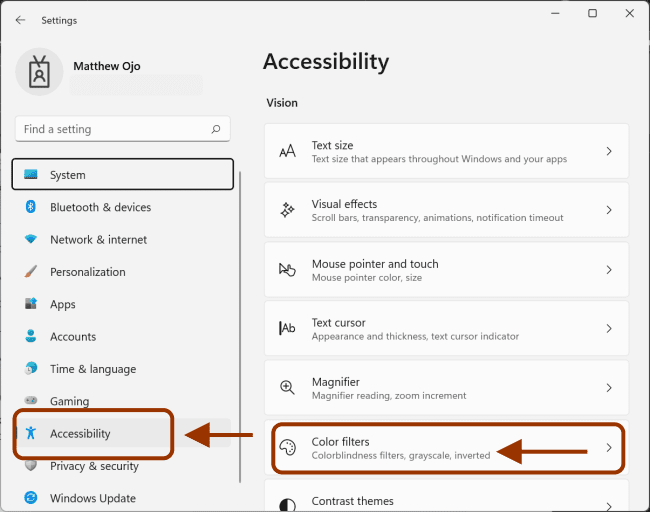
Accessibility

Click the toggle to turn-on the Keyboard shortcut for color filter. Now you can use the shortcut Windows Key + Ctrl + C keys to enable Color filter any time you want.

Visual impairment

Under the Color filters, select any color you want from the list. You can then use the shortcut key combination to turn on and off the color filters.

Display settings

The default filter will change to the selected filter which you can now turn on and off using the keyboard shortcut.

Note: The keyboard shortcut Windows Key + Ctrl + C keys only enable/disable the color filter that has been set in the settings. If you want to change the color filter to another color, go to the settings and change the color.

Method 2: Enable or Disable Color Filter Using Registry Editor

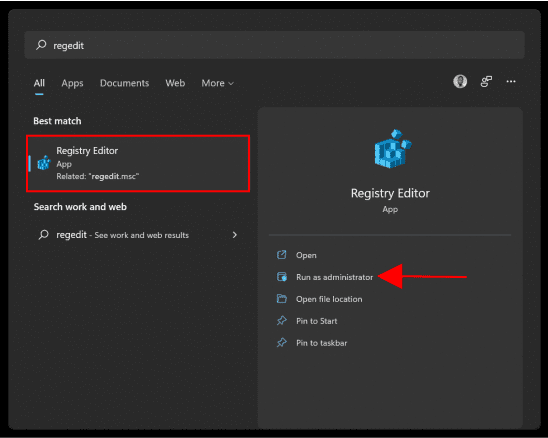
First, search for “Registry Editor” in the Start menu and run as administrator.
Color adjustments

Navigate to the registry folder path below:

Computer\HKEY_CURRENT_USER\Software\Microsoft

Then Right-click on the “Microsoft” folder and select “New >> Key.”

image6-1

Name the Key “ColorFiltering”. Then right-click on the ColorFiltering key then selects New > DWORD (32-bit) Value.

image7-1

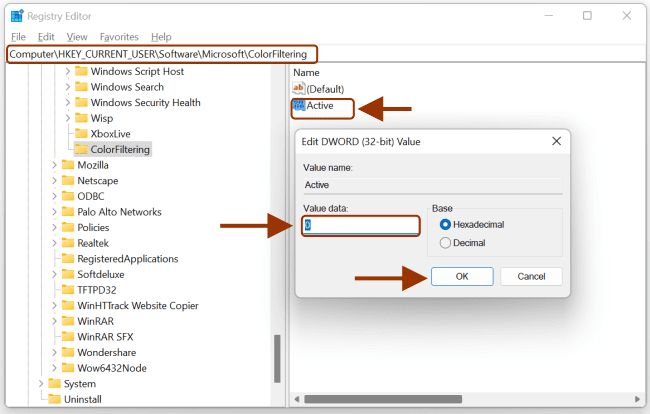
Name this newly created DWORD as Active then double-click on it to change its value according to one of the following options:

  • 1: Enable Windows Color Filters
  • 0: Disable Windows Color Filters
image8

Again right-click on the ColorFiltering key then select New > DWORD (32-bit) Value.

image7-1

Name this DWORD as FilterType then double-click on it to change its value data to one of the following options:

image9-1

The value data 0, 1, 2, 3, 4 and 5 represent the following:

  • 0 = Greyscale
  • 1 = Invert
  • 2 = Greyscale Inverted
  • 3 = Deuteranopia
  • 4 = Protanopia
  • 5 = Tritanopia

Click OK then close the registry and restart your PC to save changes for your Windows Color Filters.

I hope you found this article useful on enable or disable color filters in Windows. Please feel free to leave a comment below.

Rate this post

Thank you for reading this post. Kindly share it with others.

  • Share on X (Opens in new window) X
  • Share on Reddit (Opens in new window) Reddit
  • Share on LinkedIn (Opens in new window) LinkedIn
  • Share on Facebook (Opens in new window) Facebook
  • Share on Pinterest (Opens in new window) Pinterest
  • Share on Tumblr (Opens in new window) Tumblr
  • Share on Telegram (Opens in new window) Telegram
  • Share on WhatsApp (Opens in new window) WhatsApp
  • Share on Mastodon (Opens in new window) Mastodon
  • Share on Bluesky (Opens in new window) Bluesky
  • Share on Threads (Opens in new window) Threads
  • Share on Nextdoor (Opens in new window) Nextdoor
Windows Tags:Microsoft Windows, Windows 10, Windows 11, Windows Server 2016

Post navigation

Previous Post: How to delete Windows old folder in Windows 11
Next Post: Focus on Tasks: Limit Distraction & Get Things Done on Windows

Related Posts

  • dotnet6783
    Various methods to Install .NET Framework in Windows Windows
  • Migrate RDS CALs
    How to Migrate RDS CALs Windows
  • Featured image System Tray icons
    How to Fix System Tray Icons not showing in Taskbar on Windows 11 Windows
  • rdp error
    The connection was denied because the user account is not authorized for remote login: How to add and remove Remote Desktop Users Windows
  • shut down 650x300 1
    How to prevent users from shutting down in a Virtual Machine Windows
  • RDP
    Fix Windows 11 Remote Desktop Connectivity Error code 0x204 Windows

More Related Articles

dotnet6783 Various methods to Install .NET Framework in Windows Windows
Migrate RDS CALs How to Migrate RDS CALs Windows
Featured image System Tray icons How to Fix System Tray Icons not showing in Taskbar on Windows 11 Windows
rdp error The connection was denied because the user account is not authorized for remote login: How to add and remove Remote Desktop Users Windows
shut down 650x300 1 How to prevent users from shutting down in a Virtual Machine Windows
RDP Fix Windows 11 Remote Desktop Connectivity Error code 0x204 Windows

Leave a Reply Cancel reply

You must be logged in to post a comment.

Microsoft MVP

VEEAMLEGEND

vexpert-badge-stars-5

Virtual Background

GoogleNews

Categories

veeaam100

Veeam Vanguard

  • RDlicensePerUser
    RDS client access licenses: How to install a new Per User Remote Desktop Services license Windows Server
  • fghjk
    Map a Network Drive: How to mount a Network Drive Windows
  • Feature image Wakeonlan
    How to download and use the NirSorf WakeonLan tool Network | Monitoring
  • dfggg 2
    Installing and configuring SimpleSAMLphp [Part 2] Windows Server
  • password manager pro enterprise
    Configure failover for ManageEngine Password Manager Pro Password Manager
  • MSIEXEC returned 1602
    Fix MSIEXEC returned 1602: Trellix Setup cannot use this account Windows Server
  • Disable Open File Security Warnings on Windows
    How to Disable Open File Security Warnings on Windows Security | Vulnerability Scans and Assessment
  • Encapsulationset to Auto
    Error – Command rejected: An interface whose trunk encapsulation is “Auto” can not be configured to “trunk” mode Network | Monitoring

Subscribe to Blog via Email

Enter your email address to subscribe to this blog and receive notifications of new posts by email.

Join 1,819 other subscribers
  • RSS - Posts
  • RSS - Comments
  • About
  • Authors
  • Write for us
  • Advertise with us
  • General Terms and Conditions
  • Privacy policy
  • Feedly
  • Telegram
  • Youtube
  • Facebook
  • Instagram
  • LinkedIn
  • Tumblr
  • Pinterest
  • Twitter
  • mastodon

Tags

Active Directory Azure Bitlocker Microsoft Windows PowerShell WDS Windows 10 Windows 11 Windows Deployment Services Windows Server 2016

Copyright © 2025 TechDirectArchive


Loading Comments...
 

You must be logged in to post a comment.