Skip to content

TechDirectArchive

Hands-on IT, Cloud, Security & DevOps Insights

  • Home
  • About
  • Advertise With US
  • Reviews
  • Contact
  • Toggle search form
Home » Windows Server » Log Off: How to sign out of Windows Server 2012
  • featuredimage
    Create App Service Resource with Azure CLI AWS/Azure/OpenShift
  • PIN9 1
    How to increase Windows PIN complexity Windows
  • How to Activate Full-Screen (Kiosk Mode) in Internet Explorer Windows
  • zoom
    How to update Zoom Desktop Client on macOS Mac
  • copy and paste between host machines and VirtualBox VM
    How to copy and paste between host machines and VirtualBox VM Virtualization
  • FimageUbuntuUpgrade
    How to Upgrade From Ubuntu 20.04 LTS to 22.04 LTS Linux
  • cisco asa 5505 adaptive security appliance desktop firewall 10 100 47 18790 04 56708 pekm1000x469ekm
    Administer Cisco ASA: Mastering CLI Management Network | Monitoring
  • Windows BootProcess
    Measured Boot, Secure Boot, Trusted Boot, and Early Launch Anti-Malware: How to secure the Windows 10 boot process Security | Vulnerability Scans and Assessment

Log Off: How to sign out of Windows Server 2012

Posted on 24/10/202006/09/2023 Christian By Christian No Comments on Log Off: How to sign out of Windows Server 2012
WinServer

Windows Server 2012 is an operating system built by Microsoft and is the successor of Windows Server 2008 R2. In this guide, I will be showing you where you can find the “sign out” option in Windows Server 2012. Here is how to install Windows Server 2019, how to perform an in-place upgrade for Windows Server 2012 to 2019, and how to install Windows Server 2016 Operating System, how to install the Windows Subsystem for Linux (WSL) on Windows Server via Server Manager and PowerShell, how to download and install Windows Server 2016. kindly refer to the following articles on how to Log Off WS2012: How to sign out of Windows Server 2012, and how to install Windows Server 2016 Operating System.

We can logoff a user session by clicking on the Logoff button and also from command prompt(CMD) too using shutdown command.

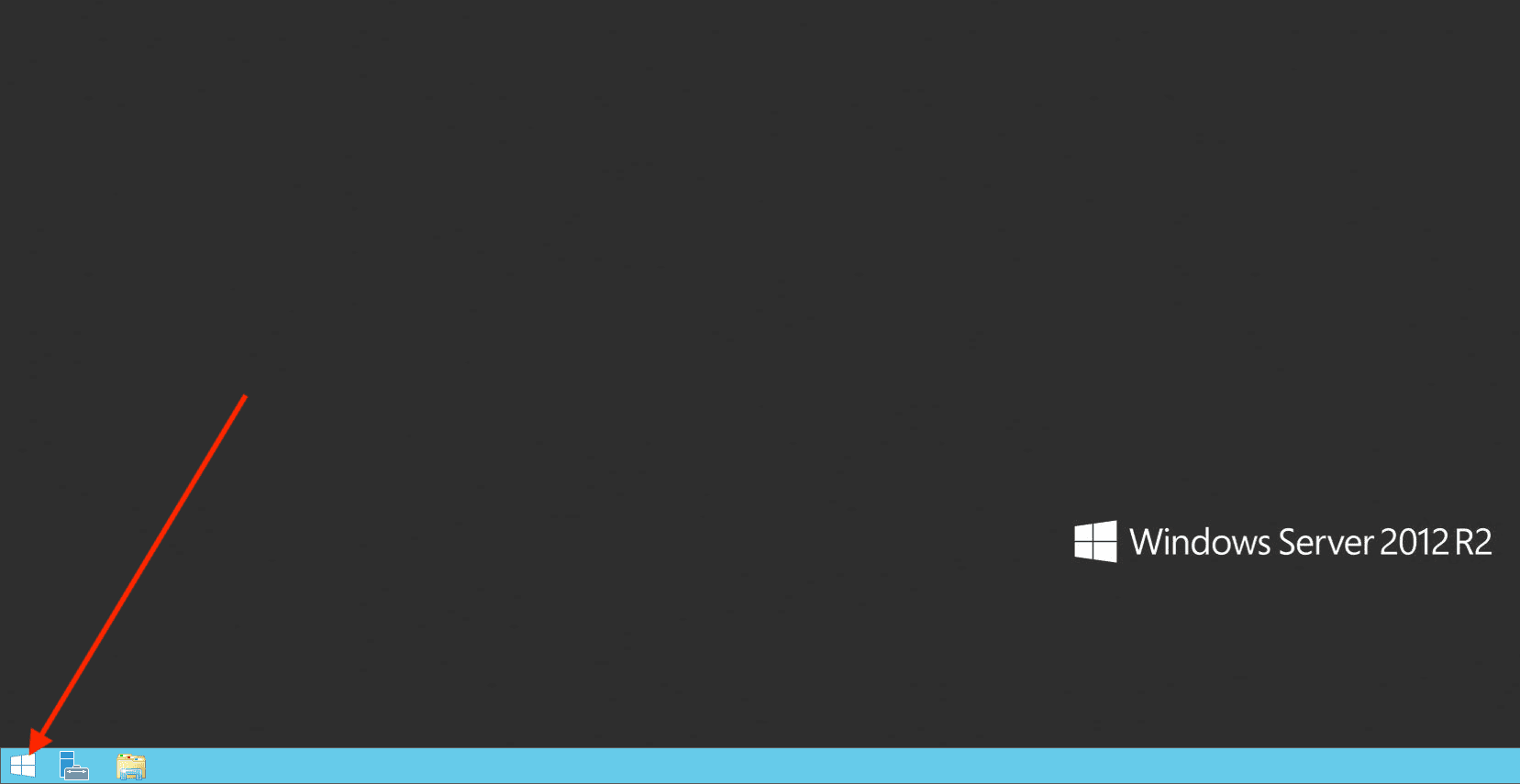
To sign out of Windows Server 2012, you will have to click on the Windows Start Menu as shown below.
– This will open the Metro Style Screen as shown in the second image below.
sign out

In this Metro Style window, you will have to click on your “User Account” Icon at the Top Right Corner of your Screen and
– This will reveal the Sign out options as shown below.

Windows Server 2012

Simply click on Sign out and you are done!
– Alternatively, you could use the following keyboard shortcut to sign out of Windows Server 2012.

Press Ctrl-Alt-Delete then select Sign Out

I hope you found this blog post helpful. If you have any questions, please let me know in the comment session.

Rate this post

Thank you for reading this post. Kindly share it with others.

  • Click to share on X (Opens in new window) X
  • Click to share on Reddit (Opens in new window) Reddit
  • Click to share on LinkedIn (Opens in new window) LinkedIn
  • Click to share on Facebook (Opens in new window) Facebook
  • Click to share on Pinterest (Opens in new window) Pinterest
  • Click to share on Tumblr (Opens in new window) Tumblr
  • Click to share on Telegram (Opens in new window) Telegram
  • Click to share on WhatsApp (Opens in new window) WhatsApp
  • Click to share on Pocket (Opens in new window) Pocket
  • Click to share on Mastodon (Opens in new window) Mastodon
  • Click to share on Bluesky (Opens in new window) Bluesky
  • Click to share on Threads (Opens in new window) Threads
  • Click to share on Nextdoor (Opens in new window) Nextdoor
Windows Server

Post navigation

Previous Post: Error 0xc1420117: The directory could not be completely unmounted
Next Post: Adding a subnetwork interface to an existing network interface

Related Posts

  • RDS Collection 1
    How to add and remove RDS Collection Windows
  • screenshot 2020 02 07 at 20.59.01
    How to use the PsInfo utility from SysInternals Windows Server
  • wacxx
    How to set up System Insights on Windows Admin Center Windows Server
  • Logon fsilure errors
    Logon Failure Reasons for Windows Event Viewer Windows Server
  • trrdf
    Remote Desktop cannot find the computer this in the specified network: Verify the computer name and domain that you are trying to connect Windows Server
  • WindowsServer2022
    Windows Server 2022 Capabilities: Register Windows Admin Center with Azure Windows Server

More Related Articles

RDS Collection 1 How to add and remove RDS Collection Windows
screenshot 2020 02 07 at 20.59.01 How to use the PsInfo utility from SysInternals Windows Server
wacxx How to set up System Insights on Windows Admin Center Windows Server
Logon fsilure errors Logon Failure Reasons for Windows Event Viewer Windows Server
trrdf Remote Desktop cannot find the computer this in the specified network: Verify the computer name and domain that you are trying to connect Windows Server
WindowsServer2022 Windows Server 2022 Capabilities: Register Windows Admin Center with Azure Windows Server

Leave a Reply Cancel reply

You must be logged in to post a comment.

Microsoft MVP

VEEAMLEGEND

vexpert-badge-stars-5

Virtual Background

GoogleNews

Categories

veeaam100

sysadmin top30a
 
  • featuredimage
    Create App Service Resource with Azure CLI AWS/Azure/OpenShift
  • PIN9 1
    How to increase Windows PIN complexity Windows
  • How to Activate Full-Screen (Kiosk Mode) in Internet Explorer Windows
  • zoom
    How to update Zoom Desktop Client on macOS Mac
  • copy and paste between host machines and VirtualBox VM
    How to copy and paste between host machines and VirtualBox VM Virtualization
  • FimageUbuntuUpgrade
    How to Upgrade From Ubuntu 20.04 LTS to 22.04 LTS Linux
  • cisco asa 5505 adaptive security appliance desktop firewall 10 100 47 18790 04 56708 pekm1000x469ekm
    Administer Cisco ASA: Mastering CLI Management Network | Monitoring
  • Windows BootProcess
    Measured Boot, Secure Boot, Trusted Boot, and Early Launch Anti-Malware: How to secure the Windows 10 boot process Security | Vulnerability Scans and Assessment

Subscribe to Blog via Email

Enter your email address to subscribe to this blog and receive notifications of new posts by email.

Join 1,840 other subscribers
  • RSS - Posts
  • RSS - Comments
  • About
  • Authors
  • Write for us
  • Advertise with us
  • General Terms and Conditions
  • Privacy policy
  • Feedly
  • Telegram
  • Youtube
  • Facebook
  • Instagram
  • LinkedIn
  • Tumblr
  • Pinterest
  • Twitter
  • mastodon

Tags

AWS Azure Bitlocker Microsoft Windows PowerShell WDS Windows 10 Windows 11 Windows Deployment Services Windows Server 2016

Copyright © 2025 TechDirectArchive


Loading Comments...
 

You must be logged in to post a comment.