Skip to content

TechDirectArchive

Hands-on IT, Cloud, Security & DevOps Insights

  • Home
  • About
  • Advertise With US
  • Contact
  • Reviews
  • Toggle search form
Home » Windows » How to rename a Printer in Windows 10
  • images 3 4
    What are the differences between an ADM and ADMX file Windows Server
  • VBR upgrade to 12.3.1
    Upgrade VBR to 12.3.1: Setup detected inconsistent configuration Backup
  • FEATUREDC
    How to create Confidential VMs in Azure AWS/Azure/OpenShift
  • How to Activate Full-Screen (Kiosk Mode) in Internet Explorer Windows
  • Remote desktop connection over udp and tcp
    Remote Desktop Connection behaviour over UDP and TCP Network | Monitoring
  • 10.0.17763.1 error
    Fix Windows 10 Setup 1809 build 10.0.17763.1 is not supported Error Windows Server
  • sdfgh
    Get a list of installed applications on Windows Scripts
  • ansible
    KDC reply did not match expectations while getting initial credential Configuration Management Tool

How to rename a Printer in Windows 10

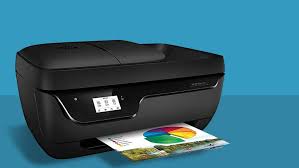
Posted on 05/12/202009/09/2023 Christian By Christian No Comments on How to rename a Printer in Windows 10
rename Printer

The Rename-Printer cmdlet lets you rename the specified printer on your device. You can specify the printer to rename by using either a printer object retrieved by the Get-Printer cmdlet, or by specifying a printer name. Administrative privilege is required to rename a Printer. See how to delete obsolete drivers from the Driver Store in Windows 10.

Note: You cannot use wildcard characters with Rename-Printer. You can use Rename-Printer in a Windows PowerShell remoting session.

How to rename a Printer in Windows

The PrintManagement module include the following cmdlets for managing printers, drivers, print ports, and queues. You can get the full list of print, driver and print queue management cmdlets available in the PrintManagement module on Windows 10 with the following command below.

Get-Command –Module PrintManagement
Windows 10

Now that we are sure of the right cmdlets to rename our printer, we would run the command below to have this done. For other steps, kindly take a look at this link.

Rename-Printer -Name "HCPXXX" -NewName "ChrisPrinter1"

I hope you found this blog post on How to rename a Printer in Windows helpful. Please let me know in the comment session if you have any questions. I welcome you to follow me on Twitter and Facebook.
Rate this post

Thank you for reading this post. Kindly share it with others.

  • Click to share on X (Opens in new window) X
  • Click to share on Reddit (Opens in new window) Reddit
  • Click to share on LinkedIn (Opens in new window) LinkedIn
  • Click to share on Facebook (Opens in new window) Facebook
  • Click to share on Pinterest (Opens in new window) Pinterest
  • Click to share on Tumblr (Opens in new window) Tumblr
  • Click to share on Telegram (Opens in new window) Telegram
  • Click to share on WhatsApp (Opens in new window) WhatsApp
  • Click to share on Pocket (Opens in new window) Pocket
  • Click to share on Mastodon (Opens in new window) Mastodon
  • Click to share on Bluesky (Opens in new window) Bluesky
  • Click to share on Threads (Opens in new window) Threads
  • Click to share on Nextdoor (Opens in new window) Nextdoor
Windows Tags:HP Printer, Printer, Printer Management, Printing, Remove Printer, Windows 10

Post navigation

Previous Post: How to delete obsolete drivers from the Driver Store in Windows
Next Post: Unable to PXE boot a HyperV VM: F12 key does not work anymore

Related Posts

  • Slide1 1
    Enable or disable Secure Boot in Windows via UEFI Firmware Settings Windows
  • TamperProtection
    Protect Microsoft Defender Settings with Tamper Protection Security | Vulnerability Scans and Assessment
  • Featured image DNS Server settings
    Do not use Public DNS in Prod: Change DNS Server in Windows Network | Monitoring
  • windows update 03
    Check if Windows Updates were installed Windows
  • windowsztrf
    Microsoft Desktop Optimization Pack [MDOP] at a glance Windows
  • Private and Public networks in Windows to VPN
    The differences between Private and Public networks in Windows to VPN? Network | Monitoring

More Related Articles

Slide1 1 Enable or disable Secure Boot in Windows via UEFI Firmware Settings Windows
TamperProtection Protect Microsoft Defender Settings with Tamper Protection Security | Vulnerability Scans and Assessment
Featured image DNS Server settings Do not use Public DNS in Prod: Change DNS Server in Windows Network | Monitoring
windows update 03 Check if Windows Updates were installed Windows
windowsztrf Microsoft Desktop Optimization Pack [MDOP] at a glance Windows
Private and Public networks in Windows to VPN The differences between Private and Public networks in Windows to VPN? Network | Monitoring

Leave a Reply Cancel reply

You must be logged in to post a comment.

Microsoft MVP

VEEAMLEGEND

vexpert-badge-stars-5

Virtual Background

GoogleNews

Categories

veeaam100

sysadmin top30a
 
  • images 3 4
    What are the differences between an ADM and ADMX file Windows Server
  • VBR upgrade to 12.3.1
    Upgrade VBR to 12.3.1: Setup detected inconsistent configuration Backup
  • FEATUREDC
    How to create Confidential VMs in Azure AWS/Azure/OpenShift
  • How to Activate Full-Screen (Kiosk Mode) in Internet Explorer Windows
  • Remote desktop connection over udp and tcp
    Remote Desktop Connection behaviour over UDP and TCP Network | Monitoring
  • 10.0.17763.1 error
    Fix Windows 10 Setup 1809 build 10.0.17763.1 is not supported Error Windows Server
  • sdfgh
    Get a list of installed applications on Windows Scripts
  • ansible
    KDC reply did not match expectations while getting initial credential Configuration Management Tool

Subscribe to Blog via Email

Enter your email address to subscribe to this blog and receive notifications of new posts by email.

Join 1,841 other subscribers
  • RSS - Posts
  • RSS - Comments
  • About
  • Authors
  • Write for us
  • Advertise with us
  • General Terms and Conditions
  • Privacy policy
  • Feedly
  • Telegram
  • Youtube
  • Facebook
  • Instagram
  • LinkedIn
  • Tumblr
  • Pinterest
  • Twitter
  • mastodon

Tags

AWS Azure Bitlocker Microsoft Windows PowerShell WDS Windows 10 Windows 11 Windows Deployment Services Windows Server 2016

Copyright © 2025 TechDirectArchive


Loading Comments...
 

You must be logged in to post a comment.