Skip to content

TechDirectArchive

Hands-on IT, Cloud, Security & DevOps Insights

  • Home
  • About
  • Advertise With US
  • Reviews
  • Contact
  • Toggle search form
Home » Windows » How to specify a persistent default printer via the Windows Registry and PowerShell

How to specify a persistent default printer via the Windows Registry and PowerShell

Posted on 06/12/202009/09/2023 Christian By Christian No Comments on How to specify a persistent default printer via the Windows Registry and PowerShell
specify default printer

You may want to specify a persistent default printer for so many reasons. One of which is to be able to use the same printer even after connecting to a different Printer. Here are some articles relating to Print Drivers I have written; how to delete obsolete drivers from the Driver Store in Windows 10, how to rename a Printer in Windows 10, and how to determine the version and type of a Printer Driver (Printer Driver Information)

Windows 10 uses by default the last chosen printer as default. If you need to specify a persistent default printer you can disable this feature with the following registry key. Here are some articles relating to Windows Registry; What is Registry Editor and how to access the registry hives, and how to search through the Windows registry. For a comprehensive list of articles relating to the Windows registry, visit the following link.

Note: To get the list of all installed Printers. Note, you also achieve this via the Control Panel or Windows Settings. I have already discussed the steps on how to accomplish this task here.

Set-ItemProperty -Path "HKCU:\SOFTWARE\Microsoft\Windows NT\CurrentVersion\Windows" -Name "LegacyDefaultPrinterMode" -Value 1 -Force
Windows Registry
Note: Change the value from “0” to “1” and click on Ok.

From PowerShell: Run the following cmdlets to change the value from zero to one as shown below.

Set-ItemProperty -Path "HKCU:\SOFTWARE\Microsoft\Windows NT\CurrentVersion\Windows" -Name "LegacyDefaultPrinterMode" -Value 1 -Force

I hope you found this blog post helpful. If you have any questions, please let me know in the comment session. I welcome you to follow me on Twitter and Facebook.
Rate this post

Thank you for reading this post. Kindly share it with others.

  • Share on X (Opens in new window) X
  • Share on Reddit (Opens in new window) Reddit
  • Share on LinkedIn (Opens in new window) LinkedIn
  • Share on Facebook (Opens in new window) Facebook
  • Share on Pinterest (Opens in new window) Pinterest
  • Share on Tumblr (Opens in new window) Tumblr
  • Share on Telegram (Opens in new window) Telegram
  • Share on WhatsApp (Opens in new window) WhatsApp
  • Share on Mastodon (Opens in new window) Mastodon
  • Share on Bluesky (Opens in new window) Bluesky
  • Share on Threads (Opens in new window) Threads
  • Share on Nextdoor (Opens in new window) Nextdoor
Windows Tags:Printer, Printer Management, Printing, Remove Printer, Windows 10

Post navigation

Previous Post: Printer Driver Information: How to determine the version and type of a Printer Driver
Next Post: How to add Print Drivers with PowerShell, RUNDLL32, and VBScript in Windows 10

Related Posts

  • Using the Command Prompt to add and modify the Windows registry
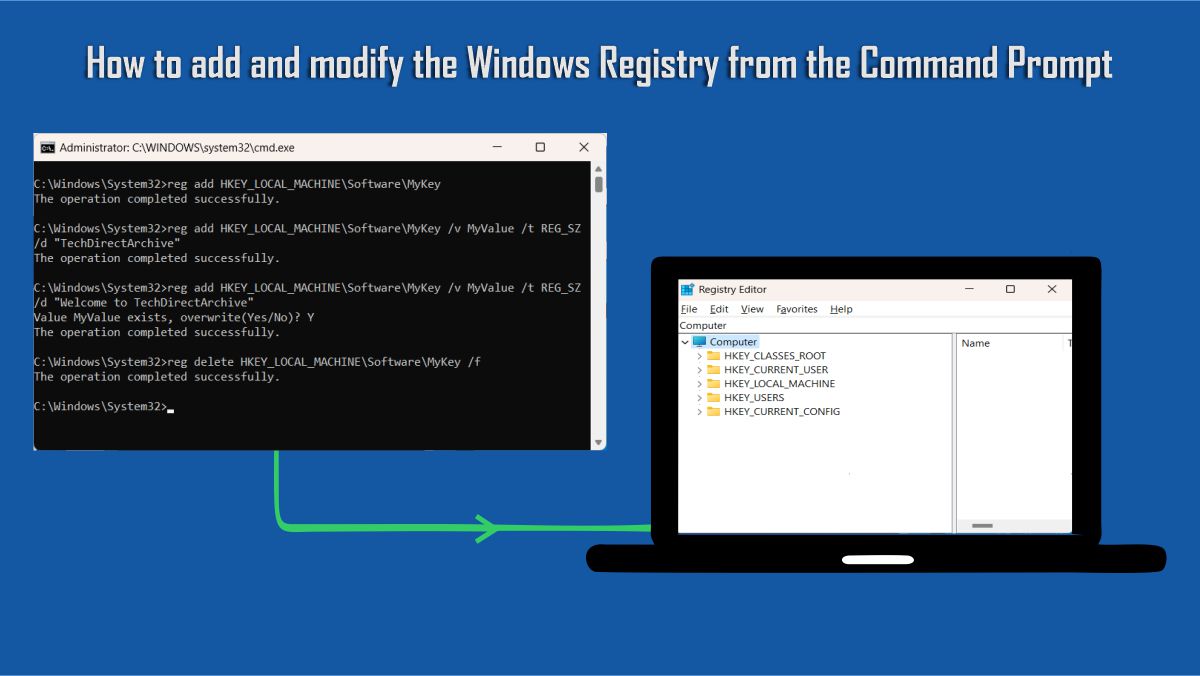
    How to add and modify the Windows Registry from the Command Prompt Windows
  • Hyper V Virtual Switch
    How to Create Hyper-V Virtual Switch Network | Monitoring
  • How to Enable Time Limit to Disconnect Remote Desktop After Inactivity
    How to Enable Time Limit to Disconnect Remote Desktop After Inactivity Windows
  • GPO Blocked Downloads 3
    How to Block downloads on Microsoft Edge using GPO on Windows Server 2019 and 2022 Windows
  • how to bypass windows admin log in password 2
    How to disable Lock Screen on Windows 10 via Registry Editor Windows
  • 1 WeXxkEX0JG3oB781HD8Hrg 1
    How to convert a GPT disk into an MBR disk error: Windows cannot be installed on drive 0 Partition 1 Windows

More Related Articles

Using the Command Prompt to add and modify the Windows registry How to add and modify the Windows Registry from the Command Prompt Windows
Hyper V Virtual Switch How to Create Hyper-V Virtual Switch Network | Monitoring
How to Enable Time Limit to Disconnect Remote Desktop After Inactivity How to Enable Time Limit to Disconnect Remote Desktop After Inactivity Windows
GPO Blocked Downloads 3 How to Block downloads on Microsoft Edge using GPO on Windows Server 2019 and 2022 Windows
how to bypass windows admin log in password 2 How to disable Lock Screen on Windows 10 via Registry Editor Windows
1 WeXxkEX0JG3oB781HD8Hrg 1 How to convert a GPT disk into an MBR disk error: Windows cannot be installed on drive 0 Partition 1 Windows

Leave a Reply Cancel reply

You must be logged in to post a comment.

Microsoft MVP

VEEAMLEGEND

vexpert-badge-stars-5

Virtual Background

GoogleNews

Categories

veeaam100

Veeam Vanguard

  • Remove Orphaned VHR Repository
    Unable to Remove Orphaned VHR Repository v2 from VBR v13 Backup
  • veeaamAgent1
    Veeam Agent Vulnerability: Fix Veeam Agent vulnerability for Microsoft Windows  Backup
  • maxresdefault
    Error 0x8007232B: Can’t activate Windows on this device as we can’t connect to your organization’s activation server Windows
  • 2019computers windows 10 window on blue background 131108 29
    This installation package could not be opened: Verify that the package exists and that you can access it Windows
  • Screenshot 2020 05 14 at 19.43.13
    Repo: How to setup Chef Repository Configuration Management Tool
  • TLS1.2
    Unable to install Azure AD Connect, TLS 1.2 is required: How to enable or disable TLS 1.2 on a Windows Server via the Registry and PowerShell AWS/Azure/OpenShift
  • Comprehensive guide on WSUS setup
    How to install WSUS on Windows Server 2022 Windows Server
  • windows 10 technical preview windows 10 logo microsoft 97543 1920x1080
    Disable the sleep mode in Windows to never turn off the display Windows

Subscribe to Blog via Email

Enter your email address to subscribe to this blog and receive notifications of new posts by email.

Join 1,814 other subscribers
  • RSS - Posts
  • RSS - Comments
  • About
  • Authors
  • Write for us
  • Advertise with us
  • General Terms and Conditions
  • Privacy policy
  • Feedly
  • Telegram
  • Youtube
  • Facebook
  • Instagram
  • LinkedIn
  • Tumblr
  • Pinterest
  • Twitter
  • mastodon

Tags

Active Directory Azure Bitlocker Microsoft Windows PowerShell WDS Windows 10 Windows 11 Windows Deployment Services Windows Server 2016

Copyright © 2025 TechDirectArchive


Loading Comments...
 

You must be logged in to post a comment.