Skip to content

TechDirectArchive

Hands-on IT, Cloud, Security & DevOps Insights

  • Home
  • About
  • Advertise With US
  • Reviews
  • Contact
  • Toggle search form
Home » Windows » Determine the execution policy configured on Windows PC
  • original 1
    DISM “Failed to open image” CWimImageInfo Mount(hr:0x8007000d): Fix Error DISM WIM Provider Windows
  • image 22
    How to clone a Windows Server running on VirtualBox Virtualization
  • chrome feature image light blue
    Set Chrome as default: How to set a browser as default on macOS Mac
  • remote desktop connection 5 1280x720 1
    How to view and remove Remote Desktop connection history Windows
  • How to enable or disable Microsoft Defender Antivirus Active or Mode Mode
    Set Microsoft Defender Antivirus to Passive or Active Mode Anti-Virus Solution
  • images 1
    How to reset and reinstall Windows 10 locally Windows
  • images
    How to perform vulnerability scan on Microsoft SQL Server Security | Vulnerability Scans and Assessment
  • elastic ip association error screen
    Fix Elastic IP Address Could not be Associated AWS/Azure/OpenShift

Determine the execution policy configured on Windows PC

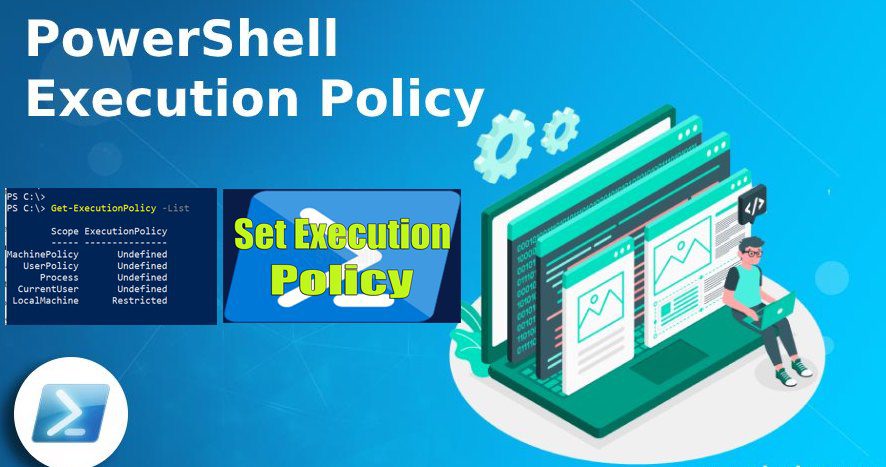
Posted on 12/02/202108/05/2025 Christian By Christian No Comments on Determine the execution policy configured on Windows PC

The default configuration of Windows systems prevents the execution of PowerShell scripts by configuring the PowerShell execution policy. This safety feature is implemented to control the conditions under which PowerShell loads configuration files and runs scripts. This feature helps prevent the execution of malicious scripts. Please see “how to set the PowerShell Execution Policy via the Windows Registry settings“. In this article, you will learn how to determine the execution policy configured on a Windows PC.

You may also find this article interesting “How to Set Execution Policy via Windows Settings“. Below are the various values of policies that exist. 

What is the PowerShell Execution Policy?

The execution policy isn’t a security system that restricts user actions. For example, users can easily bypass a policy by typing the script contents at the command line when they cannot run a script. Instead, the execution policy helps users set basic rules and prevents them from violating them unintentionally.

The PowerShell Execution Policy determines whether scripts can run on your Windows device. By default, PowerShell sets the execution policy to Restricted, which means that scripts will not run. Windows PowerShell has four different execution policies.

Please see Restrict IP Address Range on Windows PC, Best MacBook you can find in the year 2022, how to Mitigate Windows Print Spooler Remote Code Execution Vulnerability, and How to install and update PowerShell version 7 on Windows and Linux.

Determine the execution policy configured on a Windows PC

To see the effective execution policy for your PowerShell, first, open an elevated Powershell window, accept the UAC, and enter the below Powershell command.

To reveal the effective execution policy for your PowerShell session use “Get-ExecutionPolicy“. Today’s precarious security environment allows attackers to take advantage of newly discovered vulnerabilities. As depicted below, the default policy is set to “unrestricted.”

The effective execution policy is determined by execution policies that are set by “Set-ExecutionPolicy” and Group Policy settings. See this guide for more information on “how to set Execution Policy via Windows PowerShell“

Get-ExecutionPolicy

To display the execution policies for each scope in the order of precedence, use “Get-ExecutionPolicy -List“.

FAQs

What is the purpose of PowerShell Execution Policy?

The PowerShell Execution Policy is designed to control the security levels for script execution. It helps prevent the execution of malicious scripts and ensures a secure environment.

What are the available PowerShell Execution Policy levels?

PowerShell provides several execution policy levels, including Restricted, AllSigned, RemoteSigned, Unrestricted, and Bypass. Each level offers a different degree of script execution control.

How can I check the current PowerShell Execution Policy?

You can check the current PowerShell Execution Policy by using the Get-ExecutionPolicy cmdlet. This command will display the current policy setting for the session.

How do I change the PowerShell Execution Policy?

To change the PowerShell Execution Policy, use the Set-ExecutionPolicy cmdlet followed by the desired policy level. You may need to run PowerShell with administrator privileges to make this change.

I hope you found this blog post helpful on how to determine the execution policy configured on Windows PC. If you have any questions, please let me know in the comment session.

5/5 - (1 vote)

Thank you for reading this post. Kindly share it with others.

  • Click to share on X (Opens in new window) X
  • Click to share on Reddit (Opens in new window) Reddit
  • Click to share on LinkedIn (Opens in new window) LinkedIn
  • Click to share on Facebook (Opens in new window) Facebook
  • Click to share on Pinterest (Opens in new window) Pinterest
  • Click to share on Tumblr (Opens in new window) Tumblr
  • Click to share on Telegram (Opens in new window) Telegram
  • Click to share on WhatsApp (Opens in new window) WhatsApp
  • Click to share on Pocket (Opens in new window) Pocket
  • Click to share on Mastodon (Opens in new window) Mastodon
  • Click to share on Bluesky (Opens in new window) Bluesky
  • Click to share on Threads (Opens in new window) Threads
  • Click to share on Nextdoor (Opens in new window) Nextdoor
Windows Tags:PowerShell, PowerShell version 7, Windows 10, Windows 11, Windows Server 2016

Post navigation

Previous Post: What to know about the servicing stack update and latest cumulative update in Windows
Next Post: Install Synaptic Package Manager: Handle packages in Ubuntu

Related Posts

  • image 79
    How to import SSL Certificate to Windows Server using DigiCert Utility Windows
  • Capture 2
    MDT Invalid credentials: The network was not found Windows
  • image 9
    Fix Error 853: The remote access connection completed, but authentication failed because the certificate that authenticates the client to the server is not valid Network | Monitoring
  • How to Fix 0xc000007b Error banner
    Fix 0xc000007b Error on Windows 11 While Launching a Game Windows
  • Enable TPM and ecure boot on HyperV to run windoows 11
    How to run Windows 11 on HyperV Virtualization
  • wmic4
    Security Identifier: Find User SID in Windows Windows

More Related Articles

image 79 How to import SSL Certificate to Windows Server using DigiCert Utility Windows
Capture 2 MDT Invalid credentials: The network was not found Windows
image 9 Fix Error 853: The remote access connection completed, but authentication failed because the certificate that authenticates the client to the server is not valid Network | Monitoring
How to Fix 0xc000007b Error banner Fix 0xc000007b Error on Windows 11 While Launching a Game Windows
Enable TPM and ecure boot on HyperV to run windoows 11 How to run Windows 11 on HyperV Virtualization
wmic4 Security Identifier: Find User SID in Windows Windows

Leave a Reply Cancel reply

You must be logged in to post a comment.

Microsoft MVP

VEEAMLEGEND

vexpert-badge-stars-5

Virtual Background

GoogleNews

Categories

veeaam100

sysadmin top30a

  • original 1
    DISM “Failed to open image” CWimImageInfo Mount(hr:0x8007000d): Fix Error DISM WIM Provider Windows
  • image 22
    How to clone a Windows Server running on VirtualBox Virtualization
  • chrome feature image light blue
    Set Chrome as default: How to set a browser as default on macOS Mac
  • remote desktop connection 5 1280x720 1
    How to view and remove Remote Desktop connection history Windows
  • How to enable or disable Microsoft Defender Antivirus Active or Mode Mode
    Set Microsoft Defender Antivirus to Passive or Active Mode Anti-Virus Solution
  • images 1
    How to reset and reinstall Windows 10 locally Windows
  • images
    How to perform vulnerability scan on Microsoft SQL Server Security | Vulnerability Scans and Assessment
  • elastic ip association error screen
    Fix Elastic IP Address Could not be Associated AWS/Azure/OpenShift

Subscribe to Blog via Email

Enter your email address to subscribe to this blog and receive notifications of new posts by email.

Join 1,841 other subscribers
  • RSS - Posts
  • RSS - Comments
  • About
  • Authors
  • Write for us
  • Advertise with us
  • General Terms and Conditions
  • Privacy policy
  • Feedly
  • Telegram
  • Youtube
  • Facebook
  • Instagram
  • LinkedIn
  • Tumblr
  • Pinterest
  • Twitter
  • mastodon

Tags

AWS Azure Bitlocker Microsoft Windows PowerShell WDS Windows 10 Windows 11 Windows Deployment Services Windows Server 2016

Copyright © 2025 TechDirectArchive


Loading Comments...
 

You must be logged in to post a comment.